
How do I hire through Tazk Payroll Recruitment?
Open HRMS → Recruitment. Add at least one stage under Pipeline Stages, then click Add Job Position on Job Positions. Candidates arrive through your web form, from employees applying internally, or when you click Add Candidate. Choosing a job position for a candidate creates the application and its first interview automatically. Move each application through Applied, Screening, Shortlisted, Interview, Offered and Accepted, schedule rounds on Interviews, then send the offer email and a self-onboarding invite.
What tabs does Recruitment have?
Dashboard · Job Positions · Candidates · Applications · Internal Applications · Interviews · Web Forms · Pipeline Stages · Exit Interviews.
What does the Recruitment Dashboard show?

- Cards — Open Positions, Total Candidates, Total Applications, Upcoming Interviews, Total Openings, Pending Offers, Accepted Offers, Time to Hire (avg days) and Offer Acceptance Rate. The last two show a dash until an offer is accepted.
- Candidate Funnel — the share of applicants who reached each stage: Applied, Screening, Shortlisted, Interview, Offered and Accepted, each with its count and the percentage carried over from the stage before (for example "67% from applied").
- Hiring Pipeline — how many candidates are sitting at each stage right now.
Click the refresh button at the top right to reload the figures.
How do I set up pipeline stages?
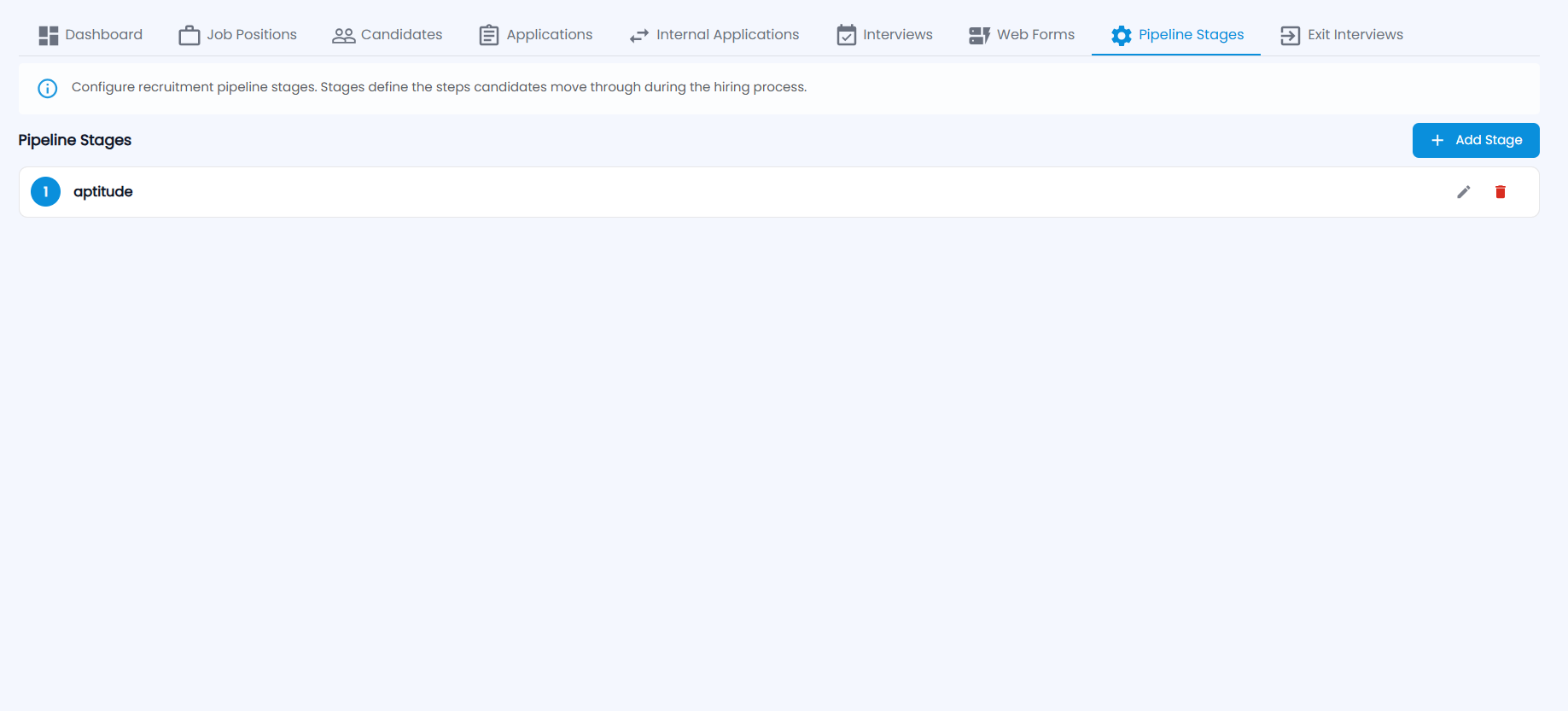
Pipeline stages are the steps candidates move through during hiring, such as an aptitude test or a technical round. Set them up before anything else, because you cannot add a candidate without at least one stage.
- Open Pipeline Stages and click Add Stage.
- Enter the stage name and save. Stages are numbered in order.
- Use the pencil to rename a stage or the bin to delete it.
The first stage is the default Initial Stage for new applications.
How do I post a job position?
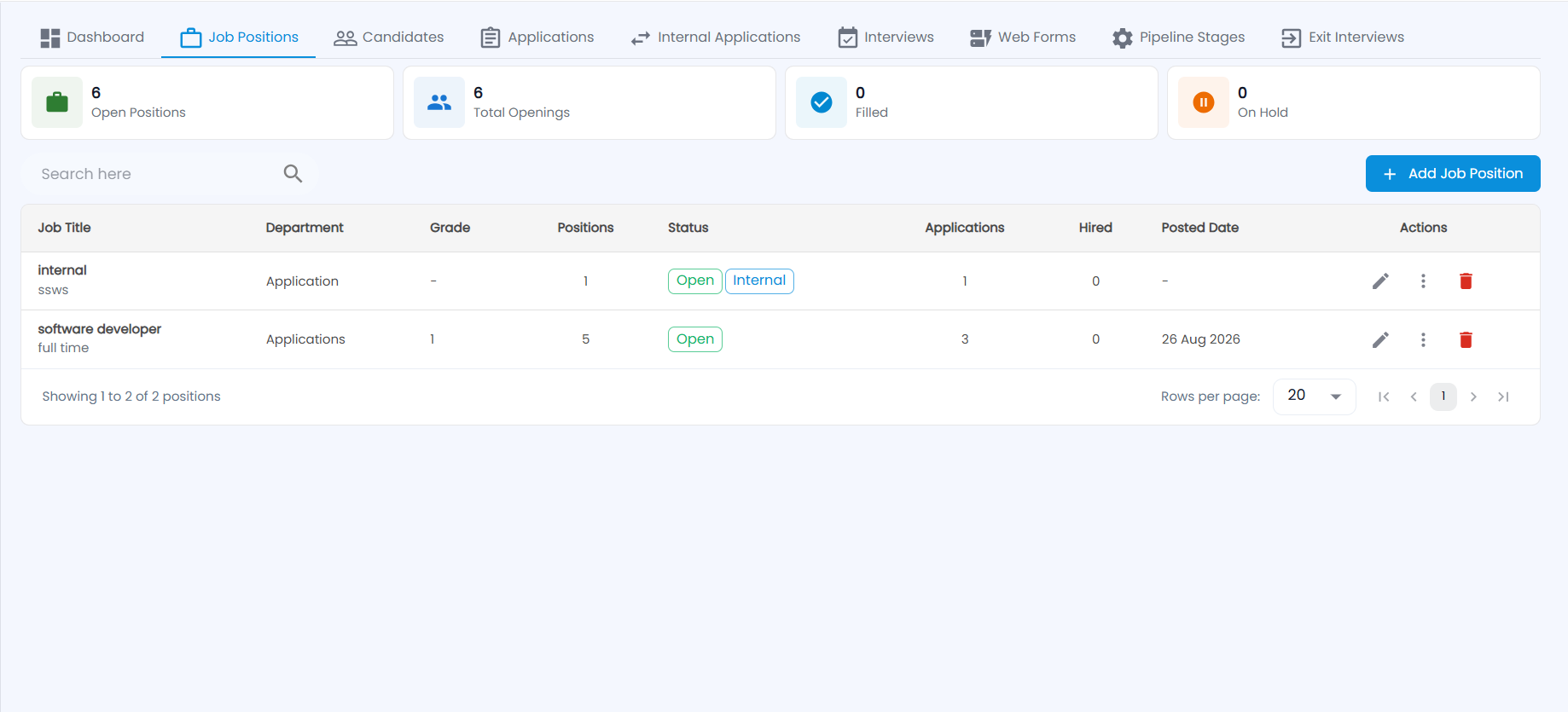
Cards count Open Positions, Total Openings, Filled and On Hold. Each job shows its title and employment type, department, grade, positions, status (with an Internal tag for internal postings), applications, hired and posted date. Search by title. Use the pencil to edit, ⋮ for more options and the bin to delete.
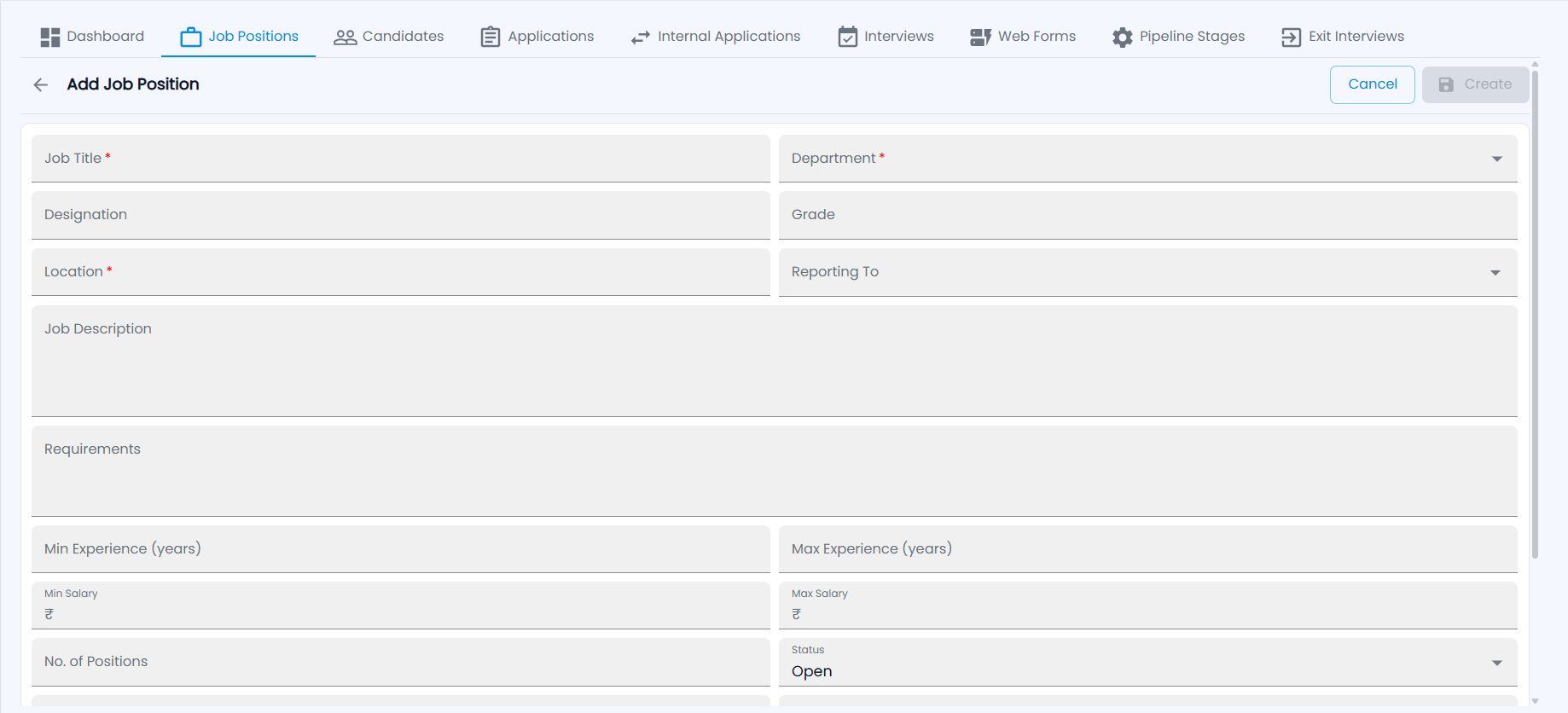
- Click Add Job Position.
- Enter the Job Title, Department and Location (all required), and optionally the Designation, Grade and Reporting To.
- Add the Job Description and Requirements.
- Set the Min and Max Experience (years), the Min and Max Salary (₹) and the No. of Positions.
- Leave Status as Open to start receiving applications. Further down the form, choose the posting type and the application web form.
- Click Create.
How do I add a candidate?
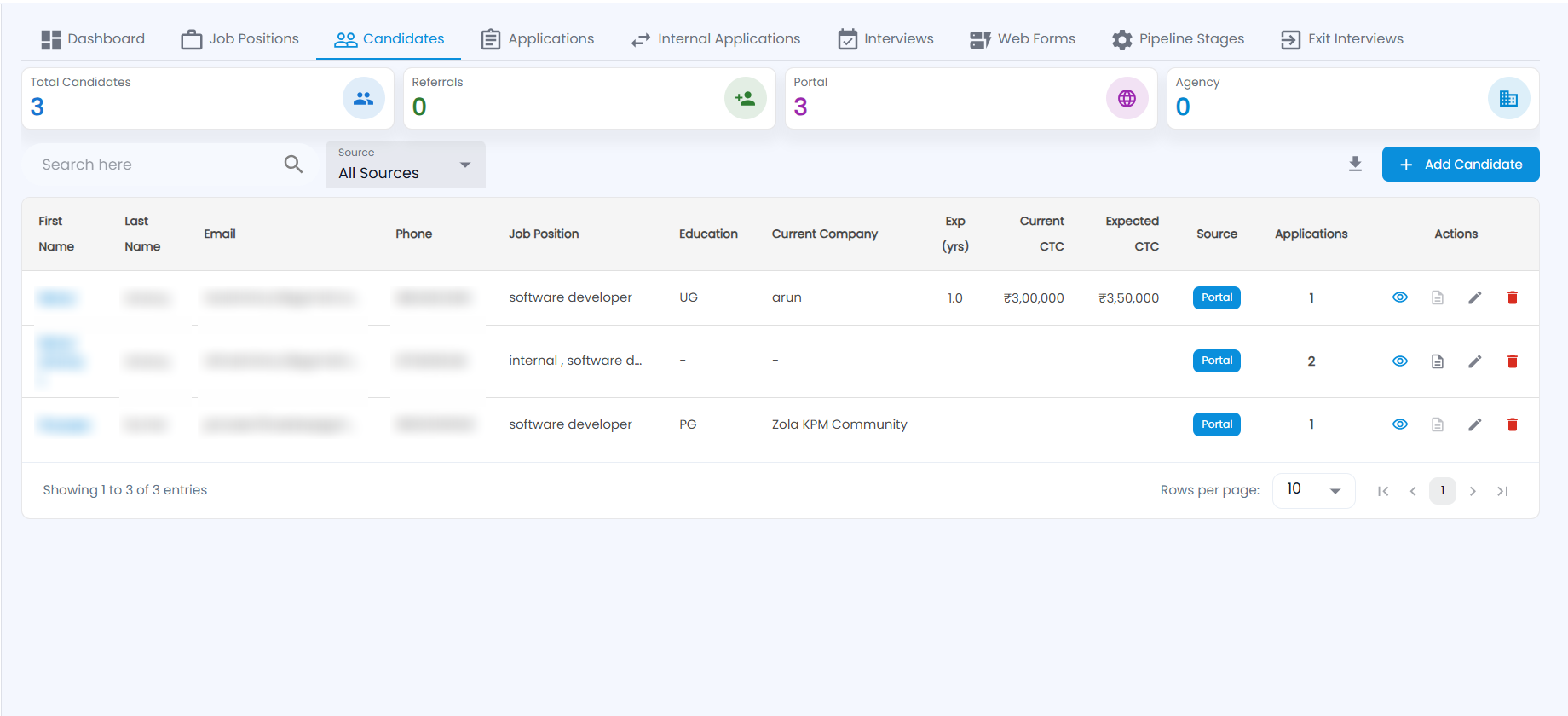
Cards count Total Candidates and how many came from Referrals, the Portal and an Agency. Search, filter by Source, or download the list. Each row shows the name, email, phone, job position, education, current company, experience, current and expected CTC, source and number of applications. The actions are view, resume, edit and delete. Click a name to open the candidate.
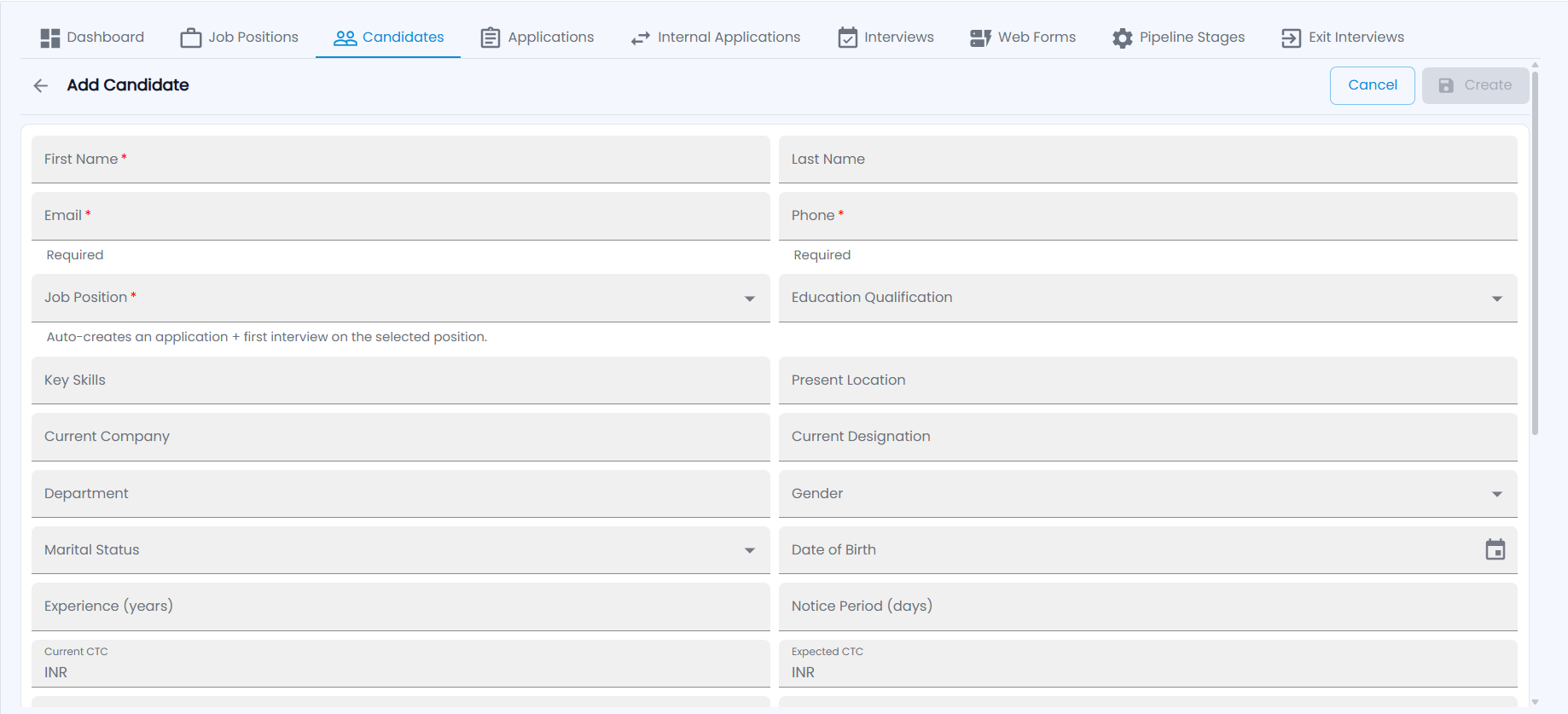
- Click Add Candidate.
- Enter the First Name, Email and Phone (required) and the Last Name.
- Choose the Job Position (required). This automatically creates an application and the first interview for that position.
- Fill in what you know: Education Qualification, Key Skills, Present Location, Current Company, Current Designation, Department, Gender, Marital Status, Date of Birth, Experience (years), Notice Period (days) and Current and Expected CTC (INR).
- Click Create.
How do I move an application through the pipeline?
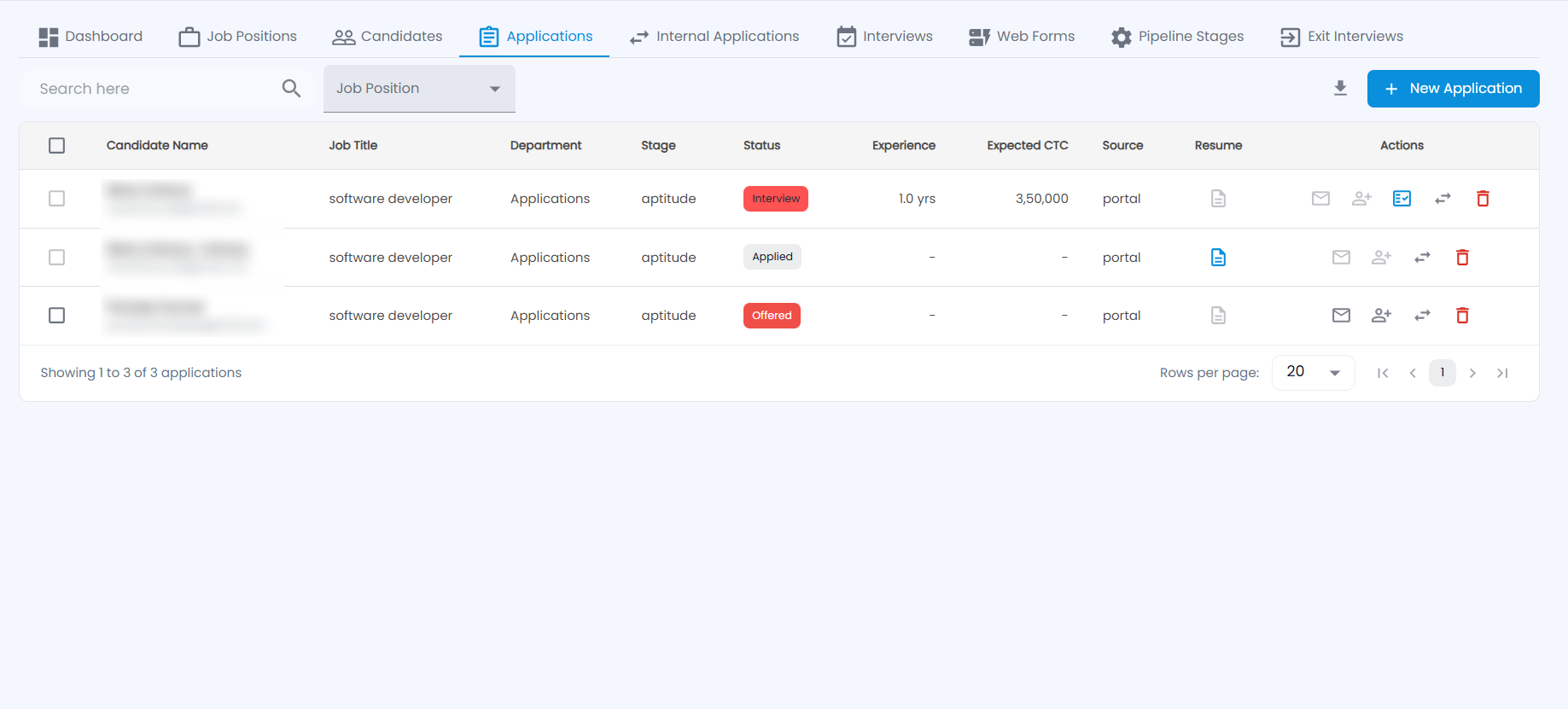
Each application shows the candidate, job title, department, stage, status, experience, expected CTC, source and resume. Search, filter by Job Position, tick rows to select several at once, or download the list.
- Click the update status icon (⇄) and choose Applied, Screening, Shortlisted, Interview, Offered, Accepted, Hold, Rejected or Withdrawn.
- Interview asks for the date, time and mode. Rejected asks for a reason. Offered and Accepted ask for the offer CTC and joining date.
- When a candidate is offered or has accepted, click the envelope to Send Offer Email and the person icon to Send Self-Onboarding Invite.
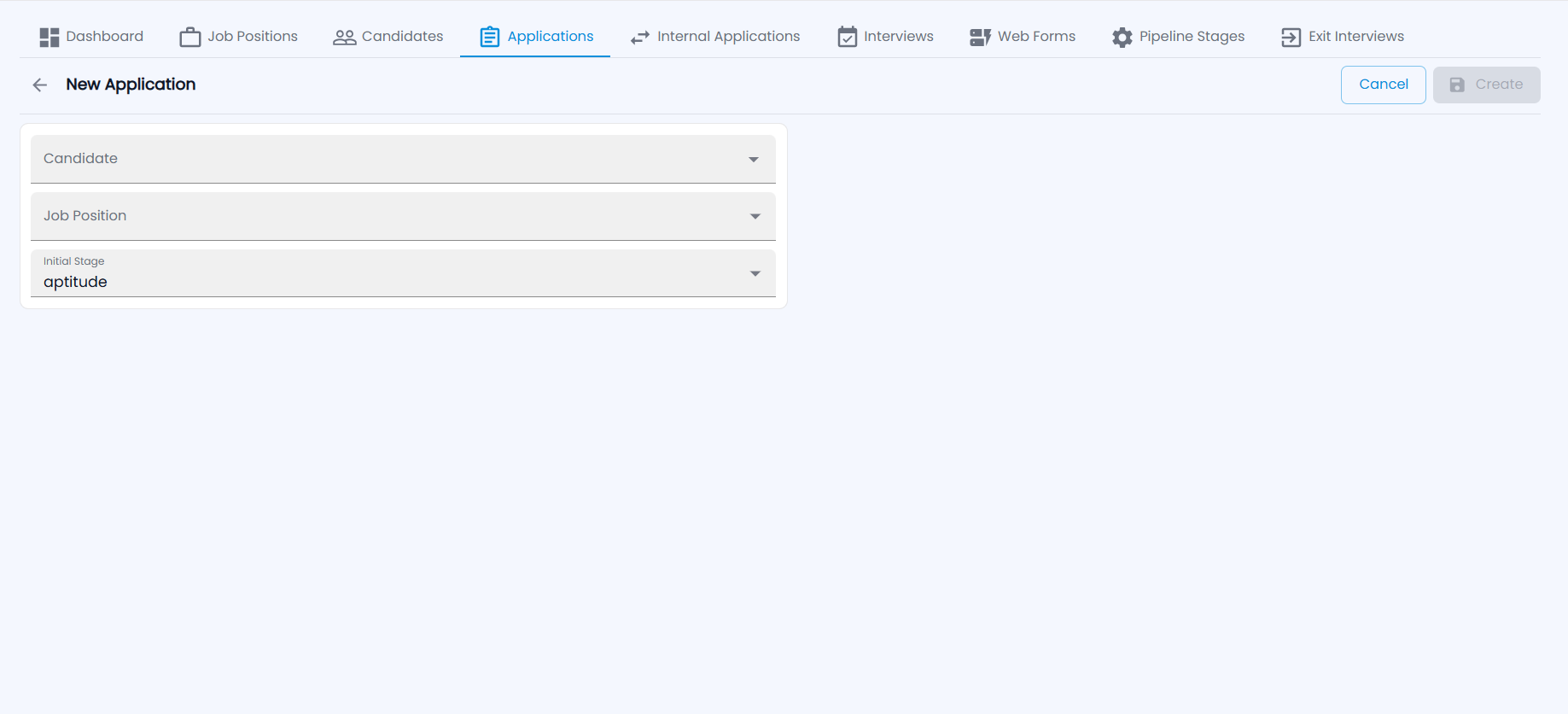
To apply an existing candidate to another job, click New Application, choose the Candidate and the Job Position, check the Initial Stage and click Create.
Accepted candidates then appear in Employee Lifecycle under Offered candidates — ready to onboard.
Where do I see internal applications?
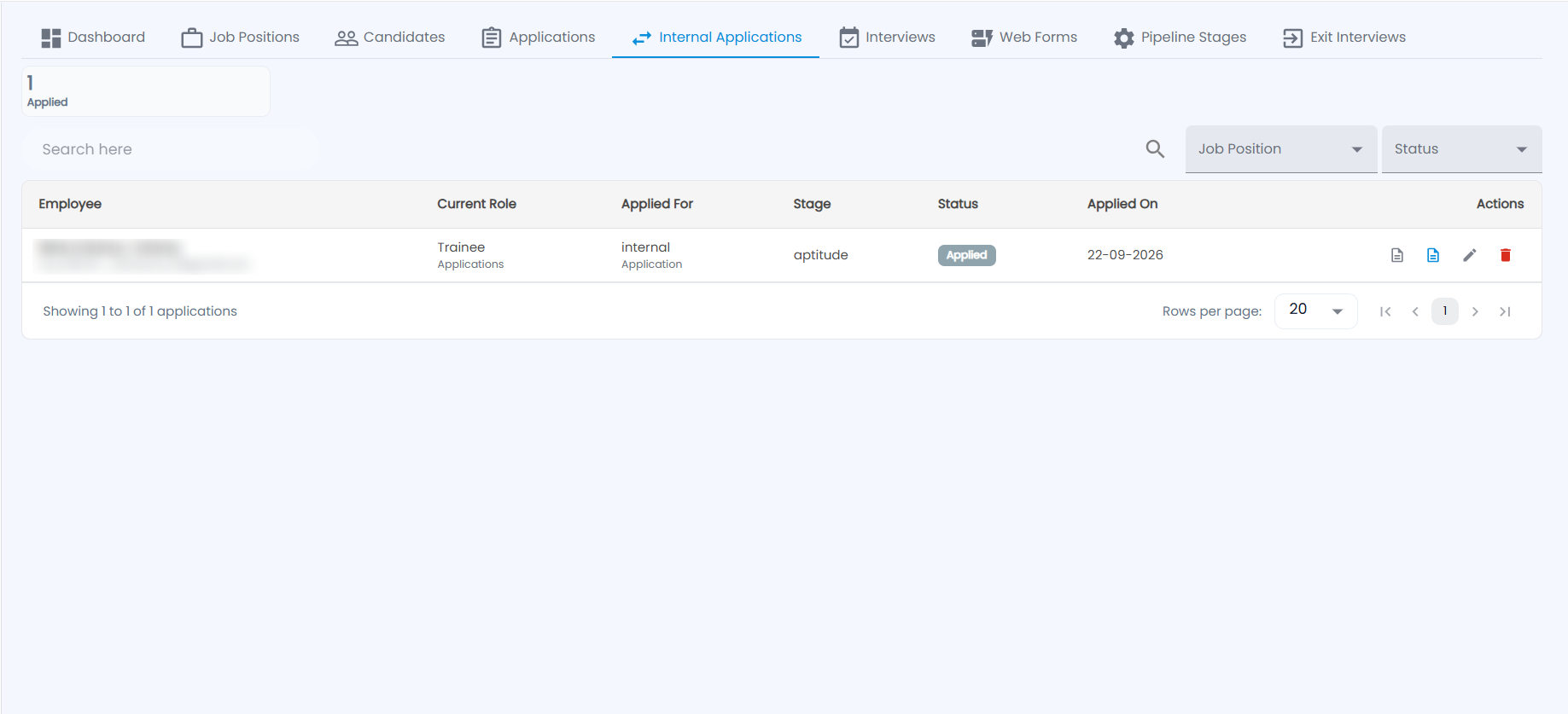
Employees who apply for an internal posting from the ESS Portal are listed here. Each row shows the employee (name, employee number and email), their current role and department, the job they applied for, the stage, the status and the date they applied. The card at the top counts applications by status. Search, or filter by Job Position and Status. The actions open the application and resume, edit it or delete it.
How do I schedule interviews and record feedback?
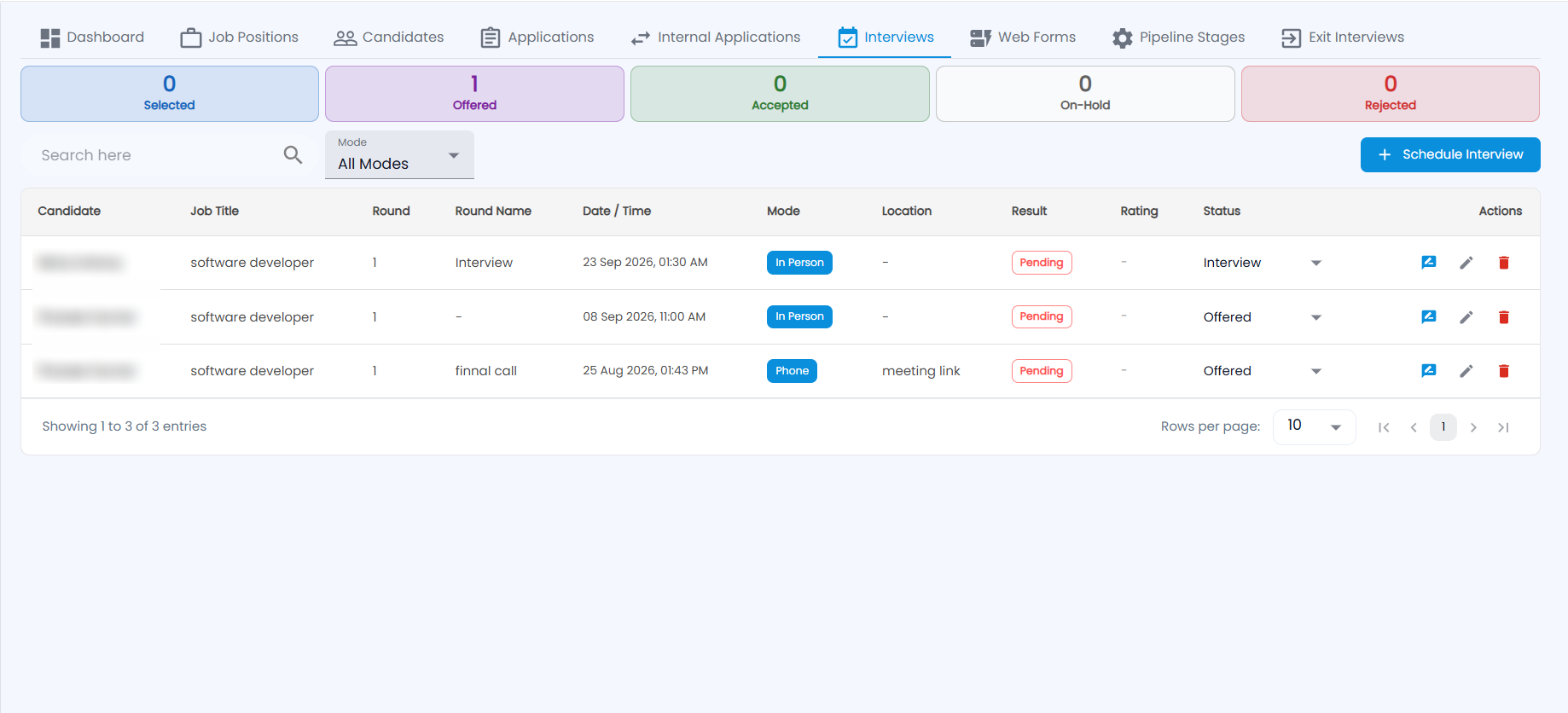
Cards count interviews by decision: Selected, Offered, Accepted, On-Hold and Rejected. Each interview shows the candidate, job title, round number and name, date and time, mode, location, result, rating and status. Search, or filter by Mode.
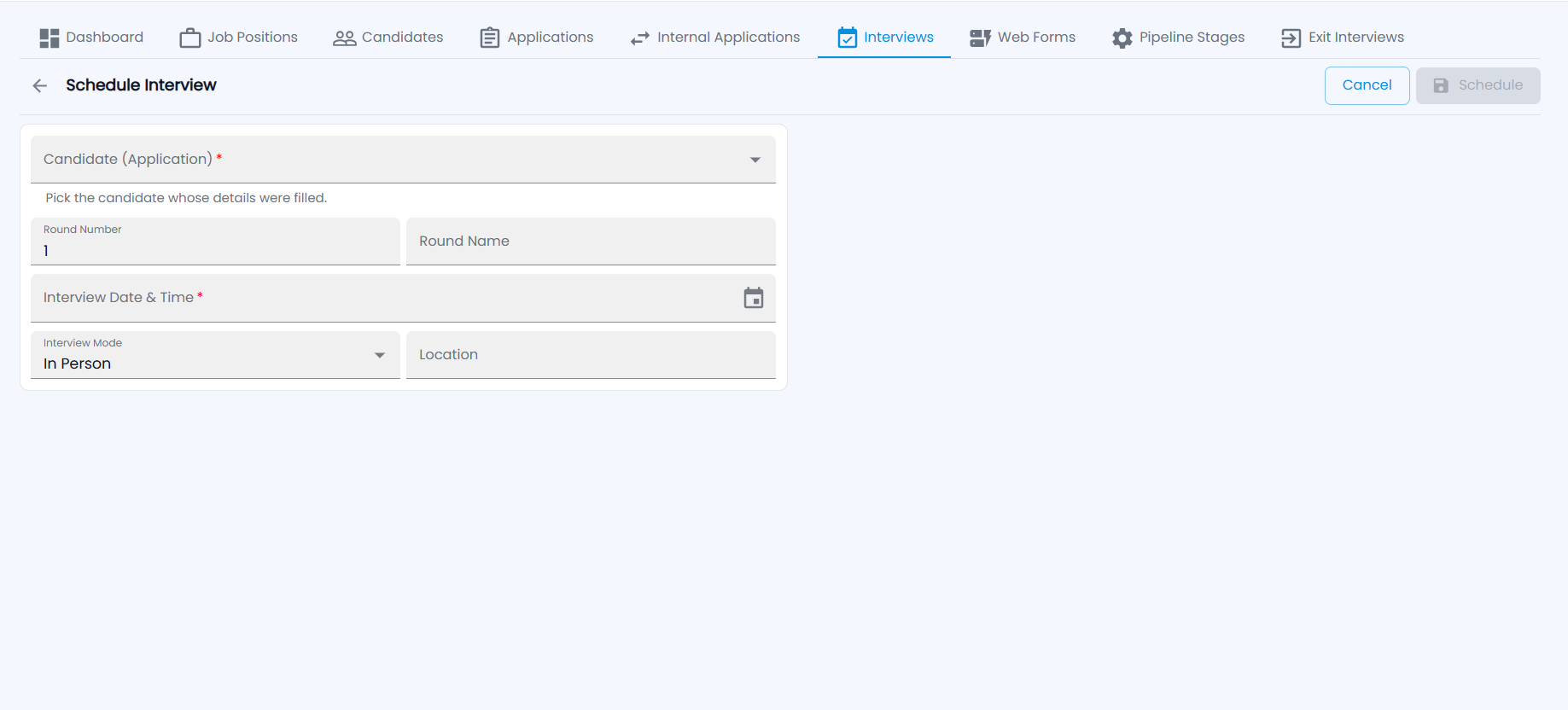
- Click Schedule Interview.
- Pick the Candidate (Application), which lists candidates whose details are filled in.
- Set the Round Number (1 by default) and a Round Name, for example "Technical" or "Final call".
- Choose the Interview Date & Time (required), the Interview Mode (In Person, Phone or Video) and the Location or meeting link.
- Click Schedule.
After the interview, click the feedback icon to record the rating, comments and result (Pending, Pass, Fail or On Hold). Then set the decision in the Status column. Use the pencil to reschedule or the bin to delete.
How do I build an application web form?
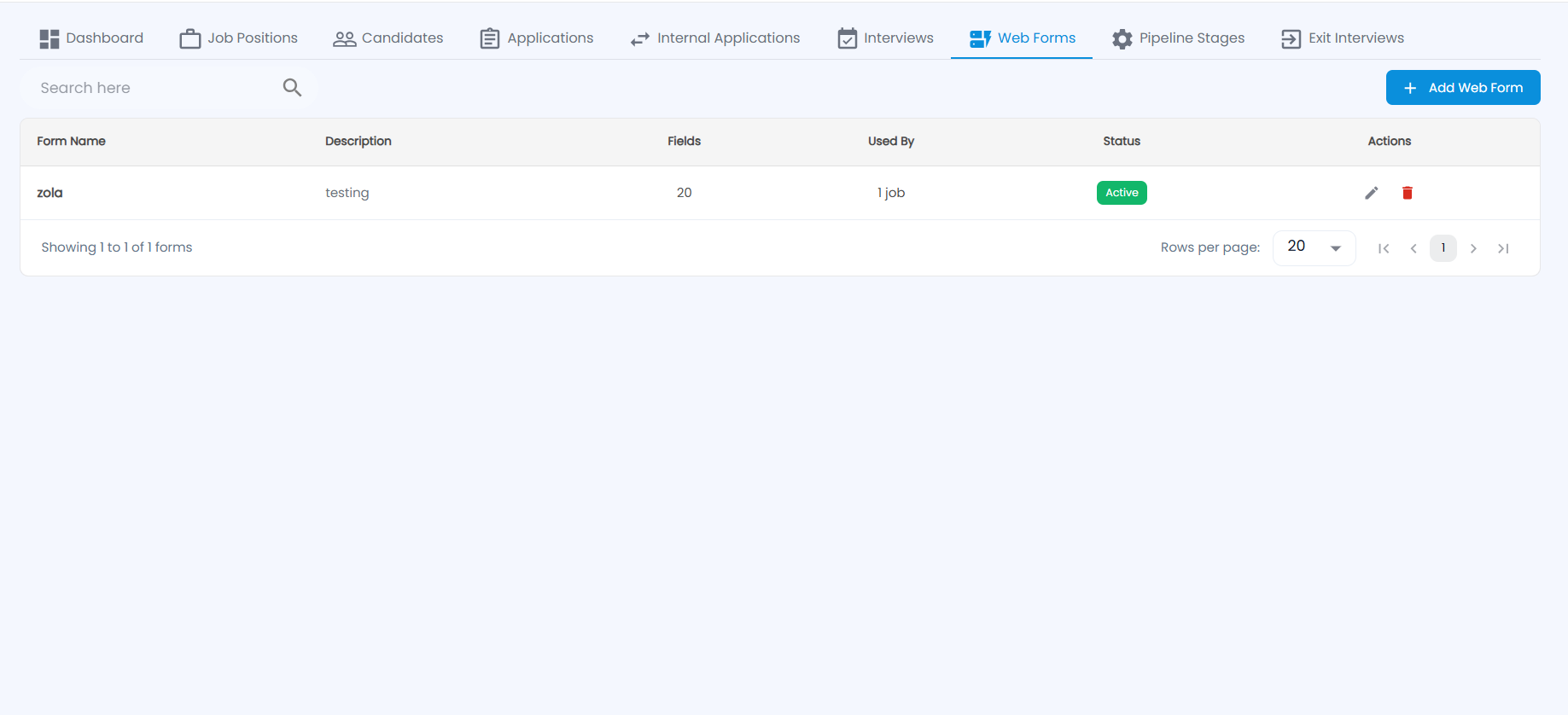
Web Forms are the application forms candidates fill in. Each form shows its name, description, number of fields, how many jobs use it and its status.
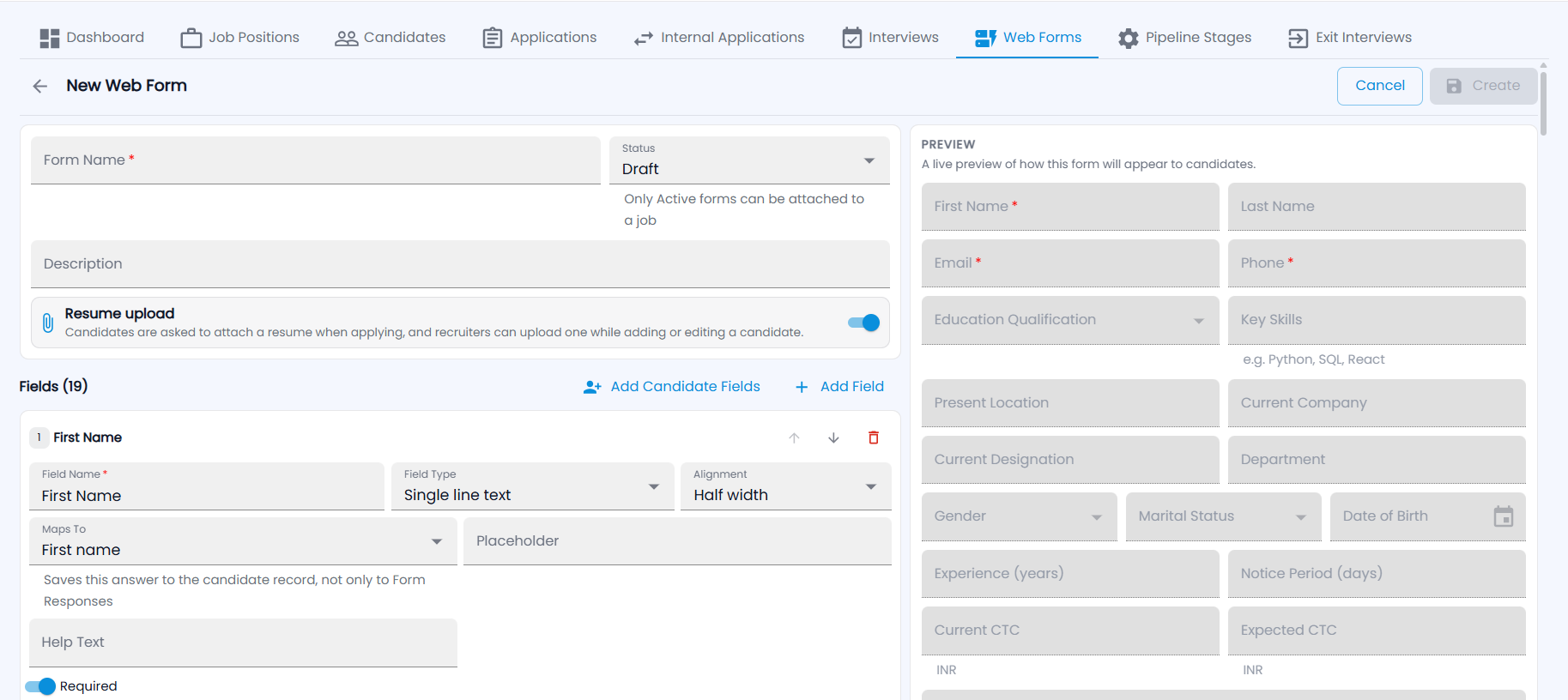
- Click Add Web Form.
- Enter the Form Name and a Description. Status starts as Draft. Only Active forms can be attached to a job.
- Keep Resume upload on to ask candidates for a resume. Recruiters can then also upload one when adding or editing a candidate.
- Click Add Candidate Fields to add the standard candidate fields in one go, or Add Field to add your own.
- For each field, set the Field Name, Field Type (for example Single line text), Alignment (half or full width), Placeholder and Help Text, and turn on Required if needed. Use the arrows to reorder fields and the bin to remove one.
- Set Maps To to save the answer to the candidate record (for example First name), not only to the form responses.
- Check the Preview on the right, which shows the form as candidates will see it, then click Create.
Where are exit interviews?
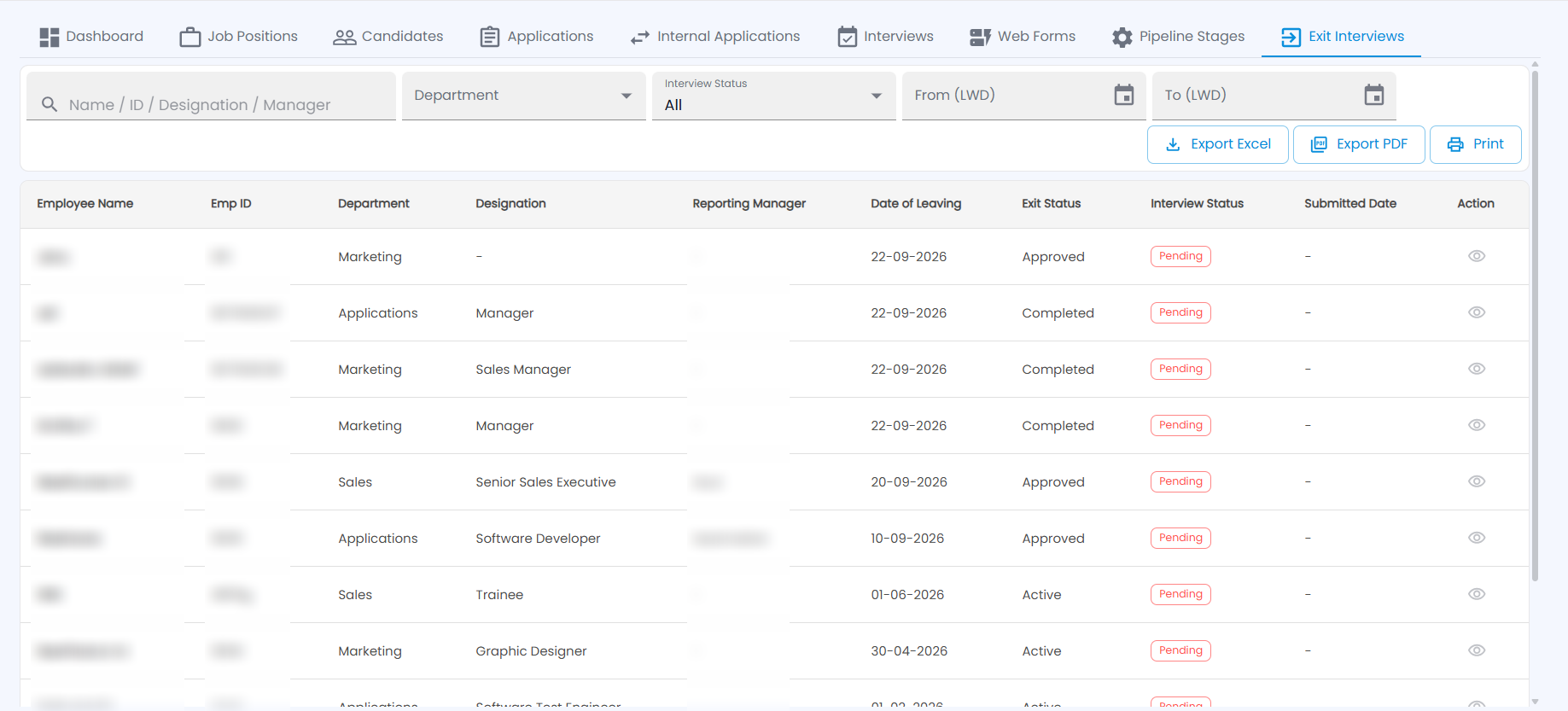
Exit Interviews lists employees who are leaving, with their employee ID, department, designation, reporting manager, date of leaving, exit status, interview status and the date they submitted the exit interview. Click the eye icon to read a submitted interview.
- Search by name, ID, designation or manager.
- Filter by Department, Interview Status, or a From (LWD) to To (LWD) range of last working days.
- Use Export Excel, Export PDF or Print to share the list.
Separations themselves are handled in Employee Lifecycle.