
What reports does HR Analytics show in Tazk Payroll?
HRMS → HR Analytics has seven tabs. The HR Executive Dashboard gives a snapshot of the workforce. Headcount & FTE, Attrition & Turnover, Demographics and Salary Cost chart the workforce and payroll spend. The Compliance Tracker lists probation reviews, expiring documents, policy acknowledgements and birthdays, and the Compliance Checklist tracks statutory obligations such as TDS, PF, ESI and PT against their due dates. Every chart can be downloaded.
What tabs does HR Analytics have?
Dashboard · Headcount & FTE · Attrition & Turnover · Demographics · Salary Cost · Compliance Tracker · Compliance Checklist.
What does the HR Executive Dashboard show?

- Cards — Total Active Employees, New Joiners (30d), Separations (30d), Open Positions, Probation Due / Overdue, Docs Expiring / Expired, Upcoming Trainings and On Notice.
- Joining vs Attrition (Last 12 Months) — a green bar for joiners and a red bar for separations for each month, with the two counts at the right (for example 8 / 6).
- Further down: Workforce Composition, Gender Diversity, and Birthdays & Anniversaries.
Click the refresh button at the top right to reload the figures.
What does Headcount & FTE show?
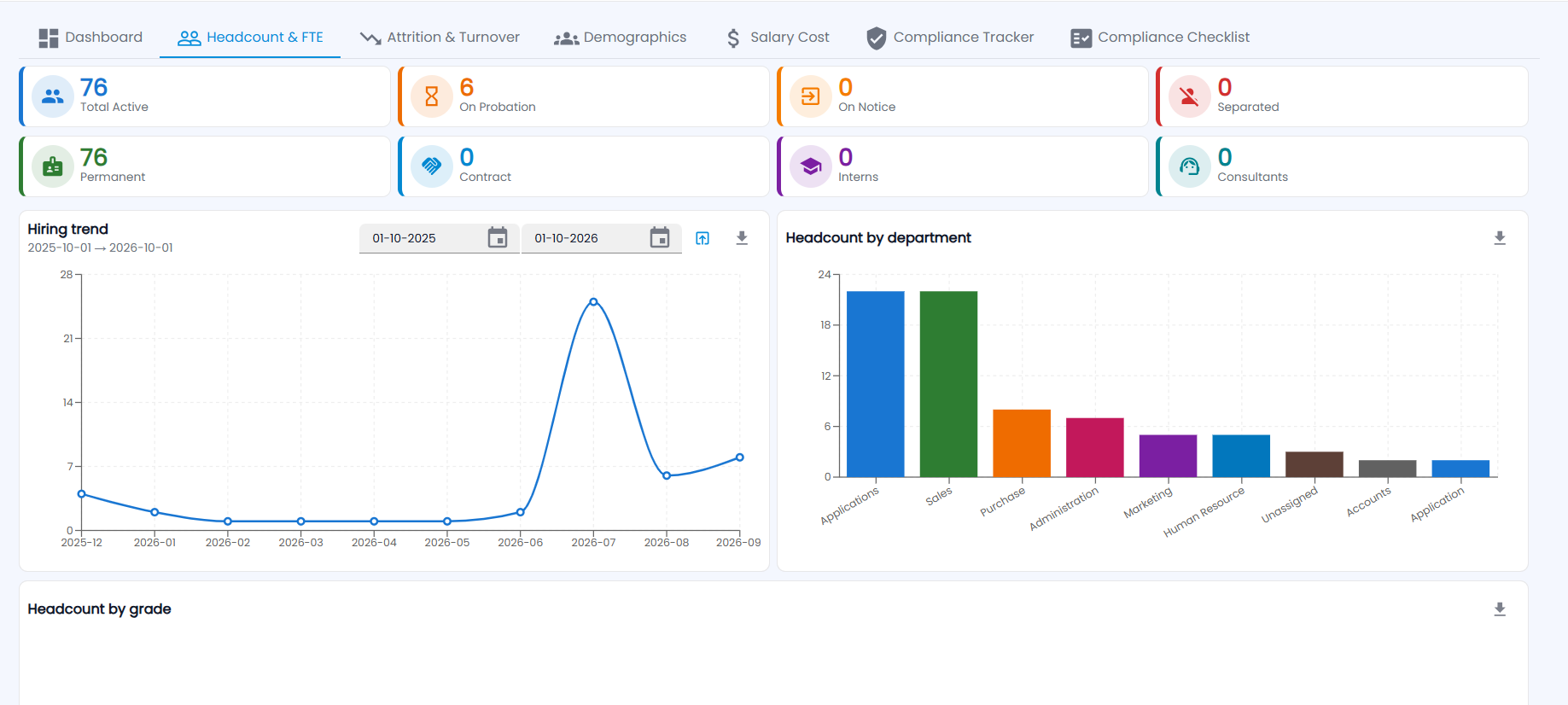
- Cards by status — Total Active, On Probation, On Notice and Separated. Cards by employment type — Permanent, Contract, Interns and Consultants.
- Hiring trend — joiners per month. Change the two dates to set the range, which defaults to the last 12 months.
- Headcount by department and Headcount by grade — bar charts of active employees. Employees with no department show as Unassigned.
Use the download icon on any chart to save it.
How do I check attrition?
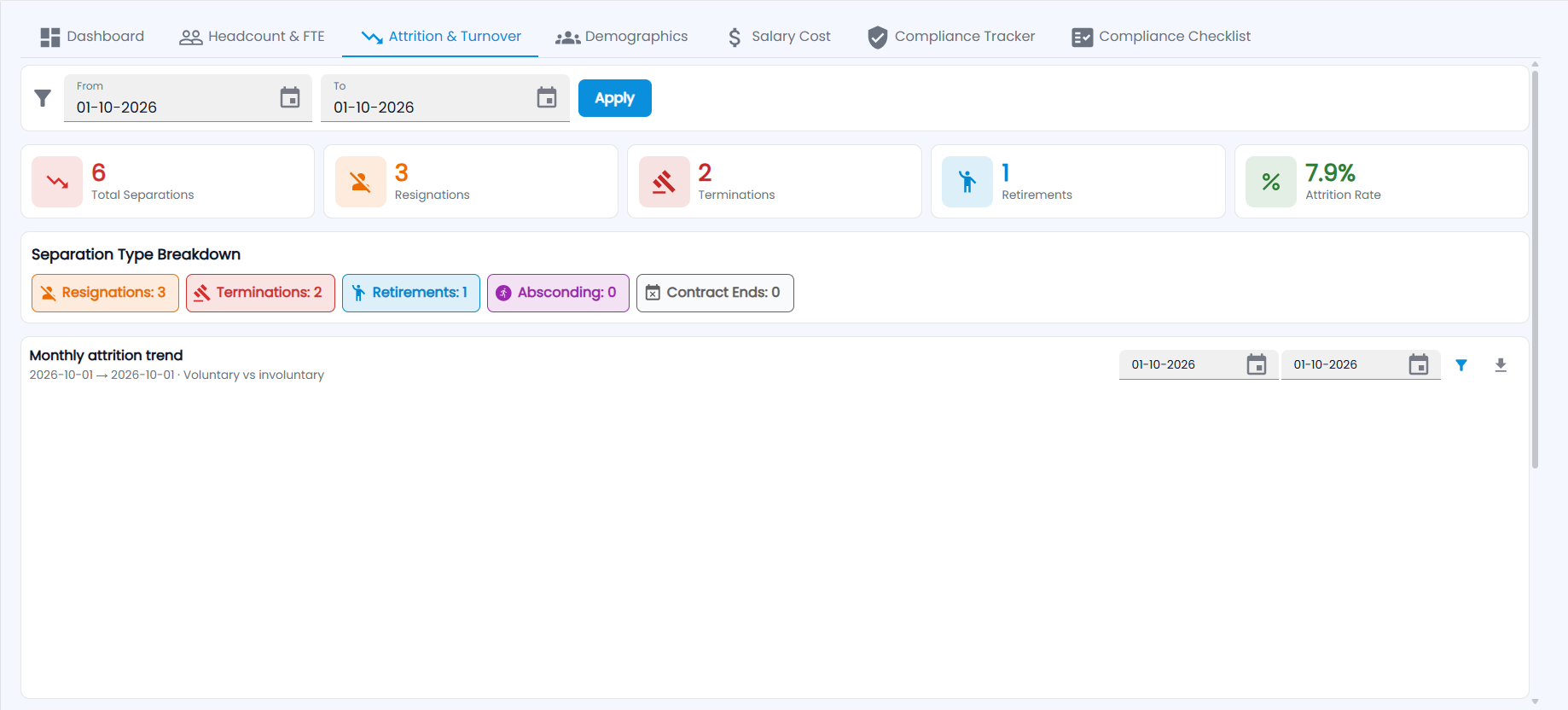
- Set the From and To dates and click Apply.
- Read the cards: Total Separations, Resignations, Terminations, Retirements and the Attrition Rate.
- Separation Type Breakdown counts Resignations, Terminations, Retirements, Absconding and Contract Ends.
- Monthly attrition trend splits each month into voluntary and involuntary exits. It has its own date range and filter.
Further down are attrition by department and by tenure band.
What does Demographics show?
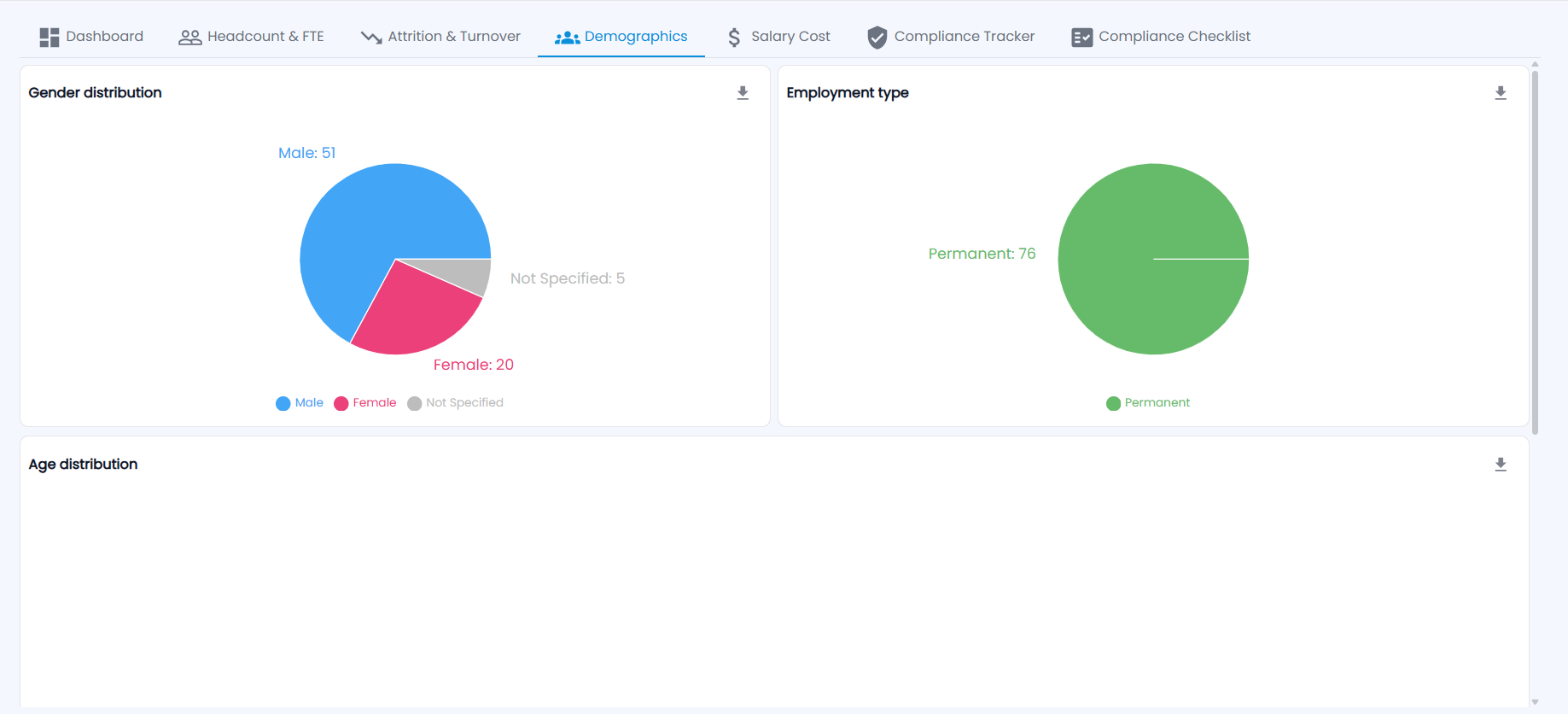
Pie charts of Gender distribution (Male, Female, Not Specified) and Employment type, then the Age distribution and tenure distribution. An employee whose gender is not filled in on their profile counts as Not Specified.
How do I see salary cost?
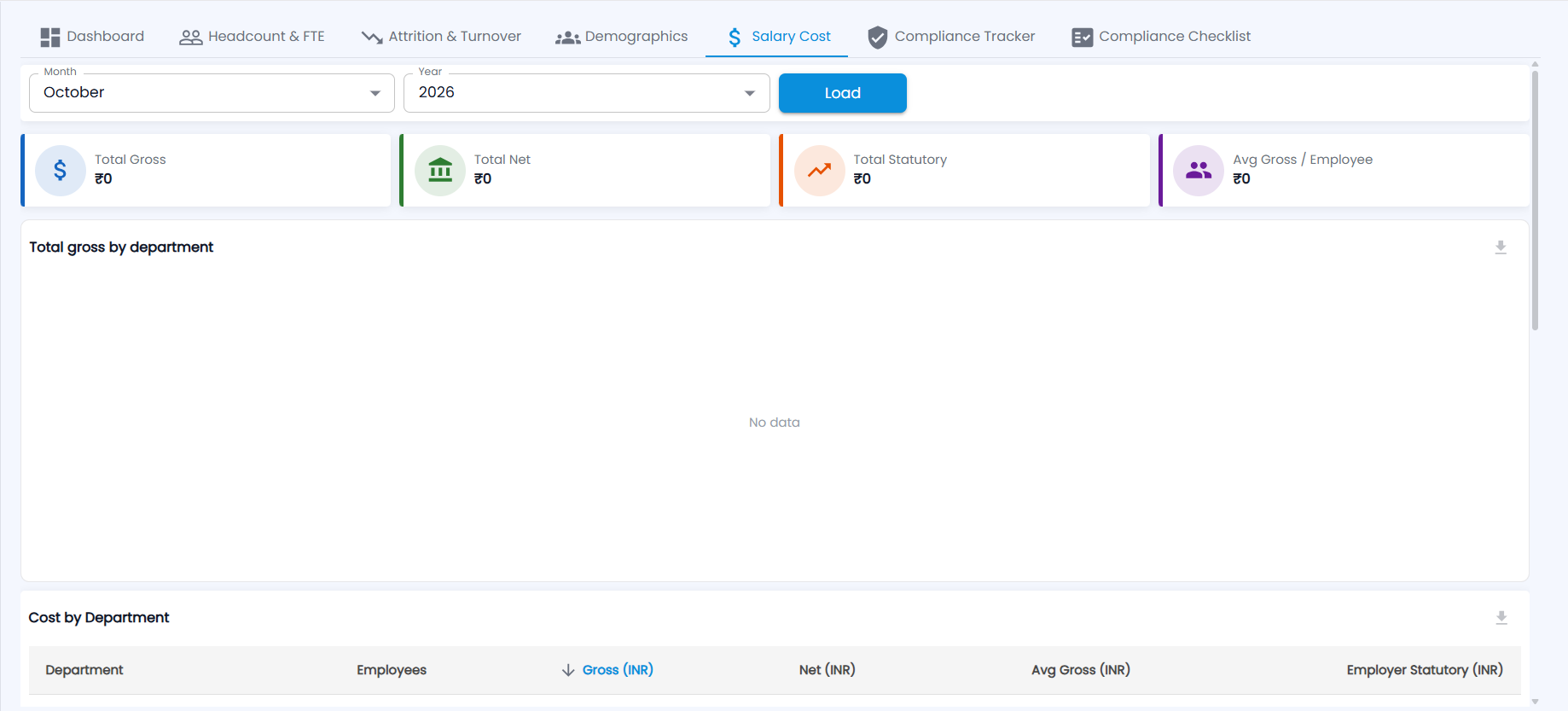
- Pick the Month and Year and click Load.
- The cards show Total Gross, Total Net, Total Statutory and Avg Gross / Employee.
- Total gross by department charts the spend. Cost by Department lists each department with employees, gross, net, average gross and employer statutory cost (INR). Click a column heading to sort.
Figures come from processed salaries, so a month shows ₹0 and "No data" until its Salary Process has run. Further down are cost by grade and the monthly cost trend for the last 12 months.
What does the Compliance Tracker show?
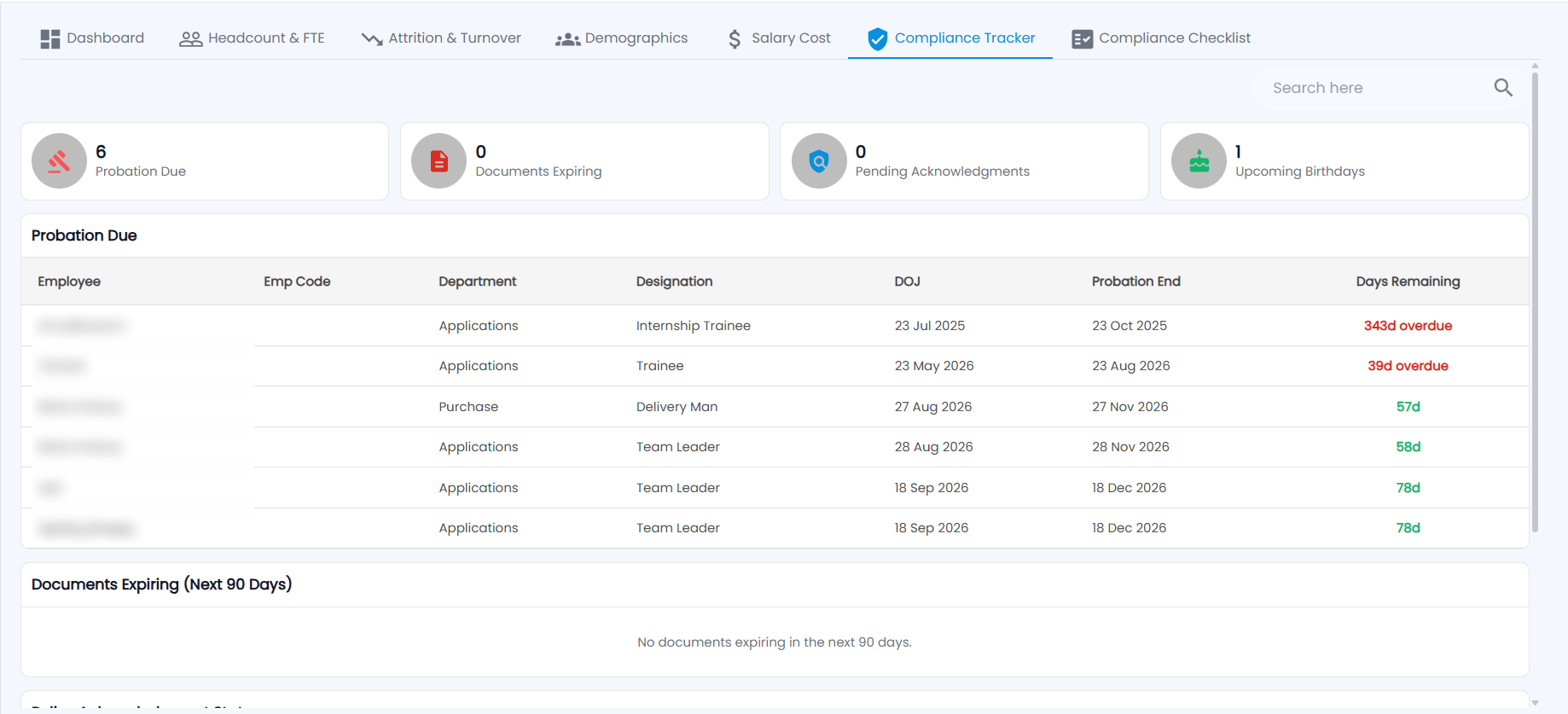
- Cards — Probation Due, Documents Expiring, Pending Acknowledgments and Upcoming Birthdays.
- Probation Due — each employee on probation with emp code, department, designation, date of joining, probation end and days remaining. Overdue reviews show in red (for example "39d overdue"). Confirm them in Employee Lifecycle.
- Documents Expiring (Next 90 Days) — employee documents about to expire. Renew them in Document Management.
- Further down: policy acknowledgement status for HR Policies, and birthdays and work anniversaries in the next 30 days.
Use Search to find an employee.
How do I use the Compliance Checklist?
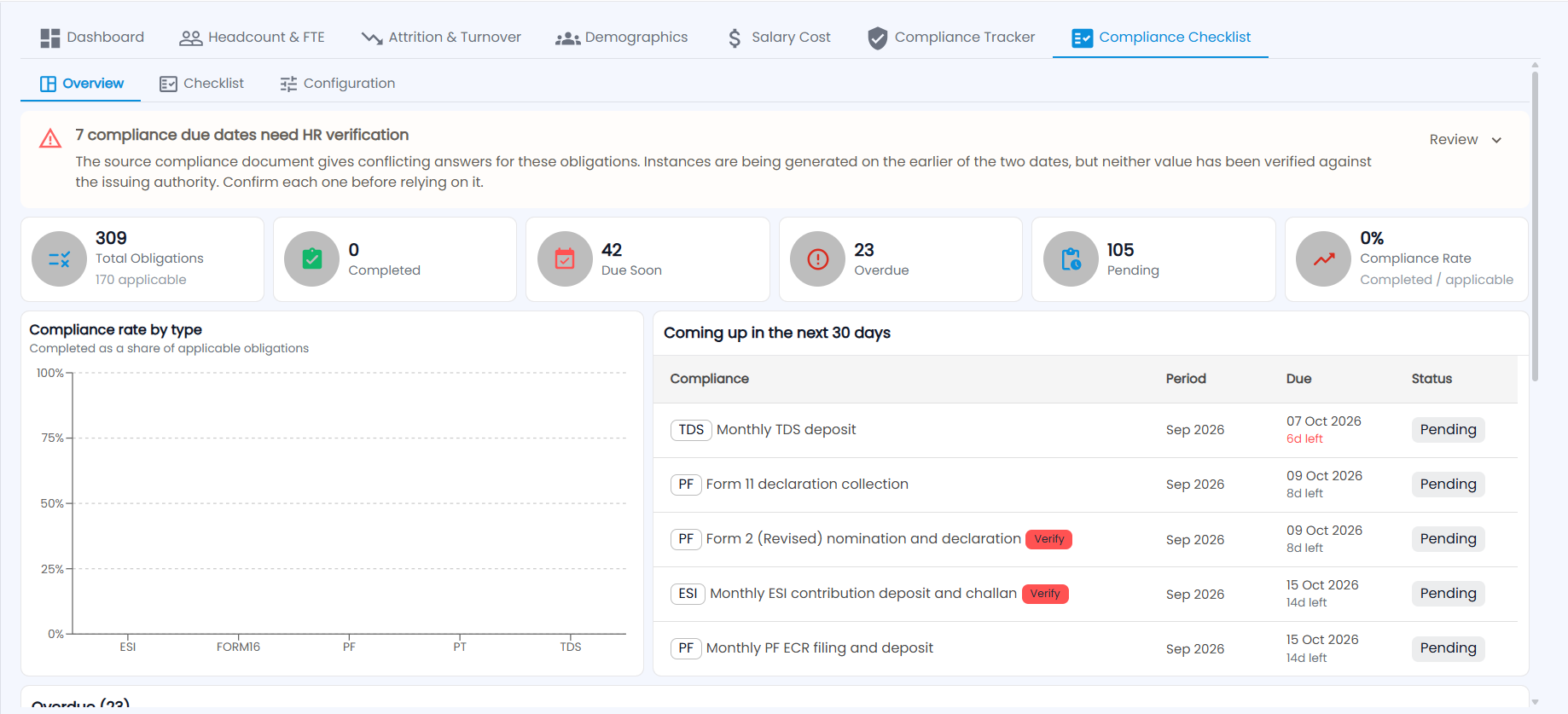
The Compliance Checklist tracks statutory obligations such as TDS deposits, PF ECR filing, ESI challans and PT returns, period by period. It has three sub-tabs.
- Overview
- Cards: Total Obligations (and how many apply to you), Completed, Due Soon, Overdue, Pending and the Compliance Rate (completed out of applicable).
- Compliance rate by type charts ESI, Form 16, PF, PT and TDS.
- Coming up in the next 30 days lists each obligation with its type, period, due date, days left and status. The Overdue list follows.
- Checklist — mark each obligation completed or not applicable, with the responsible person and remarks.
- Configuration — choose which obligations apply to your company and set their due dates.