
How do I set up training and enrol employees in Tazk Payroll?
Open HRMS → Training & LMS. On Programs, click Add Program; on Schedule, click Schedule Session for it. Open the session and enrol employees on its roster, then record attendance, scores and feedback after it runs. The Dashboard tracks participation, attendance, completion and mandatory compliance; Skills maps each employee's skills and shows a heatmap; and employees follow their own training on My Training.
What tabs does Training & LMS have?
Dashboard · Requests · Programs · Schedule · Skills · My Training.
What does the Training Dashboard show?

- Cards — Active Programs, Upcoming Sessions, Trainees, Participation (of those targeted), Attendance and Completion (of those enrolled).
- Program Performance — for each program: sessions, targeted (and the gap), enrolled, attended, completed, participation, attendance, completion and Skill Impact (whether skill levels actually moved). Search and filter by status.
- Mandatory Training Compliance — measured against the targeted employees, not enrolments: mandatory programs, targeted employees, completed, compliance %, fully compliant programs and programs behind, with a card per mandatory program (targeted, enrolled, completed, not enrolled).
The buttons at the top right open the Audit Log, export the dashboard and refresh it.
How do training requests work?
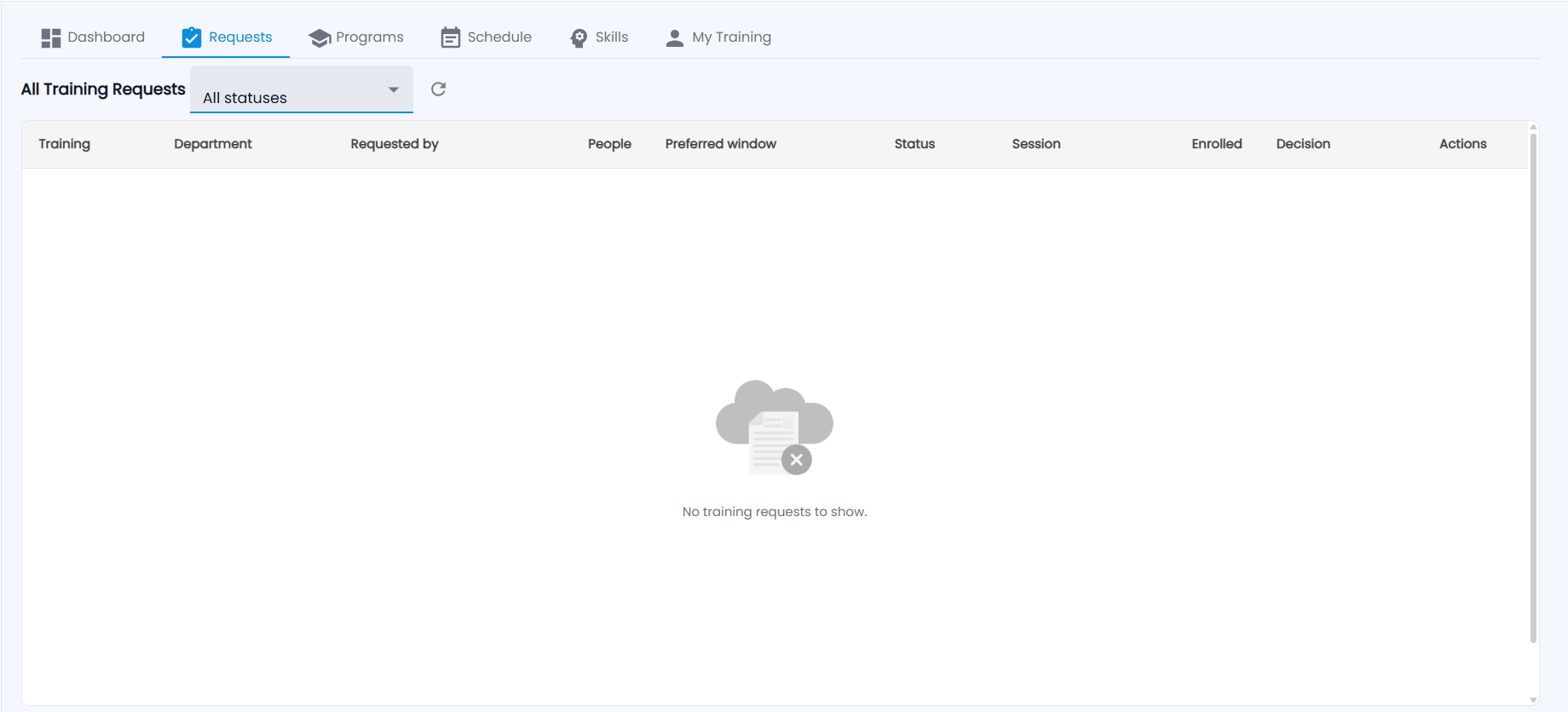
All Training Requests lists requests from department heads — training, department, requested by, number of people, preferred window, status, session, enrolled, decision and actions. Filter by status. A department head raises one with New Request; an approver approves and schedules it, which enrols the employees.
How do I create a training program?
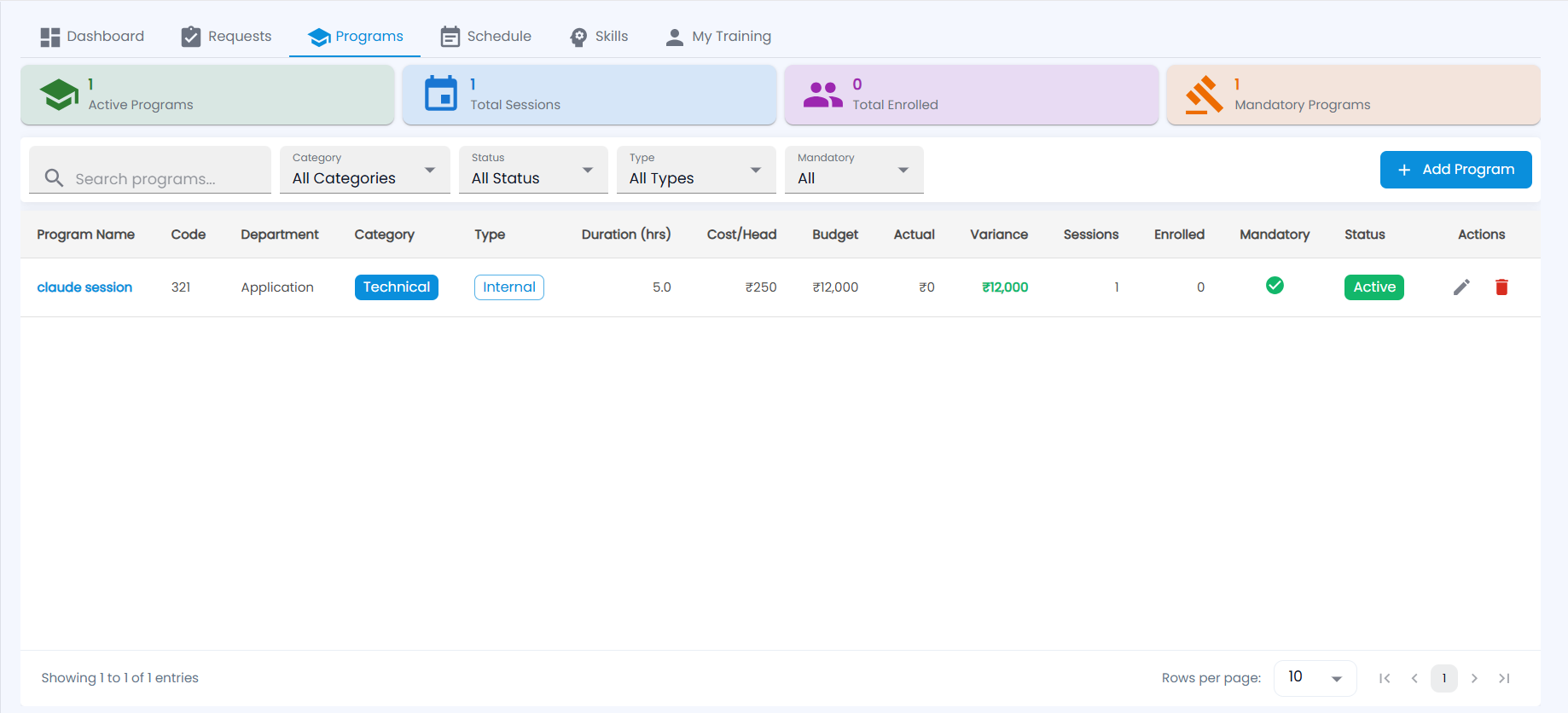
Cards show Active Programs, Total Sessions, Total Enrolled and Mandatory Programs. Search and filter by Category, Status, Type and Mandatory. Each program shows its code, department, category, type, duration, cost per head, budget, actual, variance, sessions, enrolled, mandatory and status, with edit and delete. Click a program's name for its sessions and budget.
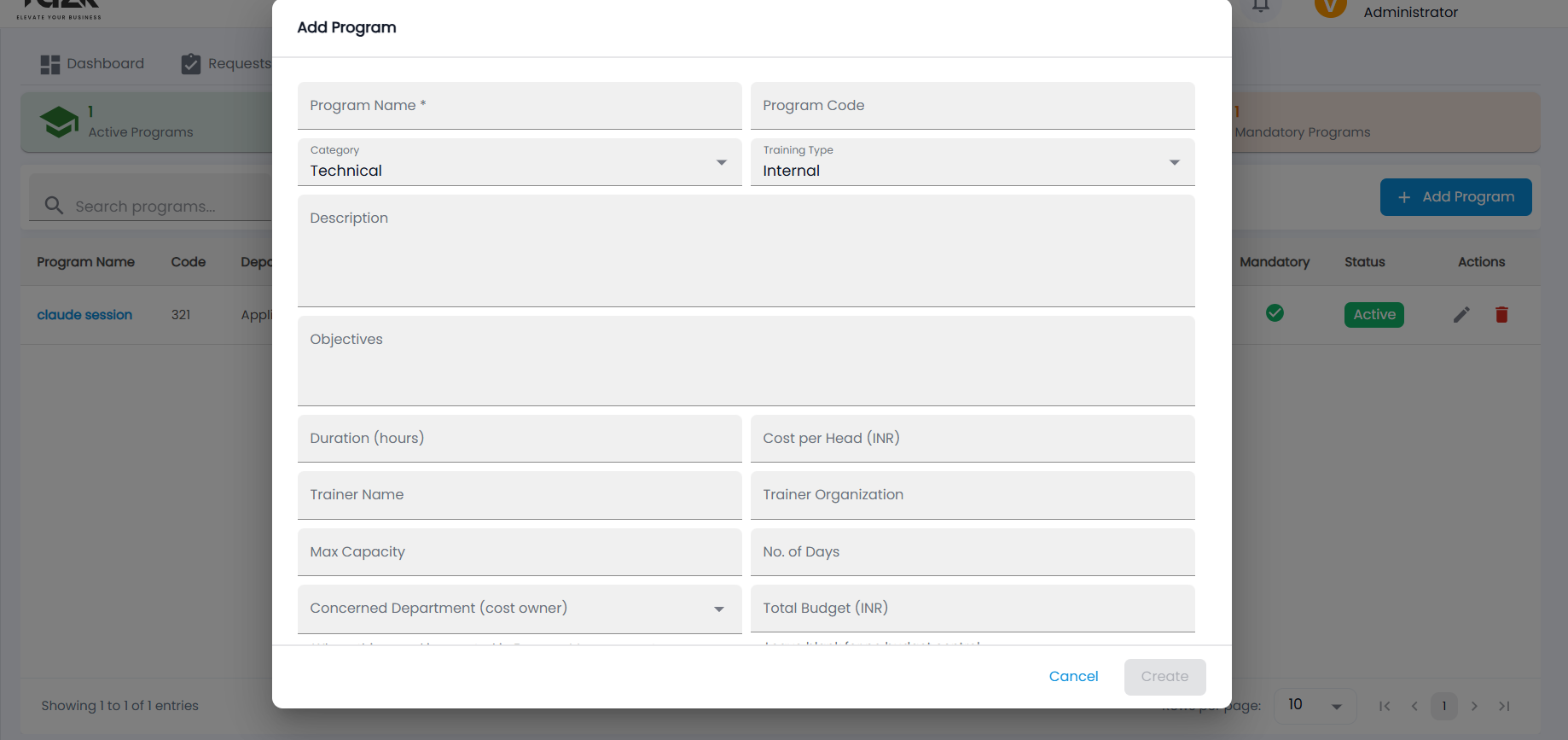
- Click Add Program.
- Enter the Program Name and optionally a Program Code; choose the Category (Technical by default) and Training Type (Internal by default).
- Add a Description and Objectives, the Duration (hours) and Cost per Head (INR), the Trainer Name and Organization, Max Capacity and No. of Days.
- Choose the Concerned Department (cost owner) and the Total Budget (INR). Further down, mark the program mandatory if needed and pick the applicable departments and grades.
- Click Create.
How do I schedule a session?
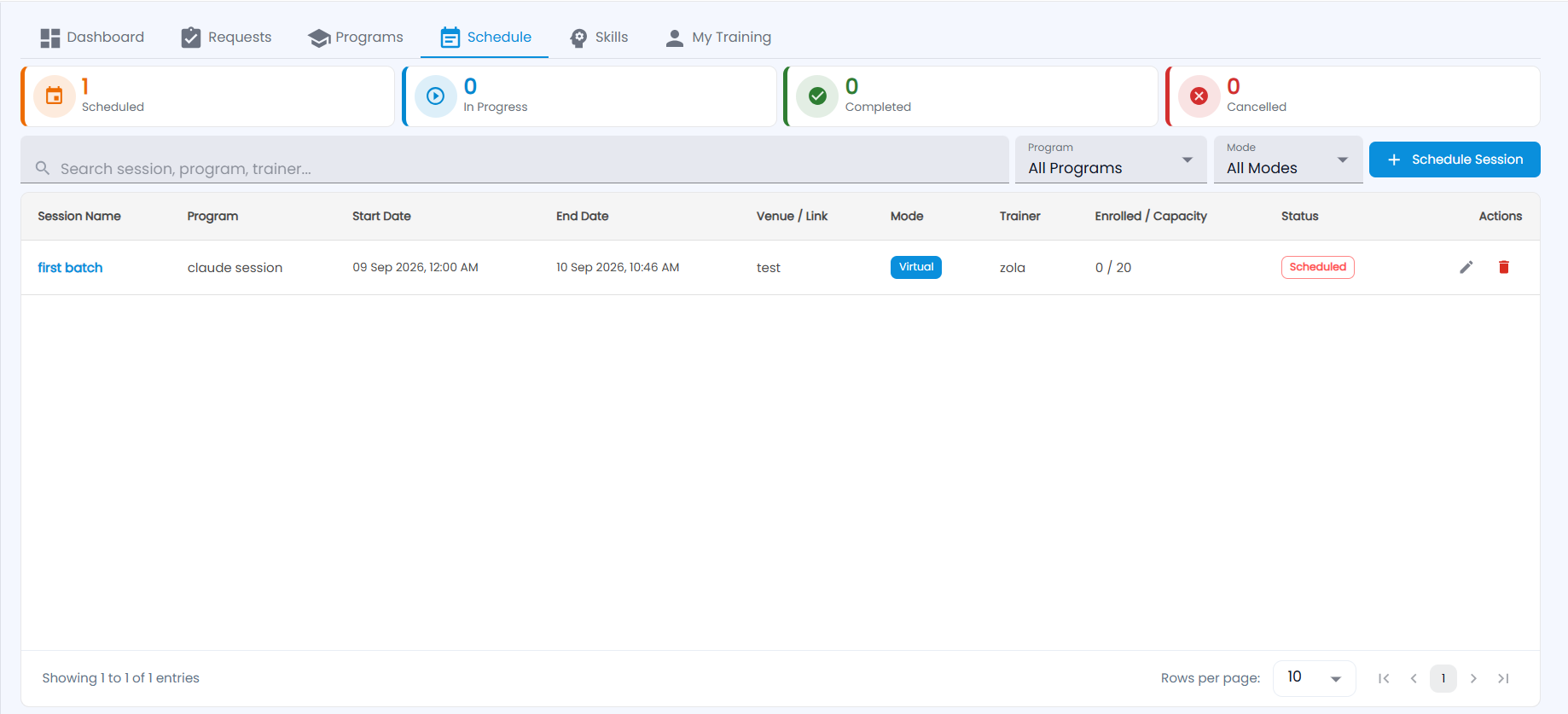
Schedule counts sessions that are Scheduled, In Progress, Completed and Cancelled, and lists each with its program, start and end, venue or link, mode, trainer, enrolled / capacity and status. Search and filter by program and mode.
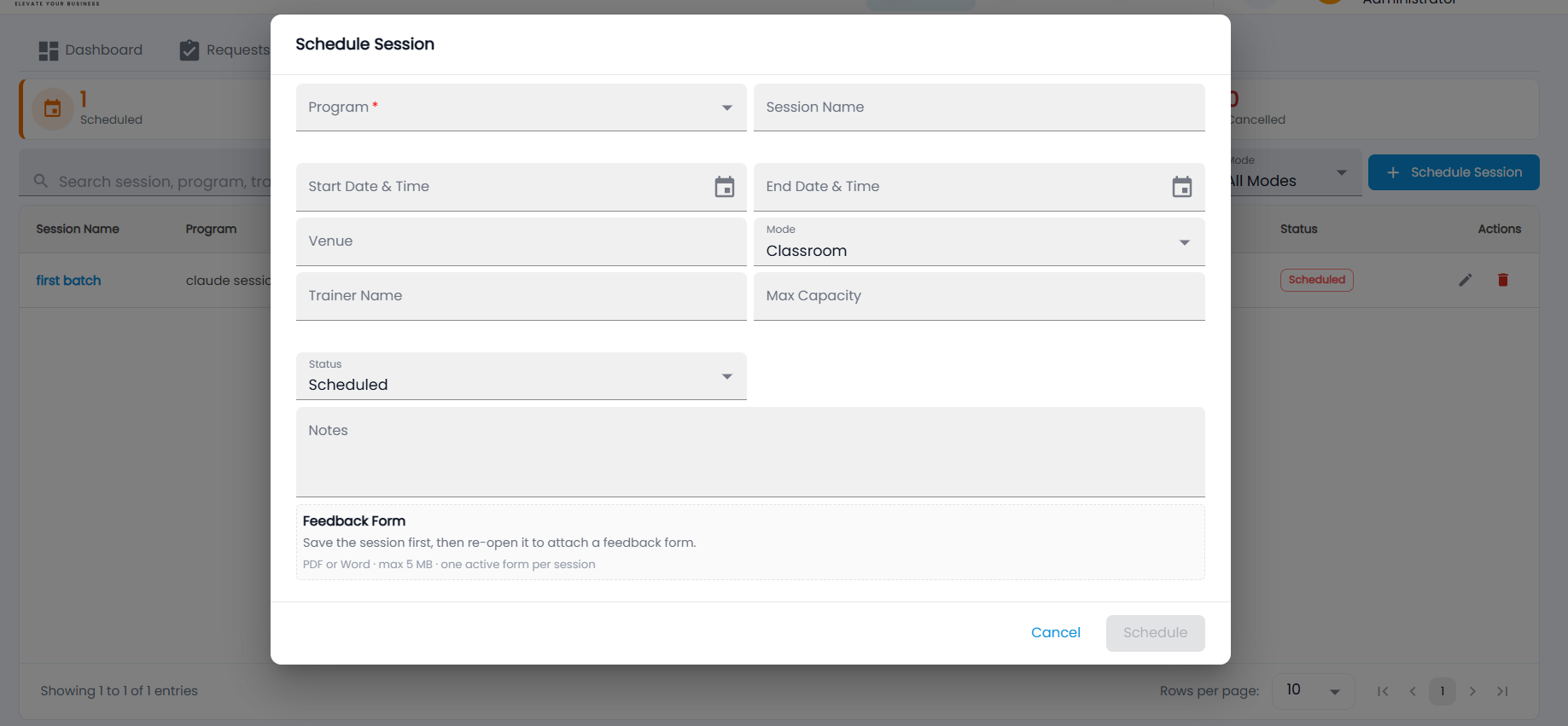
- Click Schedule Session.
- Choose the Program and give the session a name, Start and End Date & Time, Venue, Mode (Classroom, Virtual, Hybrid), Trainer Name and Max Capacity.
- Leave the Status as Scheduled, add notes, and click Schedule.
- To attach a Feedback Form (PDF or Word, up to 5 MB, one per session), re-open the saved session.
Click a session name to open its roster — enrol employees, then record attendance, score and certificate after the session — and its feedback.
How do I track skills?
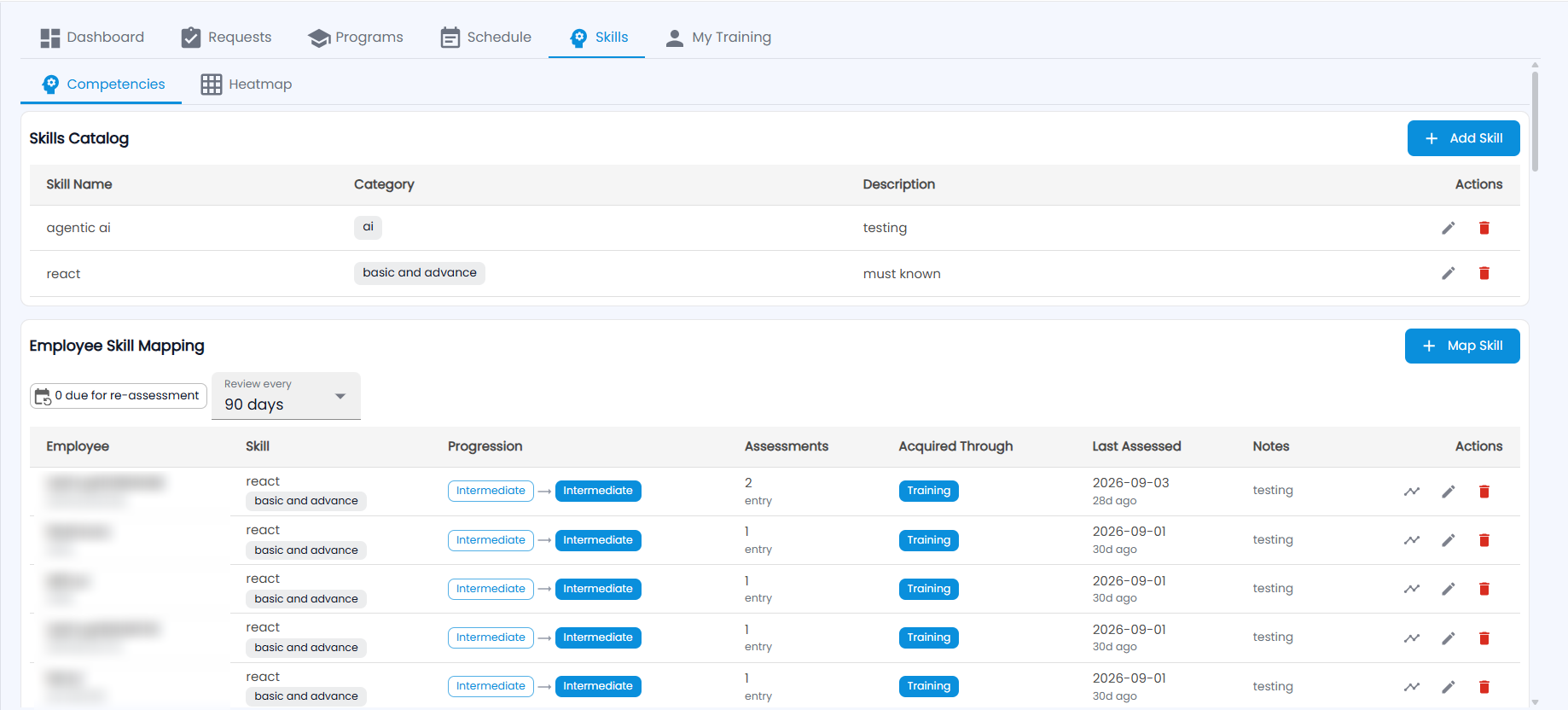
- Skills Catalog — Add Skill with a name, category and description.
- Employee Skill Mapping — Map Skill to record an employee's level. Each row shows the skill, the progression (for example Intermediate → Intermediate), number of assessments, how it was acquired (for example Training), when it was last assessed and notes. Set Review every (for example 90 days) to see how many are due for re-assessment.
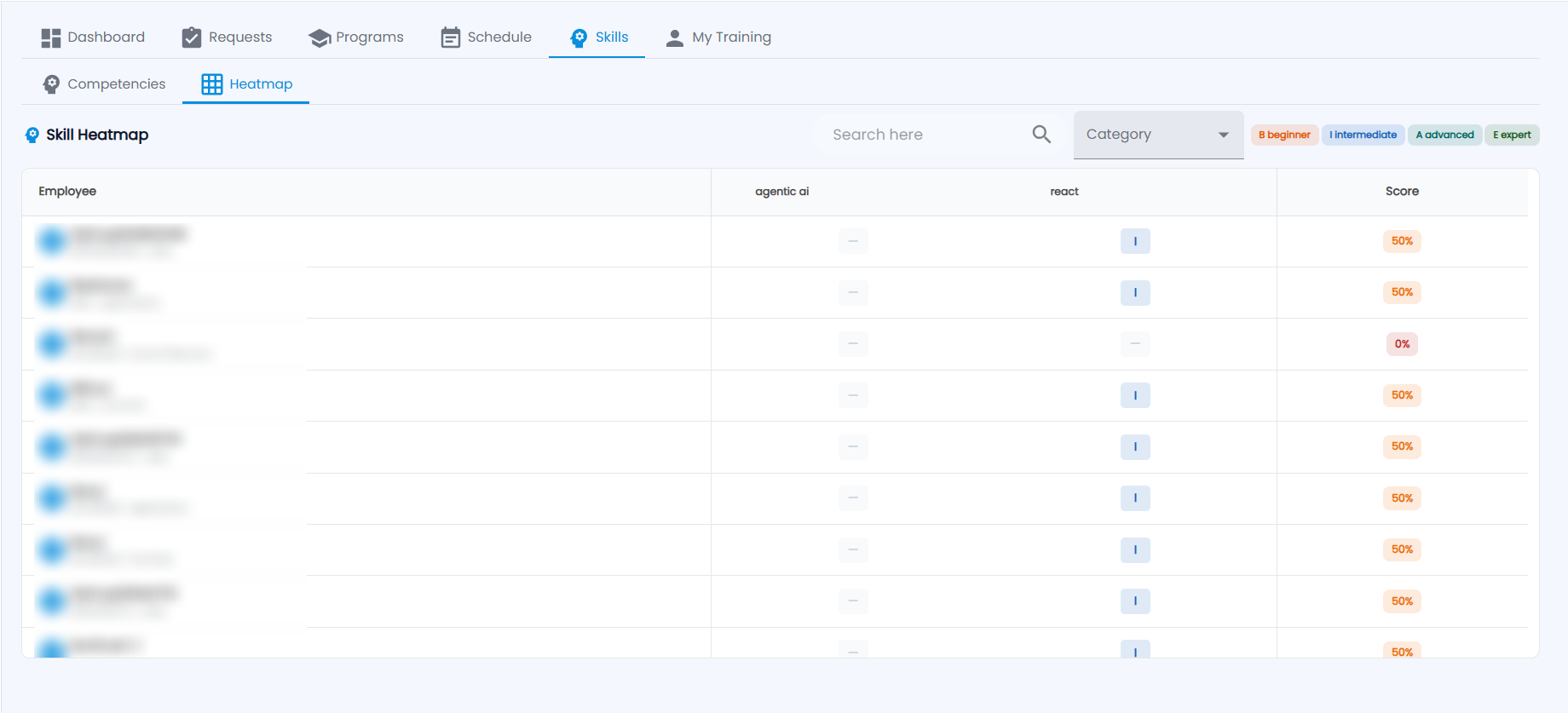
Heatmap shows every employee against every skill — B beginner, I intermediate, A advanced, E expert — with an overall score. Search and filter by category.
What do employees see on My Training?
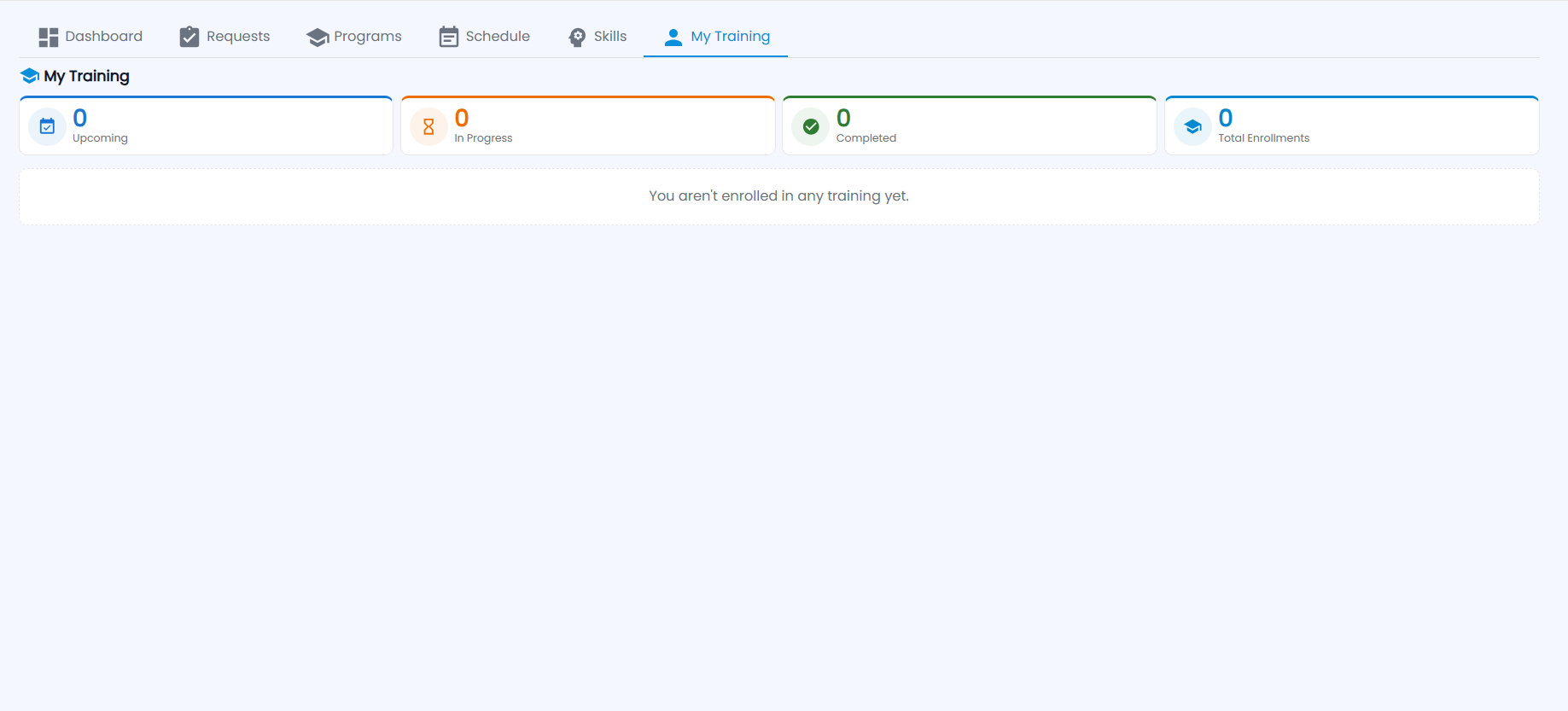
My Training shows the signed-in employee's Upcoming, In Progress and Completed training and Total Enrollments, or "You aren't enrolled in any training yet."