
How do I collect and verify employee documents in Tazk Payroll?
Open HRMS → Document Management. Define the documents you collect on the Document Type tab. On Employee Documents, pick an employee (or several with Select) and click Request, or upload a document for them with Add Document. Then verify or reject each upload on Pending Verifications. The Dashboard shows what is awaiting upload, waiting for verification, verified, rejected or at risk of expiring.
What tabs does Document Management have?
Dashboard · Employee Documents · Pending Verifications (with the number waiting) · Document Type.
What does the dashboard show?

| Card | What it counts |
|---|---|
| Total Documents | All documents, and how many employees have documents on file |
| Awaiting Upload | Requested but not uploaded yet, and how many are past their due date |
| To Verify | Uploaded and awaiting review |
| Verified | Verified, as a % of all documents |
| Rejected | Rejected and needing a fresh upload |
| At Risk | Expired or expiring soon |
Below the cards:
- Collection Status — a donut of verified, to verify, rejected and awaiting upload, with the % verified.
- Requested vs Self-uploaded — how documents arrive (requested by HR or uploaded by employees unprompted), and the verified share of each.
- Request Fulfilment — requests sent, honoured, outstanding and overdue, with how many are past their due date.
- Document Type Coverage — for every document type, how many are verified, to verify, rejected and awaiting upload. Hover a bar for the numbers.
- Verification Ageing — how long uploads have been waiting for review, and how many are in the queue.
Further down are activity, department compliance, Needs Chasing and an Employee Document Summary table.
How do I see and manage an employee's documents?
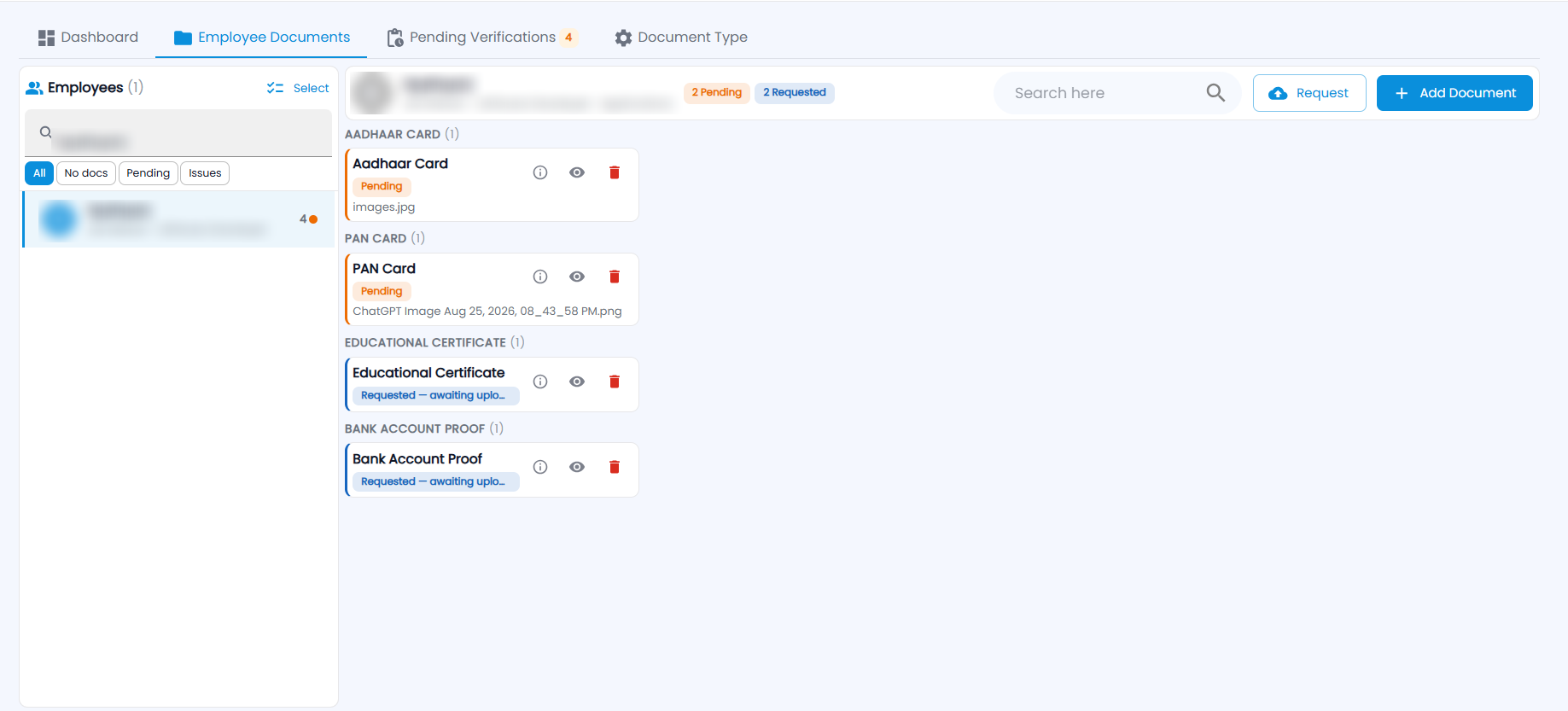
- Open Employee Documents. Search the Employees list and filter with All, No docs, Pending or Issues. Each employee shows how many documents need attention.
- Click an employee. Their header shows how many documents are pending and requested, and their documents are grouped by type — each card shows its status (Pending, Requested — awaiting upload, Verified, Rejected, Expired) and the file name, with details (ⓘ), view (eye) and delete.
- Click Request to ask for documents — choose the document type(s), and optionally a due date and a note. Use Select above the list to tick several employees and request from all of them at once.
How do I upload a document for an employee?
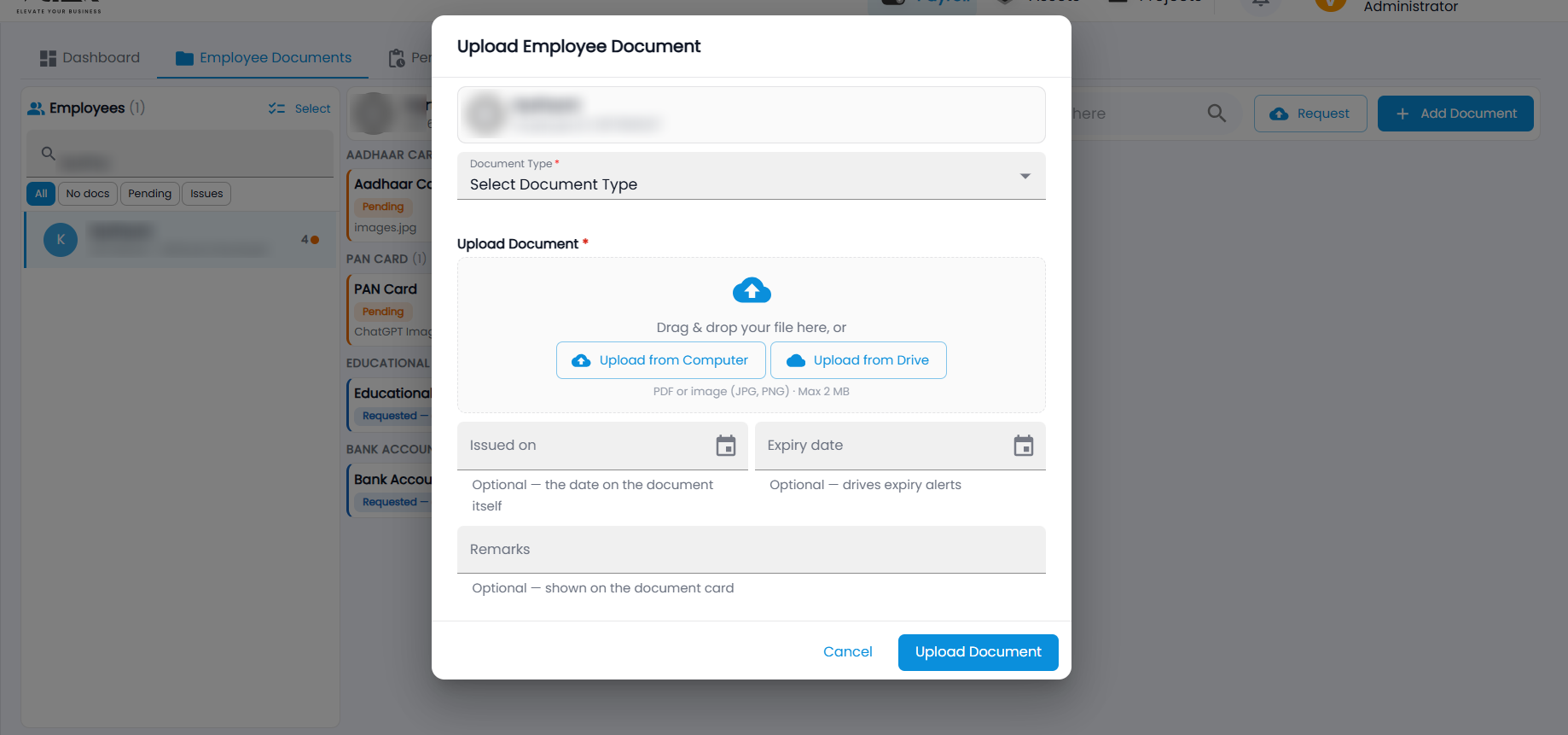
- Select the employee and click Add Document. Upload Employee Document opens with the employee shown at the top.
- Choose the Document Type (and fill any extra fields it has).
- Drag and drop the file, or click Upload from Computer or Upload from Drive — PDF or image (JPG, PNG), up to 2 MB.
- Optionally enter Issued on (the date on the document), Expiry date (used for expiry alerts) and Remarks (shown on the document card).
- Click Upload Document.
Employees upload requested documents themselves from ESS Portal → My Documents.
How do I verify or reject a document?
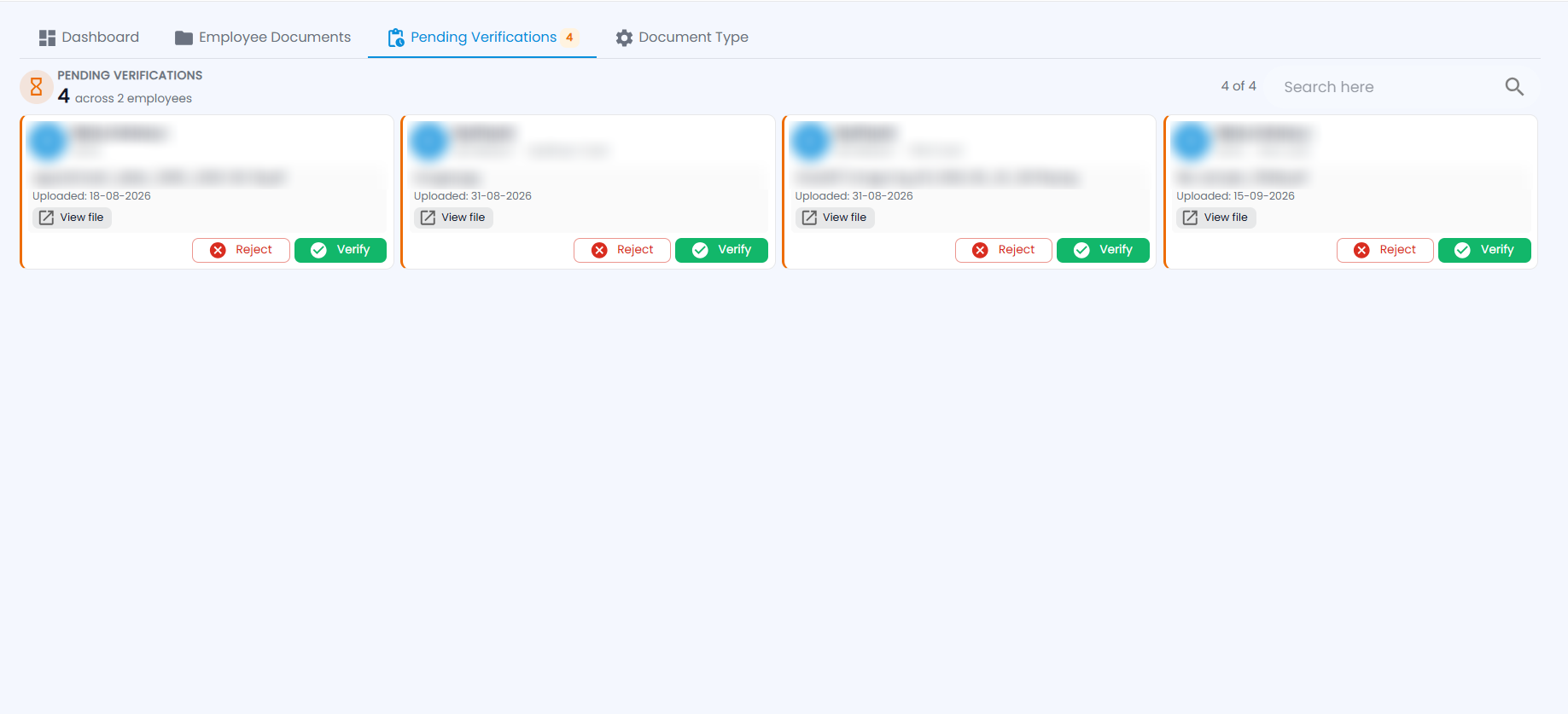
Pending Verifications shows how many documents are waiting, across how many employees. Each card shows the employee, the document type, the file name and when it was uploaded.
- Click View file to check the document.
- Click Verify to accept it, or Reject and enter the reason. A rejected document needs a fresh upload.
Search to find a particular employee or document.
How do I set up document types?
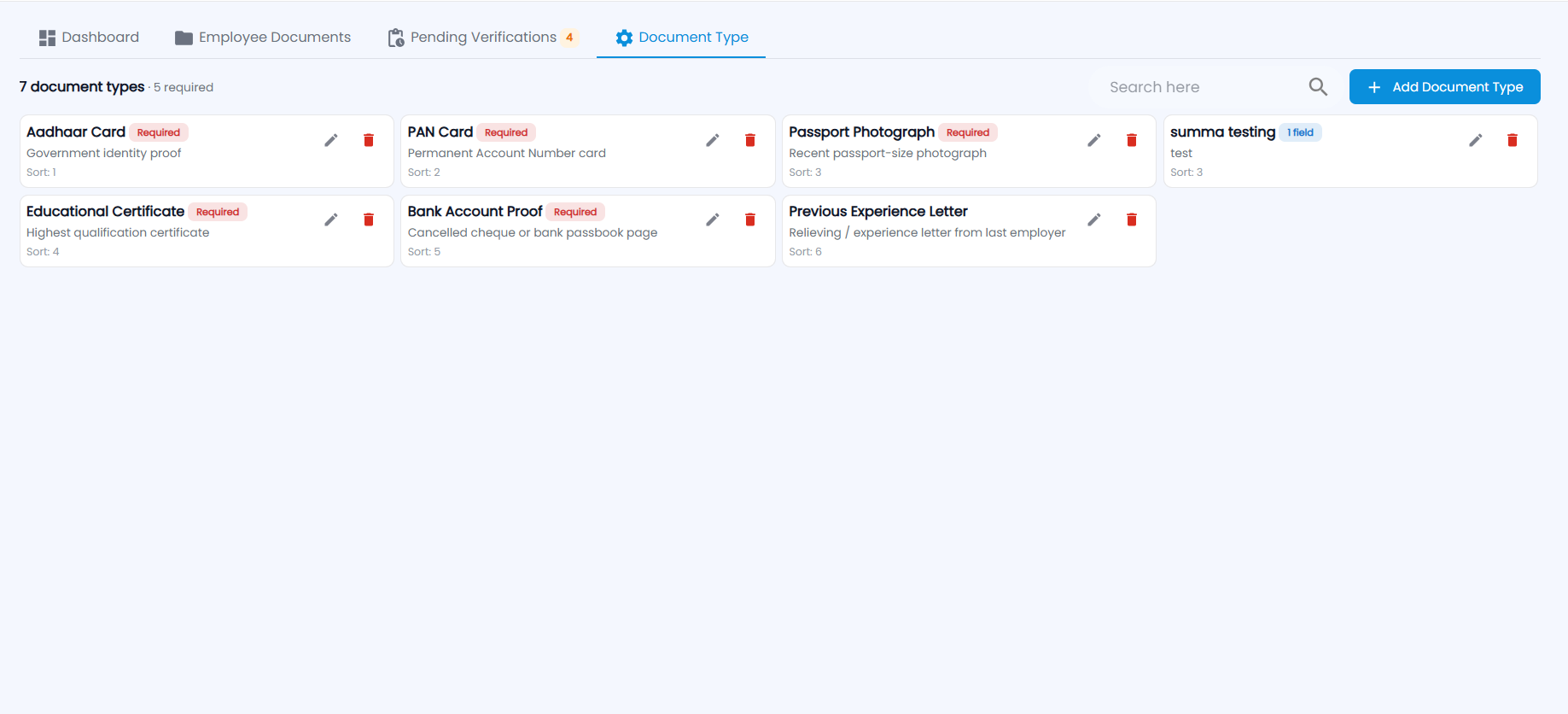
The Document Type tab lists every type you collect (for example "7 document types · 5 required"). Each card shows its name, a Required chip if it is required for onboarding, the number of extra fields, a description and its sort order, with edit and delete.
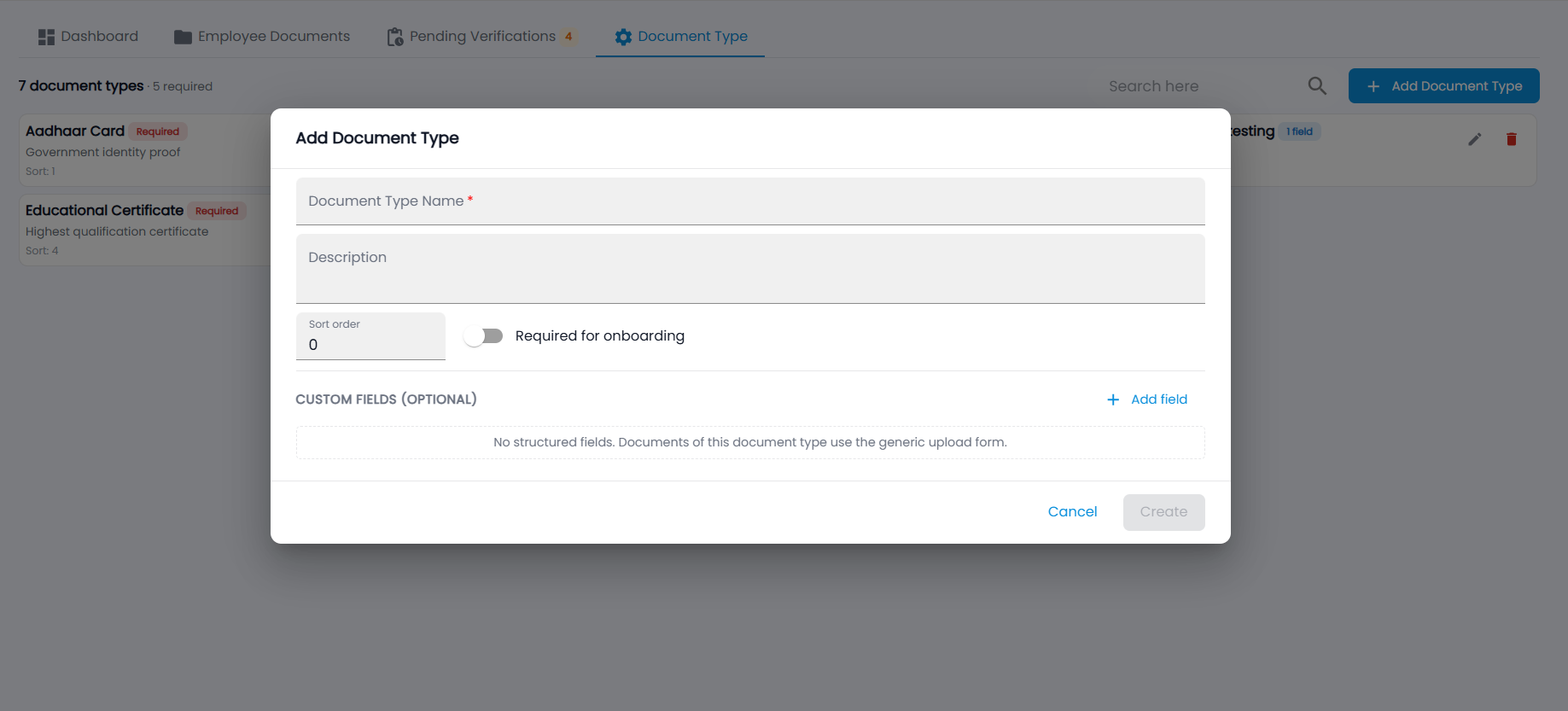
- Click Add Document Type.
- Enter the Document Type Name and a Description, and set the Sort order.
- Turn on Required for onboarding if every new hire must provide it.
- Optionally, under Custom fields, click Add field for details to capture with the file — for example a document number (text, number or date, optionally required). Without fields, the generic upload form is used.
- Click Create.