
How do I add a customer in Tazk POS?
Go to Contacts → Customer and click Create Contact. Enter the Company Name and Phone Number, the address (pincode, city and state are required), choose whether the customer is Registered in GST and enter the GST number, and set Credit Days, Credit value and Price List under Others. Click Submit. Tazk POS creates an accounting ledger for every customer automatically.
What does the Customer folder show?
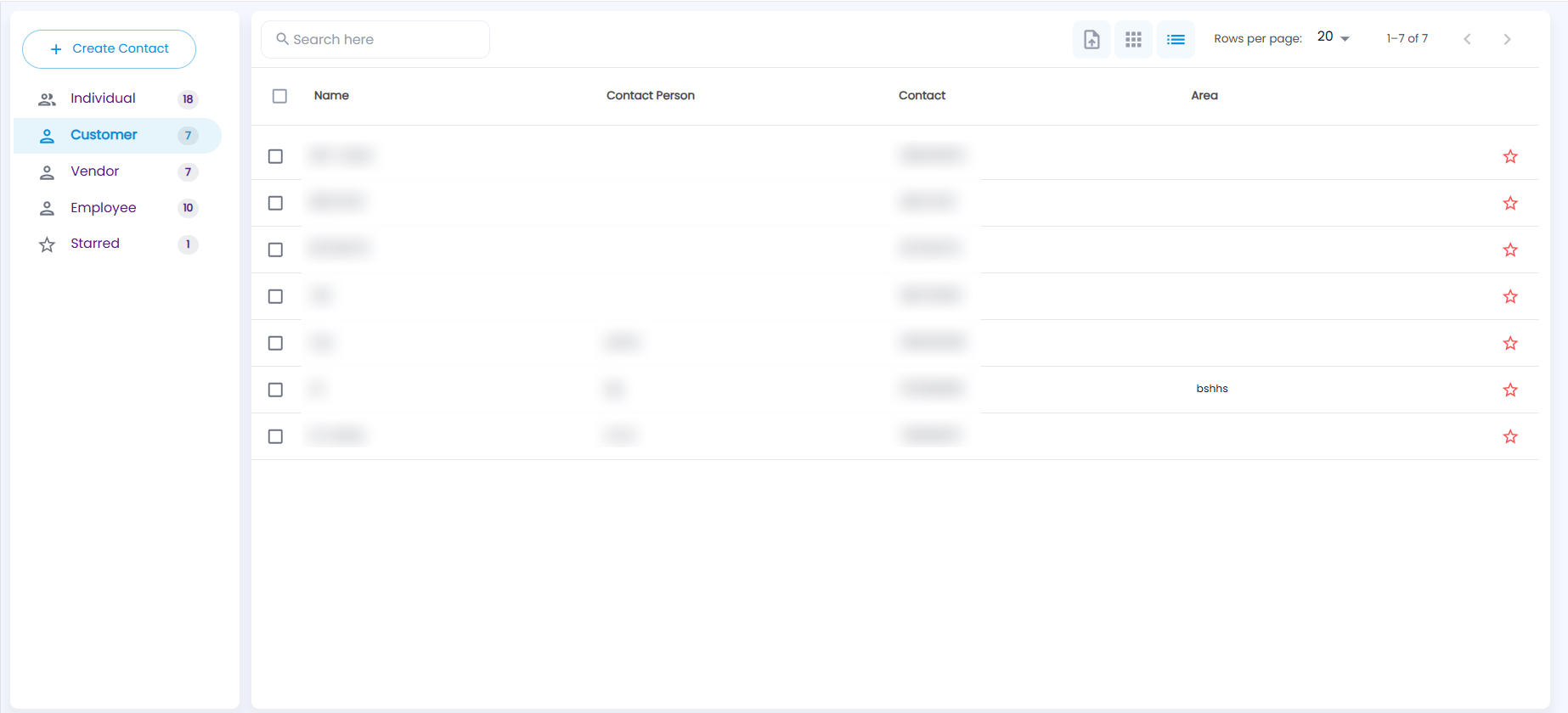
Click Contacts in the sidebar and choose Customer. The list shows Name (the company name), Contact Person, Contact (phone) and Area, with a star on each row (see Starred Contacts). If a customer is linked to a vendor, a Linked Vendor chip appears beside the name.
Search, sorting, grid and list views and rows per page work as in Individual Contacts. Click a row to open the customer. To change a customer, open it and choose EDIT, or point to its card in grid view and click edit. Customers cannot be deleted from Contacts.
How do I add a customer?
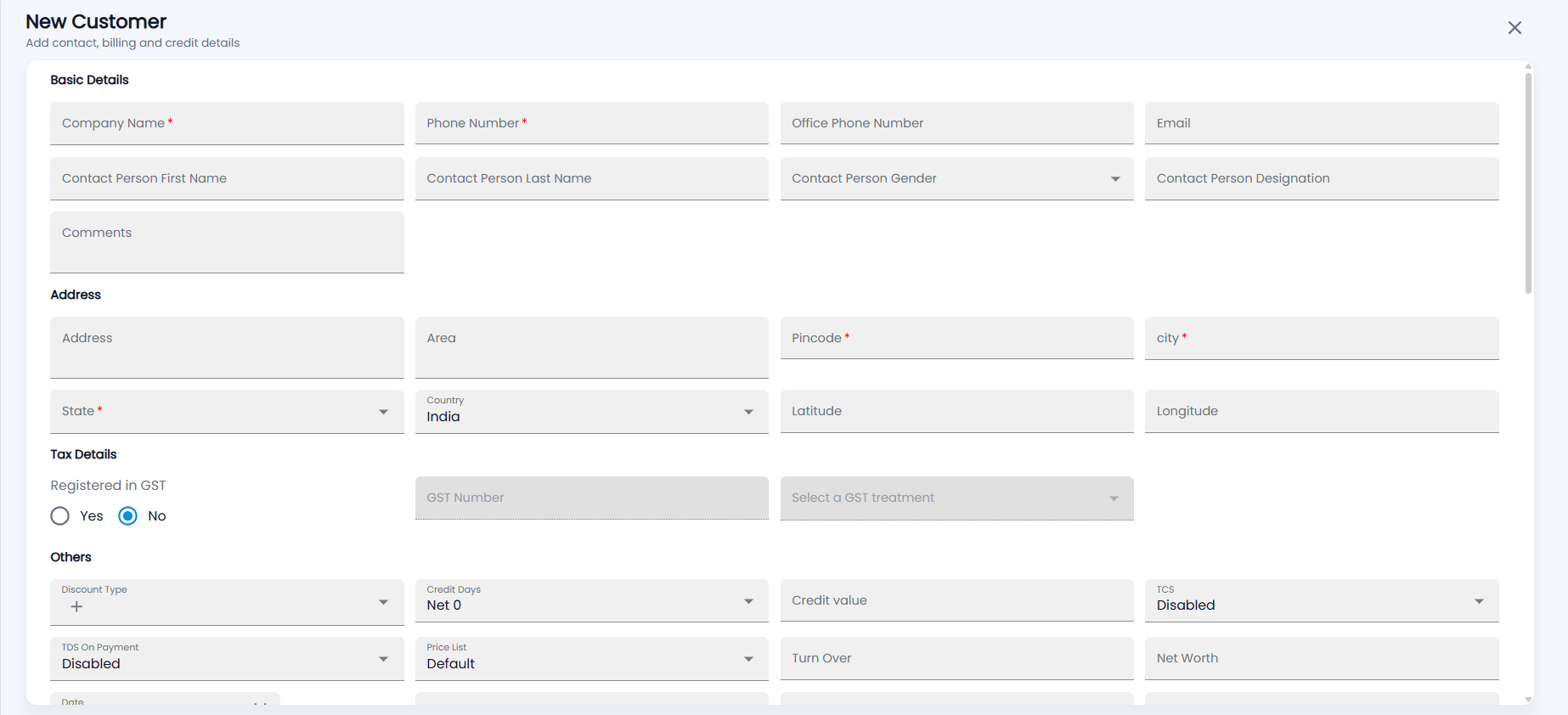
- With the Customer folder open, click Create Contact. The New Customer form opens.
- Basic Details — Company Name and Phone Number (both required), Office Phone Number, Email, the contact person’s first name, last name, gender and designation, and Comments.
- Address — as for an individual: Pincode, city and State are required, and a known pincode fills in the city and state.
- Tax Details — Registered in GST is No by default. Choose Yes to enter the GST Number and Select a GST treatment; both are then required.
- Others:
- Discount Type — pick one, or click + to create one.
- Credit Days — how long the customer has to pay (for example Net 0, or end of month). The options come from your list of credit-day values.
- Credit value — the customer’s credit limit in ₹.
- TCS and TDS On Payment — Enabled or Disabled (default).
- Price List — Default, or a price list from Customer Price List.
- Turn Over, Net Worth, Industry Type and Years In Business.
- Opening Balance and its Date — what the customer already owed you when you started using Tazk POS. The date is required when there is an opening balance and cannot be in the future.
- Salesman — the salesman who looks after this customer.
- Optionally add a Shipping Address, Bank Details (account number, bank name, branch, IFSC code) and Additional Contacts (name, designation, email, phone).
- Click Submit.
Another customer cannot have the same phone number or company name (Phone Number Already Exists!, Company Name Already Exists!).
How do I import customers from Excel?
- Open the Customer folder and click the Upload icon (next to the grid and list icons).
- Click Sample Template to download the Excel template and fill in one customer per row: Company Name, GSTIN, GSTIN Type, Full Address, Zip Code, City, State, Country, Credit Days, Credit Limit, First Name, Gender, phone number, Email, Salesman ID and Opening Balance.
- Choose the .xlsx file and click Upload.
- If some rows have problems, a review lists them. Click Proceed with Uploading Valid Records to import the good rows, or Close to fix the file first.
Every row needs a phone number, company name, a 6-digit zip code, city, state, country, first name and gender. If you give a GSTIN Type you must give the GSTIN; the type is one of REG, CMP, URB, SEZ, CTP, NRTP, ISD, ECO, TDS or GOVUIN. The salesman is matched by employee code. Large files import in the background with a progress window.
What is on a customer’s General tab?
Open a customer. The tabs are General, Transactions, Statement, Outstanding, Other Details, DC Aging and Receivables; your administrator can hide tabs for a role. Back, the previous / next arrows and the three-dot menu (EDIT) are at the top right.
The left side shows the company name (with a warning chip if the customer is credit-blocked), Basic Details, Contact Details, the Address and Tax Details (each with a pencil to edit), the Update GPS Location & DP card (see Individual Contacts), and Other Details — discount type, credit days, credit value, TCS and price list. The right side shows Receivable, UnUsed Credits and the credit days / credit limit, then Total Bills, Unpaid Bills, Average Credit Days and Average Billing Cycle, a sales chart and the TimeLine.
What is on the Transactions tab?
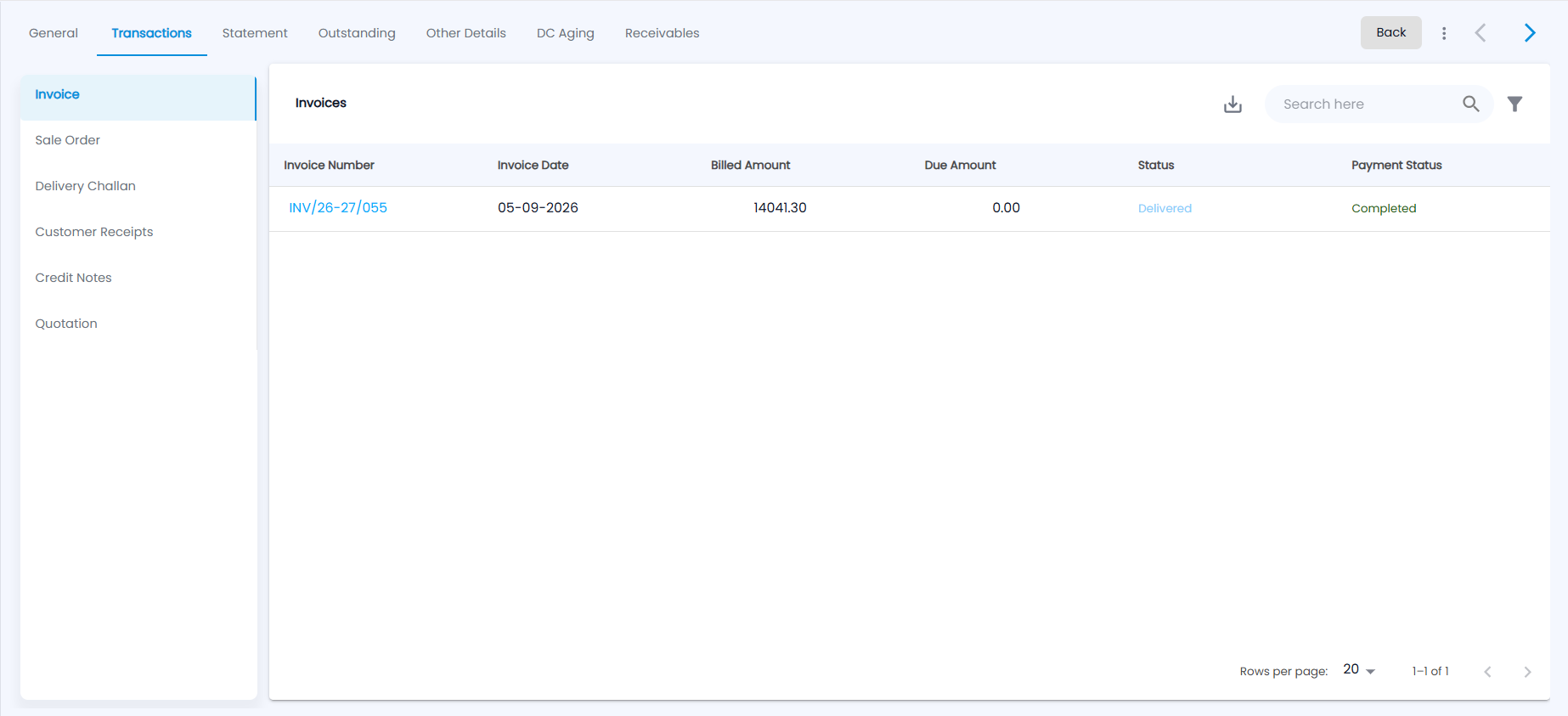
Pick a document type on the left: Invoice, Sale Order, Delivery Challan, Customer Receipts, Credit Notes or Quotation. The Invoice list shows Invoice Number, Invoice Date, Billed Amount, Due Amount, Status and Payment Status. Each list can be searched, filtered and downloaded; click a number to open the document. See Invoices, Sales Orders, Delivery Challans, Receipts, Credit Notes and Quotation.
What is the Statement tab?
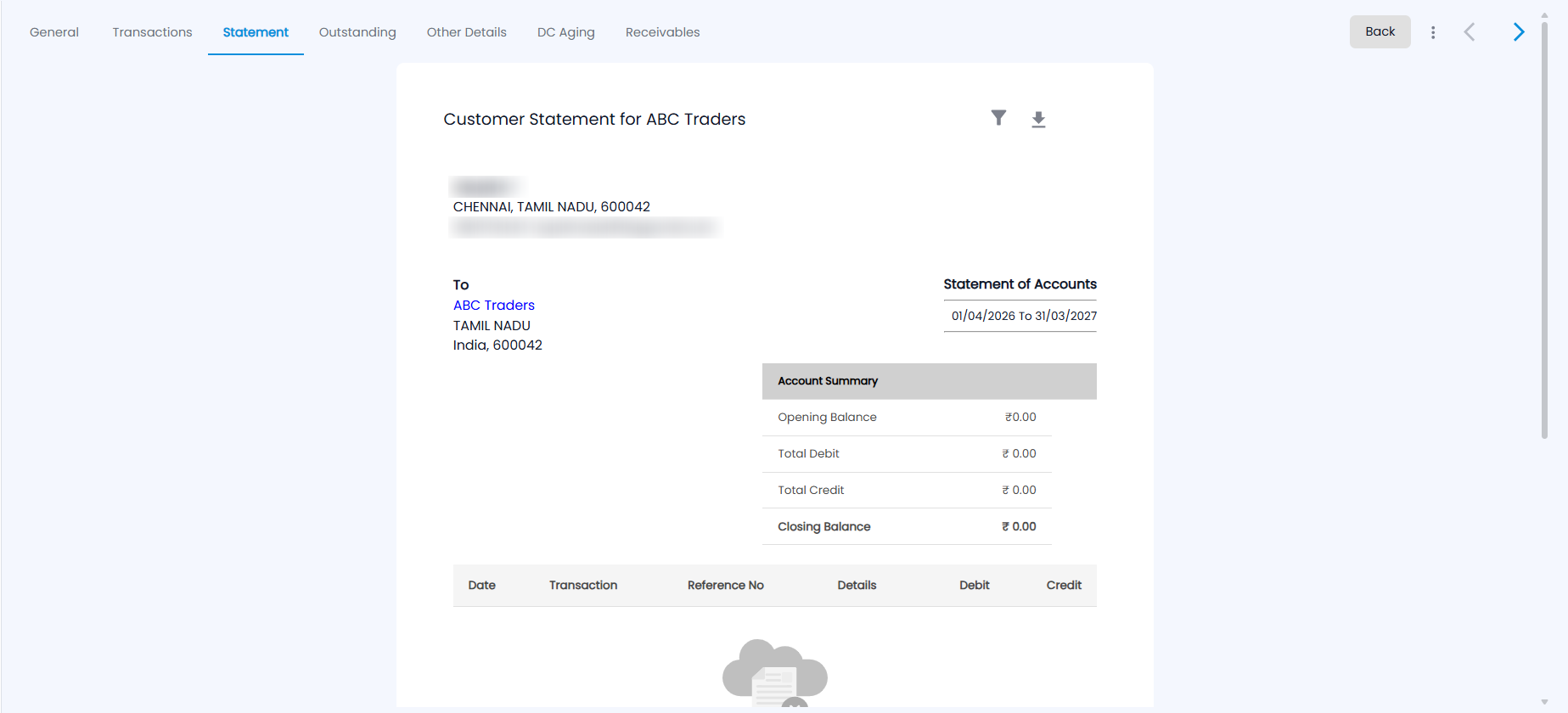
Customer Statement for the customer is a statement of account: your company’s details, the customer’s address, the period, and an Account Summary — Opening Balance, Total Debit, Total Credit and Closing Balance — followed by every transaction with its Date, Transaction, Reference No, Details, Debit and Credit.
It covers the current financial year (1 April to 31 March) by default. Click the filter icon to choose another range (Today, This Month, Last Quarter, Previous Fiscal Year, Last 365 days and so on) or your own from and to dates, then Apply. Click the download icon to save it as a PDF to send to the customer. If the customer is linked to a vendor, the statement combines both sides.
What is the Outstanding tab?
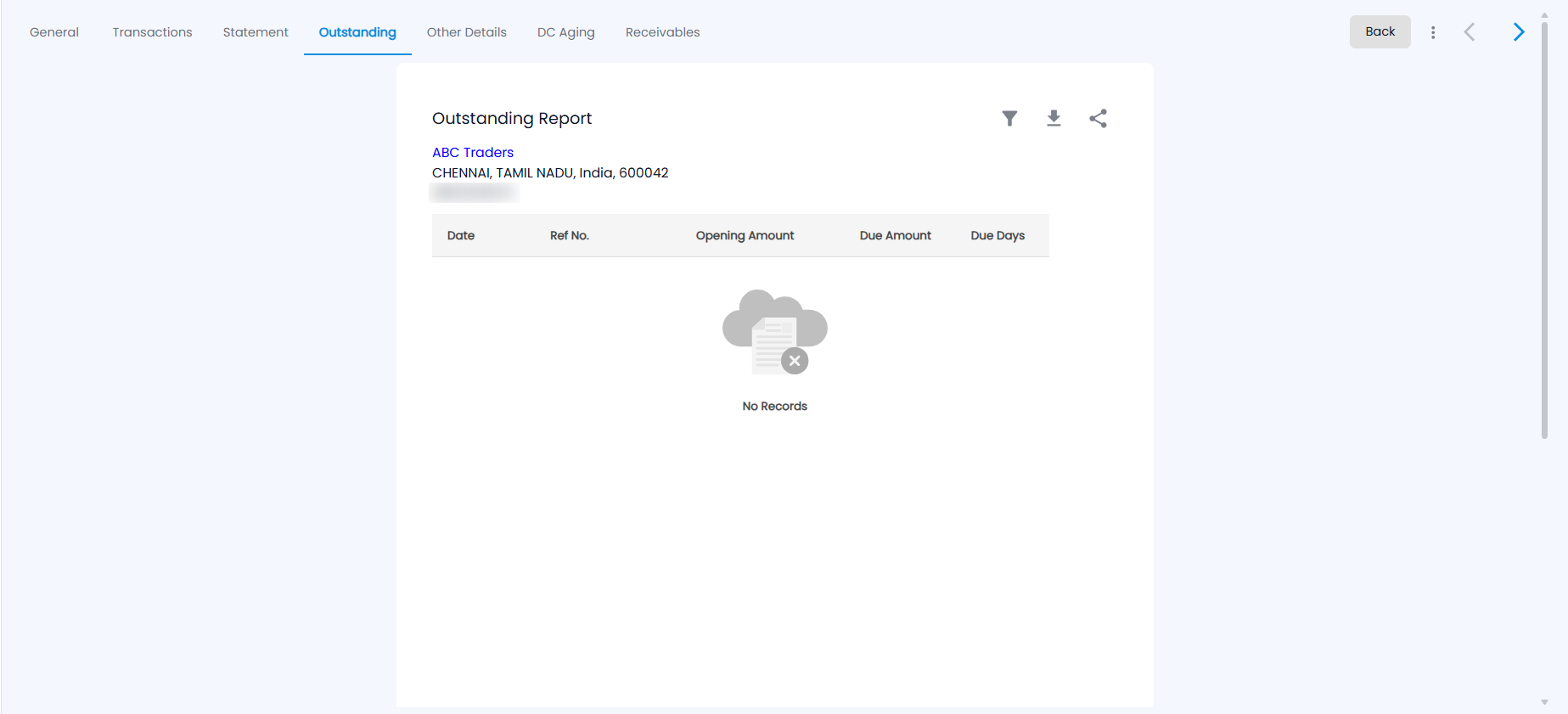
The Outstanding Report lists every unpaid invoice: Date, Ref No., Opening Amount, Due Amount and Due Days. Below it, open delivery challans and any bounced cheques (with the bounce date, reason and bank charges) are listed if there are any. It shows all dates unless you set a range with the filter icon. The download icon offers Export as PDF and Export as Excel, and the share icon sends the report to the customer on Whatsapp.
What is the Other Details tab?
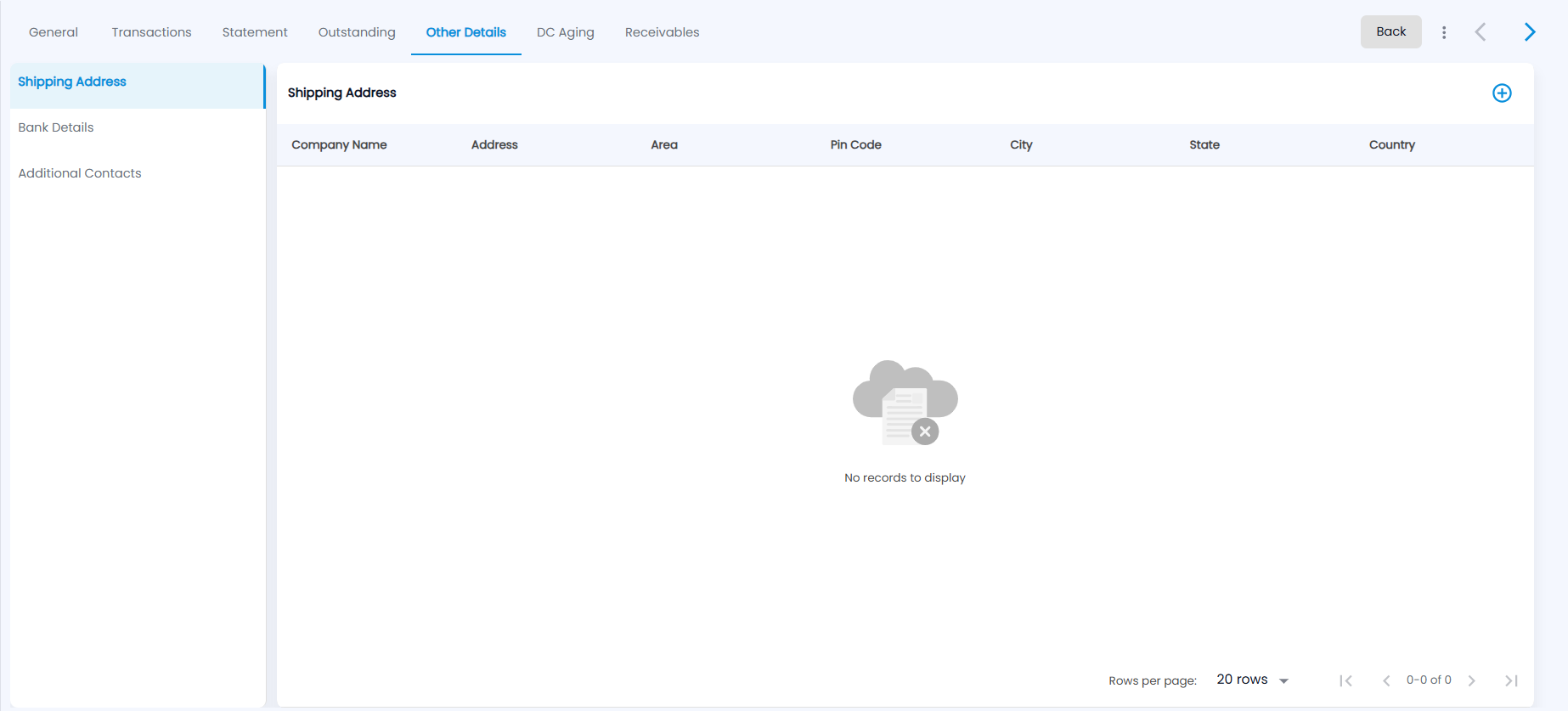
Choose Shipping Address, Bank Details or Additional Contacts on the left. Each shows a list — for shipping addresses, Company Name, Address, Area, Pin Code, City, State and Country — and the + icon at the top right adds a new one. A shipping address can be chosen when you create an invoice or delivery challan for this customer.
What is the DC Aging tab?
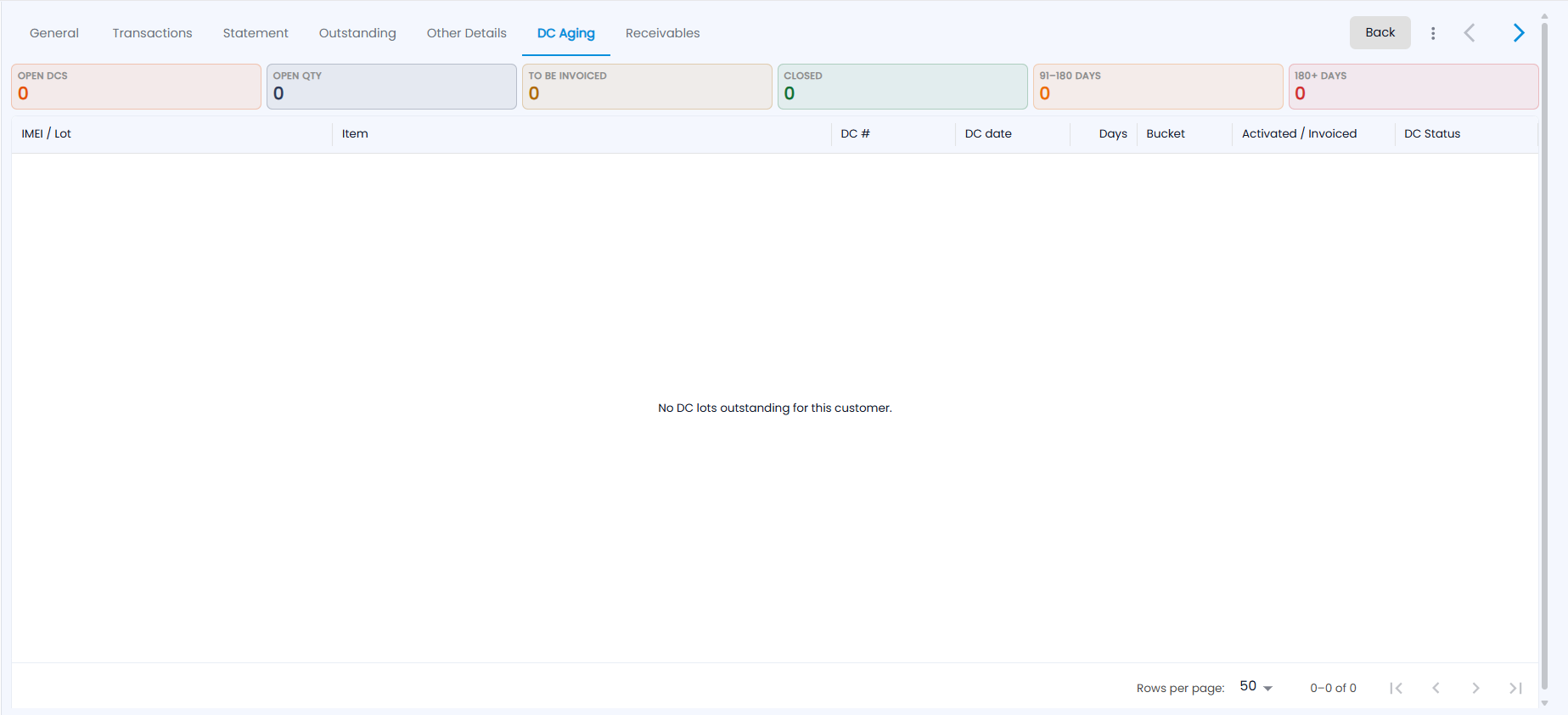
It shows this customer’s delivery challan lots that are not yet invoiced. The tiles count Open DCs, Open Qty, To Be Invoiced, Closed, and lots open 91–180 Days and 180+ Days. The table lists each IMEI / Lot with its Item, DC #, DC date, Days open, aging Bucket, Activated / Invoiced and DC Status. When nothing is open it says No DC lots outstanding for this customer. See DC Aging.
What is the Receivables tab?
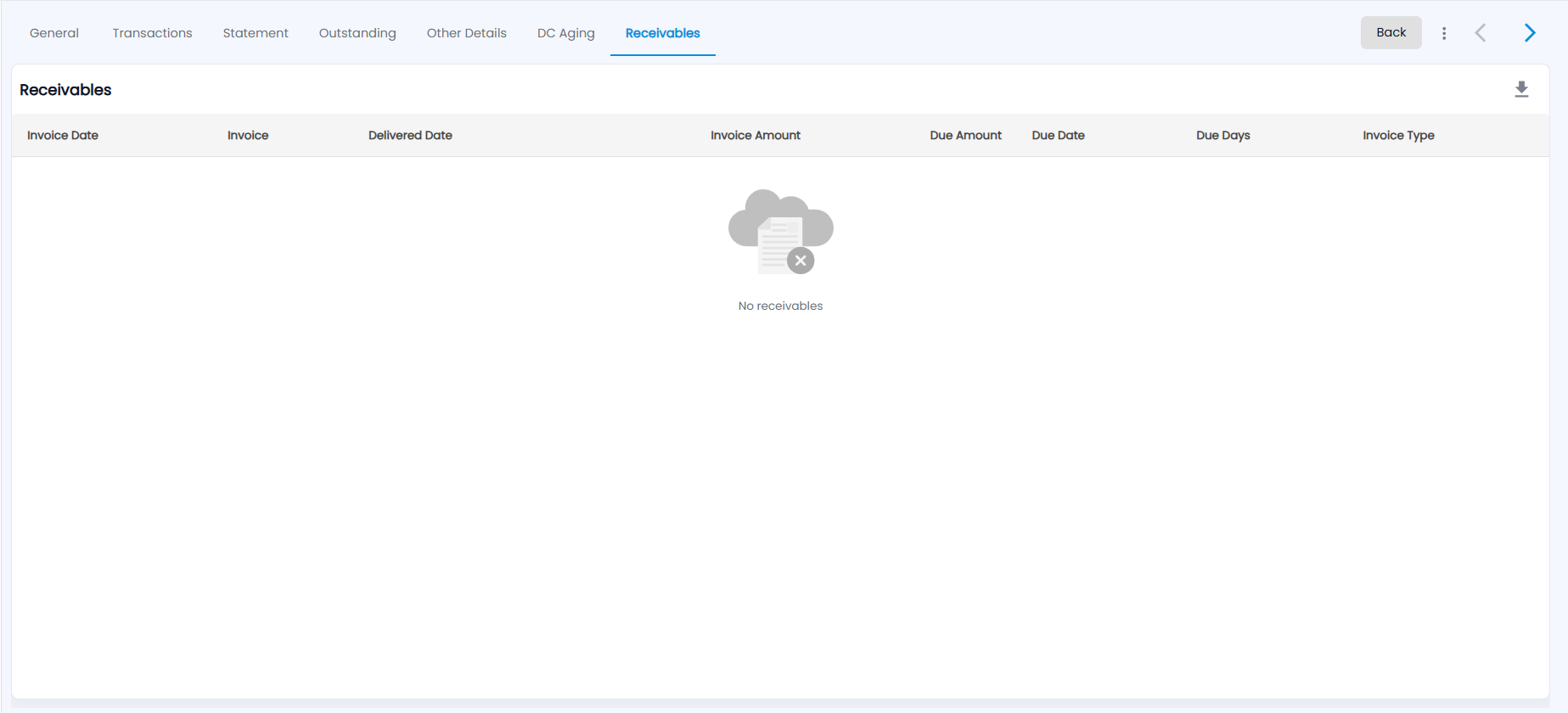
It lists the invoices this customer still has to pay: Invoice Date, Invoice, Delivered Date, Invoice Amount, Due Amount, Due Date, Due Days and Invoice Type. The download icon exports it as PDF or CSV. To record a payment, use Receivables or Receipts.