
What is a delivery challan in Tazk POS?
A delivery challan (DC) moves goods to a customer or dealer without billing them yet, for example stock sent on consignment. The goods leave your stock, but nothing is owed until you convert the DC, fully or partly, into an invoice. Sales → Delivery Challans lists every DC and also tracks each lot on it until it is invoiced, returned or still open, so that nothing stays on a challan for too long.
What tabs does the Delivery Challans page have?
| Tab | What it shows |
|---|---|
| Delivery Challans | The list of all DCs, where you create, edit, cancel and convert them |
| Approved (n) | Appears only when you have credit-approved DC requests waiting to be finalised |
| Lot wise | Every lot or IMEI on an open DC, with its age and status |
| Dealer Wise | A per-dealer rollup of open DCs, open lots, their value and the oldest DC |
What does the Delivery Challans list show?
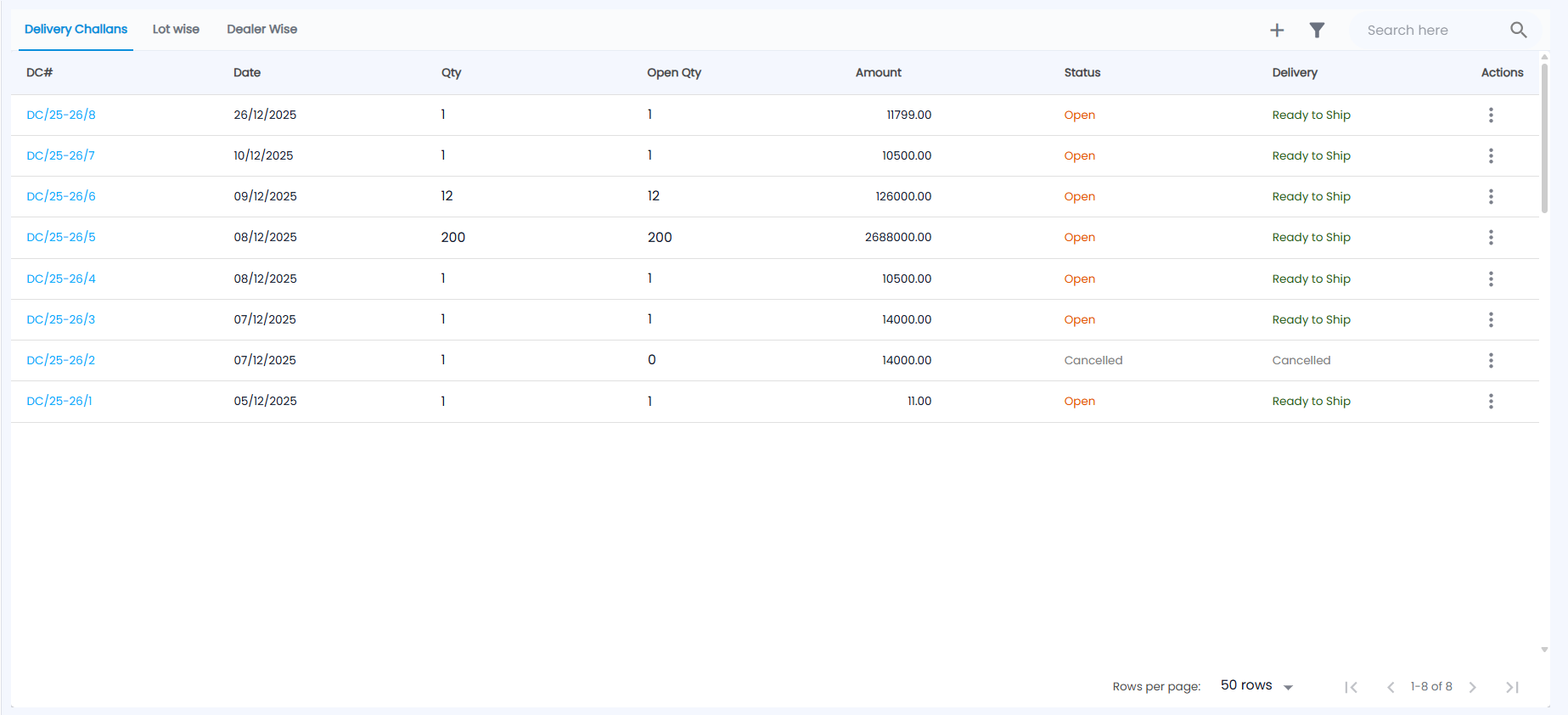
Open Sales → Delivery Challans. The toolbar has + (new DC), the filter icon and Search here; the list shows 50 rows per page by default.
| Column | Description |
|---|---|
| DC# | Challan number, for example DC/25-26/8. Click it to open the challan |
| Date | DC date |
| Qty / Open Qty | Quantity sent, and the quantity still on the challan after anything invoiced, returned or cancelled |
| Amount | Value of the challan in ₹ |
| Status | Open (orange), Partially Invoiced, Invoiced, Returned or Cancelled |
| Delivery | Delivery stage, for example Ready to Ship; Cancelled for a cancelled DC |
| Actions | The ⋮ menu with the actions available for that DC |
How do I create a delivery challan?
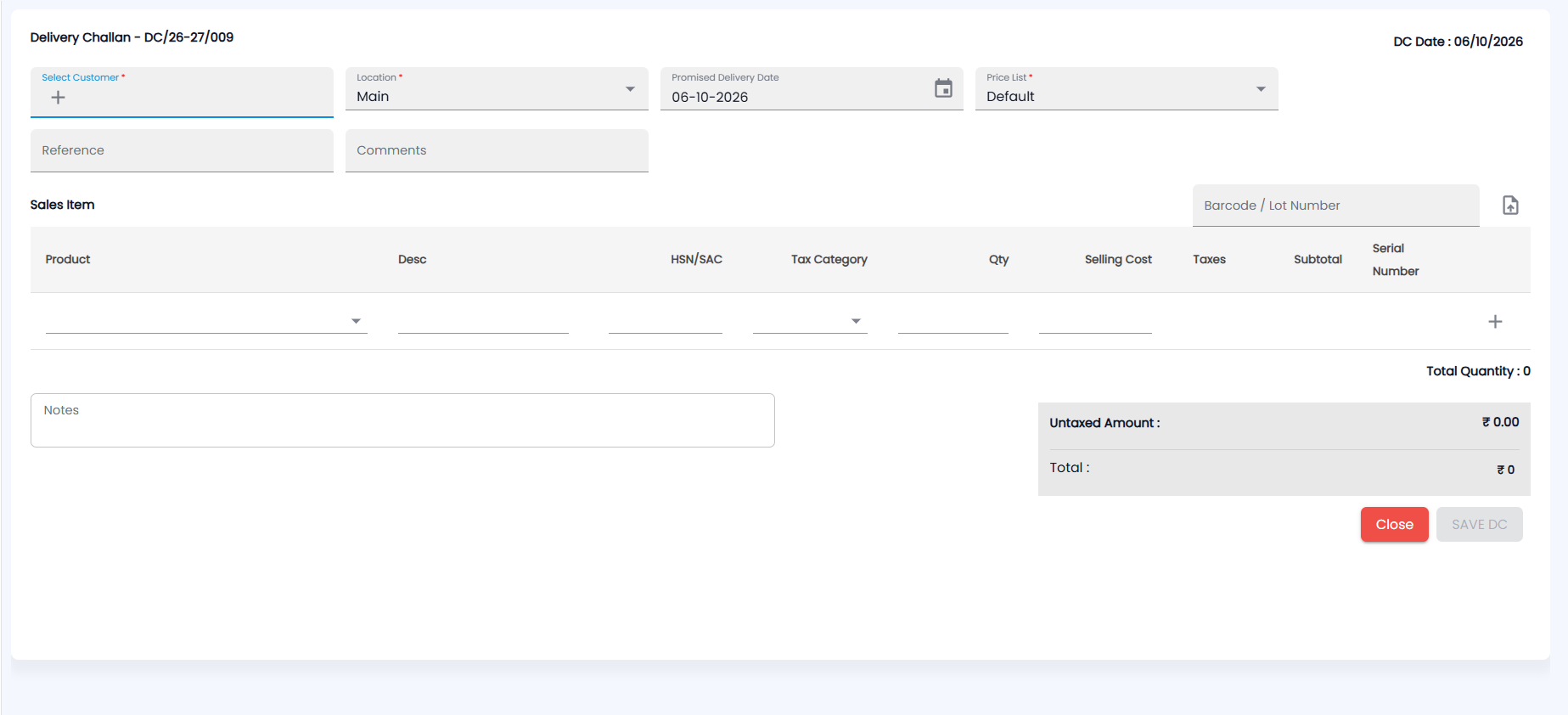
- On the Delivery Challans tab, click +. The form opens with the next number (for example Delivery Challan - DC/26-27/009) and the DC Date at the top right.
- Choose Select Customer (required; + creates a new customer). Location (required) is filled with your location, the Promised Delivery Date starts as today and the Price List (required) is Default unless the customer has their own. Add a Reference and Comments if needed.
- Under Sales Item, scan or type into Barcode / Lot Number, or pick the Product on a line (the upload icon imports lines from a file). Each line has Desc, HSN/SAC, Tax Category, Qty, Selling Cost, Taxes, Subtotal and Serial Number; + adds a line. Unlike an invoice there is no discount on the line, and the totals show only the Untaxed Amount and Total — GST is charged when the DC is invoiced.
- Add Notes if needed and click SAVE DC (Close leaves without saving). If the customer is credit-blocked, the DC goes for approval instead. Once it is approved, finalise it from the Approved tab.
How do I turn a DC into an invoice?
There are two ways:
- One DC at a time: open the DC and choose Actions → Convert to Invoice. Bill all of it or only part; the rest stays open. The credit check is not repeated, because it was done when the DC was created.
- All of a dealer's activated lots at once: on Lot wise or Dealer Wise, click a To be Invoiced chip. The New Invoice form opens with all of that dealer's activated, not-yet-invoiced lots, ready to save as one invoice.
To cancel a DC, use Actions → Cancel DC or Partial Cancel DC.
How do I read the Lot wise tab?
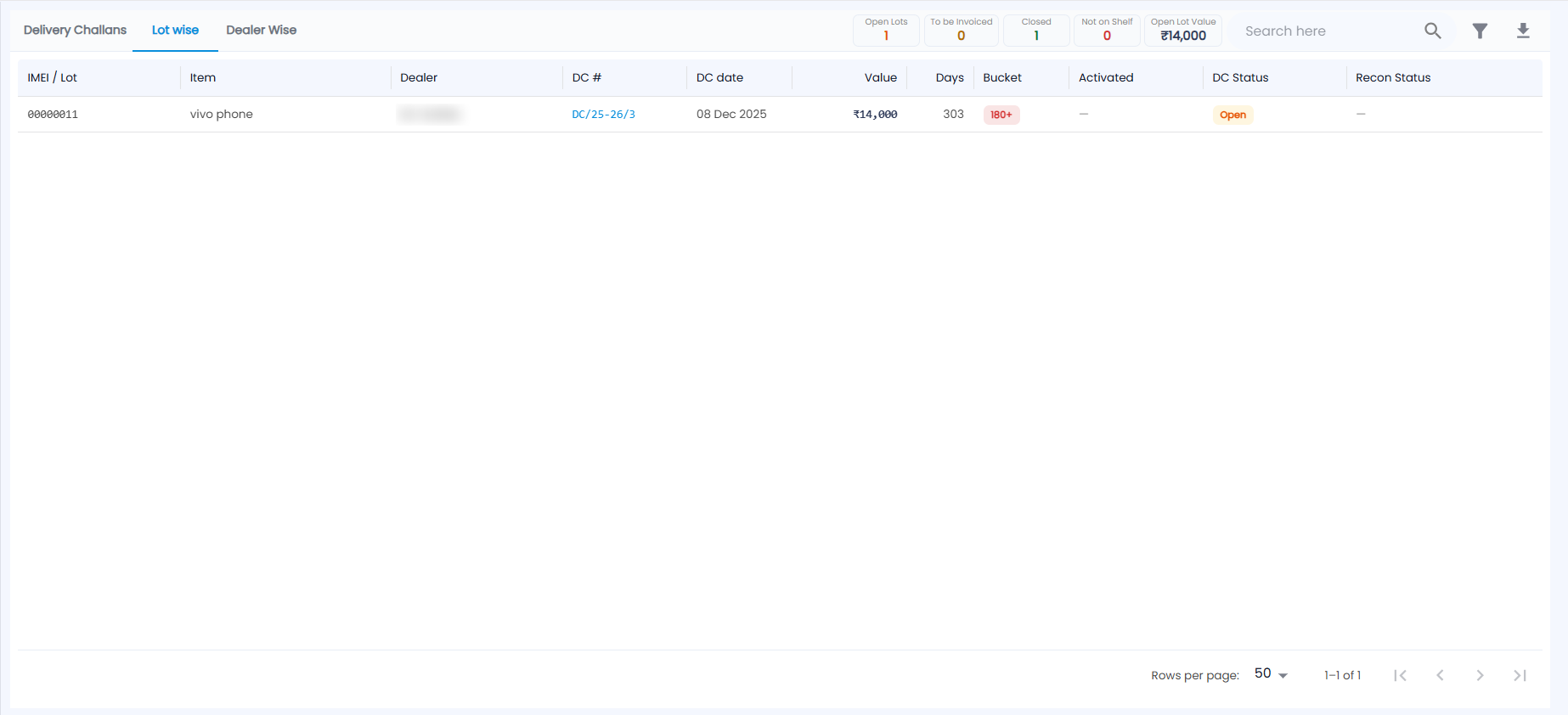
Lot wise lists every lot or IMEI that went out on a DC. Tiles at the top summarise the position — Open Lots, To be Invoiced, Closed, Not on Shelf and Open Lot Value (₹); click a tile to filter the grid. Next to them are Search here, the filter and the download icon (export to Excel).
The columns are IMEI / Lot, Item, Dealer, DC # (click it to open the DC), DC date, Value, Days since the DC, Bucket (0–30, 31–60, 61–90, 91–180 or 180+, red when old), Activated, DC Status and Recon Status.
| DC Status | Meaning |
|---|---|
| Open | Shipped; nothing has happened to it yet |
| To be Invoiced | The manufacturer reports the unit as activated (see OEM Activations), but it is not on an invoice yet |
| Closed | Invoiced |
| Returned | The dealer sent it back |
Recon Status shows what was found when the dealer's shelf was checked: Sold, Still on Shelf, Not on Shelf or Return Requested. See DC Reconciliation.
How do I read the Dealer Wise tab?
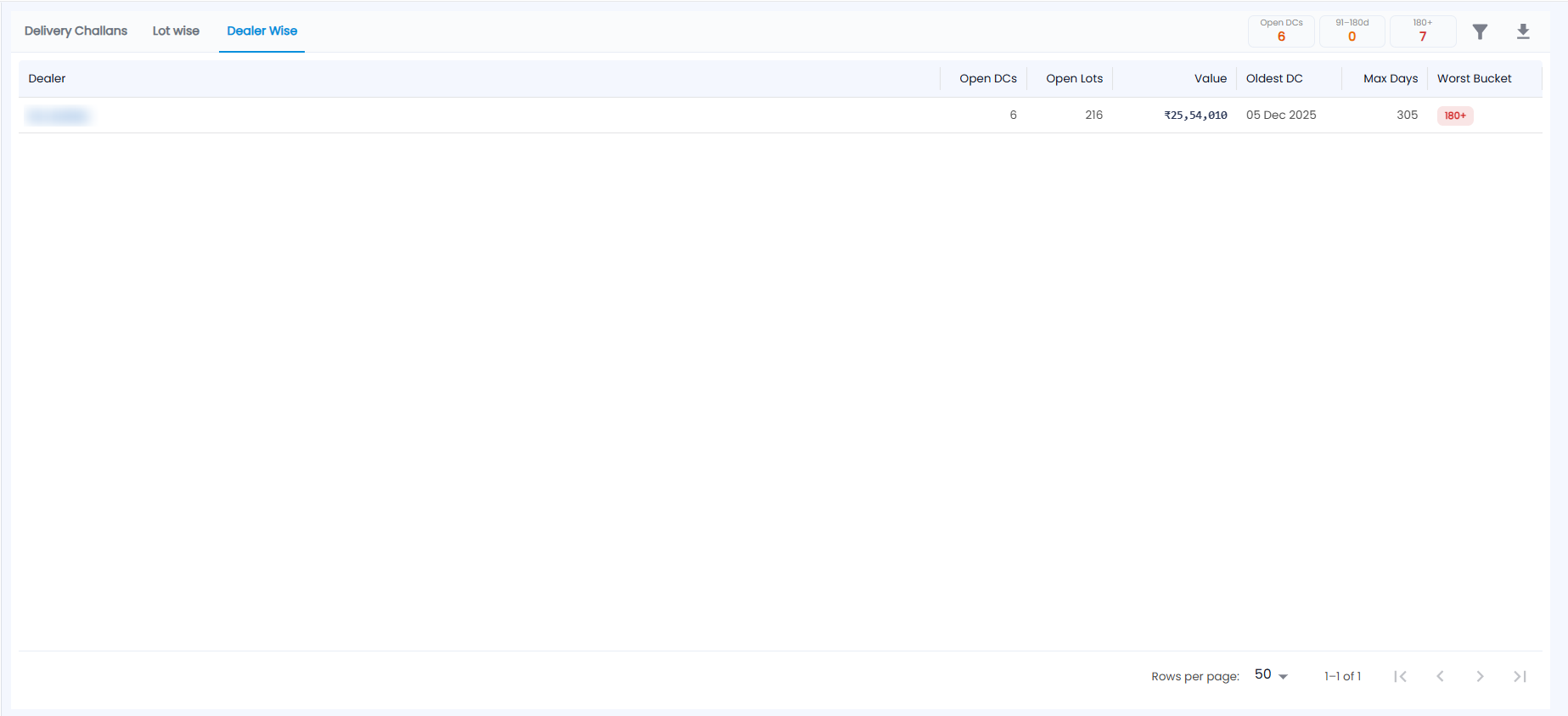
Dealer Wise rolls the open challans up by dealer. The tiles show Open DCs, and how many are 91–180d and 180+ days old. Each row shows the Dealer (a link), Open DCs, Open Lots, Value, Oldest DC, Max Days and the Worst Bucket — the oldest age band any of their lots is in. Use the filter and download icons as on Lot wise.
The same aging view is available as a standalone report in DC Aging.