
How do I give a customer credit in Tazk POS?
Go to Sales → Credit Notes. Click + Return to take goods back against an invoice; the items go back into stock and a credit note is created. Click + Manual to raise a credit note without goods, for example a rate difference or a scheme payout. The credit stays on the customer’s account until you adjust it against an invoice in a receipt.
What does the Credit Notes page show?
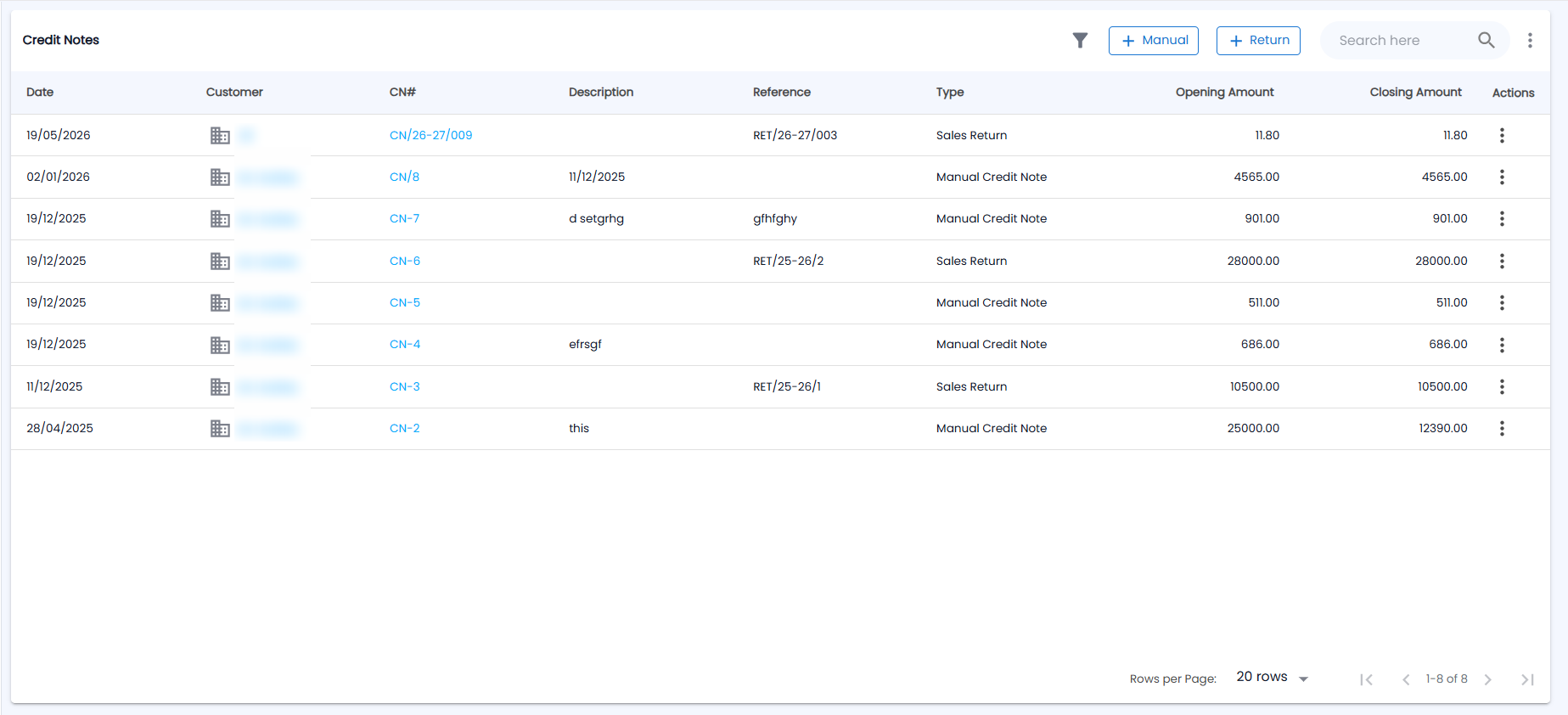
Open Sales → Credit Notes. Sales returns and manual credit notes appear in one list, told apart by the Type column. The toolbar has the filter icon, + Manual, + Return, Search here and a ⋮ menu.
| Column | Description |
|---|---|
| Date | Credit note date |
| Customer | Opens the customer's page |
| CN# | Opens the credit note PDF |
| Description / Reference | What the note is for. A sales return shows its return number as the reference, for example RET/26-27/003 |
| Type | Sales Return or Manual Credit Note |
| Opening Amount | The credit note's value |
| Closing Amount | The part not yet used — when it is lower than the opening amount, part of the credit has been used |
| Actions | The ⋮ menu for that credit note |
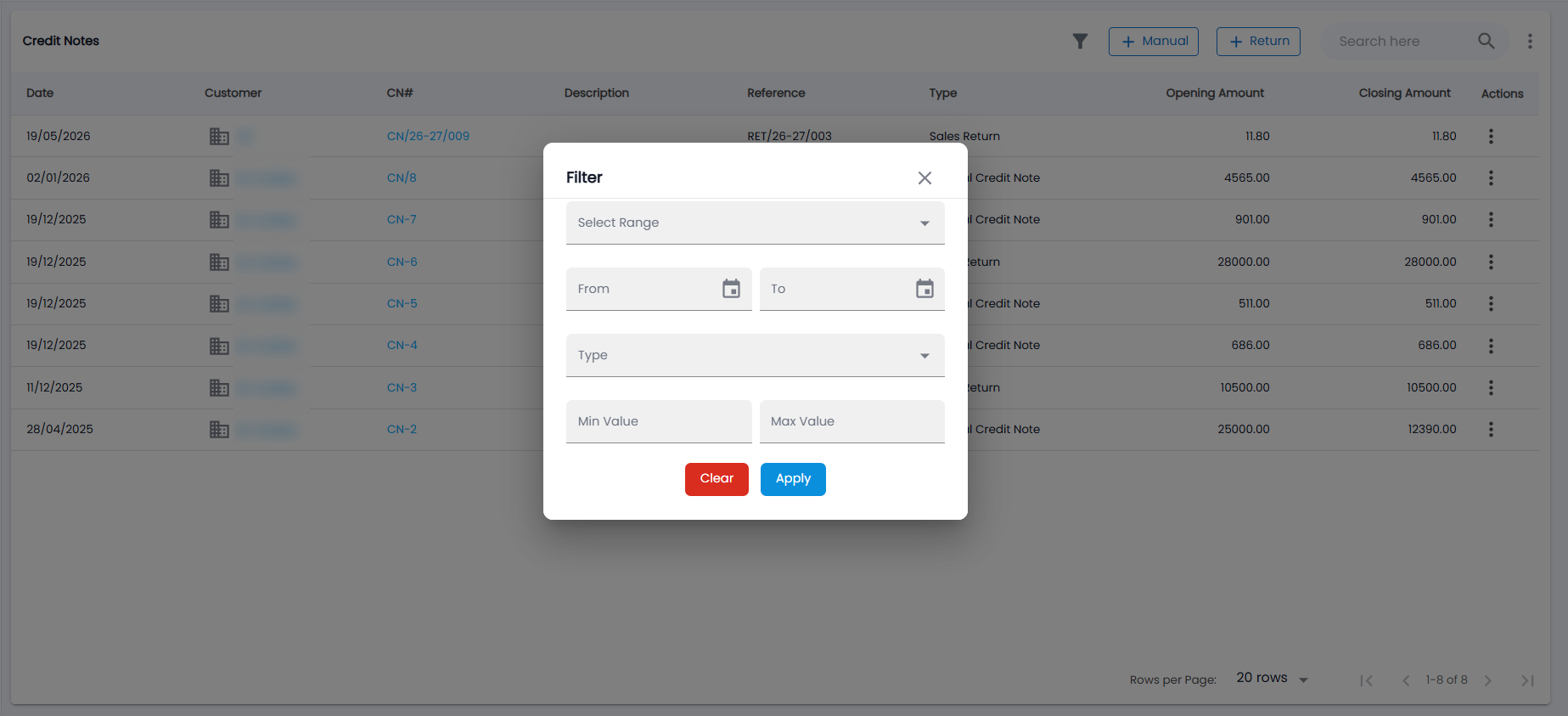
The filter icon opens Filter: Select Range, From and To dates, Type (sales return or manual), and Min Value / Max Value; click Apply or Clear. The ⋮ menu (More actions) exports the list to PDF or CSV. The list shows 20 rows per page by default.
How do I record a sales return?
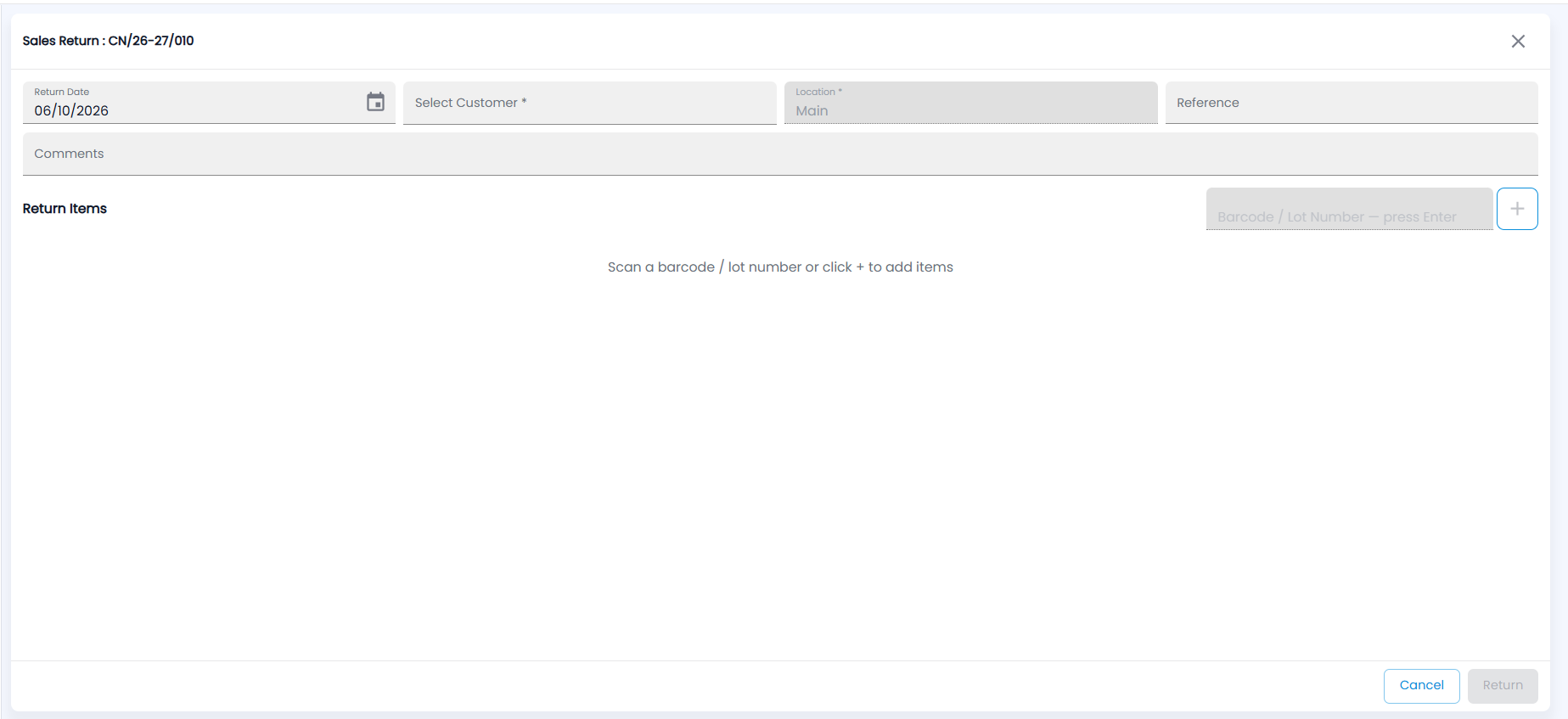
- Click + Return. The Sales Return form opens with the next credit note number (for example CN/26-27/010).
- Check the Return Date (today by default) and choose Select Customer (required). Location is your current location. Add an optional Reference and Comments.
- Under Return Items — which says Scan a barcode / lot number or click + to add items — scan or type into Barcode / Lot Number — press Enter, or click + to add an item by hand. The barcode field is available once a customer is chosen. Each line shows the invoice it was sold on, the product, serial, Return Qty, selling price, tax and subtotal.
- Check the totals (Untaxed Amount, Tax (GST), Round Off, Total) and click Return.
- Click Confirm Return. The items go back into stock, a credit note is created, and its PDF opens.
You can also start a return from an invoice with Actions → Return (see Invoices).
How do I raise a manual credit note?
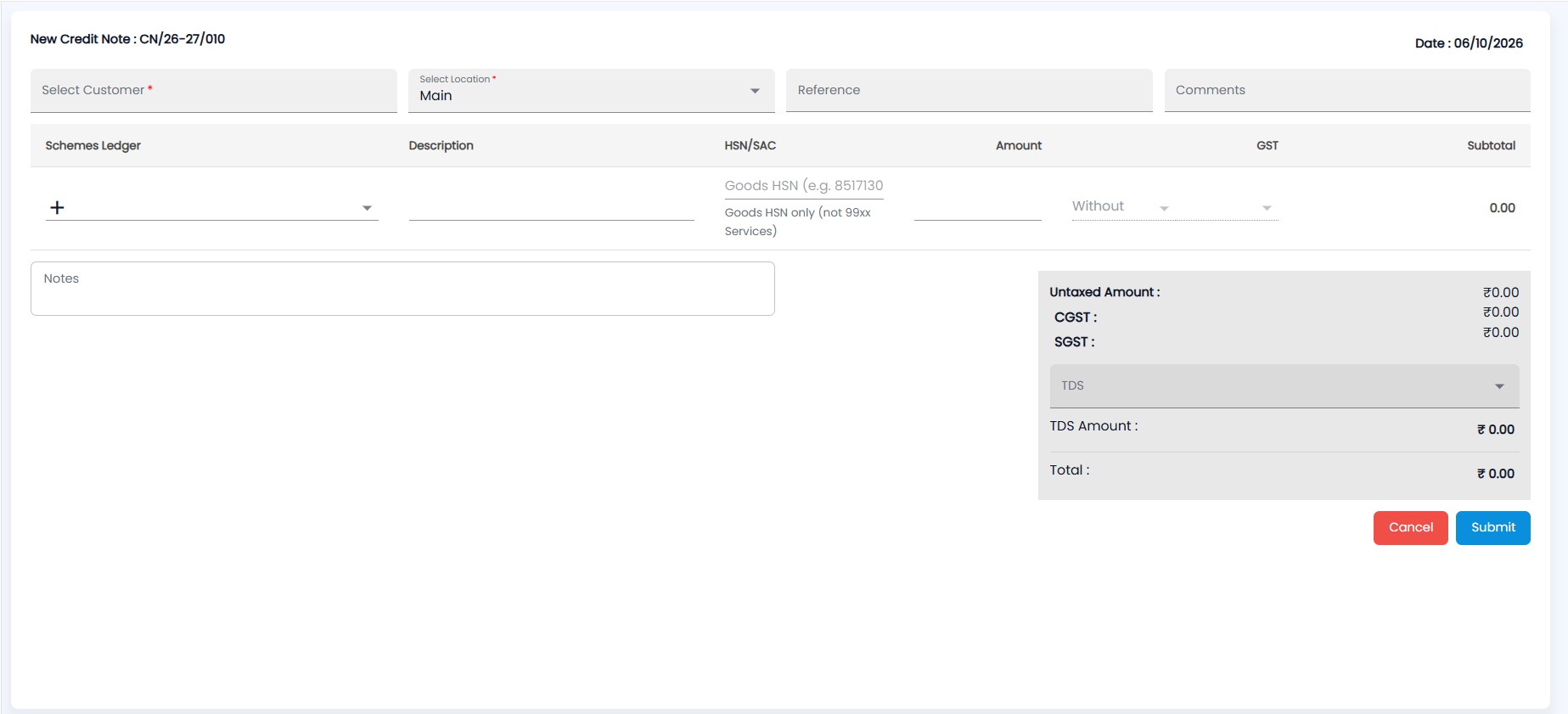
- Click + Manual. The form opens as New Credit Note with the next number (for example CN/26-27/010) and the Date at the top right — click it to change it; future dates are not allowed.
- Choose Select Customer and Select Location (both required; the location starts as yours). Add a Reference and Comments if you need them.
- Add the lines. For each, choose a Schemes Ledger (click + to create a new ledger), then enter a Description, the HSN/SAC — goods HSN only, for example 8517130, not a 99xx service code — the Amount, and the GST: Without (the default) or with a rate. The Subtotal shows on the right. Tax splits into CGST + SGST or IGST depending on the customer’s state.
- Add Notes. If TDS applies, choose it under TDS; the TDS Amount and Total update. For a GST-registered customer you may also see Generate IRN to create an e-invoice; if the IRN is refused, nothing is saved.
- Click Submit (Cancel leaves without saving).
How do I know if a credit note has been used?
Open a credit note to see its Credit Type, Opening Balance, Closing Balance and Status:
| Status | Meaning |
|---|---|
| Created | None of the credit has been used |
| Partial Adjusted | Part of it has been used against invoices |
| Adjusted | All of it has been used |
The Receipts table lists every receipt that used this credit and the invoice it went against. To use a credit note, open Receipts and pick it under Credit Notes & Available Credit.
When can I edit, cancel or delete a credit note?
- Edit: not possible once the note is adjusted. A sales return can be edited only for a customer without a GSTIN and with no IRN. A note with an IRN can have its Notes changed, but nothing else.
- Cancel IRN: available within 24 hours of the IRN, if the note has not been adjusted.
- Delete: blocked if the note is adjusted, has an IRN or is linked to an invoice. Deleting a sales return also reverses the returned stock.