
How do I create an invoice in Tazk POS?
Go to Sales → Invoices and click +. Choose the customer, check the invoice date, location and price list, add the items with their serial or barcode numbers, and click Create Invoice. You can also convert a sales order or a delivery challan into an invoice. Saving the invoice reduces stock, posts it to the accounts and adds the amount to the customer’s receivables.
What does the Invoices page show?
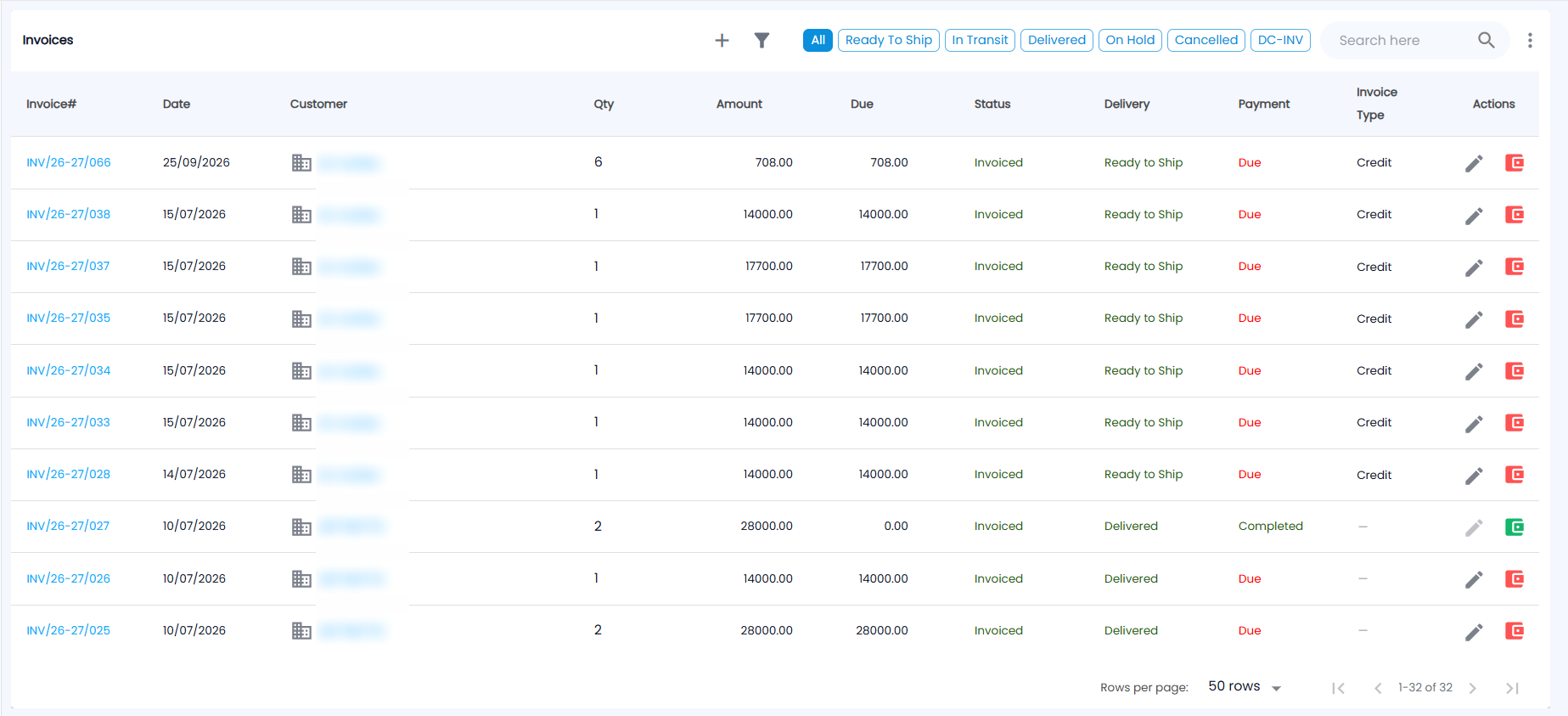
Open Sales → Invoices. Next to + and the filter icon, chips filter the list: All, Ready To Ship, In Transit, Delivered, On Hold, Cancelled and DC-INV. DC-INV shows invoices that were converted from a delivery challan. The list shows 50 rows per page by default.
| Column | Description |
|---|---|
| Invoice# | Opens the invoice. Where enabled, it also opens a preview of the printed invoice. |
| Date | Invoice date |
| Customer | Opens the customer's page |
| Qty / Amount | Total quantity and billed amount in ₹ |
| Due | Amount still unpaid |
| Status | The document’s status, for example Invoiced |
| Delivery | Delivery stage: Ready to Ship, In Transit, Delivered or On Hold |
| Payment | Due (red) while money is owed, Completed once paid |
| Invoice Type | The invoice type chosen on the form, for example Credit; a dash if none was chosen |
The Filter panel has the same fields as Sales Orders, plus Payment Status (Pending or Completed). Each row has two icons:
- Edit Invoice. If the invoice cannot be edited, for example because it has been filed in GST returns, has an IRN, has receipts or has been fully returned, the tooltip tells you why.
- A wallet icon — red with Make payment while money is due, green with Payment Done once the invoice is paid.
How do I record a payment from the invoice list?
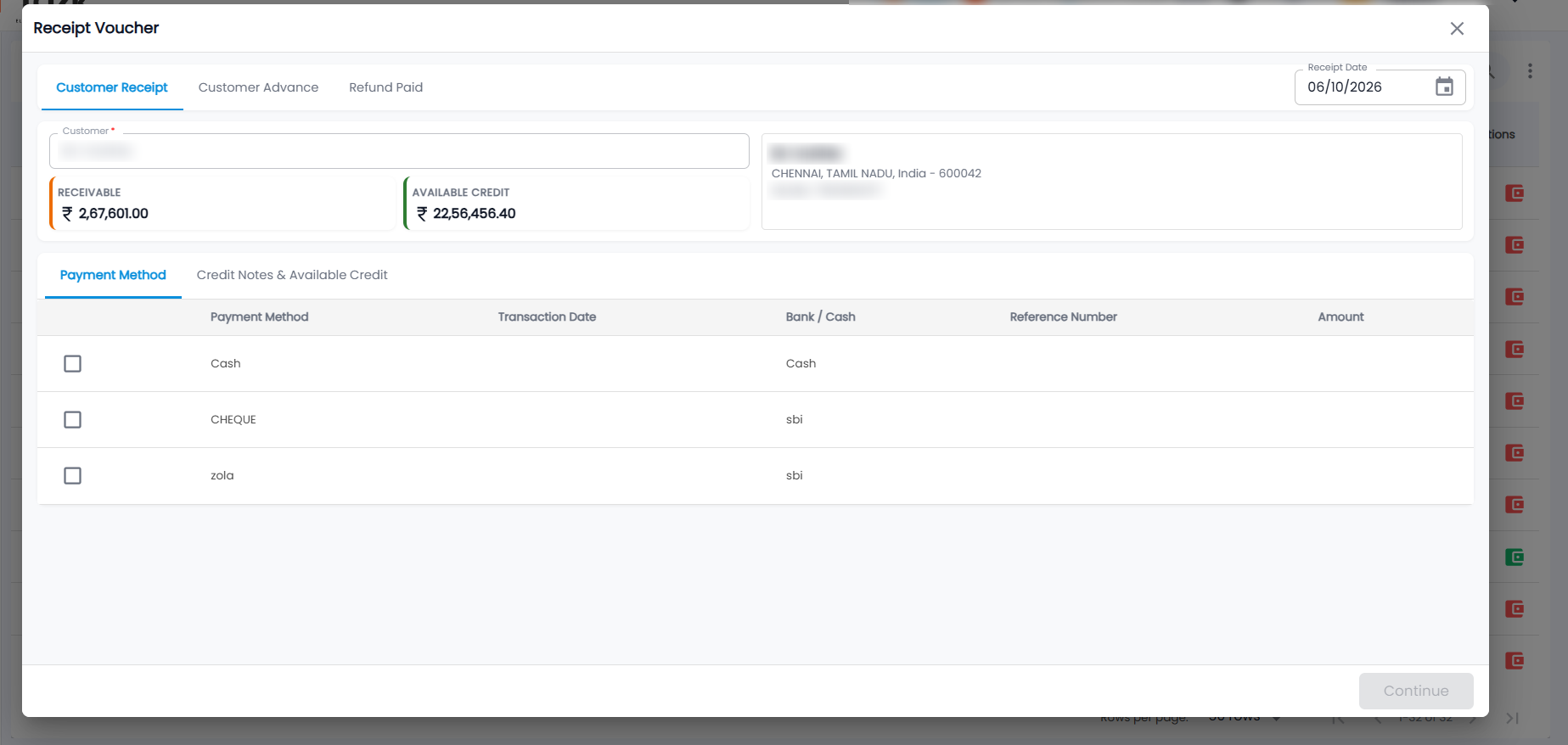
Click the red wallet icon on the invoice. The Receipt Voucher opens for that customer:
- Keep the Customer Receipt tab (the others are Customer Advance and Refund Paid) and check the Receipt Date (today by default).
- Check the customer’s RECEIVABLE (what they owe in total) and AVAILABLE CREDIT, shown under the customer with their address and mobile.
- On the Payment Method tab, tick each method the customer paid with — for example Cash, or a cheque or bank method — and enter the Transaction Date, Reference Number and Amount. Bank / Cash shows the account the money goes to.
- To use a credit note or available credit instead, open Credit Notes & Available Credit.
- Click Continue and choose the invoices the payment settles.
The payment then appears in Receipts, and the invoice’s Payment changes to Completed once it is fully paid.
How do I create an invoice?
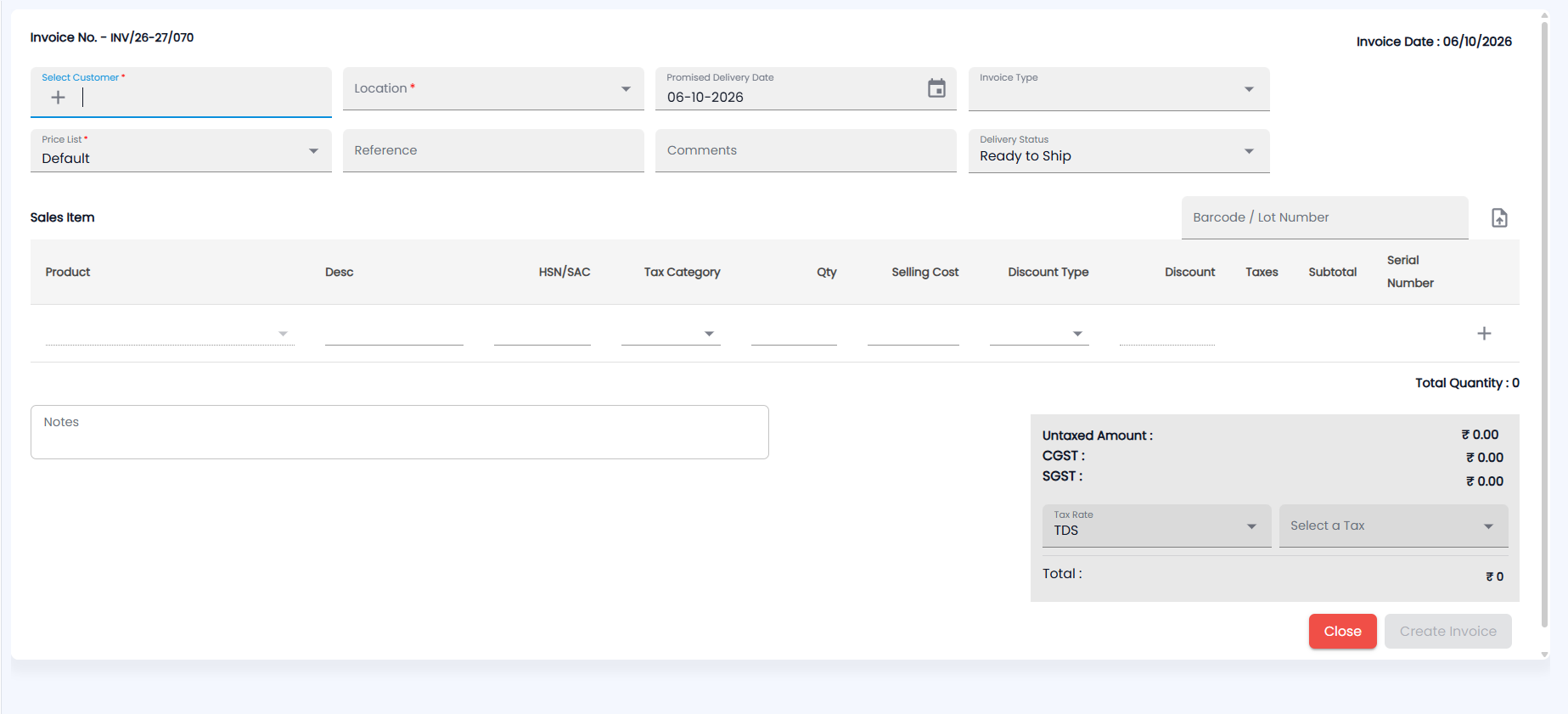
- Click +. The form opens with the next number (for example Invoice No. - INV/26-27/070) and the Invoice Date (today) at the top right.
- Choose Select Customer (required; + creates a new customer) and the Location (required). Check the Promised Delivery Date (today by default), the Invoice Type and the Price List (required, Default unless the customer has their own).
- Add a Reference and Comments if needed, and set the Delivery Status — Ready to Ship by default. Depending on your settings, the form can also ask for the due date, credit days, salesman, a Ship To address and transport details for an e-way bill.
- Under Sales Item, scan or type into Barcode / Lot Number to add an item straight away, or pick the Product on a line. The upload icon beside the barcode field imports item lines from a file. Each line has Desc, HSN/SAC, Tax Category, Qty, Selling Cost, Discount Type, Discount, Taxes, Subtotal and Serial Number. Every item needs its barcode or serial number; the invoice will not save without it.
- Add Notes if needed and check the totals: Untaxed Amount, CGST and SGST (or IGST), and Total. If tax is deducted at source, set Tax Rate (TDS by default) and choose the rate in Select a Tax.
- Click Create Invoice — it is enabled once the required fields and an item are filled in; Close leaves without saving. If the customer is credit-blocked, the button reads Send for Approval instead (see Approvals).
What can I do with an invoice once it is saved?
Click the Invoice# to open it. The Actions menu shows only the options that fit the invoice's stage:
| Action | What it does |
|---|---|
| Edit Invoice | Change the invoice while it is still editable |
| On Hold / Ready to Ship / Delivered | Update the delivery status |
| Receipt | Record a payment (see Receipts) |
| Return | Start a sales return, which creates a credit note. Not available for service-only invoices; raise a manual credit note for those. |
| Cancel Invoice | Cancels the invoice after you confirm with Yes, Cancel. This cannot be undone. |
The invoice page also lists the receipts received against it, with Previous / Next arrows to move between invoices.
What does an invoice change elsewhere?
- Stock: the lots or serials on the invoice leave stock (see Stocks).
- Accounts: the sale and its GST are posted to the ledgers.
- Dues: the unpaid amount appears in Receivables until a receipt settles it.
The printed layout comes from Document Templates.