
Where do I see what my customers owe in Tazk POS?
Go to Sales → Receivables. It lists every invoice with money still due. The cards at the top show the total due and how much is past its due date, and the aging chips split the dues by how many days they are overdue. Switch to the Customers view to see each customer’s total, and click a pending payment icon to record a receipt.
What do the cards and aging chips show?
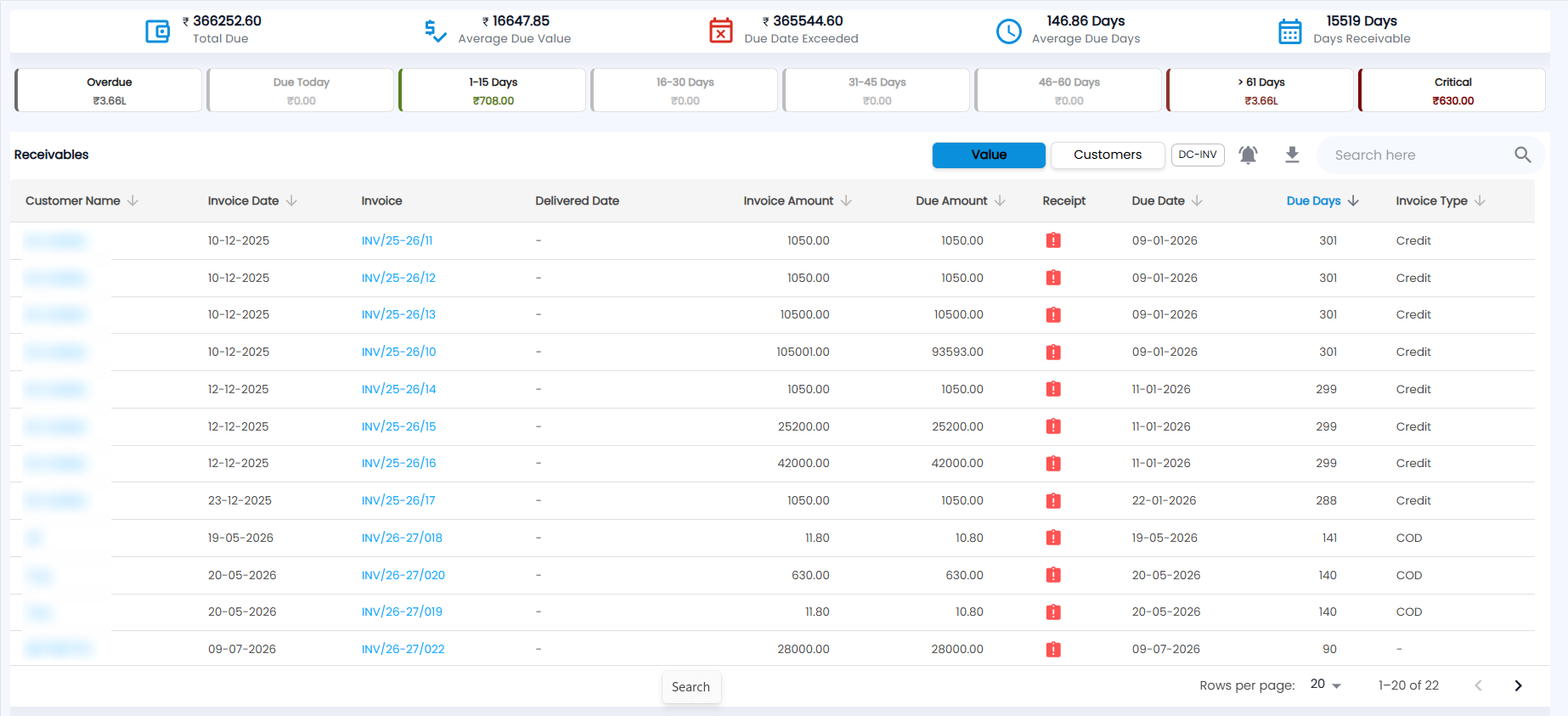
Open Sales → Receivables. Five cards run across the top:
| Card | What it shows |
|---|---|
| Total Due | Everything customers owe, in ₹ |
| Average Due Value | Average amount due per invoice |
| Due Date Exceeded | The amount past its due date. The icon turns red when this is above zero. |
| Average Due Days | Average age of the dues |
| Days Receivable | How many days of sales are tied up in dues |
Below them, the aging chips each show a ₹ total (L = lakh): Overdue, Due Today, 1-15 Days, 16-30 Days, 31-45 Days, 46-60 Days, > 61 Days and Critical. Chips with nothing in them are greyed out. Click a chip to filter the list.
What are the Value and Customers views?
The toolbar above the list has Value, Customers and DC-INV, the bell (reminder), the download icon and Search here.
Value (the default) lists one row per invoice: Customer Name, Invoice Date, Invoice, Delivered Date, Invoice Amount, Due Amount, Receipt, Due Date, Due Days (days since the due date) and Invoice Type (for example Credit or COD). Click a column heading with an arrow to sort by it; the list opens sorted by Due Days, oldest first. Choose 20, 50 or 100 rows per page.
Customers lists one row per customer, with No. of Bills, Average Due Days, Total Invoice Amount and Total Due Amount. Expand a row to see that customer's invoices and their opening balance.
Turn on the DC-INV chip to show only invoices converted from a delivery challan (see Delivery Challans). This works in the Value view only.
How do I record a payment from Receivables?
- Find the invoice. A red icon in the Receipt column means money is still due; a green icon means Paid.
- Click the red icon (Record payment). The receipt form opens with the customer and invoice already chosen.
- Enter the payment method and amount and confirm. The full steps are in Receipts.
You need permission to create receipts. Without it, the icon only shows Pending.
How do I collect an opening balance?
An opening balance is an amount the customer owed before you started using Tazk.
- In the Customers view, expand the customer.
- Their Opening Balance Amount is shown with a Make payment icon. Click it.
- In Opening Balance Payment, choose the bank or cash account, the Date and the Payment Mode, then enter the Amount (up to the amount due) and a Note.
- Click Submit.
What else can I do here?
- Click an invoice number to preview the invoice, or click the row to open its detail page.
- Reminder (bell icon) sets up a payment reminder.
- The share icon sends the Outstanding Report.
- Export downloads the list as PDF or CSV.
Credit notes and advances the customer holds are used up when you record a receipt (see Credit Notes). Scheme amounts owed to you by suppliers are tracked separately in Schemes Receivables.