
How do I add a vendor in Tazk POS?
Go to Contacts → Vendor and click Create Contact. Enter the Company Name and Phone Number, the address (pincode, city and state are required), whether the vendor is Registered in GST and its GST number, and any opening balance you owe, then click Submit. Every vendor gets its own ledger automatically. Open a vendor to see what you owe them, their bills and payments, their statement and their outstanding bills.
What does the Vendor folder show?
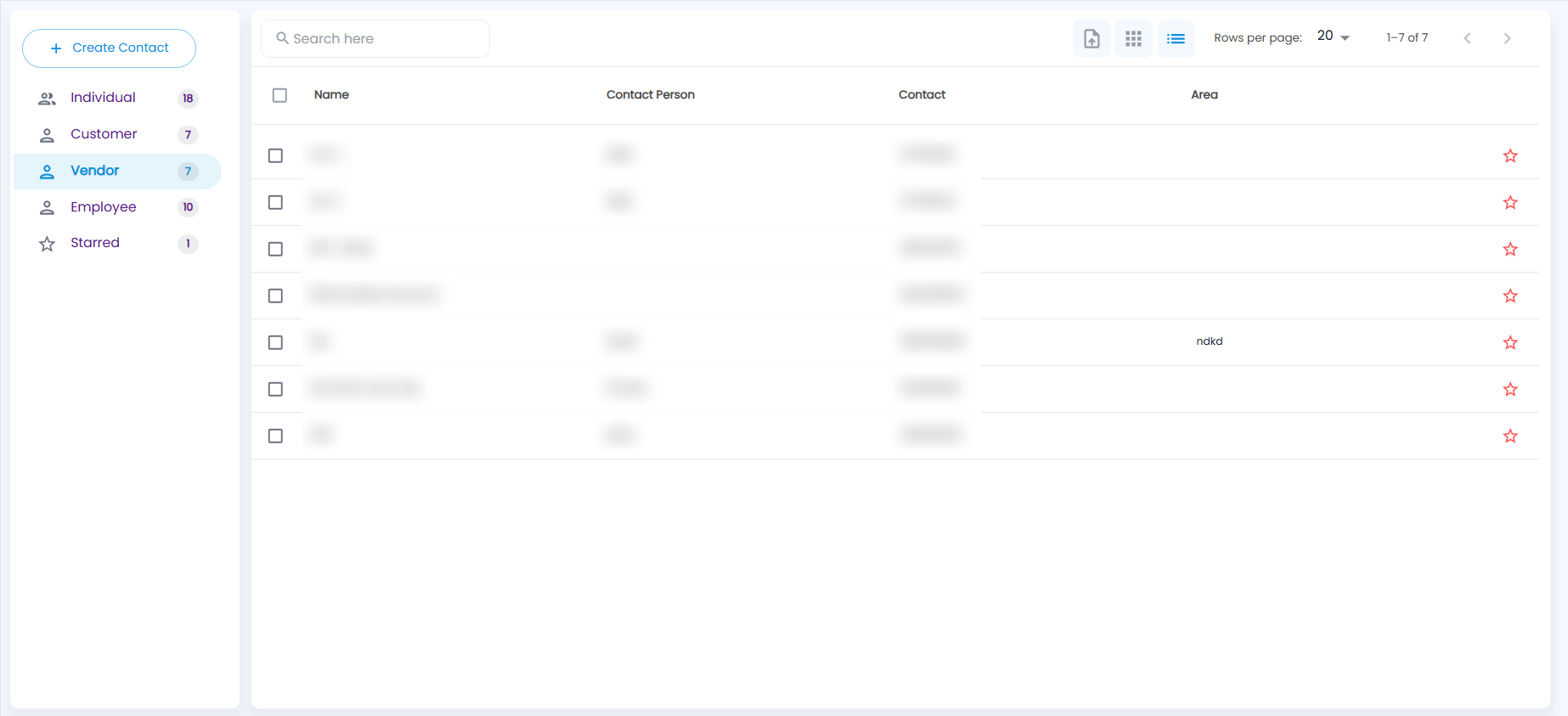
Click Contacts in the sidebar and choose Vendor. The list shows:
| Column | Description |
|---|---|
| Name | The vendor’s company name. A vendor linked to a customer has a Linked Customer chip beside it |
| Contact Person | The person you deal with there |
| Contact | Phone number |
| Area | Area from the address |
| Star | Click it to star the vendor — see Starred Contacts |
The icons at the top are Upload (import vendors from Excel), Grid View and List View. Search, sorting and rows per page work as in Individual Contacts. Click a row to open the vendor. Vendors cannot be deleted from Contacts; to change one, open it and choose EDIT.
How do I add a vendor?
- With the Vendor folder open, click Create Contact.
- Basic Details — Company Name and Phone Number (both required), office phone, email, the contact person’s name, gender and designation, and comments.
- Address — Pincode, city and State are required; a known pincode fills in the city and state.
- Tax Details — choose Registered in GST Yes to enter the GST Number and GST treatment.
- Others — Discount Type, TCS, TDS On Payment, Turn Over, Net Worth, and any Opening Balance you owe the vendor with its Date.
- Optionally add a shipping address, bank details and additional contacts, then click Submit.
The vendor form is the customer form without credit days, credit value, price list, industry type, years in business and salesman. If another vendor already has the same GST number, you are warned (Duplicate GST Number) and can cancel or continue. The opening balance is posted to the vendor’s ledger as an amount you owe, and shows in Payables.
How do I import vendors from Excel?
Click the Upload icon, download the Sample Template, fill in one vendor per row and upload it. The steps and rules are the same as in Customer Contacts, without the salesman column.
What is on a vendor’s General tab?
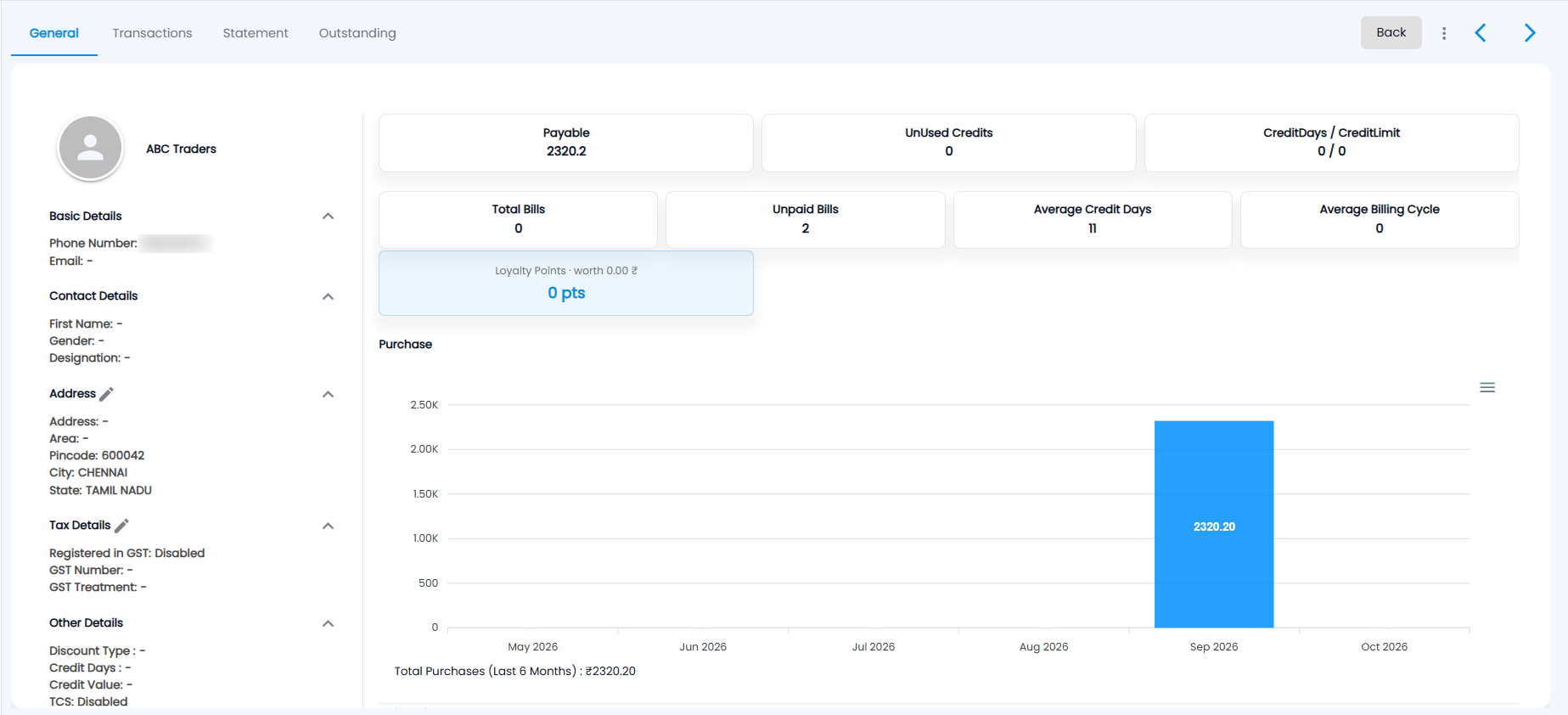
A vendor has four tabs — General, Transactions, Statement and Outstanding. Back, the previous / next arrows and the three-dot menu are at the top right.
The left side shows the company name, Basic Details (phone and email), Contact Details, the Address and Tax Details (each with a pencil to edit), and Other Details — discount type, credit days, credit value and TCS. The right side shows:
| Card | What it shows |
|---|---|
| Payable | What you still owe this vendor |
| UnUsed Credits | Credit with this vendor that has not yet been used against a bill |
| CreditDays / CreditLimit | The credit terms on the vendor |
| Total Bills / Unpaid Bills | How many bills there are, and how many are still unpaid |
| Average Credit Days / Average Billing Cycle | How long bills stay unpaid on average, and the average gap between bills |
| Purchase | A bar chart of purchases from this vendor for the last six months, with Total Purchases (Last 6 Months) below it |
What is on the Transactions tab?
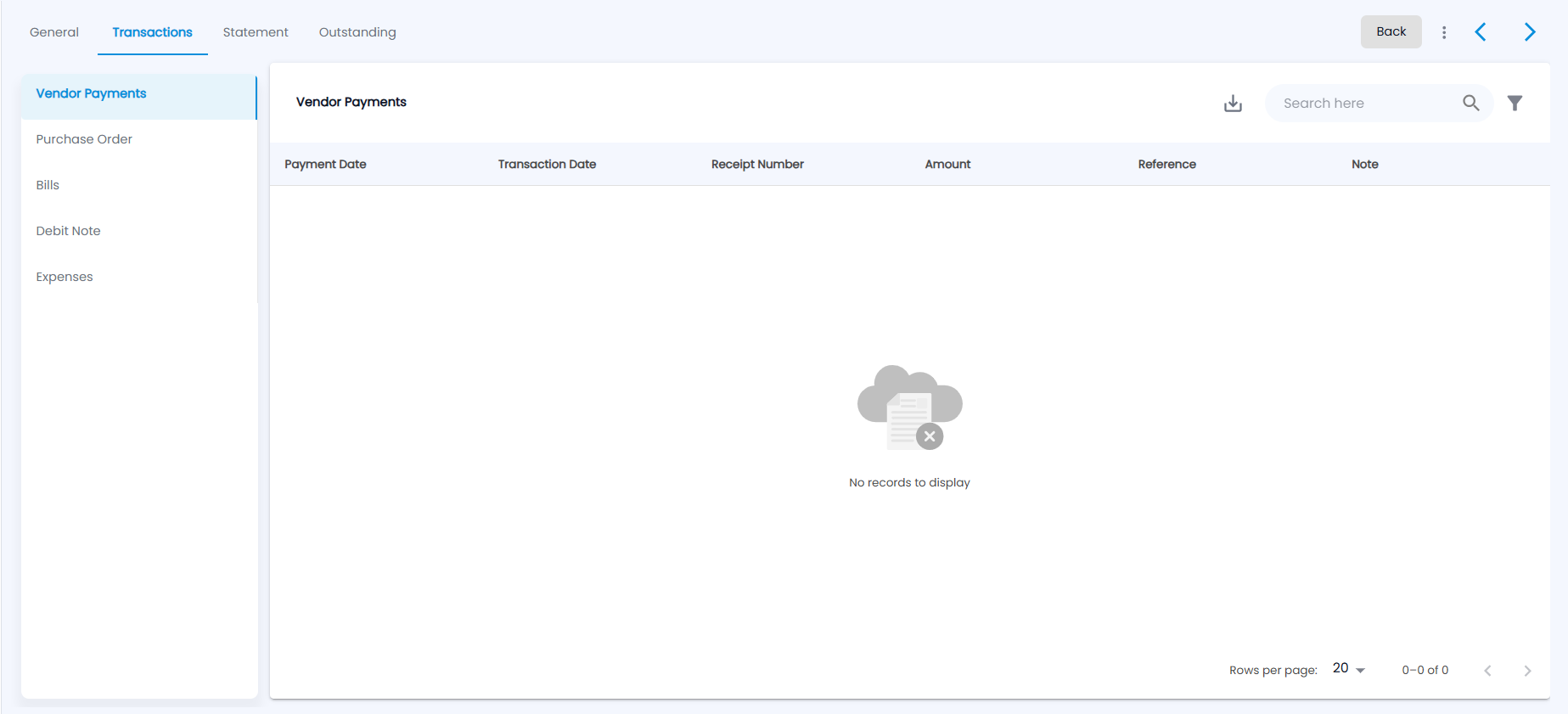
Pick a list on the left: Vendor Payments, Purchase Order, Bills, Debit Note or Expenses. Vendor Payments shows Payment Date, Transaction Date, Receipt Number, Amount, Reference and Note. Each list has a download icon, Search here and a filter. See Purchase Payments, Purchase Orders, Bills, Debit Notes and Expenses.
What is the Statement tab?
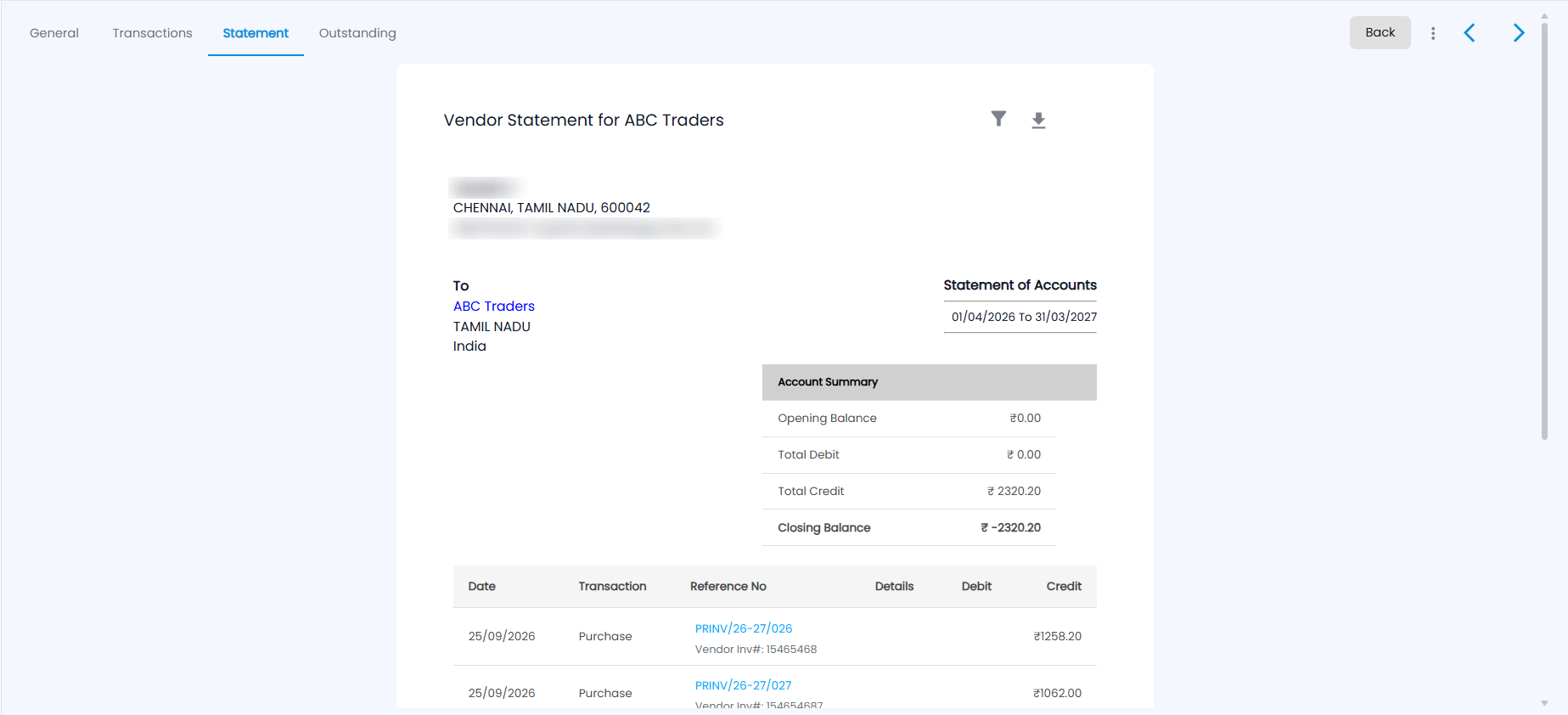
Vendor Statement for the vendor shows your company’s details, the vendor, the period (the current financial year by default) and an Account Summary — Opening Balance, Total Debit, Total Credit and Closing Balance. Below it, each entry has its Date, Transaction (for example Purchase), Reference No (the bill number and the vendor’s own invoice number), Details, Debit and Credit.
Bills are credits and payments are debits, so a closing balance below zero (for example ₹ -2320.20) is what you owe the vendor. Use the filter icon to change the period and the download icon to save the statement as a PDF. If the vendor is linked to a customer, the statement combines both sides.
What is the Outstanding tab?
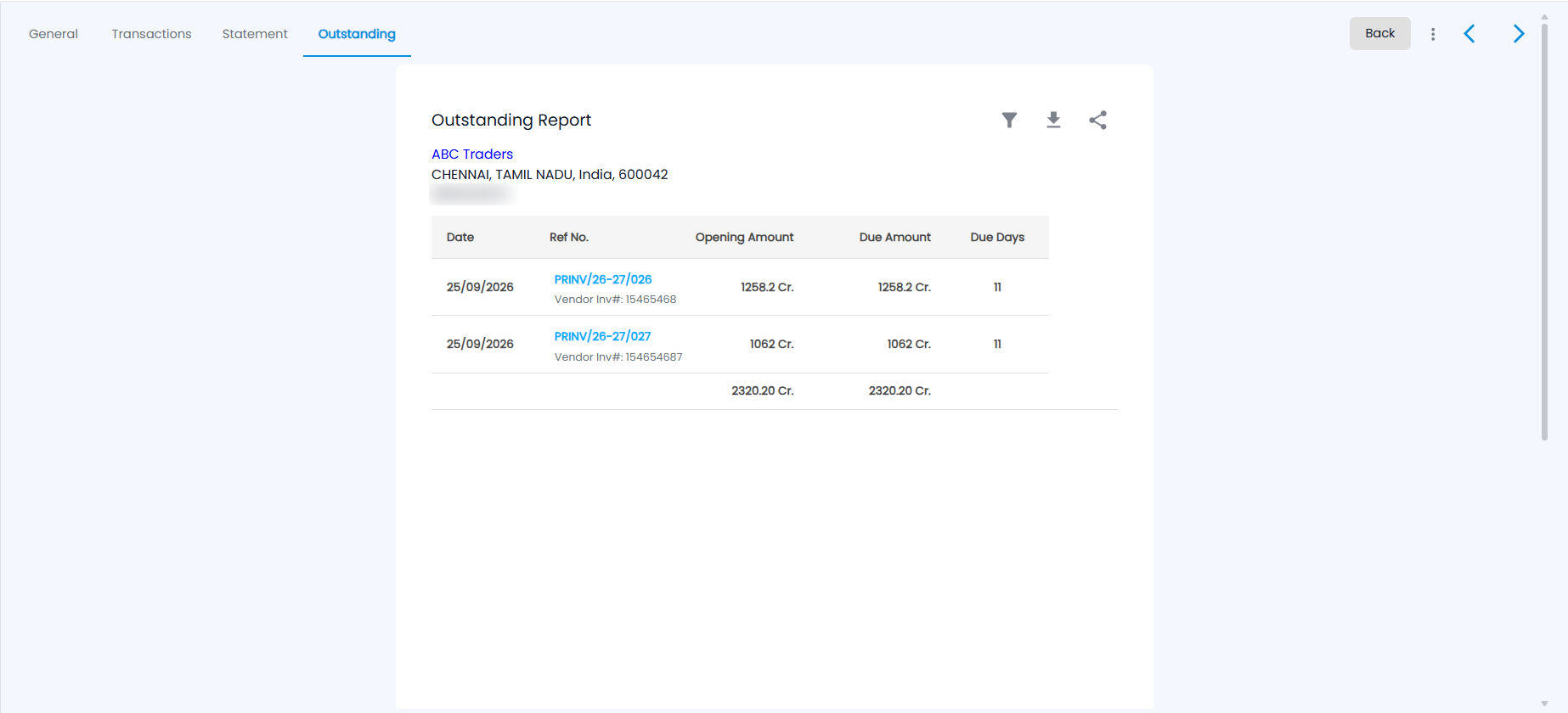
The Outstanding Report lists every unpaid bill: Date, Ref No. (with the vendor’s invoice number), Opening Amount, Due Amount and Due Days, with totals at the bottom. Amounts marked Cr. are what you owe. Use the filter icon to set a date range, the download icon to export it as PDF or Excel, and the share icon to send it on WhatsApp. To pay a bill, use Purchase Payments or Payables.
How do I link a vendor to a customer?
When a business is both your supplier and your customer, link the two records so one statement shows both sides.
- Open the vendor and choose LINK CUSTOMER from the three-dot menu.
- In Link Vendor to Customer, type to search and choose the customer under Select Customer.
- Click Submit.
Both records must have a GST number and the numbers must match. A vendor can be linked to only one customer, and a customer to only one vendor. Once linked, the GST number can no longer be edited. To undo it, choose UNLINK CUSTOMER and confirm. Linking and unlinking are recorded in the vendor’s timeline.