
What is a sales order in Tazk POS?
A sales order (SO) records what a customer has agreed to buy, before you bill them. You create it from Sales → Sales Orders with the customer, price list and items. When you are ready to bill, you convert it into an invoice, in full or in part. A sales order does not reduce stock or create a receivable; the invoice does that.
Where does a sales order fit in the sales flow?
A typical sale moves through these documents:
- Quotation: an approved quote is converted with Convert SO.
- Sales order: the customer's confirmed order.
- Delivery Challans: optional, when goods go out before they are billed.
- Invoices: the tax invoice. It reduces stock and adds a receivable.
- Receivables: what the customer still owes.
- Receipts: the payment that settles it.
Goods that come back are handled with a sales return, which creates a Credit Notes entry.
What does the Sales Orders page show?
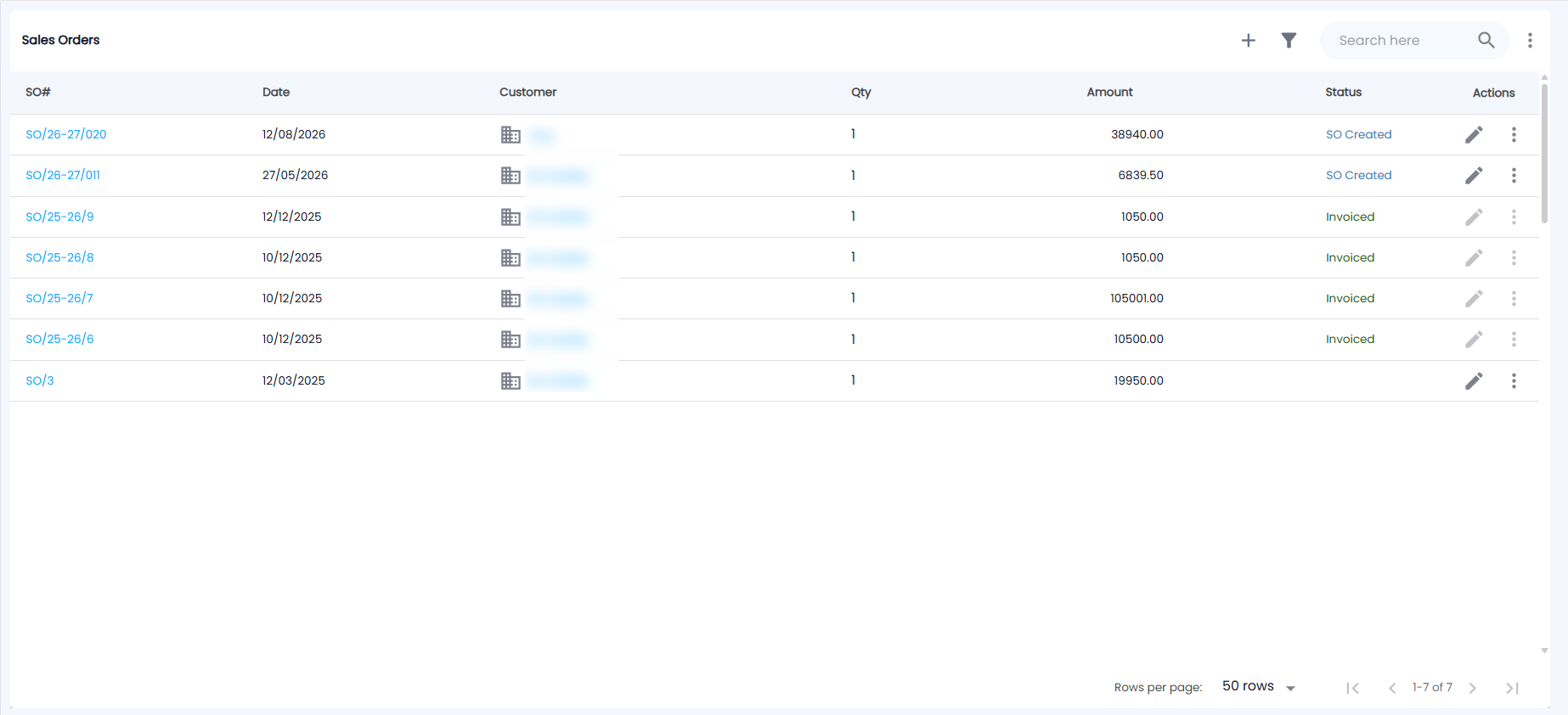
Open Sales → Sales Orders. The list shows 50 rows per page by default.
| Column | Description |
|---|---|
| SO# | Sales order number, for example SO/26-27/020. Click it to open the order. |
| Date | SO date |
| Customer | Opens the customer's page |
| Qty | Total quantity on the order |
| Amount | Order total in ₹ |
| Status | See the table below |
| Actions | The pencil edits the order and the ⋮ icon converts it to an invoice. Both are greyed out once the order is invoiced |
| Status | Meaning |
|---|---|
| SO Created | Saved and ready to invoice |
| Waiting Approval | Sent for credit approval; it cannot be edited yet |
| Approved / Rejected | The approver's decision |
| Partially Invoiced | Some quantity has been billed |
| Invoiced | Fully converted into invoices |
The toolbar has:
- + to create an order
- Search
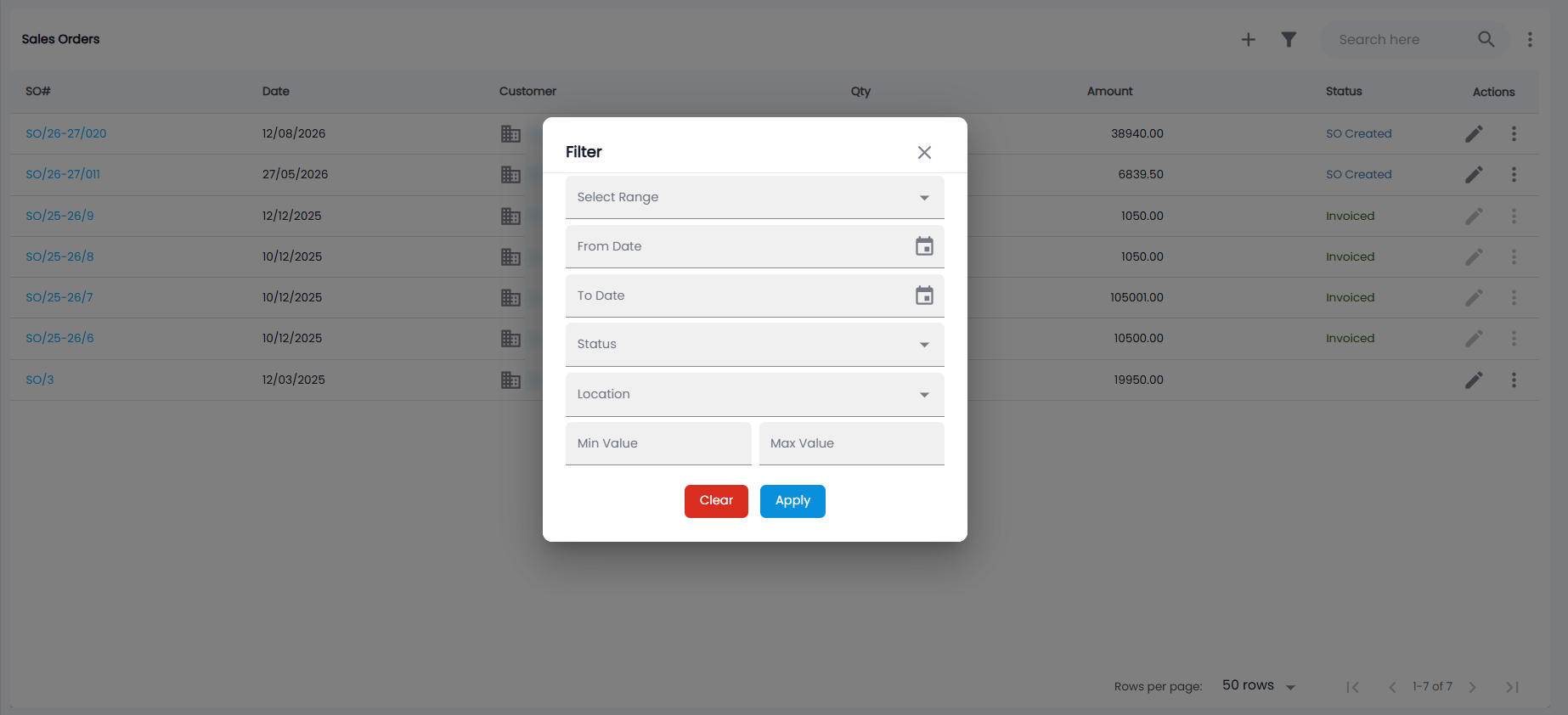
- Filter (the funnel icon): Select Range, From Date / To Date, Status, Location, and Min Value / Max Value for the amount, then Apply or Clear
- a More actions menu (⋮) with Export PDF, Export CSV and Import
How do I create a sales order?
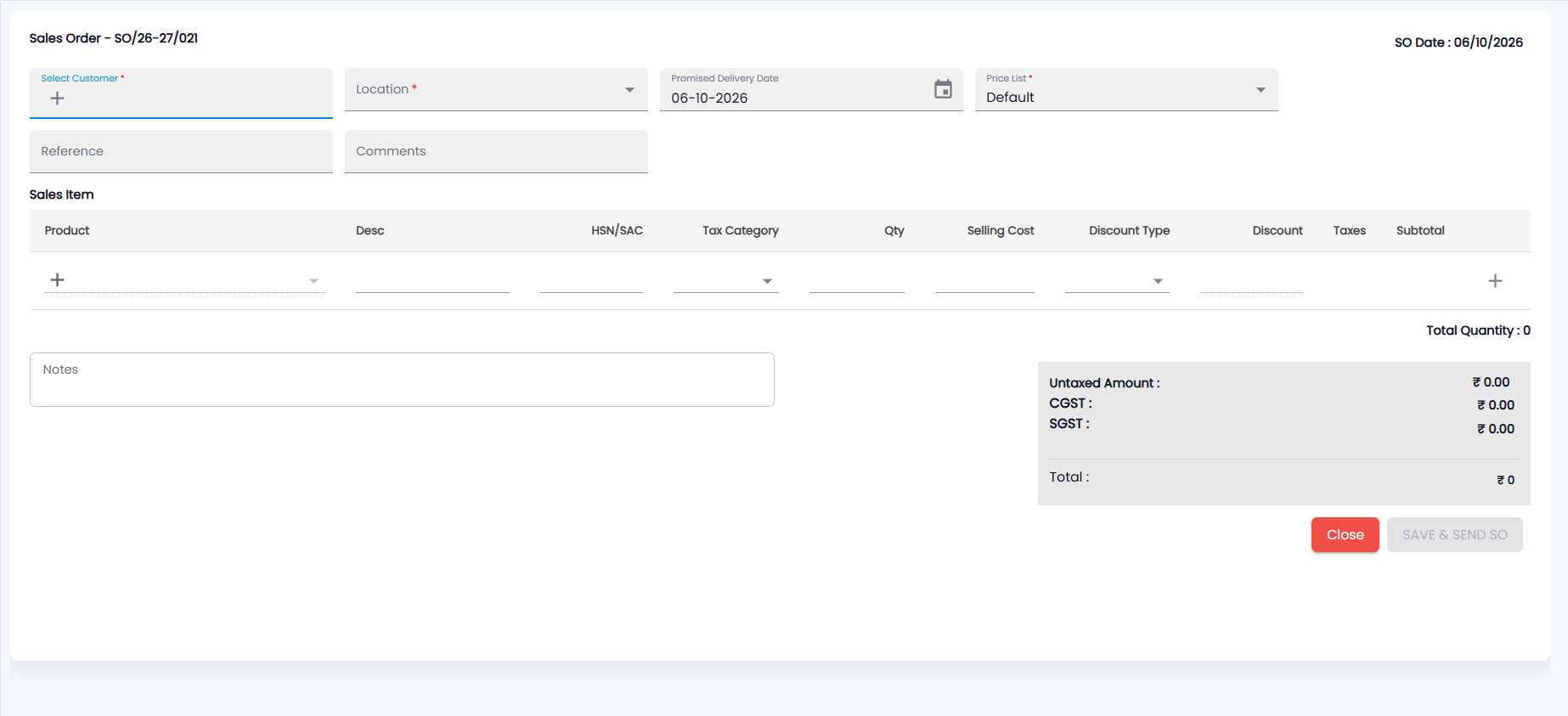
- Click +. The form opens with the next number (for example Sales Order - SO/26-27/021) and the SO Date (today) at the top right.
- Choose Select Customer (required), or click + in the field to create a new customer. If the customer has dues, the form shows their outstanding, invoice count, total due and the amount past its due date.
- Choose the Location (required). The Promised Delivery Date starts as today, and the Price List (required) fills in from the customer’s mapping, or Default if they have none (see Customer Price List).
- Add a Reference and Comments if you need them. Depending on your settings, the form can also ask for Credit Days, the SalesMan and a Ship To address.
- Under Sales Item, pick a Product on each line (or click + in the field to create one) and enter the Qty. Desc, HSN/SAC, Tax Category, Selling Cost, Taxes and Subtotal fill in from the product and price list; set a Discount Type and Discount if you give one. Click the + at the end of the row to add another line. Total Quantity is shown below.
- Add Notes if needed, and check the totals box: Untaxed Amount, CGST and SGST (same state) or IGST (other state), and Total.
- Click SAVE & SEND SO — it is enabled once the customer, location and at least one item are filled in. Close leaves without saving.
What happens if the customer is over their credit limit?
If the customer is credit-blocked, the button reads Send for Approval. Clicking it does not save the order. Instead it sends a request to your verifier and then your approver (see Approvals).
Once the request is approved, it appears on the form's Approved tab. Open it there and finalise it to create the order. Requests still waiting are on the Pending tab.
How do I convert a sales order into an invoice?
- Open the order: click its SO#, or click the three-dot icon (Convert Invoice) on the row.
- From Actions, choose Create Invoice or Convert to Invoice.
- The invoice form opens with the order's lines. Enter the barcode or serial number for each item and adjust the quantities if you are billing only part of the order.
- Click Create Invoice.
The order becomes Partially Invoiced or Invoiced.