
How do I star a contact in Tazk POS?
In Contacts, click the star at the right end of a contact’s row in the Individual, Customer, Vendor or Employee list. The star fills in and the contact appears in the Starred folder. Click the filled star again to unstar it.
How do I star or unstar a contact?
Open a folder in Contacts in List View and click the star at the right end of the row. An empty star means Click to star; a filled star means Starred. Click a filled star to remove it. The count beside Starred updates straight away.
Stars are not shown in grid view. If you do not see stars at all, your role does not have permission to star contacts.
What does the Starred folder show?
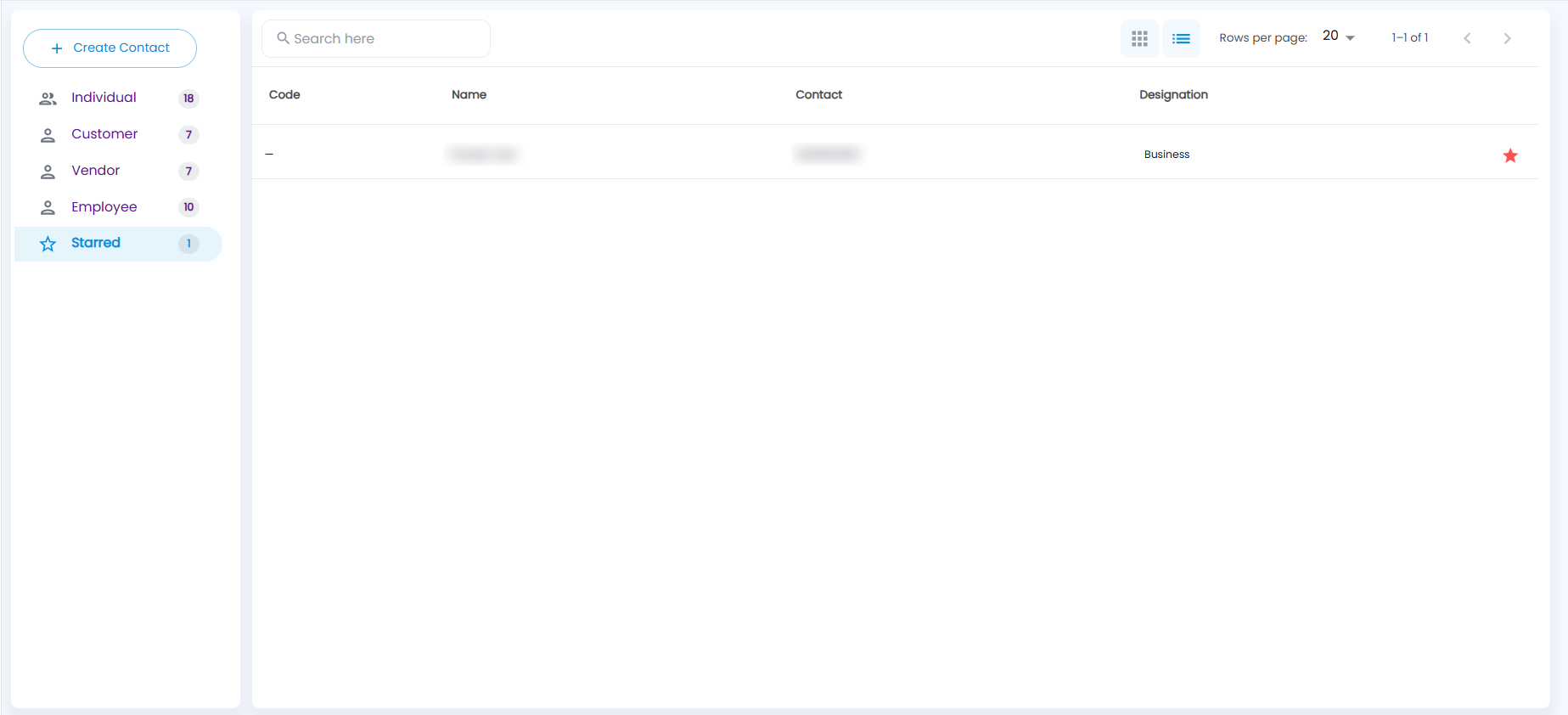
Choose Starred in the left panel; the number beside it is how many contacts are starred. It lists every starred contact — individuals, customers, vendors and employees together:
| Column | Description |
|---|---|
| Code | The employee code for an employee; a dash for other contacts |
| Name | The contact’s name |
| Contact | Phone number |
| Designation | The designation saved on the contact |
| Filled star | Click it to unstar the contact; it leaves the folder |
Use Search here to find a starred contact, switch between grid and list view, and choose 20, 50 or 100 rows per page. Rows in this folder do not open the contact — to open one, find it in its own folder (Individual Contacts, Customer Contacts, Vendor Contacts or Employee Contacts).