
Where do I see ledger balances in Tazk POS?
Open Accounts → Ledgers. The General Ledger lists every ledger with its account code, parent, balance and account group. Click a ledger to see its month-by-month debit, credit and closing balance, then click a month to see the vouchers behind it. Use + to add a ledger or a parent ledger with an opening balance.
What does the Ledgers page show?
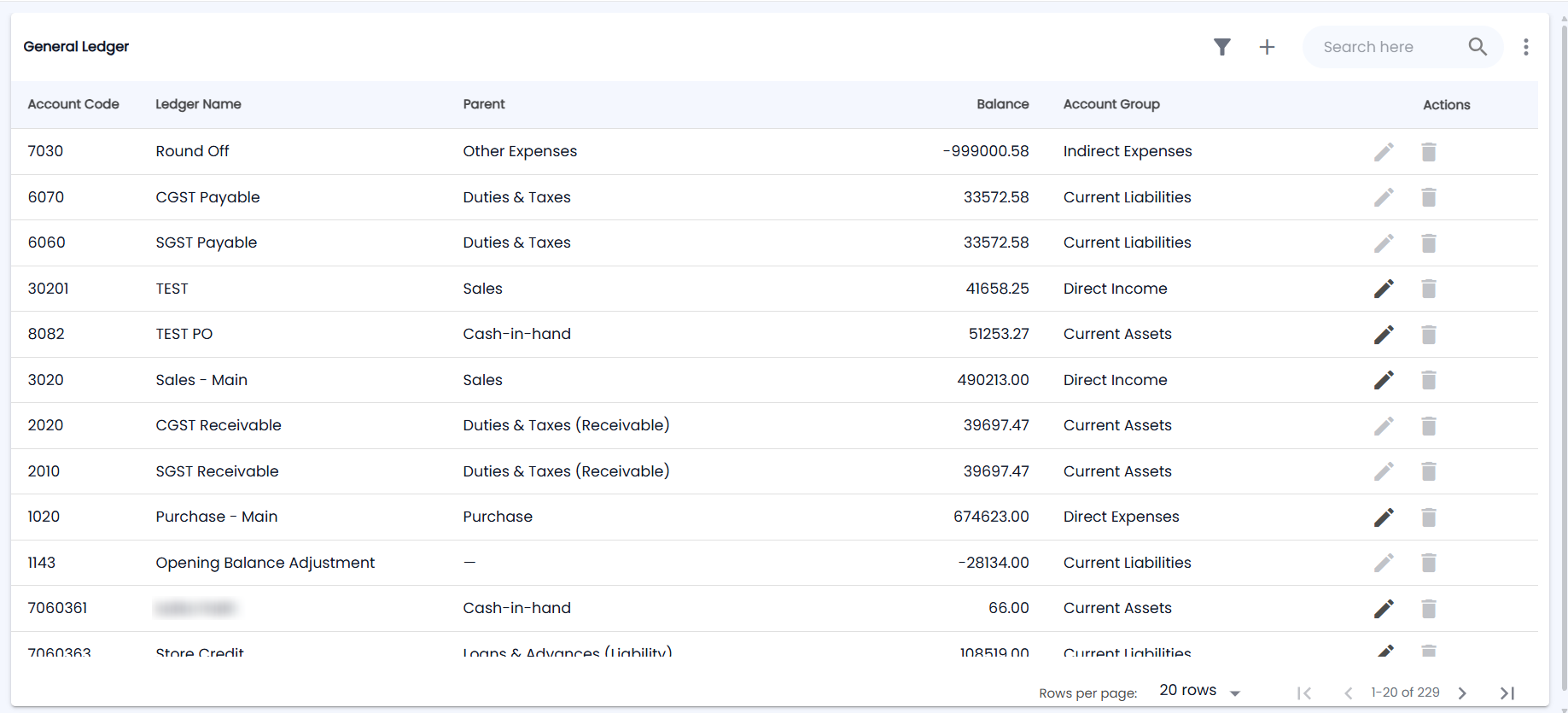
Go to Accounts → Ledgers. The page is titled General Ledger; the toolbar has the filter icon, +, Search here and a ⋮ menu.
| Column | Description |
|---|---|
| Account Code | Short numeric code |
| Ledger Name | Name of the ledger |
| Parent | Parent ledger it sits under (a dash for group heads) |
| Balance | Current running balance |
| Account Group | Group in the chart of accounts, for example Current Assets or Indirect Expenses |
| Actions | The pencil edits the ledger and the bin deletes it. They are greyed out for system ledgers that cannot be changed |
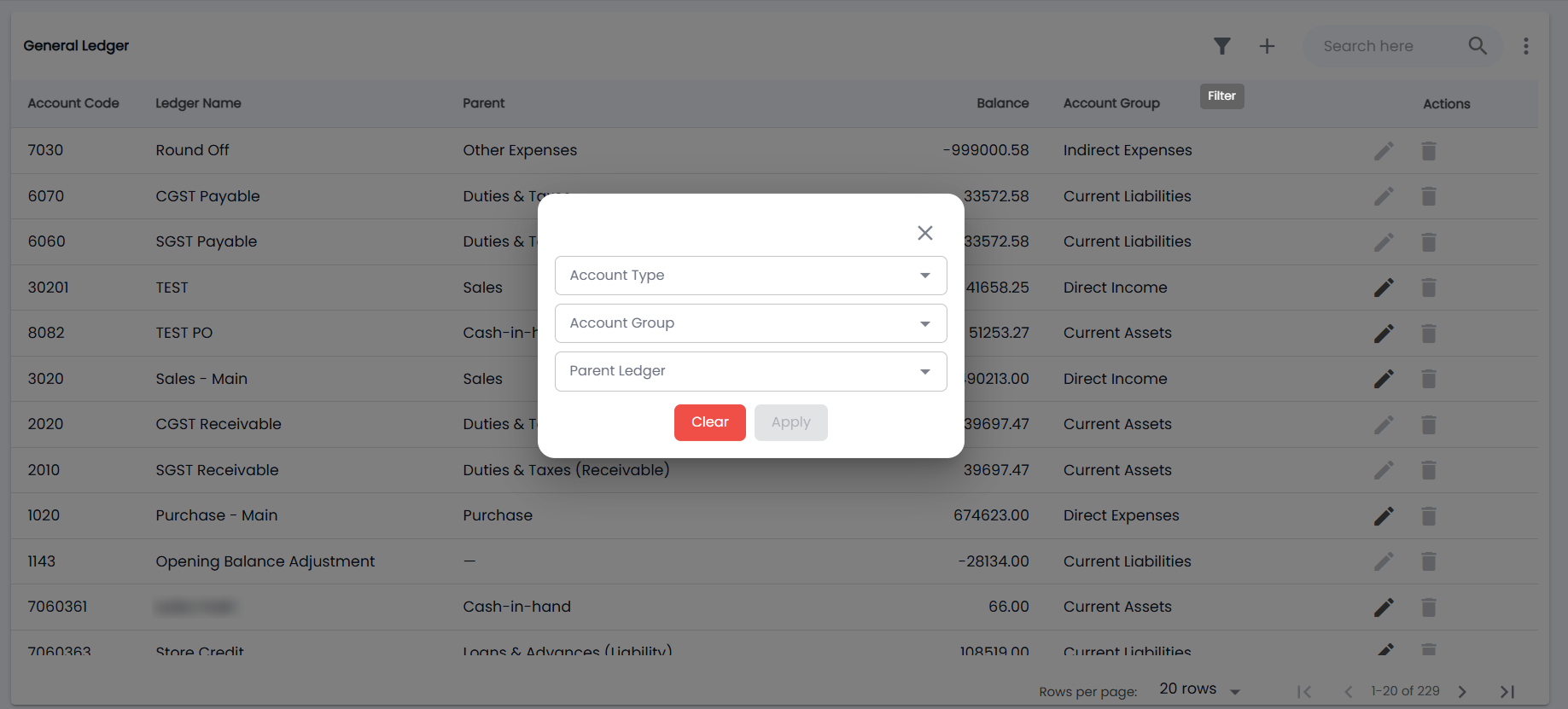
Search by name, or click the filter icon to narrow by Account Type, Account Group or Parent Ledger (Apply is enabled once you pick one). Export the list to PDF or CSV from the ⋮ menu. The list shows 20 rows per page by default.
How do I create a ledger?
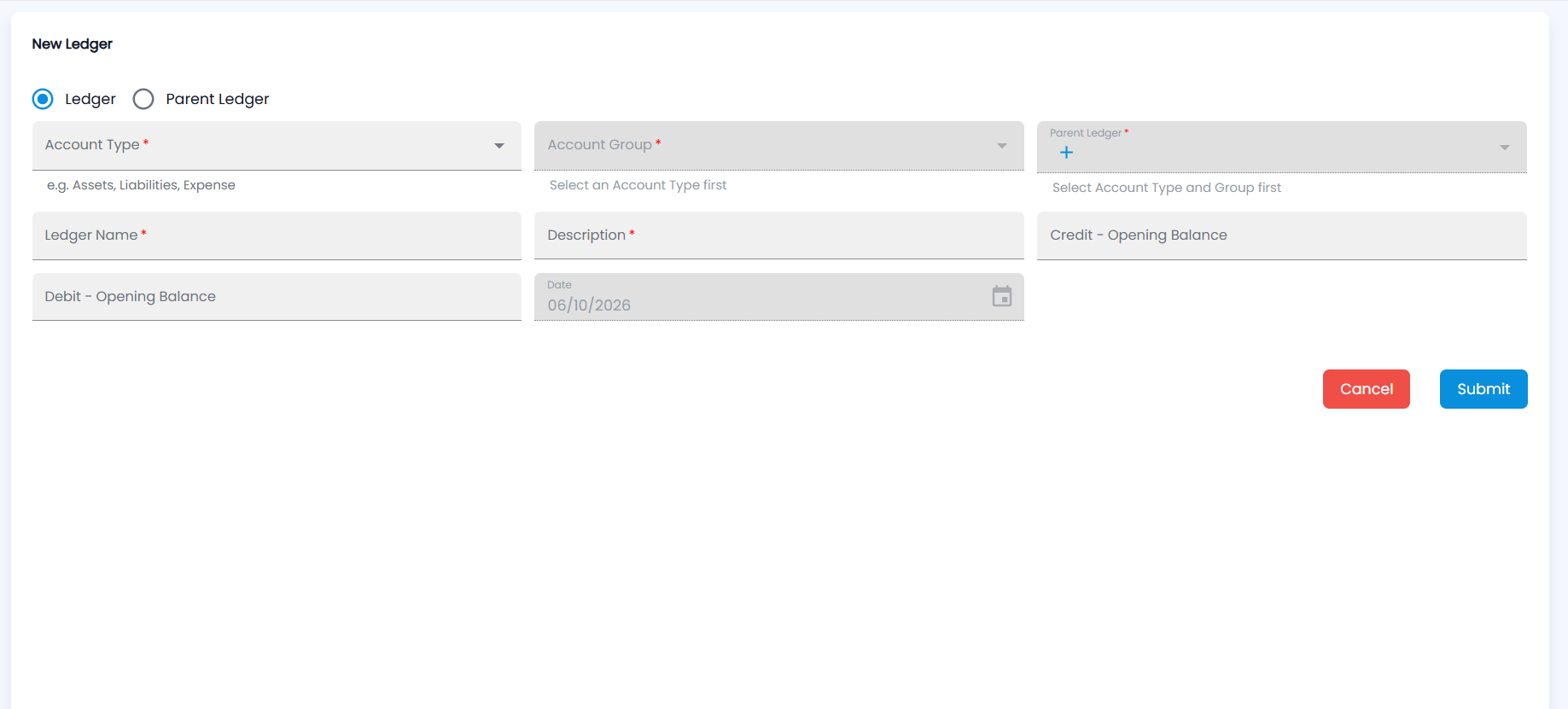
- Click +. The New Ledger form opens.
- Choose Ledger (the default) or Parent Ledger.
- Choose the Account Type (for example Assets, Liabilities, Expense), then the Account Group — available once the type is chosen — and, for a ledger, the Parent Ledger it belongs under, available once the type and group are chosen. All three are required; click + in Parent Ledger to create a new parent ledger from the same form.
- Enter the Ledger Name and a Description (both required).
- If the ledger starts with a balance, enter it as Debit - Opening Balance or Credit - Opening Balance; the Date is today. Click Submit (or Cancel).
Customer, vendor, cash box and bank ledgers are created for you when you add those records, so you rarely need to create them here.
How do I see the entries in a ledger?
- Click the ledger. The monthly summary shows Opening Balance, Total Debit, Total Credit and Closing Balance cards, a table of each Month with debit, credit and closing balance and a Grand Total, and a chart. Change the period with Select Date Range (including fiscal-year presets) or From / To dates.
- Click a month to see its vouchers: Date, Vch Type, Ref No, Particulars, Location, Debit and Credit.
- From the voucher view, Export to PDF, or Share it by email (Send Report Through Email).
Manual adjustments between ledgers are made with a Journal Entry. To see all ledgers as a tree with totals, use Chart of Accounts.