
How do quotations work in Tazk POS?
Go to Sales → Quotation and click +. Pick the customer, add products and terms, set how long the quote is valid, and click Submit. If you are a salesman, or the amount or a discount is over your company’s limit, the quotation waits for approval; otherwise it is approved straight away. An approved quotation is turned into a sales order with Convert SO.
What does the Quotations page show?
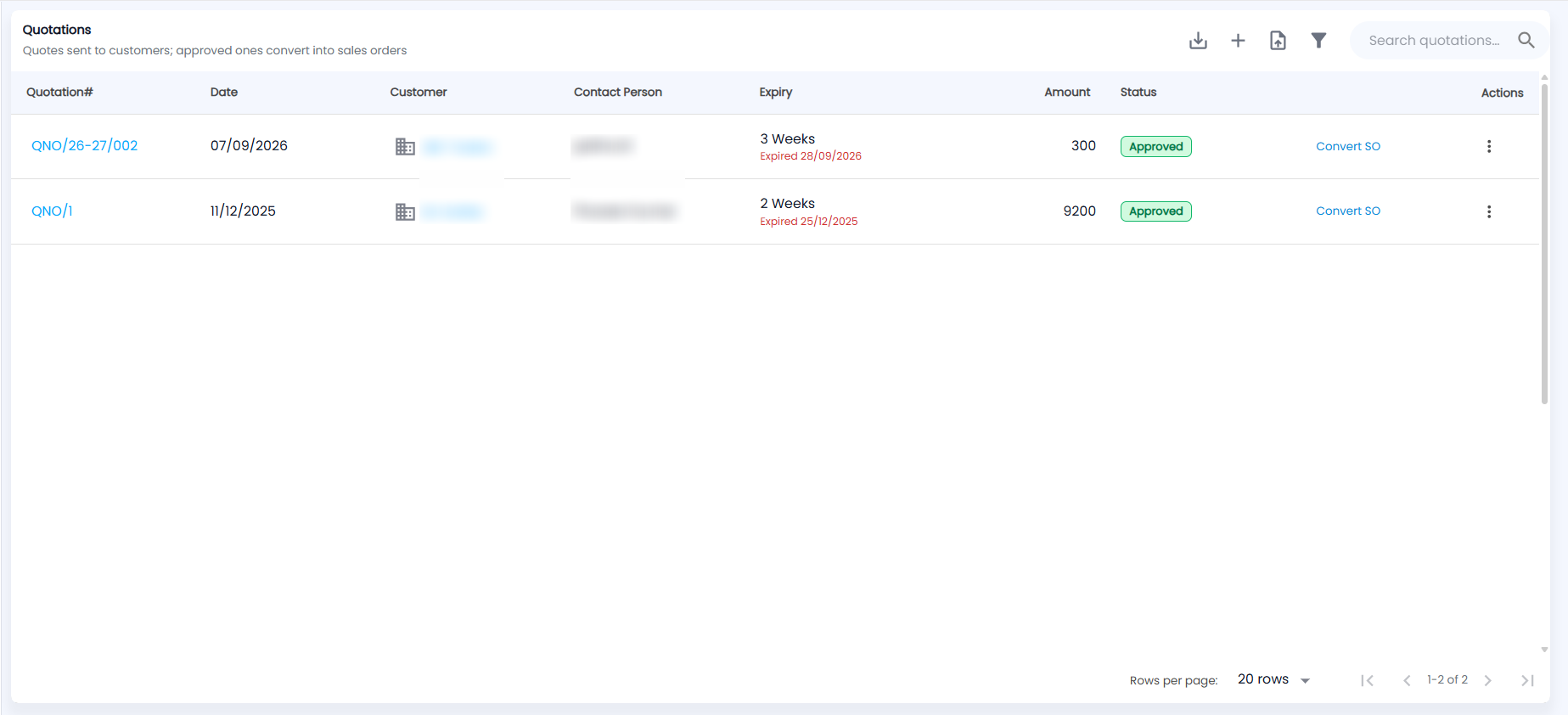
Open Sales → Quotation. The page is titled Quotations — Quotes sent to customers; approved ones convert into sales orders.
| Column | Description |
|---|---|
| Quotation# | Opens the quotation document once it is approved |
| Date / Customer / Contact Person | When it was raised, for whom, and your team member the customer should contact |
| Expiry | The validity term (for example 3 Weeks), with Valid till a date, or Expired a date in red |
| Amount | Grand total in ₹ |
| Status | Waiting for Approval, Approved (green), Approved — awaiting verification or Rejected (hover to see the reason) |
| Convert SO / Actions | On an approved quotation, Convert SO turns it into a sales order; the ⋮ menu has the other actions |
The toolbar icons are, from left to right:
- download — Export PDF / Export CSV
- + to create a quotation
- upload — Import, one quotation per Excel row using the sample template
- filter — Select Range, From Date / To Date, Status and Min Value / Max Value
Use Search quotations… to find one. The list shows 20 rows per page by default.
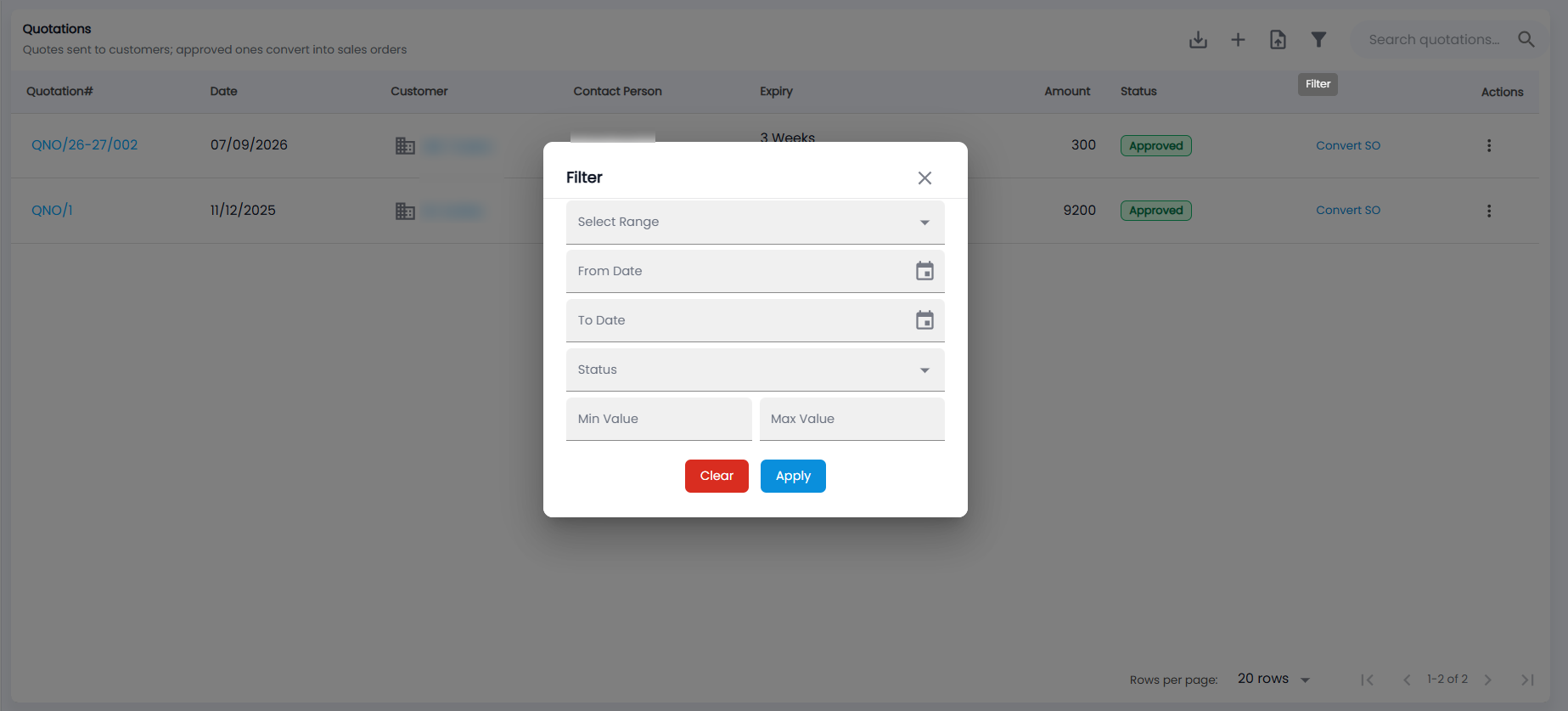
How do I create a quotation?
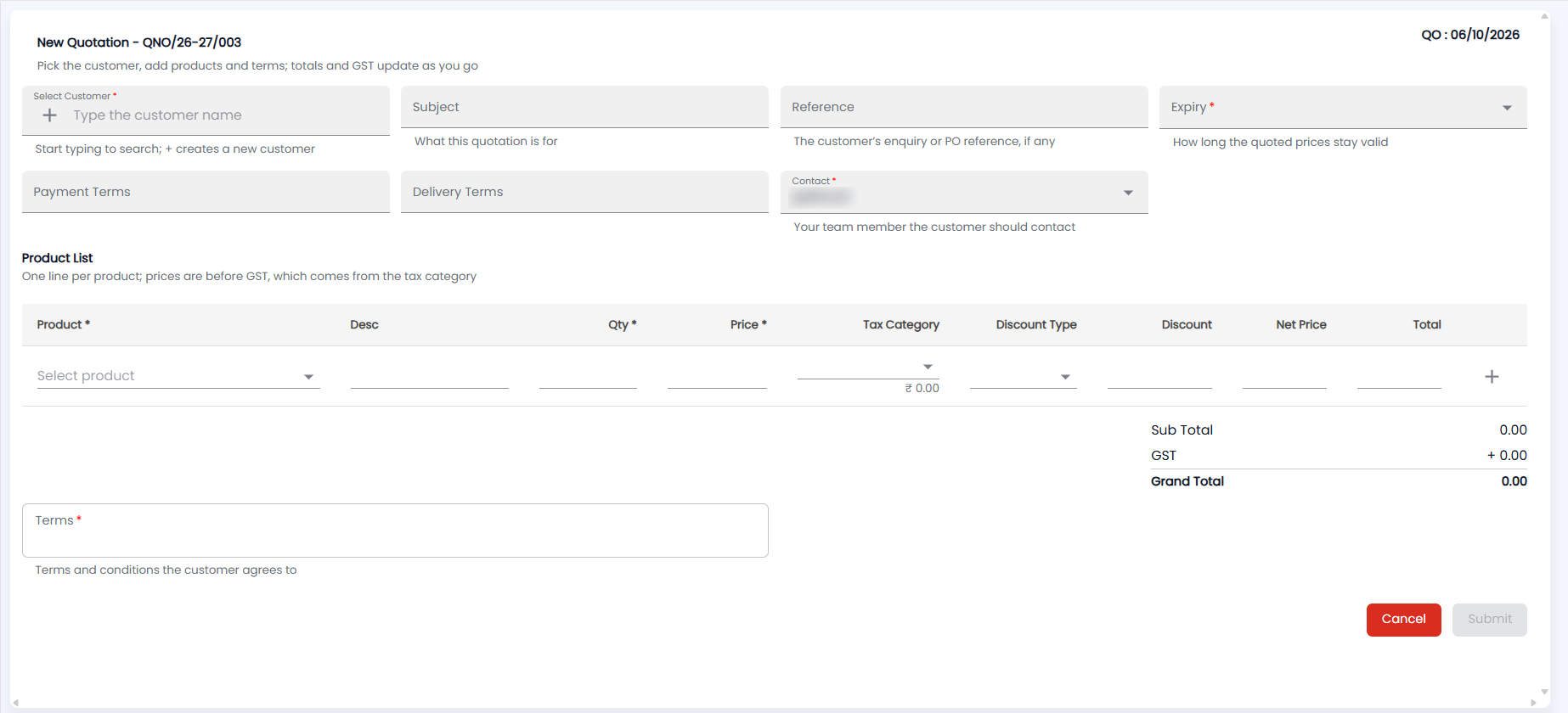
- Click +. The form opens as New Quotation with the next number (for example QNO/26-27/003) and the quotation date (QO) at the top right — Pick the customer, add products and terms; totals and GST update as you go.
- Select Customer (required): start typing to search, or click + to create a new customer (see Customer Contacts).
- Add a Subject (what this quotation is for) and a Reference (the customer’s enquiry or PO reference, if any). Choose the Expiry (required) — how long the quoted prices stay valid: 1 Week, 2 Weeks, 3 Weeks, 30, 60, 90 or 120 Days.
- Add Payment Terms and Delivery Terms. Contact (required) is your team member the customer should contact; it starts as you.
- Under Product List — one line per product, prices before GST — choose the Product, and enter the Qty and Price (all required). The Tax Category shows the GST on the line; add a Discount Type and Discount if you give one. Net Price and Total update as you type. Click + to add a line.
- Check Sub Total, GST and Grand Total.
- Enter the Terms (required) — the terms and conditions the customer agrees to — and click Submit.
When does a quotation need approval?
A quotation is saved as Waiting for Approval in any of these cases:
- it is raised by a salesman
- its total is above your company's maximum quotation amount
- a line discount is above the maximum product discount
Otherwise it is Approved on save.
Approval can have two steps, approve and then verify. The approver sees a Review button on the row. On the quotation page they click Approve (or Verify) or Reject; rejecting requires a Reason for rejection.
How do I convert a quotation into a sales order?
- On an Approved quotation, click Convert SO. You need permission to create sales orders.
- If the quotation has expired, Tazk warns you first. Click Convert Anyway to continue.
- The sales order form opens with the quotation's lines and prices. Save it as described in Sales Orders.
The button then reads Converted, and the quotation can no longer be edited or deleted. Its TimeLine shows each step from creation to sales order.