
How do I change the layout of my printed invoice in Tazk POS?
Open Document Templates, filter by the document type (for example Sales Invoice or POS Receipt), and Clone the closest system template — this creates an editable Draft. Edit the clone with the Visual Builder or HTML / CSS, Preview it, Publish it, and click the empty star to make it the default for that document type. Every publish is a new version you can roll back to.
What does the Document Templates page show?
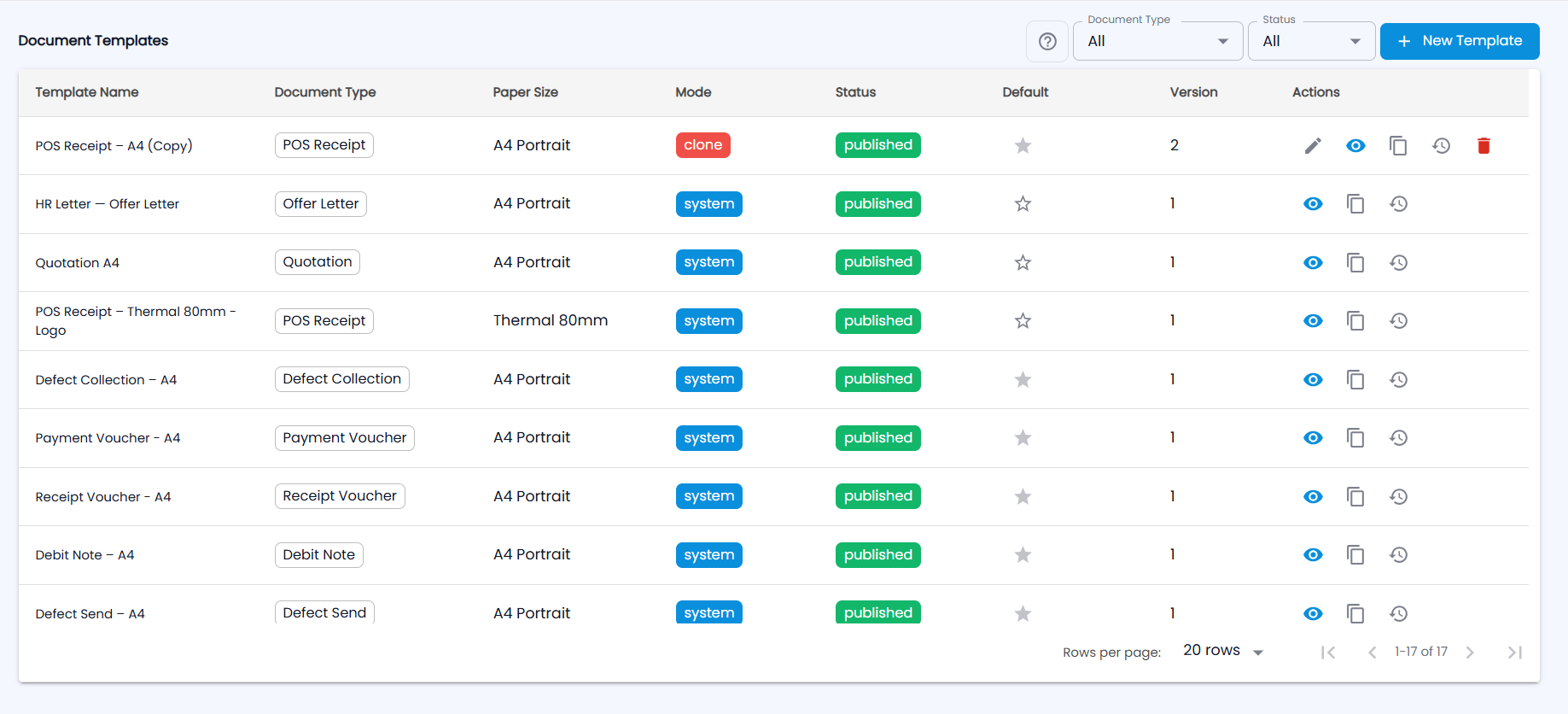
Click Document Templates in the sidebar. The page manages the print and PDF layouts your business uses. Filter the list with the Document Type and Status (All, Draft, Published) dropdowns. The ? button (How to use this page) opens built-in guidance.
| Column | Description |
|---|---|
| Template Name | The name you gave the template |
| Document Type | Which document it prints, for example Sales Invoice |
| Paper Size | A4 Portrait, A4 Landscape, A5 Portrait, A5 Landscape, Thermal 80mm or Thermal 58mm |
| Mode | system (supplied by Tazk, read-only), clone (copied from a system template) or custom (created from scratch) |
| Status | draft or published |
| Default | A filled star marks the current default for that document type; click an empty star to make a published template the default |
| Version | The current version number |
| Actions | Edit, Preview, Clone, Versions, Publish (drafts only) and Delete. System templates cannot be edited or deleted — clone them instead |
Which documents can I design?
For a Point of Sale company: Sales Invoice, POS Receipt, Quotation, Sales Order, Delivery Challan, Credit Note, Debit Note, Proforma Invoice, Purchase Order, Receipt Voucher, Payment Voucher, Outstanding Report, Defect Collection and Defect Send.
How do I customise a template?
- Choose the document type in the Document Type filter.
- Click Clone on the closest system template. The copy is a Draft.
- Click Edit on the copy. The editor has four tabs — Settings, Visual Builder, HTML / CSS and Preview.
- Make your changes and click Save Draft. Use Preview until it looks right.
- Click Publish.
- Back on the list, click the empty star and confirm Set as default. This replaces the current default for that document type.
To start from a blank template instead, click New Template and enter the Template Name, Document Type and Paper Size, then click Create.
What can I change in the editor?
| Tab | What you can do |
|---|---|
| Settings | Template name, document type and paper size; Section Visibility switches — Show Logo, Show GST, Show Signature, Show Bank Details, Show Terms; and Custom Text — Footer Note and Terms & Conditions |
| Visual Builder | Build the layout from blocks without code (see below), and drop in placeholders that are filled from the document when it prints |
| HTML / CSS | Edit the template’s HTML and CSS directly |
| Preview | See the result |
The Visual Builder’s blocks are grouped as: Layout (Row / Columns, Divider, Spacer), Header & Company (Header, Company Info), Document & Customer (Document Info, Customer Info, Ship To, E-Invoice with IRN and Ack No), Items & Tax (Items Table, HSN-wise Tax Summary), Totals & Payments (Totals, Amount in Words, Payments) and Footer & Misc (Signature, Declaration, Terms & Conditions, Bank Details, QR Code, Footer, Custom Text).
In HTML / CSS, use {{placeholder.key}} for values (for example {{customer.gstin}} or {{totals.grand_total}}), {{#if field}}…{{/if}} for conditions and {{#each items}}…{{/each}} for line items. The placeholder list beside the editor copies a placeholder on click and inserts it on double-click. Preview uses sample data, not a real document.
The upload icon in the editor header (Upload PDF) replaces the HTML / CSS with content extracted from a PDF you already use.
How do I undo a change?
Every publish creates a new version. Click Versions on the template to see each Version, when it was created and its note, and click Rollback to go back to a good one. Your previous layout is never lost.
How is the template used when I print?
When you print a document, the Print Document window uses the default template for that document type. You can pick the Paper Size and the Output — Print, Thermal or PDF — then print or download.