
What is the Ecom Orders page in Tazk POS?
Ecom Orders lists the orders customers place on your online store. From here you create the invoice for each order, collect cash on delivery or at pickup, mark the order In Transit and Delivered, or cancel it before it is invoiced. The page is available only to Administrators, and only when your store integration is active.
Who can see Ecom Orders?
Sales → Ecom Orders appears only when all of these are true:
- Your company type supports it.
- You are signed in as an Administrator.
- Your ecom (storefront) integration is Active.
Otherwise the menu is hidden, and opening the link takes you back to the home page.
What does the Ecom Orders page show?
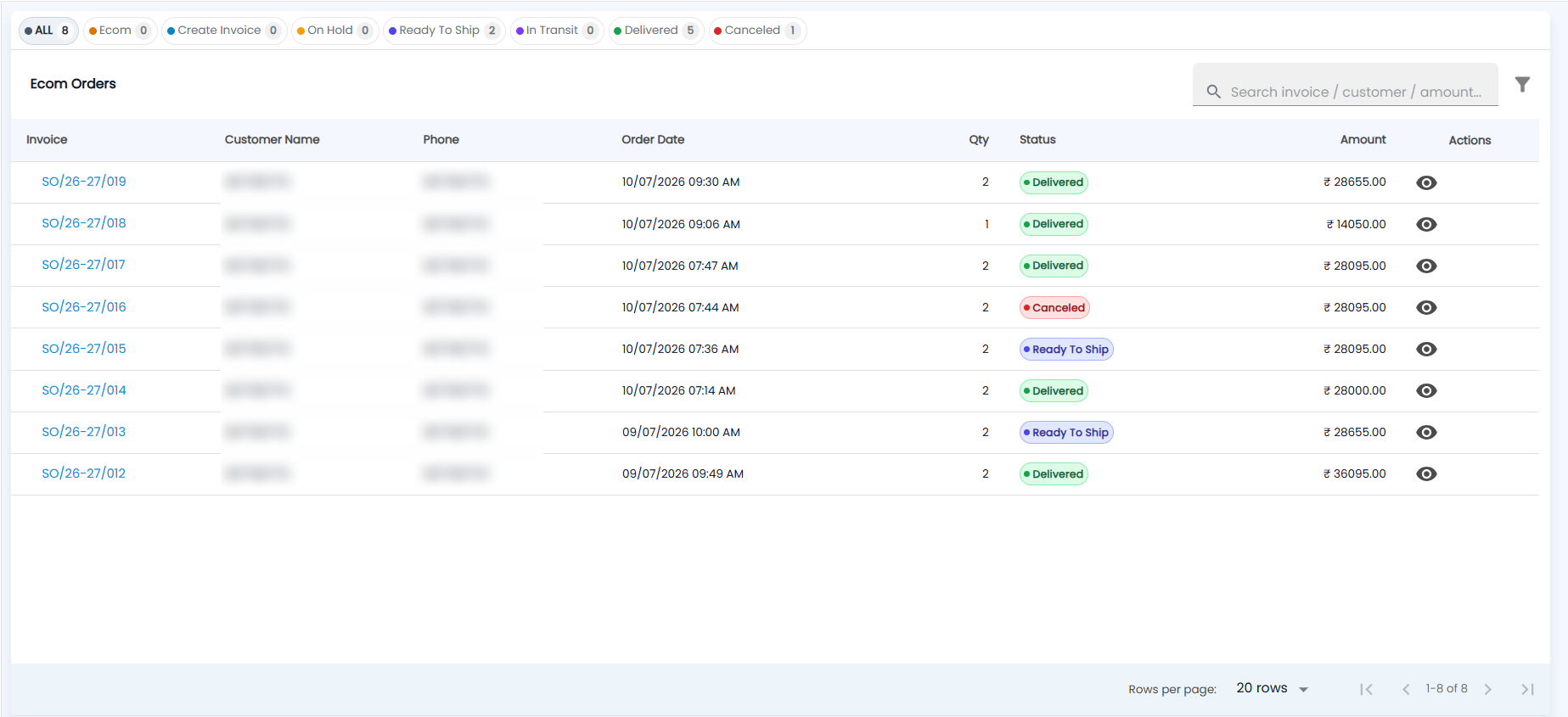
Status chips across the top filter the list, and each shows a count: ALL, Ecom, Create Invoice, On Hold, Ready To Ship, In Transit, Delivered and Canceled. Online-paid orders arrive at Ecom. Cash on delivery and pickup orders arrive as orders waiting for an invoice.
| Column | What it shows |
|---|---|
| Invoice | The order’s number, for example SO/26-27/019. Click it to open the order |
| Customer Name / Phone | Who placed the order |
| Order Date | When the order was placed |
| Qty | Total quantity ordered |
| Status | Where the order is in its lifecycle, as a coloured chip — for example Ready To Ship (blue), Delivered (green) or Canceled (red) |
| Amount | Order total in ₹ |
| Actions | The eye icon opens the order’s detail page; an order still waiting for its invoice also has Create Invoice |
The search box (Search invoice / customer / amount…) looks through the loaded orders. Choose 20, 50 or 100 rows per page at the bottom.
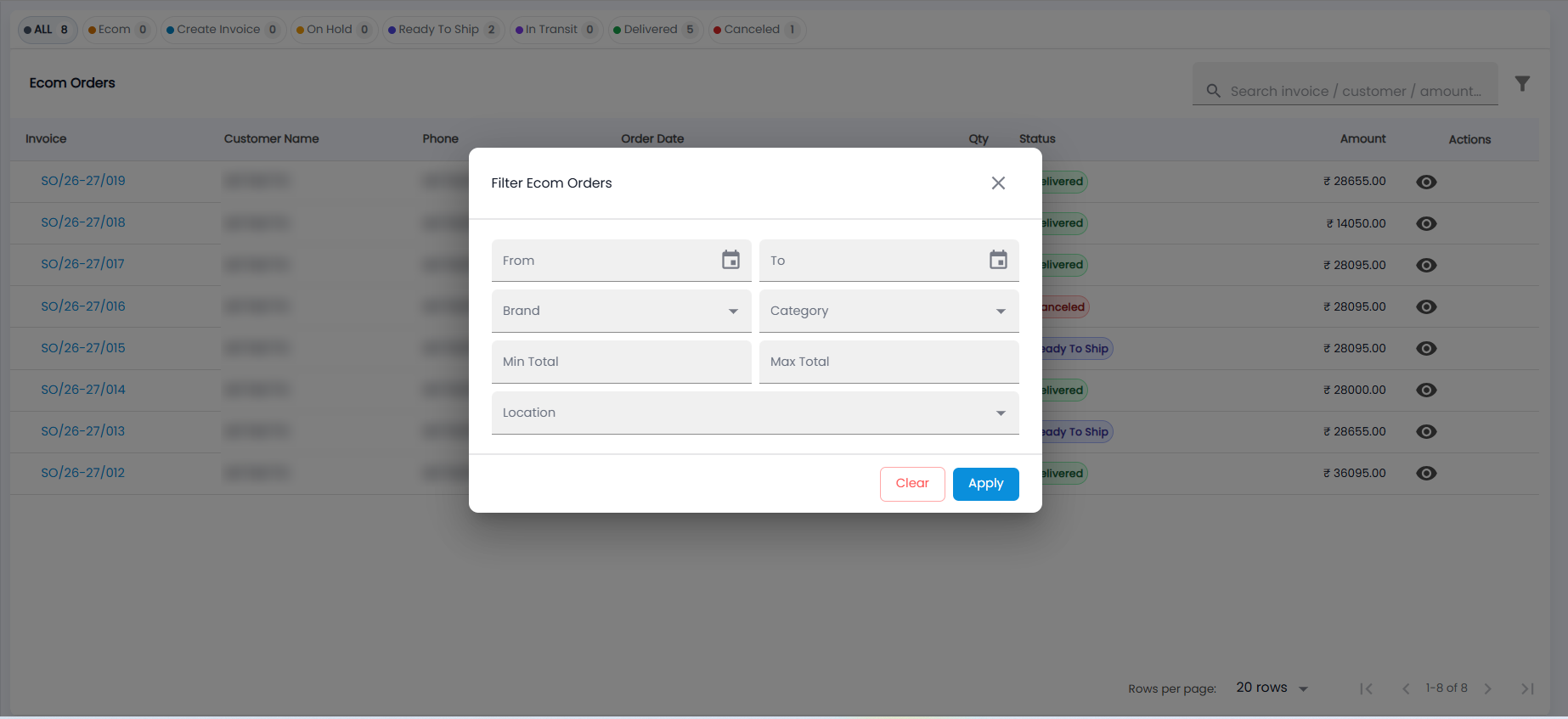
Click the filter icon to open Filter Ecom Orders: From and To dates, Brand, Category, Min Total and Max Total, and Location. Click Apply, or Clear to remove the filters.
How do I create the invoice for an ecom order?
- On the order's row, click Create Invoice. The button is shown only when the order has no invoice yet and is not cancelled.
- The Ecom Invoice form opens. The customer, items and prices come from the order and are locked.
- Allocate the stock. For cash on delivery and pickup orders you must enter a barcode or serial number for every item. Online-paid orders skip this step, because their stock was already reserved when the order was placed.
- Save. The order becomes an invoice, the same way a sales order is converted (see Sales Orders). You then return to Ecom Orders.
What is on the order detail page?
Click View Details on a row to open the detail page. It has:
- Header: a status stepper, plus chips for the payment method (Online, Cash on Delivery or Pickup at Store) and the payment status (Payment Pending, Paid or Payment Failed).
- Summary tiles: Invoice, Customer, Items and Order Total.
- Cards: Customer, Shipping, Sale Info and Payment.
- Tables: Order Items (SKU, Product, Brand, Category, Qty, Unit, Line Total), Receipts and a Timeline.
The buttons available depend on the order's stage:
| Button | What it does |
|---|---|
| Collect Cash on Delivery / Collect at Pickup / Add Payment | Records a cash receipt against the order. Confirm with Mark as Received. |
| Mark In Transit | Moves an order from Ready To Ship to In Transit |
| Mark Delivered | Moves an order from In Transit to Delivered |
| Cancel Order | Cancels an order that has not been invoiced |
How do I cancel an ecom order?
Click Cancel Order on the row or on the detail page, enter an optional Reason, and confirm with Cancel Order. Click Keep Order to back out instead.
Payments collected here appear in Receipts. The products sold online are set up in Product Master.