
What are OEM activations in Tazk POS?
Manufacturers (OEMs) report which handsets or serialised units have been activated by an end customer. In Sales → OEM Activations you upload that report, or type the IMEIs in, and Tazk matches each IMEI to the lot you sold or sent on a delivery challan. A lot on an open DC that is activated becomes To be Invoiced, which tells you the dealer has sold it and should now be billed.
What does the OEM Activations page show?
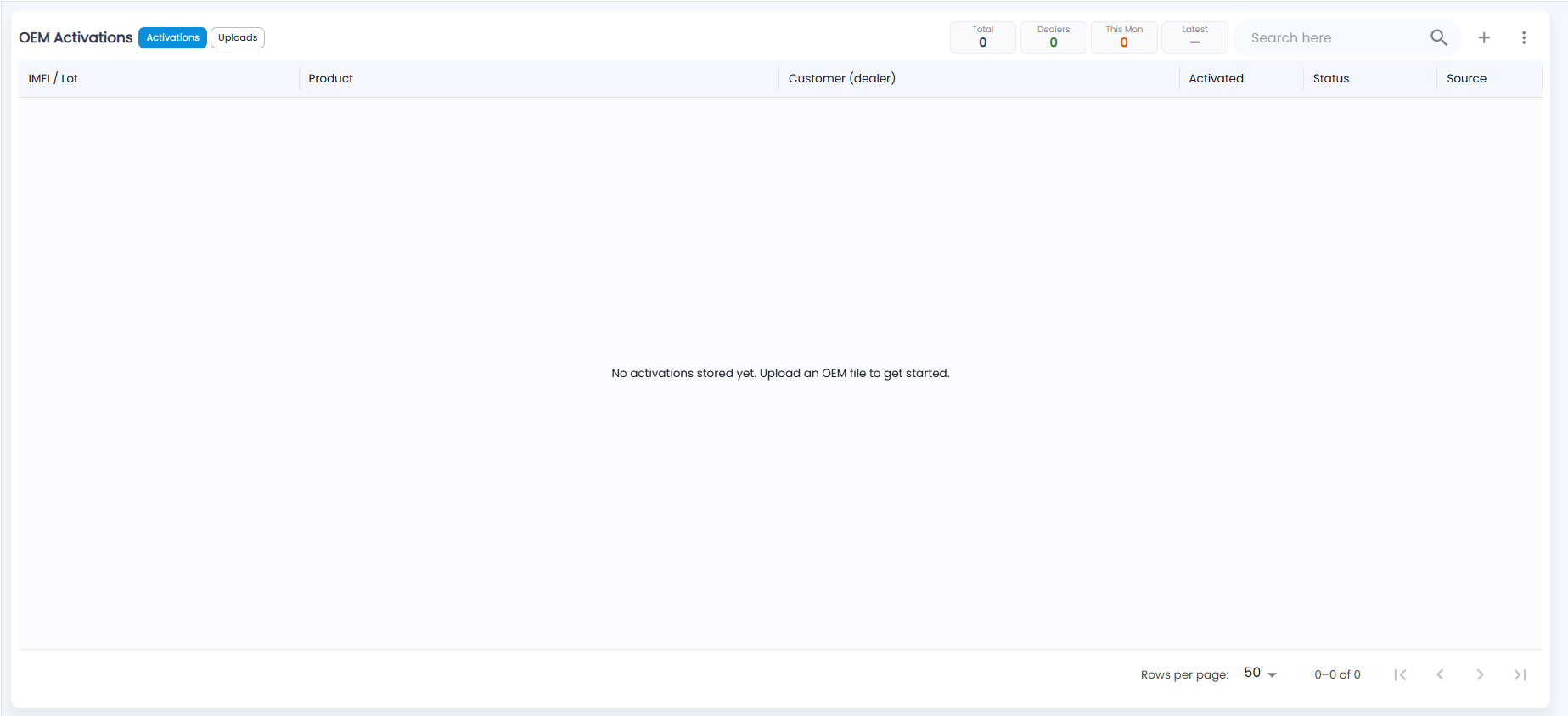
Open Sales → OEM Activations. Use the two chips beside the title, Activations and Uploads, to switch views. Until you upload a file the page says No activations stored yet. Upload an OEM file to get started.
Activations shows one row per activated IMEI, with these columns:
- IMEI / Lot
- Product
- Customer (dealer)
- Activated (date)
- Status: Open, To be Invoiced, Closed or Returned, as in Delivery Challans
- Source
Uploads shows one row per file you imported, with these columns:
- Uploaded (IST)
- File
- As-of
- Total
- Activated
- Matched
- Skipped
- Status: complete, processing, failed or rolled back
The tiles at the top show the Total activations, the number of Dealers, activations This Mon (this month), and the Latest activation date. Then come Search here, + (add activations by hand) and the options menu (⋮) with Upload OEM file and Export CSV. The list shows 50 rows per page by default.
How do I upload an OEM activation file?
- Open the options menu and choose Upload OEM file.
- Click Choose file and pick an xlsx, xls or csv file with the columns IMEI, Product (SKU) and Background status. Use Download sample file to see the layout.
- Check the Preview: Total, Activated and Not activated rows. Only Activated rows are saved.
- Set the As-of date, add optional Notes, and click Commit.
When the upload finishes, Tazk tells you how many rows were saved, matched, unmatched and skipped as duplicates. IMEIs that do not match any of your sales or DC lots are skipped.
How do I add activations by hand?
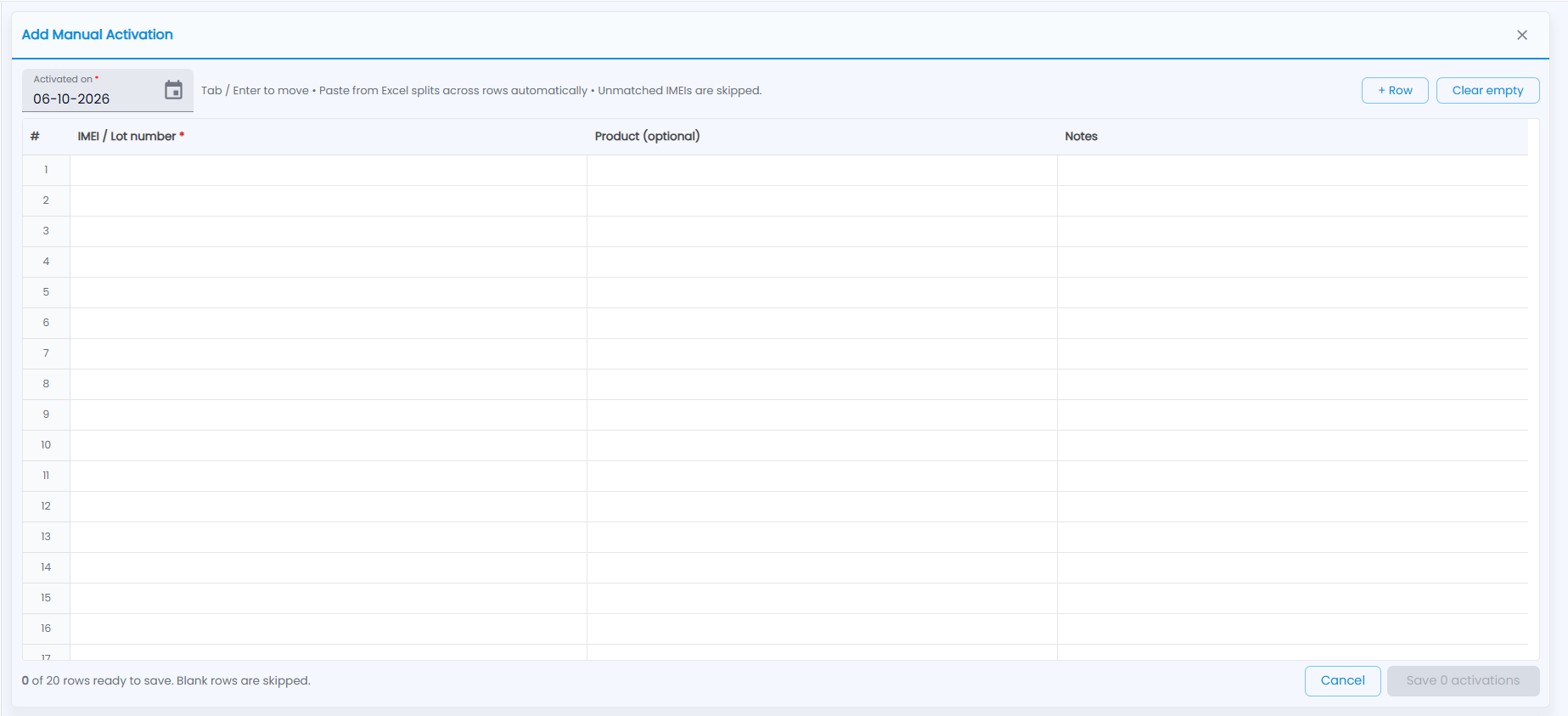
- Click +. The Add Manual Activation sheet opens with 20 empty rows.
- Check the Activated on date (required; today by default).
- Type or paste the IMEIs into IMEI / Lot number (required), one per row. Tab or Enter moves to the next cell, and pasting from Excel splits across rows automatically. Product (optional) and Notes can be left blank. + Row adds a row and Clear empty removes the blank ones.
- The footer counts the rows ready to save (for example 0 of 20 rows ready to save); blank rows are skipped. Click Save N activations, or Cancel. IMEIs that do not match any of your lots are skipped.
How do I undo a wrong upload?
In the Uploads view, open the row's menu and choose Rollback upload, then confirm with Rollback. The matched activation rows are removed, and their IMEIs can be uploaded again.
What do I do after uploading?
Go to Delivery Challans → Lot wise or Dealer Wise, or the DC Aging report, and click To be Invoiced for a dealer. All of their activated lots open in one invoice. Shelf checks of what is still at the dealer are recorded in DC Reconciliation.