
What needs approval in Tazk POS?
Two kinds of request reach Approvals: a POS Discount request, raised when a sale counter gives more discount than its rule allows, and a Quotation request, raised when a quotation is above the amount or product discount set in its rule. The rules, and who approves and verifies each one, are set in Configuration → Approvals. Open a request, check it and click Approve or Reject.
What does the Approvals page show?
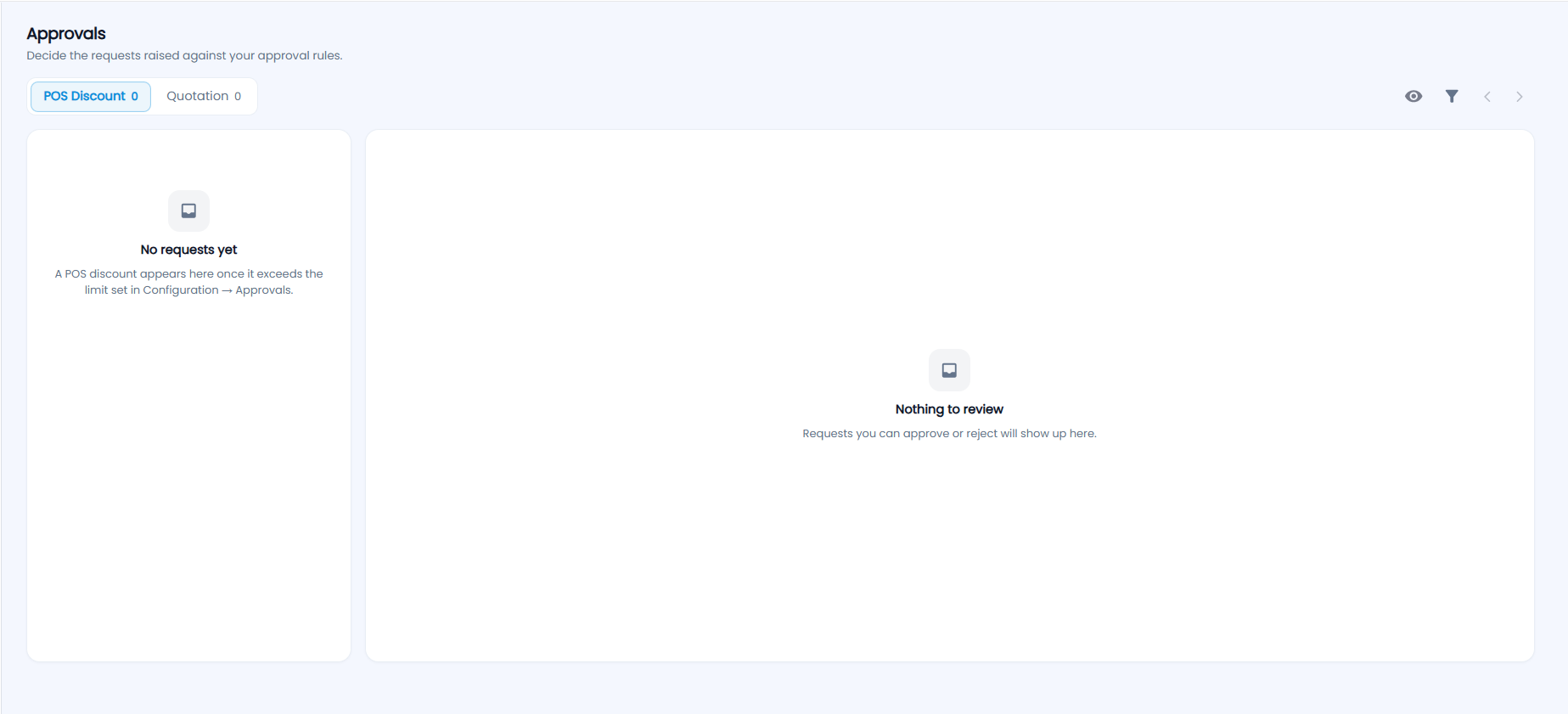
Click Approvals in the sidebar. Under the heading — “Decide the requests raised against your approval rules” — two tabs split the requests, each with the number waiting:
- POS Discount — discount requests from the Sales Counter. When a cashier (other than an Administrator) enters a discount above the counter’s limit, a request is raised and the approver is notified. Each request shows the counter, location and discount asked for, for example “requested discount 15%”.
- Quotation — quotations waiting for approval; see Quotation.
The left panel lists the requests on the chosen tab, each with its type, date and a status icon. Click one to review it in the right panel. When there is nothing to show, the left panel says No requests yet (a POS discount appears once it exceeds the limit set in Approval Configuration) and the right panel says Nothing to review. The icons at the top right are:
| Button | What it does |
|---|---|
| Eye — Unseen only / View all | Show only the requests you have not opened yet, or everything |
| Funnel — Filter | Narrow the list by From Date, To Date and Select Employee, then Apply (or Clear); the button shows how many filters are on |
| Arrows — Previous page / Next page | Page through the requests |
How do I approve or reject a request?
- Click the request in the list.
- Check the details.
- Click Approve and confirm (Are you sure to Approve → Ok). If the rule has both an approver and a verifier, the approver clicks Approve and the verifier then clicks Verify; if you are both, you see Approve & Verify. The requester is notified.
- Or click Reject (on a quotation, Deny) and enter the Reason. The reason is saved and shown on the request.
The decision buttons appear only for the approvers and verifiers named on the matching rule. The person who raised a request can click Cancel Request while it is waiting — it is withdrawn and can no longer be approved.
A quotation request shows the quote number, customer, total, quotation and expiry dates, and a product table with price, quantity, discount, net price and sub-total, so you can see what you are approving.
| Status | Meaning |
|---|---|
| Pending / Waiting for Approval | Still waiting for a decision (orange icon) |
| Approved - Waiting for Verifier | Approved, waiting for the verifier |
| Approved / Approved & Verified | Decided — the request shows who approved and verified it (green thumbs-up) |
| Rejected | Rejected, with the reason (red thumbs-down) |
| Cancelled | Withdrawn by the requester (red thumbs-down) |
Where are the approval rules set?
An administrator sets them in Configuration → Approvals, with Create Approval:
- Department and Request Type (required).
- For a POS discount: the Sale Counter, the Maximum Discount Allowed (0–100 %) and whether to Allow Price Change.
- For a quotation: Quotation Amount Greater Than and Product Discount Greater Than.
- Select Approver (required) and Select Verifier (optional).