
Overview
Tazk can send WhatsApp notifications — such as invoices and order updates — to your customers. Open Configuration > WhatsApp. It has five tabs: WhatsApp Credits, Billing, WhatsApp Consent, Setup, and Templates.
WhatsApp Credits
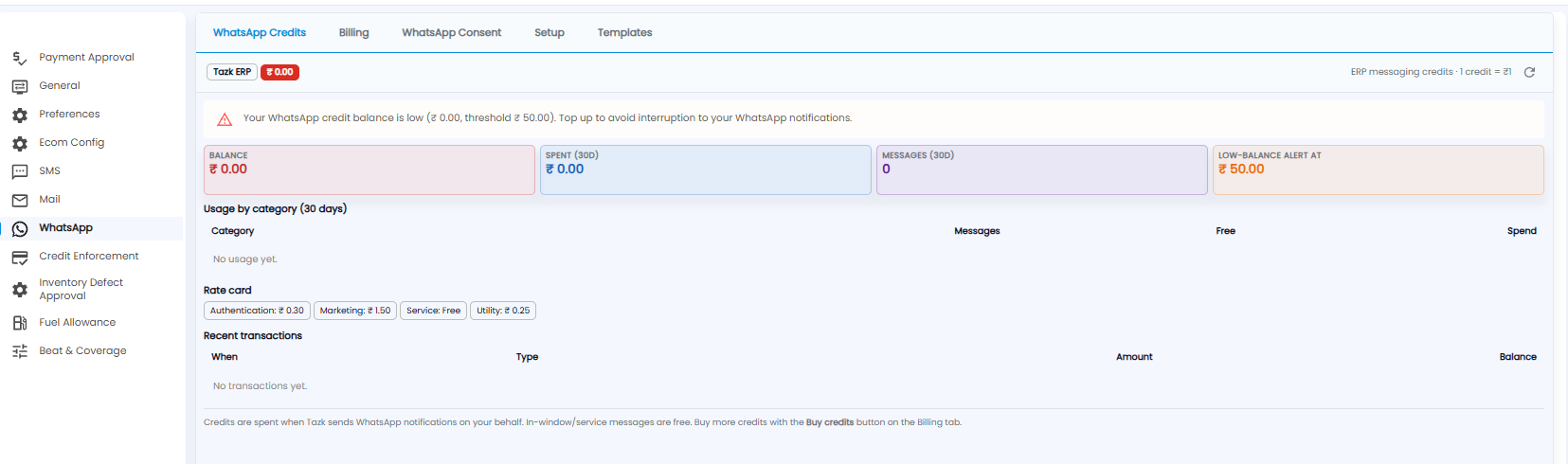
Messages are paid for with credits — 1 credit = ₹1. A warning appears when the balance falls below the low-balance threshold.
| Part | What it shows |
|---|---|
| Balance / Spent (30D) / Messages (30D) | Credit left, and what was spent and sent in the last 30 days |
| Low-Balance Alert At | The balance at which you are warned |
| Usage by category | Messages, free messages, and spend by category over 30 days |
| Rate card | The price per message — for example Authentication ₹0.30, Marketing ₹1.50, Utility ₹0.25, Service free |
| Recent transactions | Credit movements, with the balance after each |
Credits are spent when Tazk sends WhatsApp notifications for you. Service messages sent in reply to a customer are free.
Billing
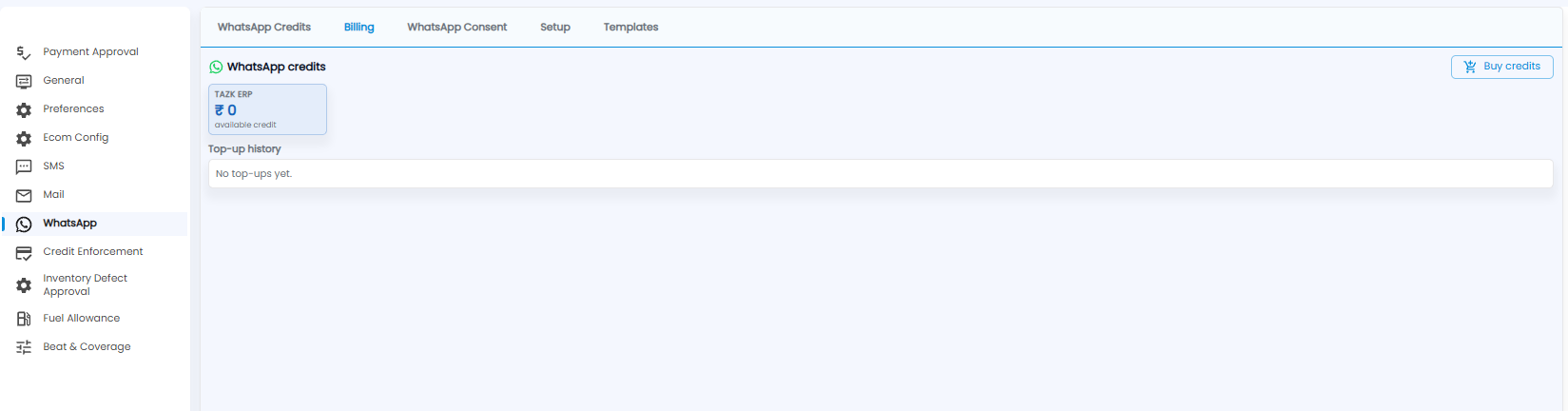
Shows your available credit and the Top-up history. Click Buy credits to top up.
WhatsApp Consent
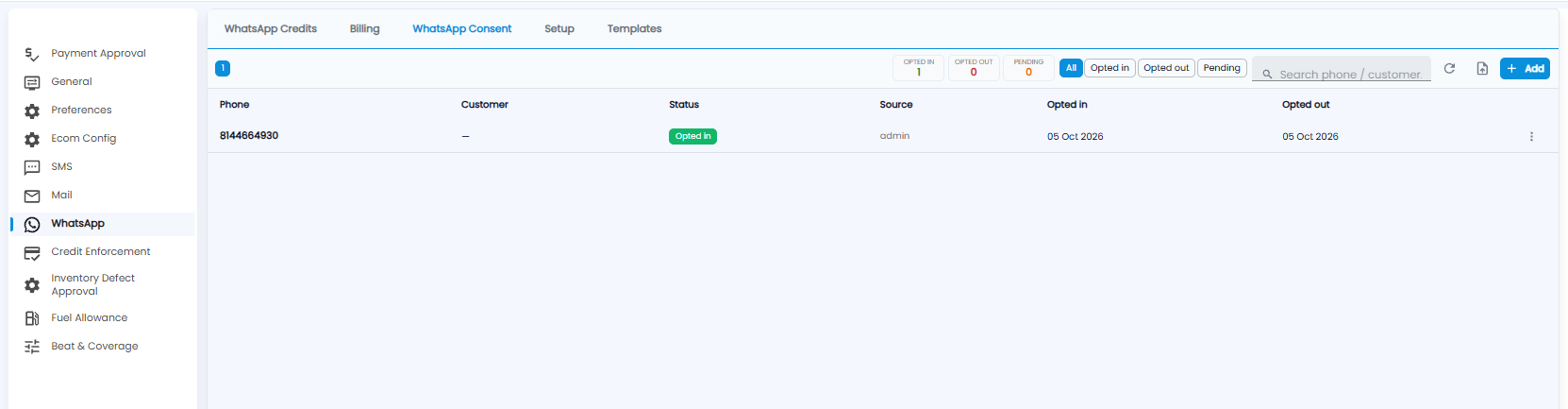
Lists the customers who have agreed (opted in) or declined (opted out) to receive WhatsApp messages. The counts at the top show Opted in, Opted out, and Pending; use the buttons next to them to filter, and search by phone or customer.
Each row shows the Phone, Customer, Status, Source (for example admin), and the Opted in and Opted out dates. Click + Add to add a number, or the upload icon to add many from a file.
Setup
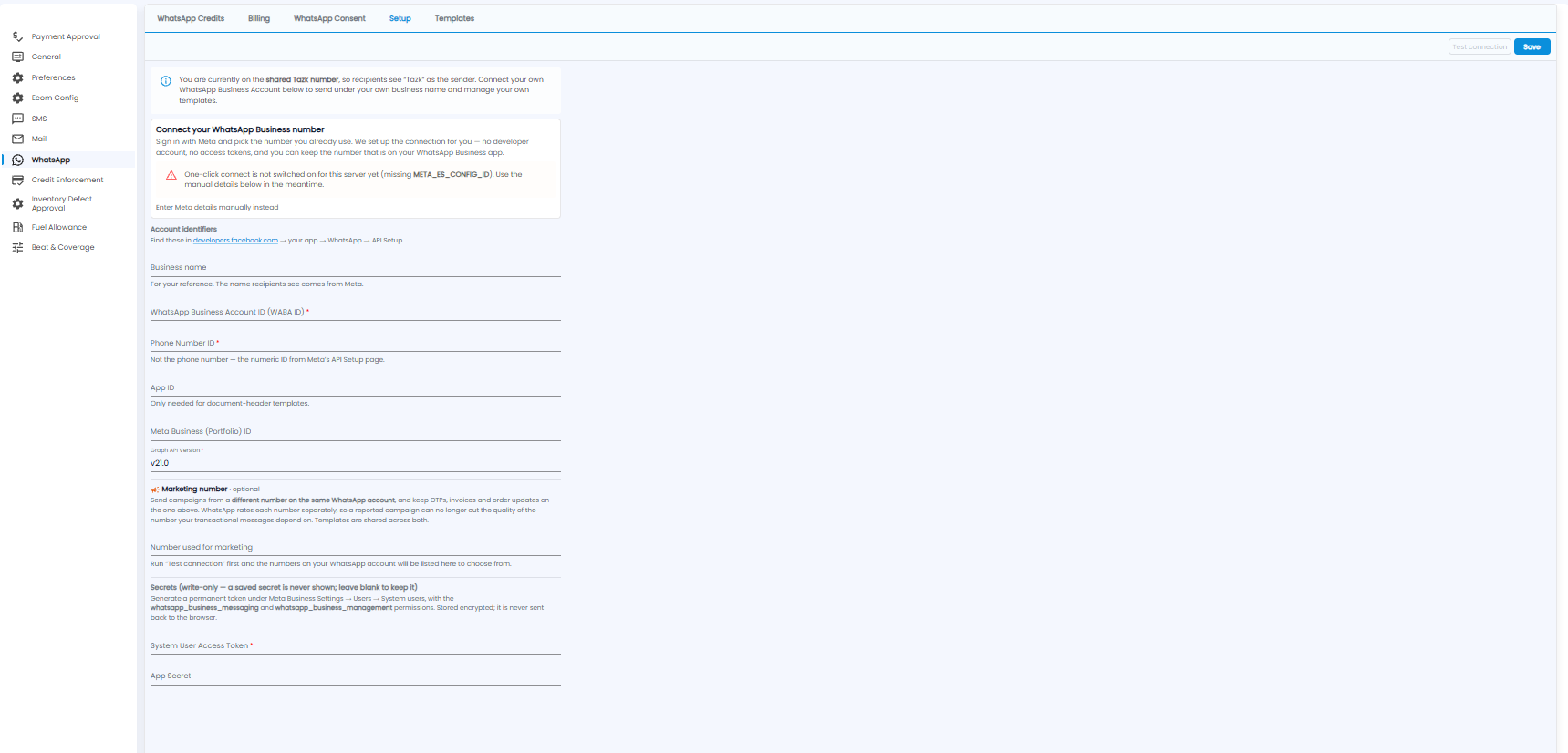
Until you connect your own number, messages go from the shared Tazk number and recipients see Tazk as the sender. Connect your own WhatsApp Business account to send under your business name and manage your own templates.
- One-click connect — sign in with Meta and pick the number you already use. If it is not available yet, choose Enter Meta details manually
- Account identifiers — from developers.facebook.com → your app → WhatsApp → API Setup: Business name, WhatsApp Business Account ID (WABA ID)*, Phone Number ID* (the numeric ID, not the phone number), App ID (needed only for document-header templates), Meta Business (Portfolio) ID, and Graph API Version*
- Marketing number (optional) — send campaigns from a different number on the same account, so complaints about a campaign do not affect the number your invoices and OTPs go from. Run Test connection first to list your numbers
- Secrets — the System User Access Token* (a permanent token from Meta Business Settings → Users → System users, with WhatsApp messaging and management permissions) and the App Secret. Saved secrets are stored encrypted and never shown again; leave a field blank to keep the saved one
Click Test connection, then Save.
Templates
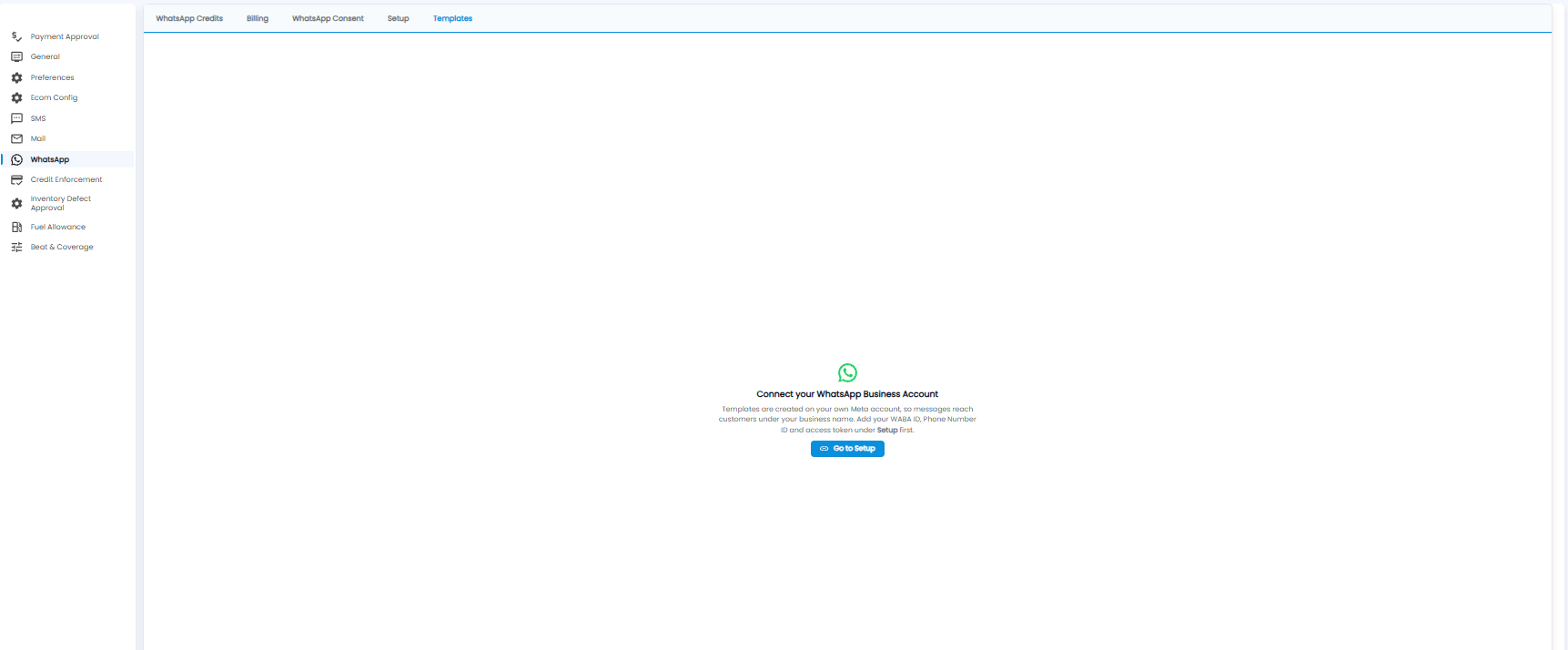
WhatsApp message templates are created on your own Meta account, so messages reach customers under your business name. Until your account is connected, this tab asks you to finish Setup first — click Go to Setup.