
How do I choose how employees mark attendance in Tazk Payroll?
Open Configuration → General. General Config has two panels. Location & Check-in controls GPS attendance, the same-location check-out rule, address capture and live location tracking. Attendance Capture turns on selfie, WiFi, QR, web and manual attendance and the manual request option for employees. Change the switches, then click Save changes.
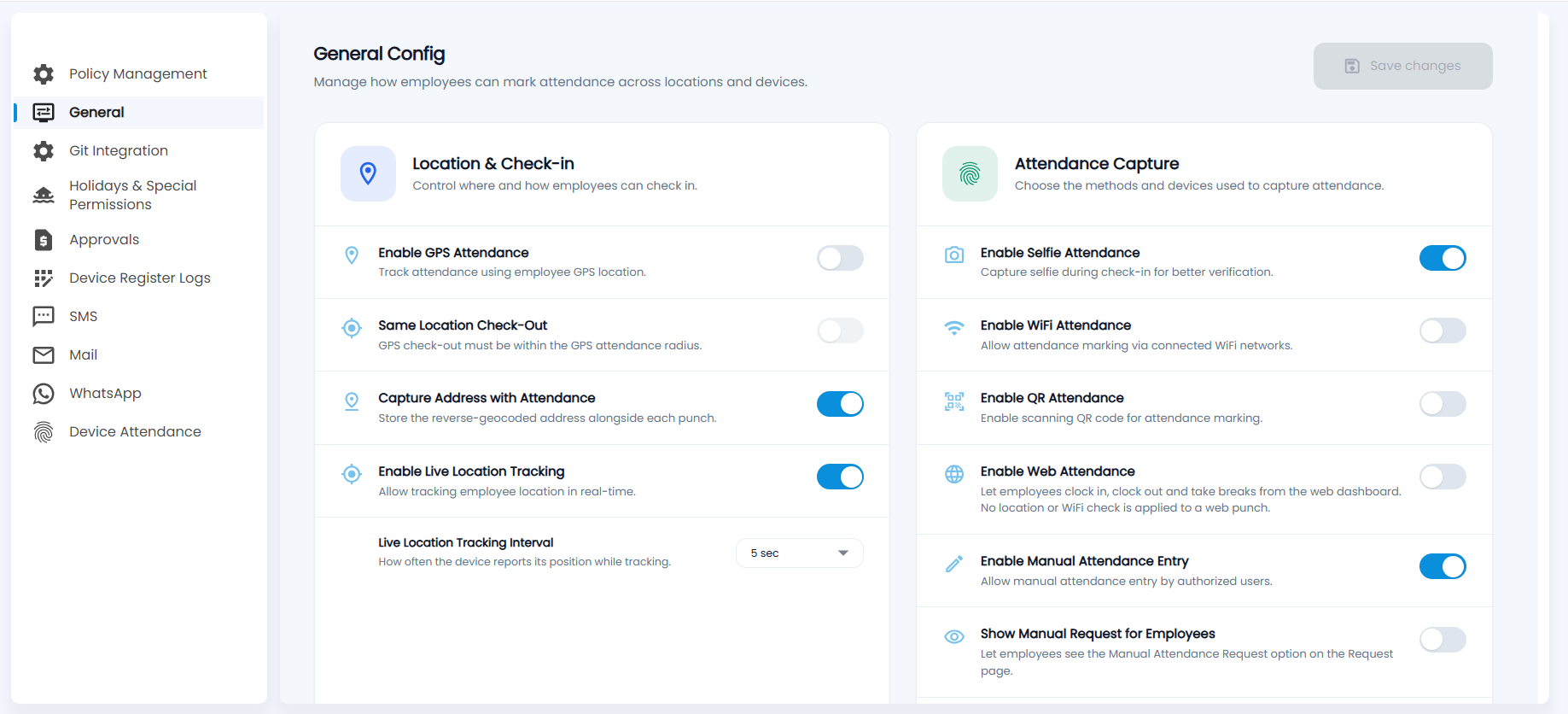
What is in Location & Check-in?
"Control where and how employees can check in."
| Setting | What it does |
|---|---|
| Enable GPS Attendance | Tracks attendance using the employee's GPS location. |
| Same Location Check-Out | The GPS check-out must be within the GPS attendance radius. Available only when GPS attendance is on. |
| Capture Address with Attendance | Stores the street address (reverse-geocoded from the location) with each punch. |
| Enable Live Location Tracking | Tracks employee location in real time, shown in Live Location and Travel History. |
| Live Location Tracking Interval | How often the device reports its position while tracking, for example every 5 seconds. Shown when live tracking is on. |
What is in Attendance Capture?
"Choose the methods and devices used to capture attendance."
| Setting | What it does |
|---|---|
| Enable Selfie Attendance | Asks for a selfie at check-in for better verification. |
| Enable WiFi Attendance | Lets employees mark attendance through connected office WiFi networks. |
| Enable QR Attendance | Lets employees scan a QR code to mark attendance. |
| Enable Web Attendance | Lets employees clock in, clock out and take breaks from the web dashboard. No location or WiFi check is applied to a web punch. |
| Enable Manual Attendance Entry | Lets authorised users enter attendance by hand in Manual Attendance. |
| Show Manual Request for Employees | Shows employees the Manual Attendance Request option on their Request page. |
How do I save the changes?
Change the switches you need. Save changes at the top right becomes active once something has changed. Click it to apply the settings to every employee.
Important: Turning on Web Attendance lets employees punch from any browser with no location or WiFi check. Turn it on only if you trust remote punches.
Note: Shift timings, grace periods and late rules are set per employee category in Policy Management, not here.