
How do I see where an employee travelled on a given day in Tazk Payroll?
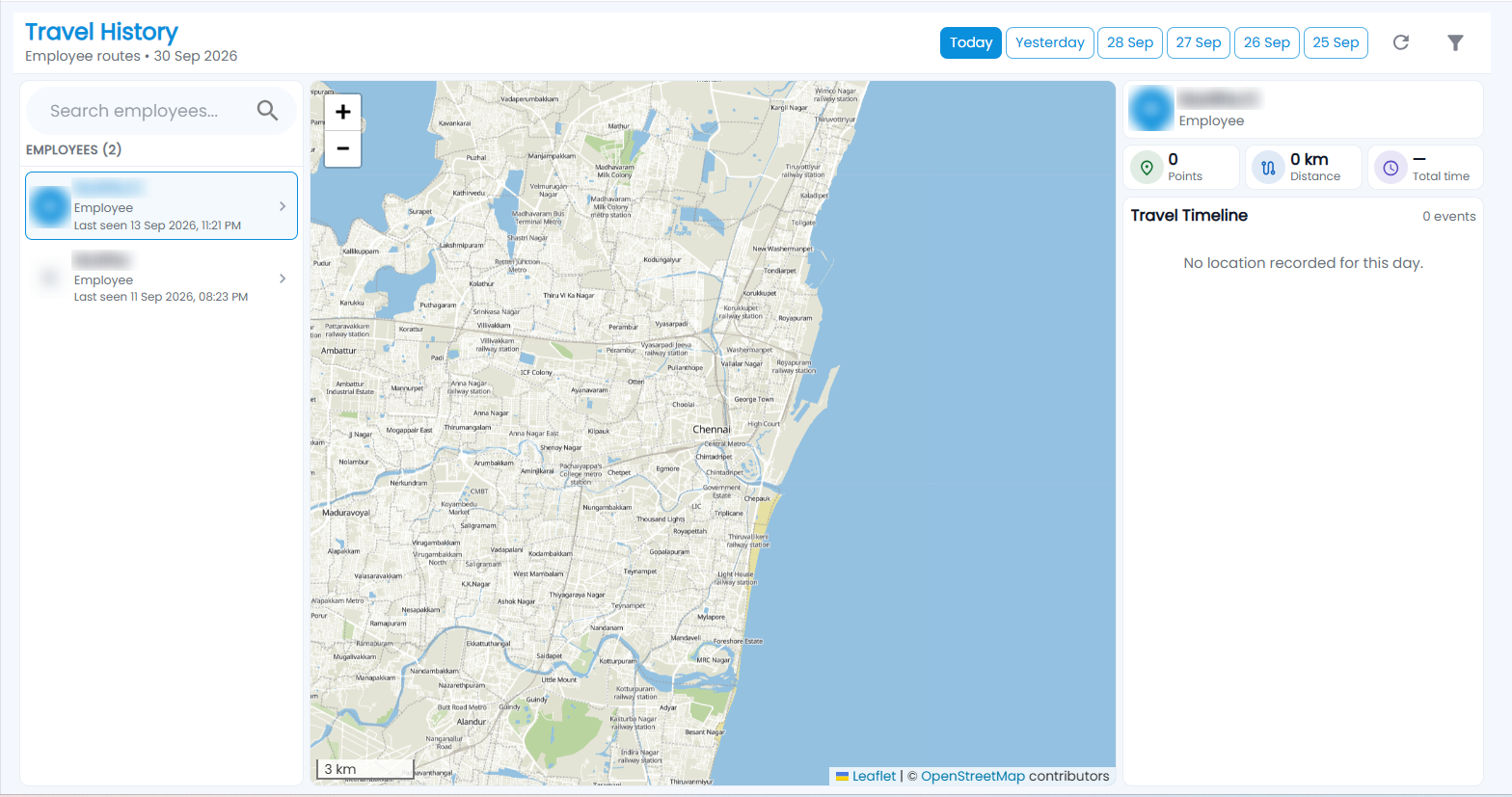
Click Travel History in the sidebar (it is also the second tab of Live Location). Pick the employee from the list and a day from the date chips or the filter. The map draws their route on the roads with a start (S) and end (E) marker, an hourly marker for each hour and a P pin for every stop of three minutes or more, then replays it. The right panel shows positions, distance, total time and a timeline.
Who can see Travel History?
Administrators, HR Managers, Managers, Sales Managers and Back Office users pick from all employees they manage; everyone else sees only their own route. Only employees with live location turned on are listed. Travel History is part of some plans only — if you do not see it, it is not in your plan.
How do I choose the employee and the day?
- In the Employees list, search by name, role or ID and click the employee. Each row shows when they were last seen.
- Click a date chip — Today, Yesterday or one of the four days before — or the filter icon (Pick another date) to choose any earlier day, then Apply.
The title shows whose routes and which day you are looking at (for example "Employee routes • 30 Sep 2026"). Travel History shows one day at a time. Refresh reloads the employee list. If the employee has no positions that day, the timeline says "No location recorded for this day."
How do I read the route on the map?
| On the map | Meaning |
|---|---|
| Solid blue line | The route along the roads |
| Lighter blue line | Straight lines between points where the road route was not available |
| Dashed grey line | No location was recorded — the app was closed or had no signal for more than 5 km or 45 minutes |
| Green S / red E | First and last position of the day |
| Numbered markers 1, 2, 3… | One per hour of the day — blue if the employee was on the move that hour, grey if stationary |
| Amber P1, P2… pins | Stops — a gap of 3 minutes or more between two positions, with the duration under the pin. Back-to-back stops within 75 m are merged. |
Click any marker for its time and coordinates.
How do I replay the route?
A vehicle rides the route once the day loads. Use Play / Pause, Play again from the start, the progress bar, and the speed chip (1x, 2x, 4x). A replay takes about 20 seconds at 1x whatever the length of the day, so it is not real time.
What does the travel timeline show?
The right panel shows the employee, then Points, Distance (km) and Total time. The Travel Timeline lists the day in order — Start, each hour ("On the move" or "Stationary"), each stop ("Stopped", or "Stopped · no signal" when the next position was somewhere else) and End — with times and durations. Click a row to zoom the map to it.