
How does WhatsApp messaging work in Tazk Payroll?
Tazk sends WhatsApp notifications on your behalf and spends credits for them (1 credit = ₹1). Open Configuration → WhatsApp. WhatsApp Credits shows your balance and usage, Billing is where you buy credits, WhatsApp Consent records who has opted in, Setup connects your own WhatsApp Business number instead of the shared Tazk number, and Templates creates the messages Meta must approve before they can be sent.
What tabs does WhatsApp have?
WhatsApp Credits · Billing · WhatsApp Consent · Setup · Templates.
How do I check my WhatsApp credits?
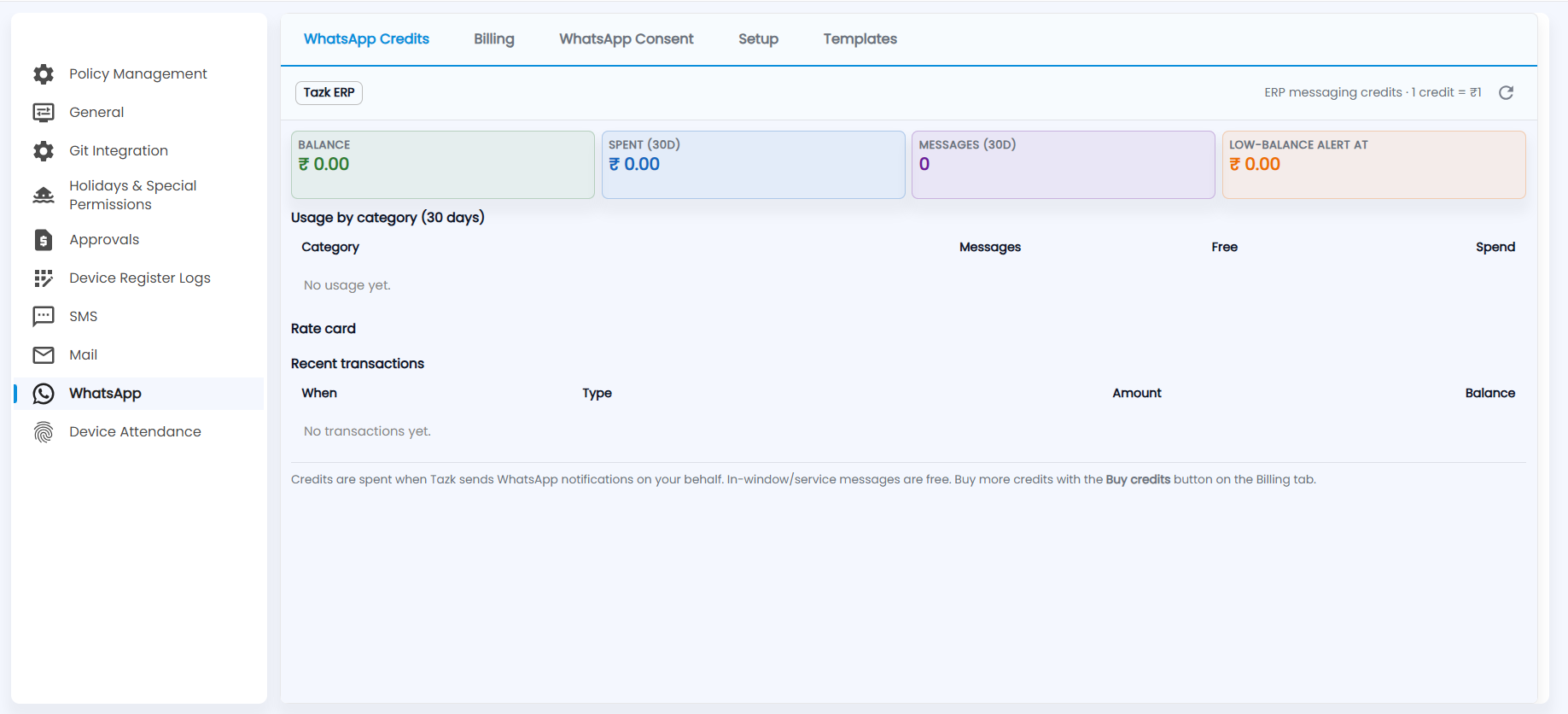
- Cards — Balance, Spent (30d), Messages (30d) and Low-balance alert at. One ERP messaging credit is ₹1. Click refresh to update them.
- Usage by category (30 days) — messages, free messages and spend for each message category.
- Rate card — the price per message category.
- Recent transactions — when, type, amount and the balance after each.
Credits are spent when Tazk sends WhatsApp notifications on your behalf. In-window (service) messages are free.
How do I buy credits?
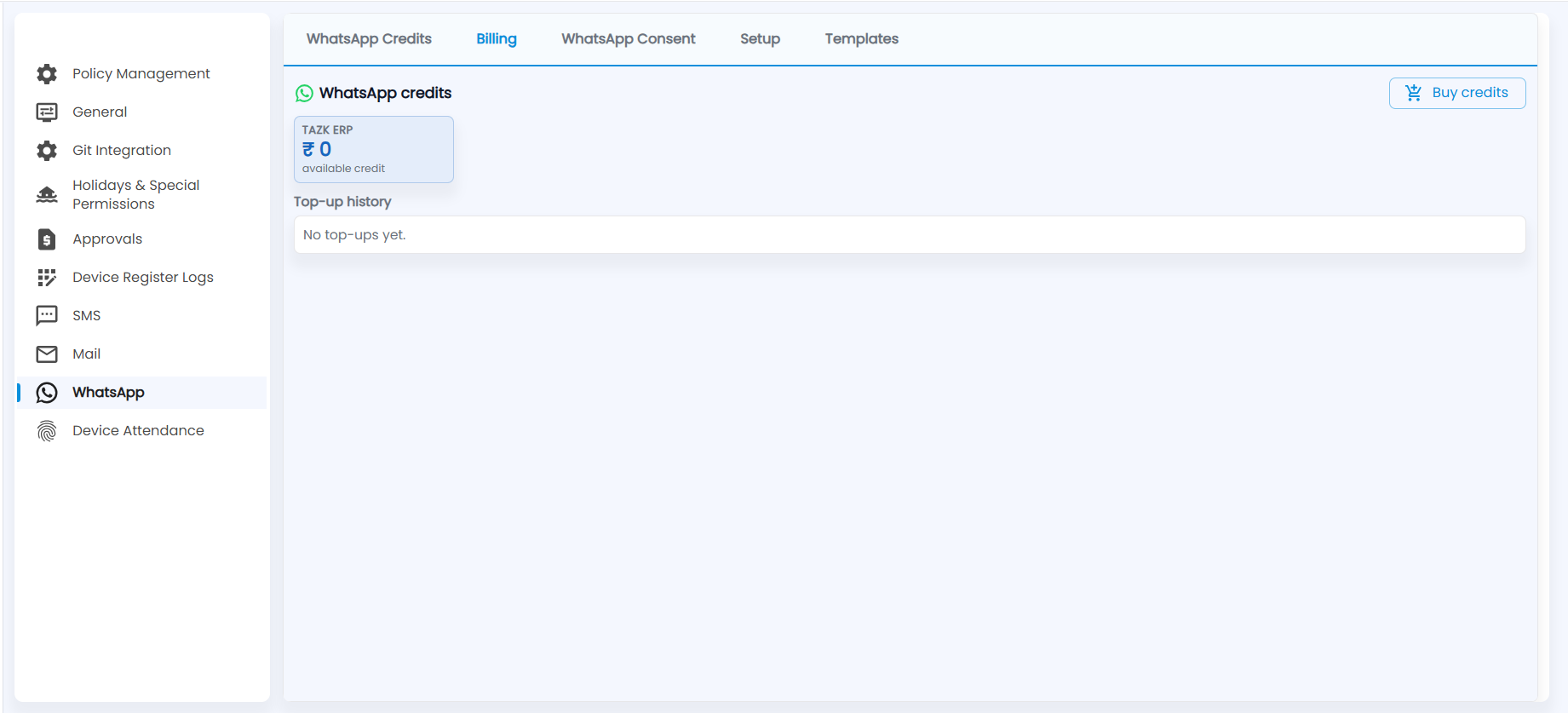
On Billing, the card shows your available credit. Click Buy credits to top up. Each top-up is listed under Top-up history.
How do I record WhatsApp consent?
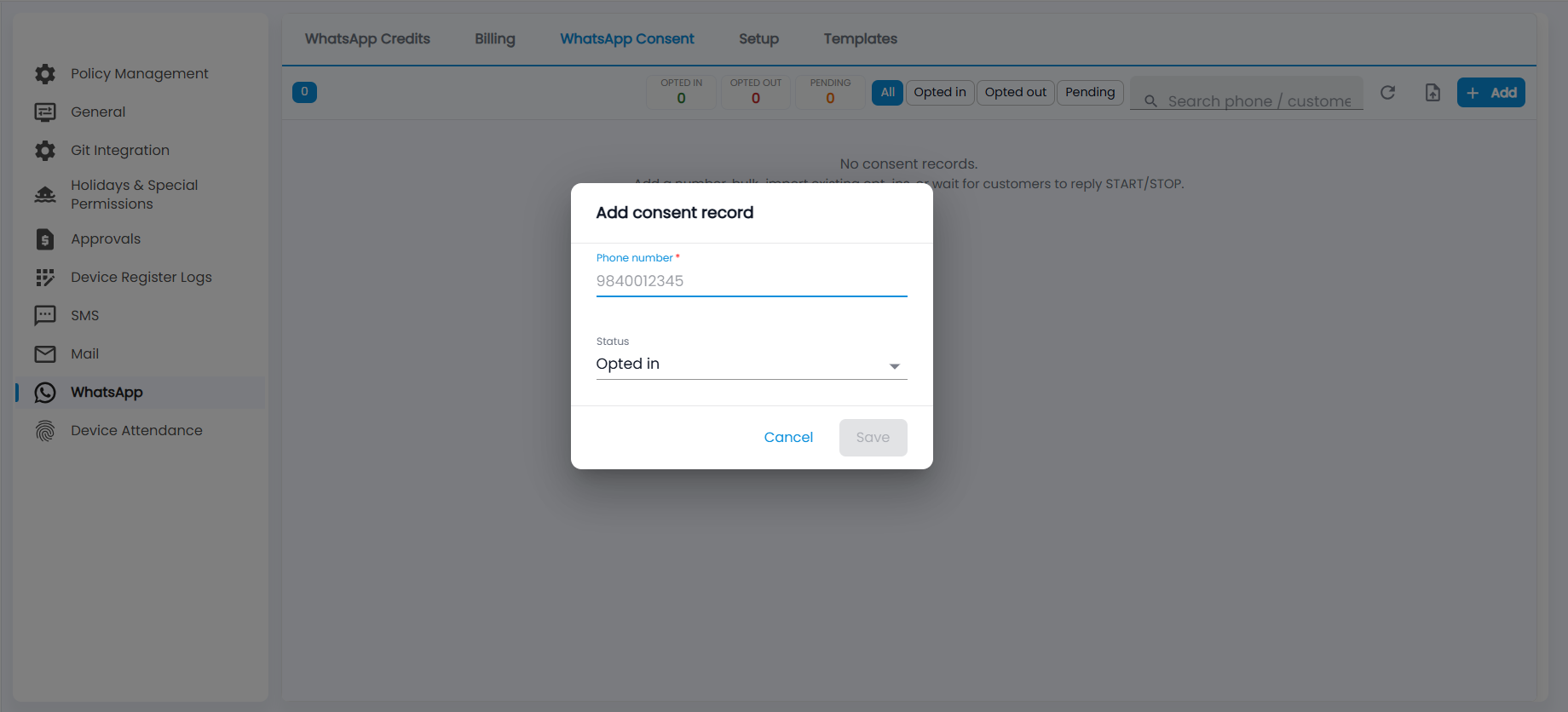
Marketing messages can only go to numbers that have opted in. WhatsApp Consent counts numbers that are Opted in, Opted out and Pending. Filter by status, search by phone or customer, and refresh the list. Records are added in three ways:
- Add — enter the Phone number, choose the Status (Opted in by default) and click Save.
- The import button — bulk-import existing opt-ins from a file.
- Customer replies — a reply of START opts a number in and STOP opts it out.
How do I send from my own WhatsApp Business number?
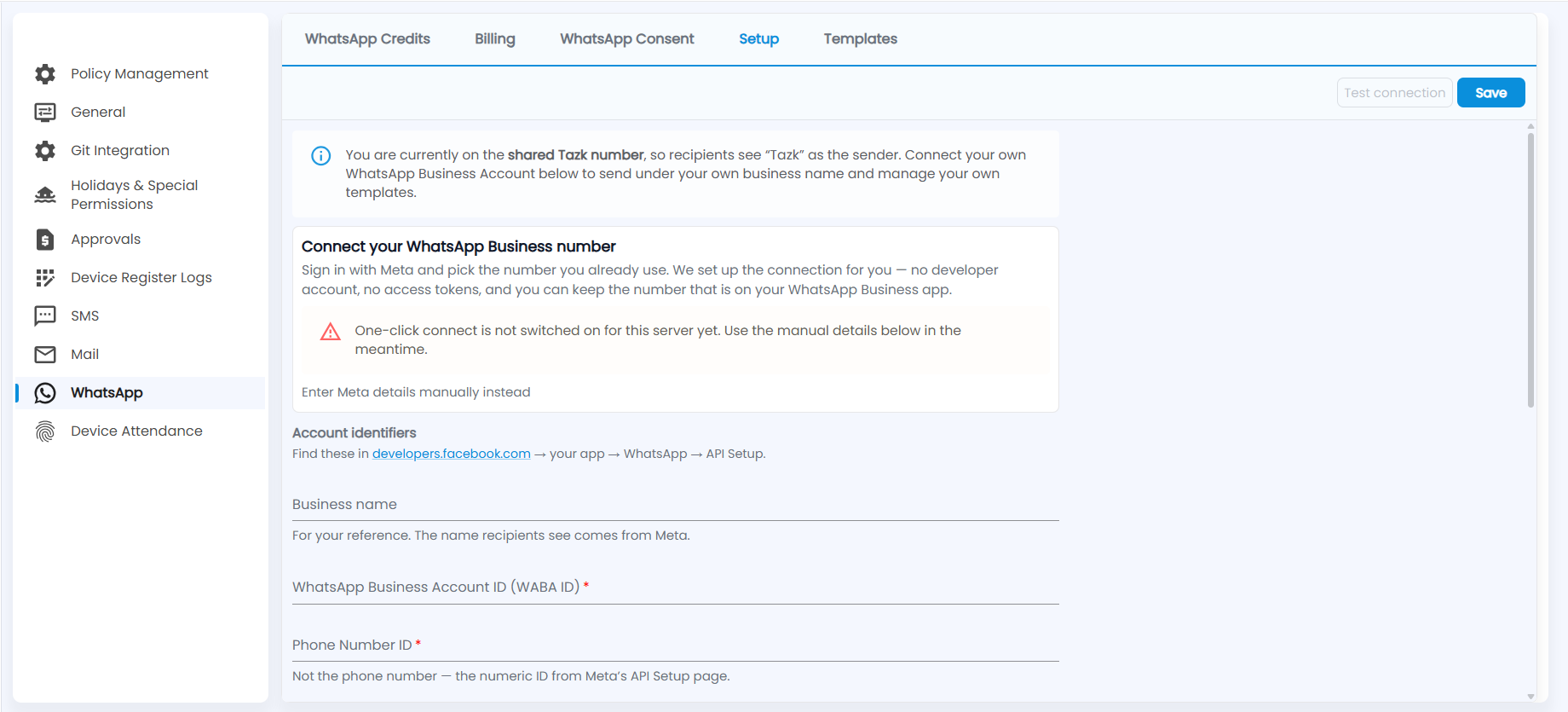
By default you are on the shared Tazk number, so recipients see "Tazk" as the sender. Connect your own WhatsApp Business Account to send under your business name and manage your own templates.
- One-click connect — sign in with Meta and pick the number you already use. No developer account or access token is needed, and you keep the number on your WhatsApp Business app. If it shows "One-click connect is not switched on for this server yet", use the manual details instead.
- Enter Meta details manually instead
- Open developers.facebook.com → your app → WhatsApp → API Setup.
- Enter the Business name. This is for your reference only; the name recipients see comes from Meta.
- Enter the WhatsApp Business Account ID (WABA ID).
- Enter the Phone Number ID. This is the numeric ID from Meta's API Setup page, not the phone number. Fill in the rest of the details below it.
- Click Save, then Test connection.
How do I create a WhatsApp template?
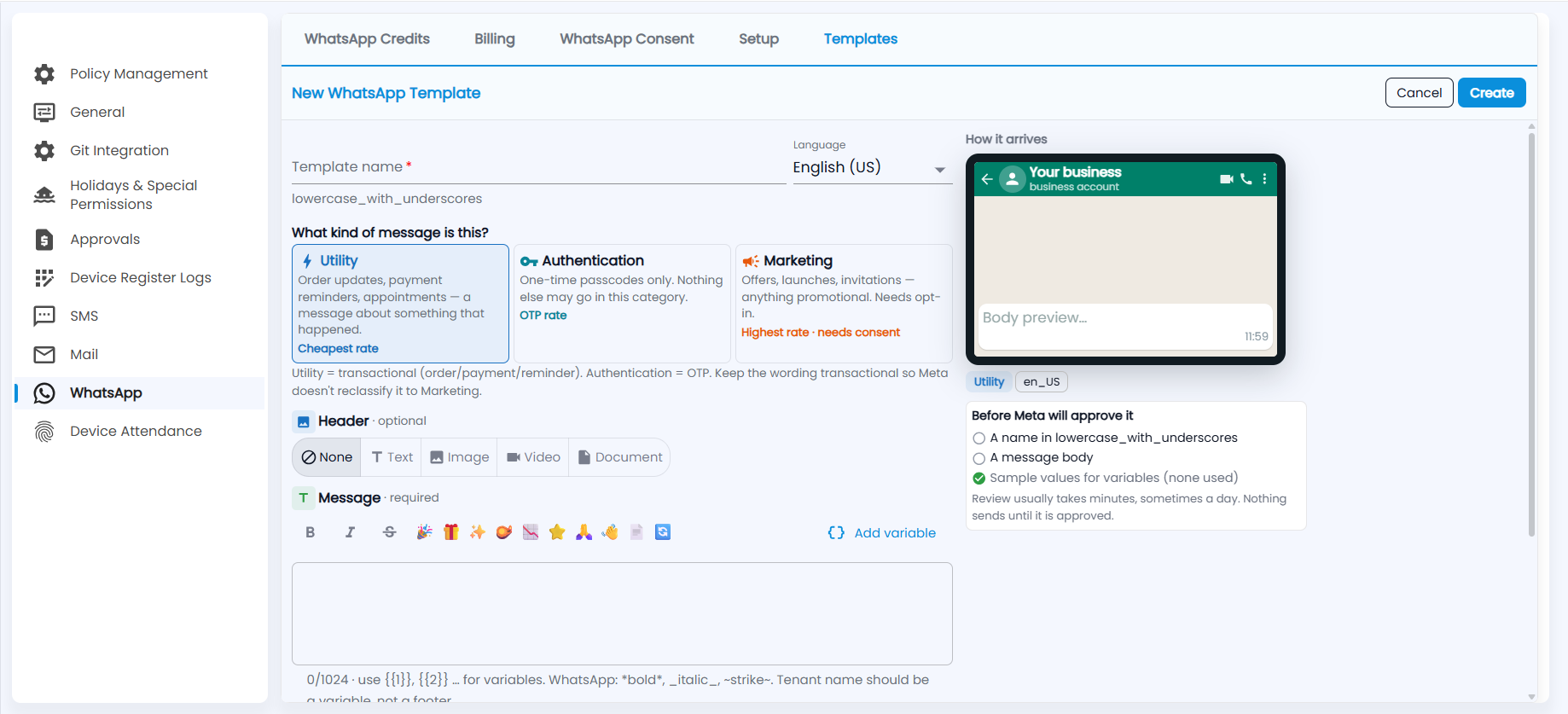
- On Templates, start a new template.
- Enter the Template name in lowercase_with_underscores and choose the Language, for example English (US).
- Choose what kind of message it is. This sets the rate.
- Utility — order updates, payment reminders and appointments: a message about something that happened. Cheapest rate.
- Authentication — one-time passcodes only. OTP rate.
- Marketing — offers, launches and invitations: anything promotional. Highest rate, and it needs consent.
- Optionally add a Header: Text, Image, Video or Document.
- Write the Message (required, up to 1,024 characters). Use the toolbar for bold, italic, strikethrough and emoji, and Add variable to insert {{1}}, {{2}} and so on. Put the company name in a variable, not in a footer.
- Check How it arrives, the phone preview, and the Before Meta will approve it checklist: a name in lowercase_with_underscores, a message body, and sample values for any variables.
- Click Create.