
How do I see or reset an employee's registered device in Tazk Payroll?
Open Configuration → Device Register Logs. The Device Register Report lists each registered device with the employee, its status and the date it was last active. Use the filter to narrow it by date, status or employee. When an employee changes phone, click DeRegister on their old device so they can register the new one.
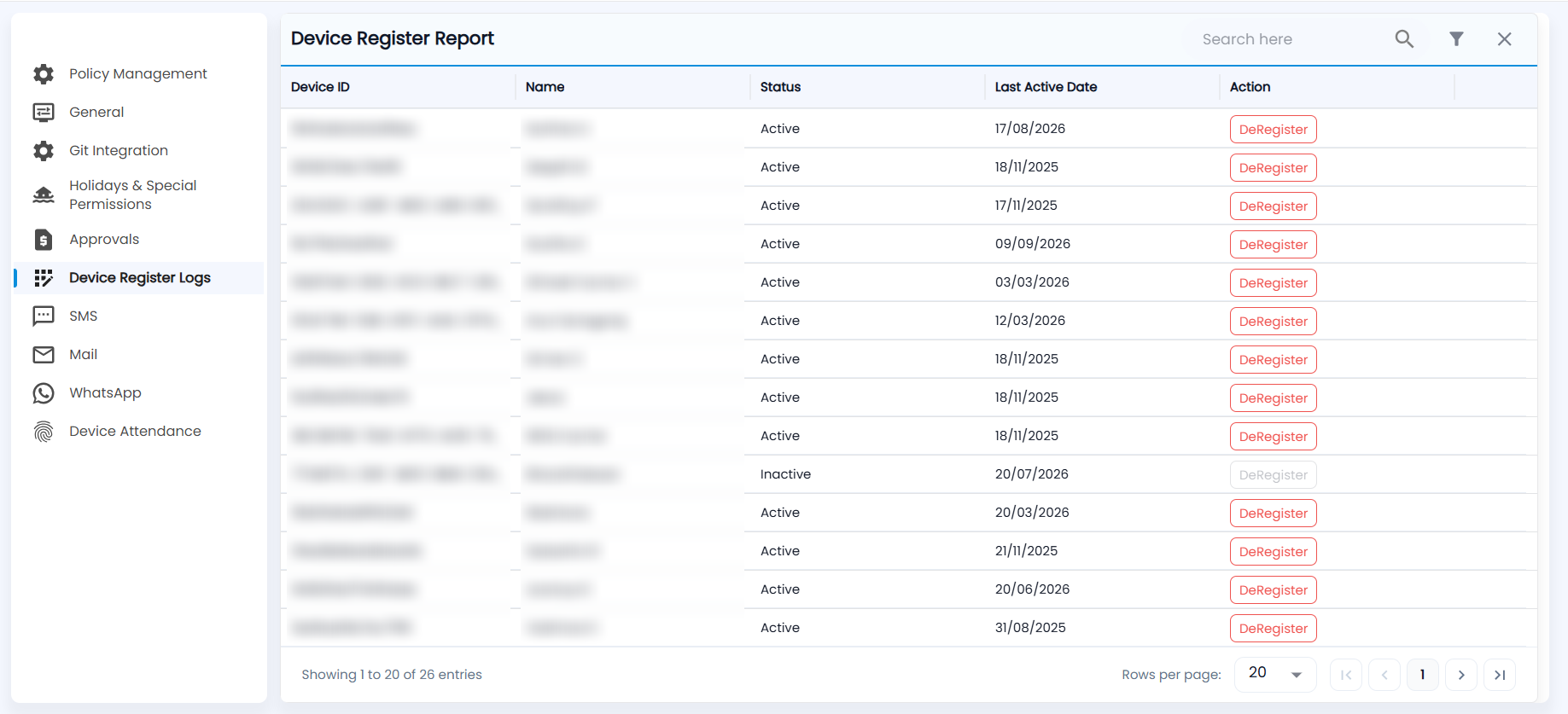
What does the Device Register Report show?
Each row is a mobile device an employee has registered for attendance, with its Device ID, the employee's Name, the Status (Active or Inactive) and the Last Active Date. Search by name or device ID, and change Rows per page to see more.
How do I filter the report?
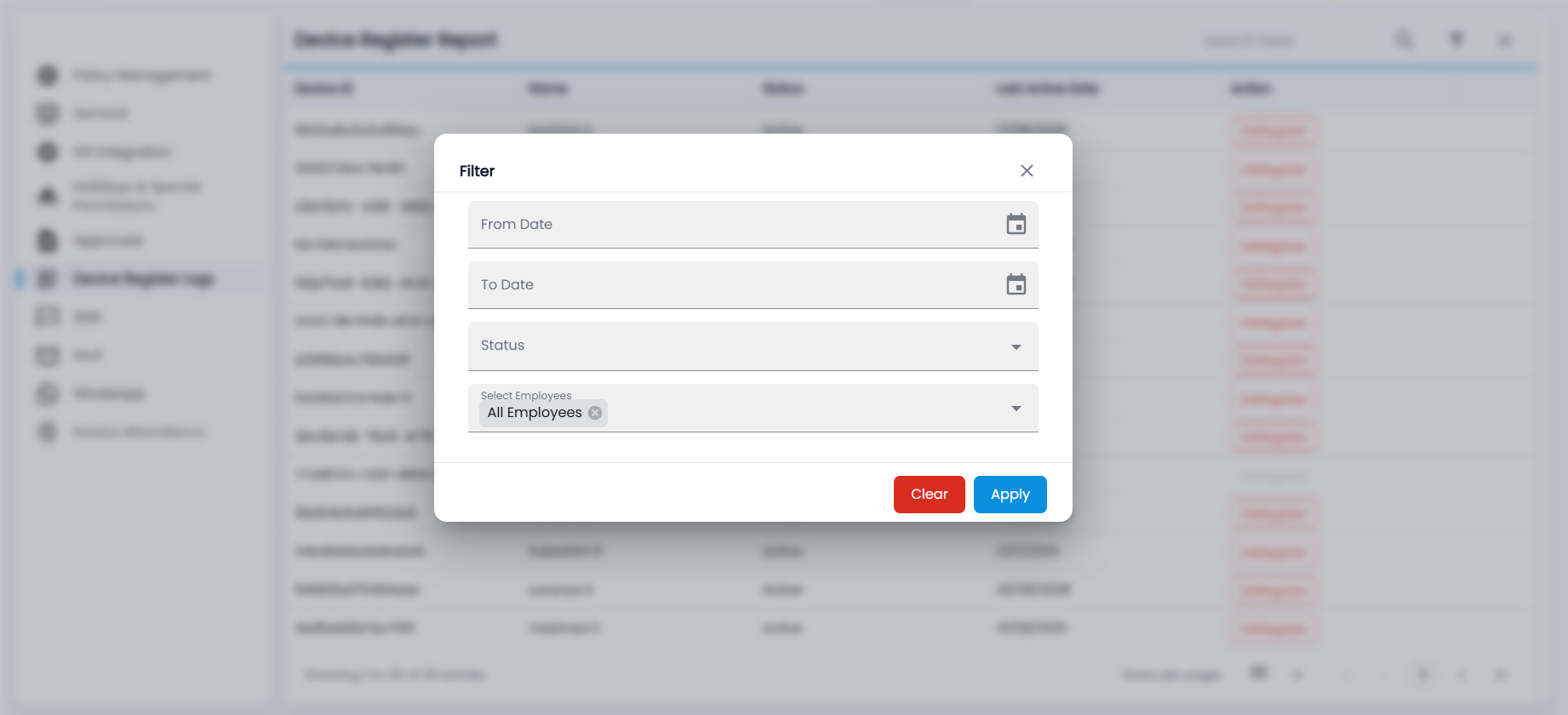
- Click the filter icon.
- Set a From Date and To Date, a Status, and the employees under Select Employees (All Employees by default).
- Click Apply, or Clear to reset.
When should I deregister a device?
Click DeRegister when an employee gets a new phone, reinstalls the app or loses their device. The old device is released and the employee can register the next one at sign-in. DeRegister is greyed out for a device that is already inactive.