
How do I set who approves requests in Tazk Payroll?
Open Configuration → Approvals and click Add Approval. Choose the Department, one or more Request Types and one or more approvers, optionally add a verifier, check the Routing preview and click Create approval. Requests of that type from that department then go to the approver first and the verifier after, in the Approvals screen.
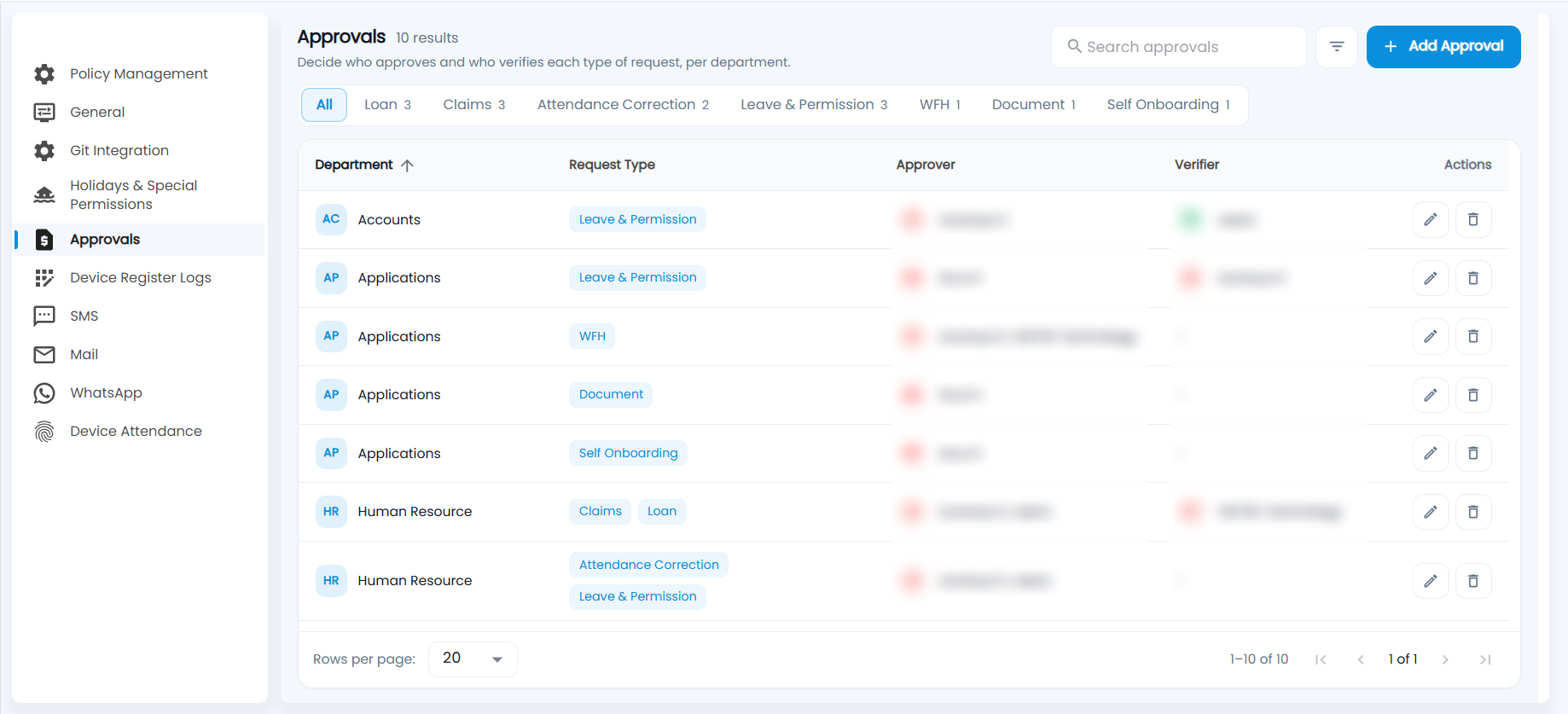
What does the Approvals list show?
"Decide who approves and who verifies each type of request, per department." Each row is one approval rule.
- The tabs filter by request type and show how many rules each has: All, Loan, Claims, Attendance Correction, Leave & Permission, WFH, Document and Self Onboarding.
- Each rule shows the Department, the Request Type (one rule can cover several), the Approvers and the Verifier (a dash when there is none).
- Use Search approvals or the filter button to find a rule, and click Department to sort. The pencil edits a rule and the bin deletes it.
How do I create an approval rule?
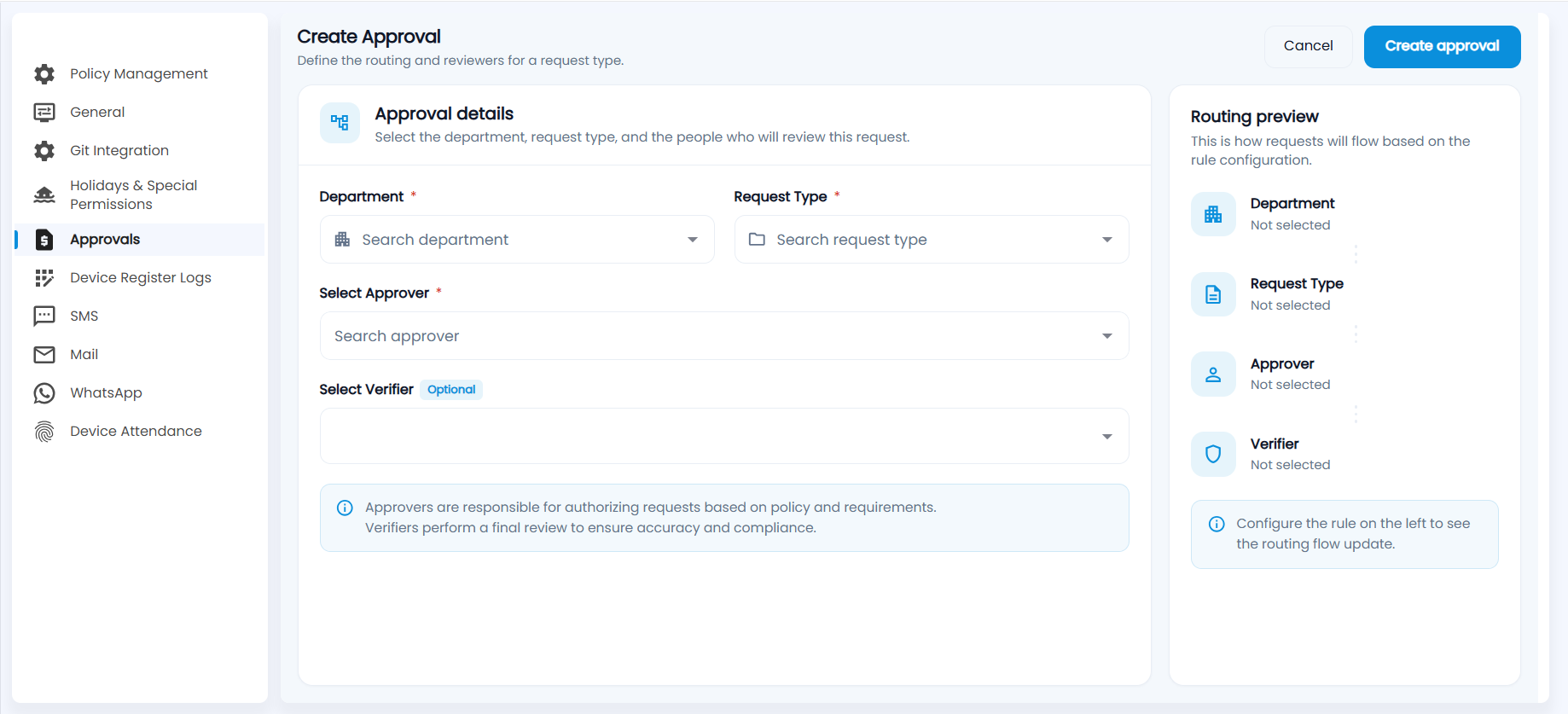
- Click Add Approval.
- Choose the Department and the Request Type. You can pick more than one type.
- Under Select Approver, choose one or more approvers. The employee's Reporting Manager can be chosen as an approver.
- Optionally choose a verifier under Select Verifier.
- Check the Routing preview on the right, which shows the flow from Department to Request Type, Approver and Verifier as you fill in the form.
- Click Create approval.
Approvers authorise requests based on policy and requirements. Verifiers do a final review for accuracy and compliance, after the approver has acted.
Important: Set up a rule for every department and request type in use. Without one, the request's approval flow shows Not configured and nobody can approve it in Approvals.