
How do I add a holiday or a special working permission in Tazk Payroll?
Open Configuration → Holidays & Special Permissions to reach the Work Calendar. On the Holidays tab, click Add Holiday, enter the name, date and employee categories, tick Restricted holiday if it is optional, and click Submit Holiday. On the Special Permissions tab, click Add Permission to create a one-day exception to shift timings: name, date, categories, start and end time and hours. Calendar View shows both on a month calendar.
What tabs does the Work Calendar have?
"Manage special working permissions and company holidays." There are three tabs, each with a count of its entries: Special Permissions, Holidays and Calendar View. Export at the top right downloads the list on the current tab.
What are special permissions?
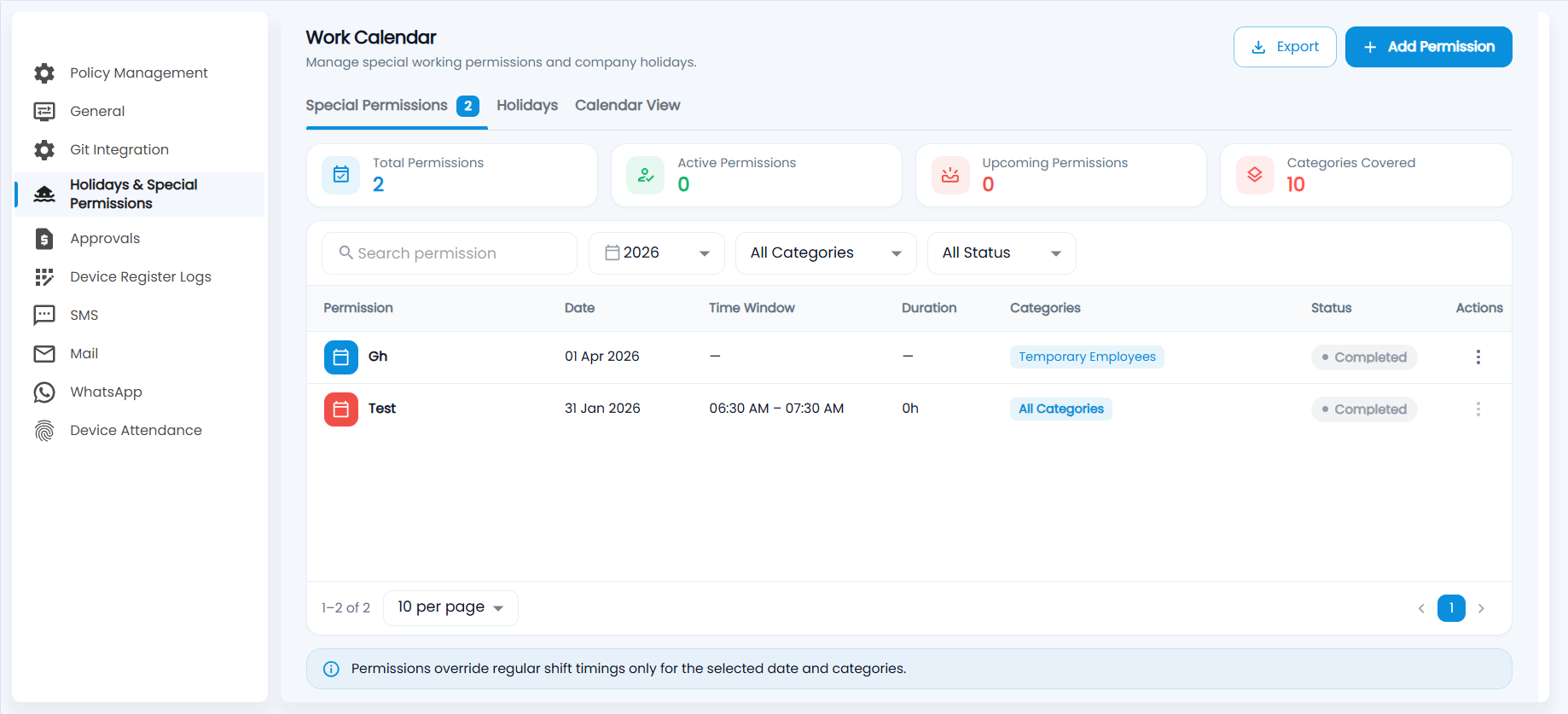
A special permission is a one-day exception to standard shift timings, such as a shorter working day before a festival. It overrides regular shift timings only for the selected date and employee categories.
- Cards — Total Permissions, Active Permissions, Upcoming Permissions and Categories Covered.
- Search, or filter by year, category and status.
- Each permission shows its date, time window, duration, categories and status (for example Completed once the date has passed). Use ⋮ to edit or delete it.
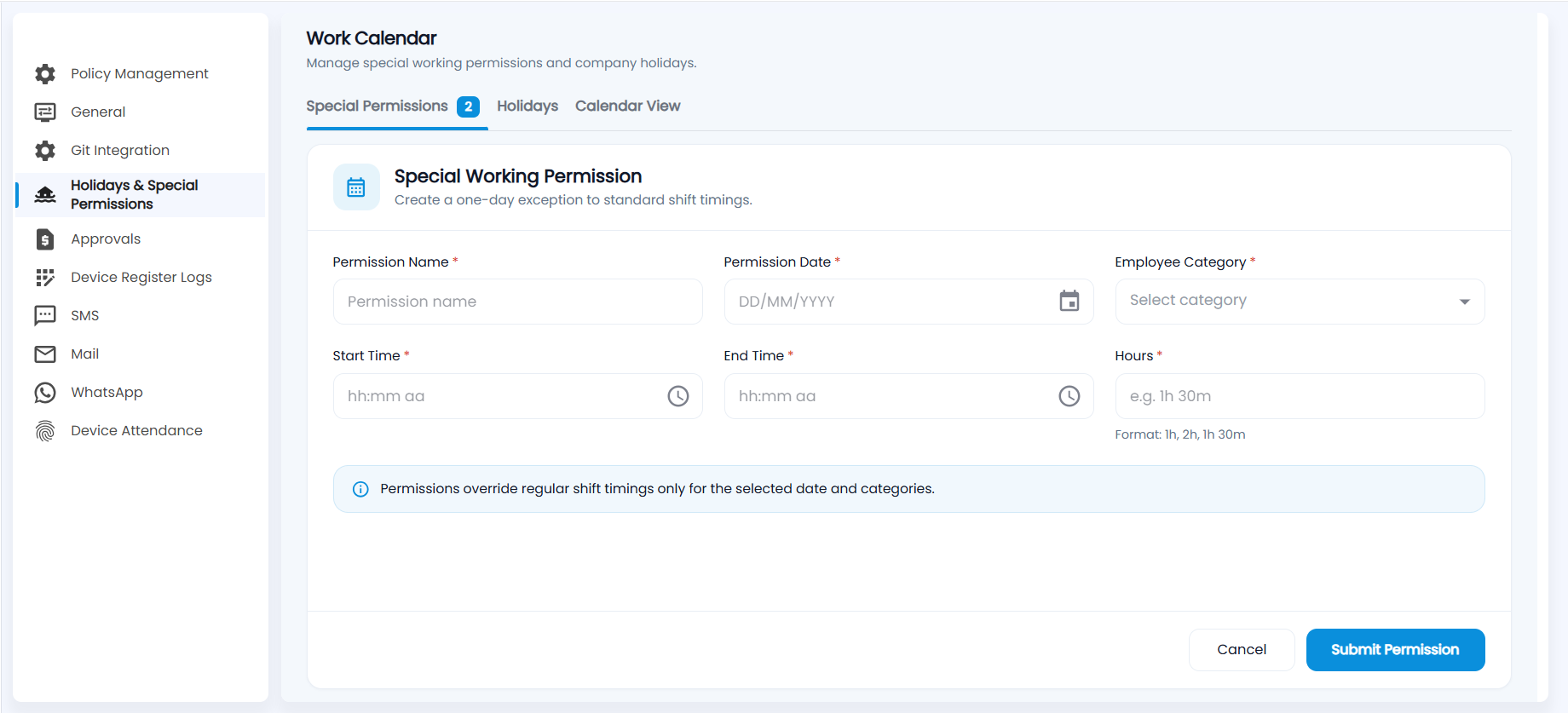
- Click Add Permission.
- Enter the Permission Name, the Permission Date and the Employee Category.
- Set the Start Time and End Time, and the Hours in the format 1h, 2h or 1h 30m.
- Click Submit Permission.
How do I declare a company holiday?
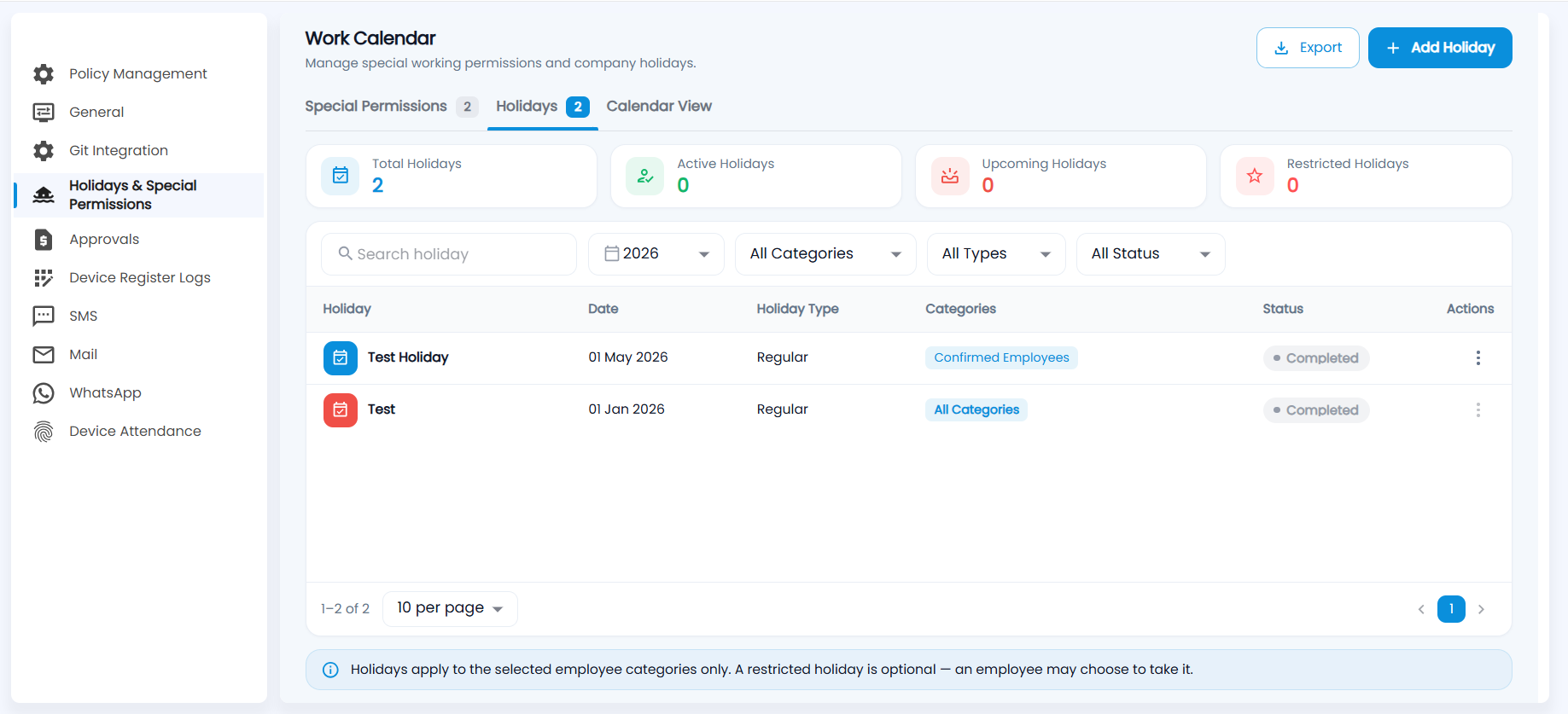
- Cards — Total Holidays, Active Holidays, Upcoming Holidays and Restricted Holidays.
- Search, or filter by year, category, type (regular or restricted) and status.
- Each holiday shows its date, holiday type, categories and status. Use ⋮ to edit or delete it.
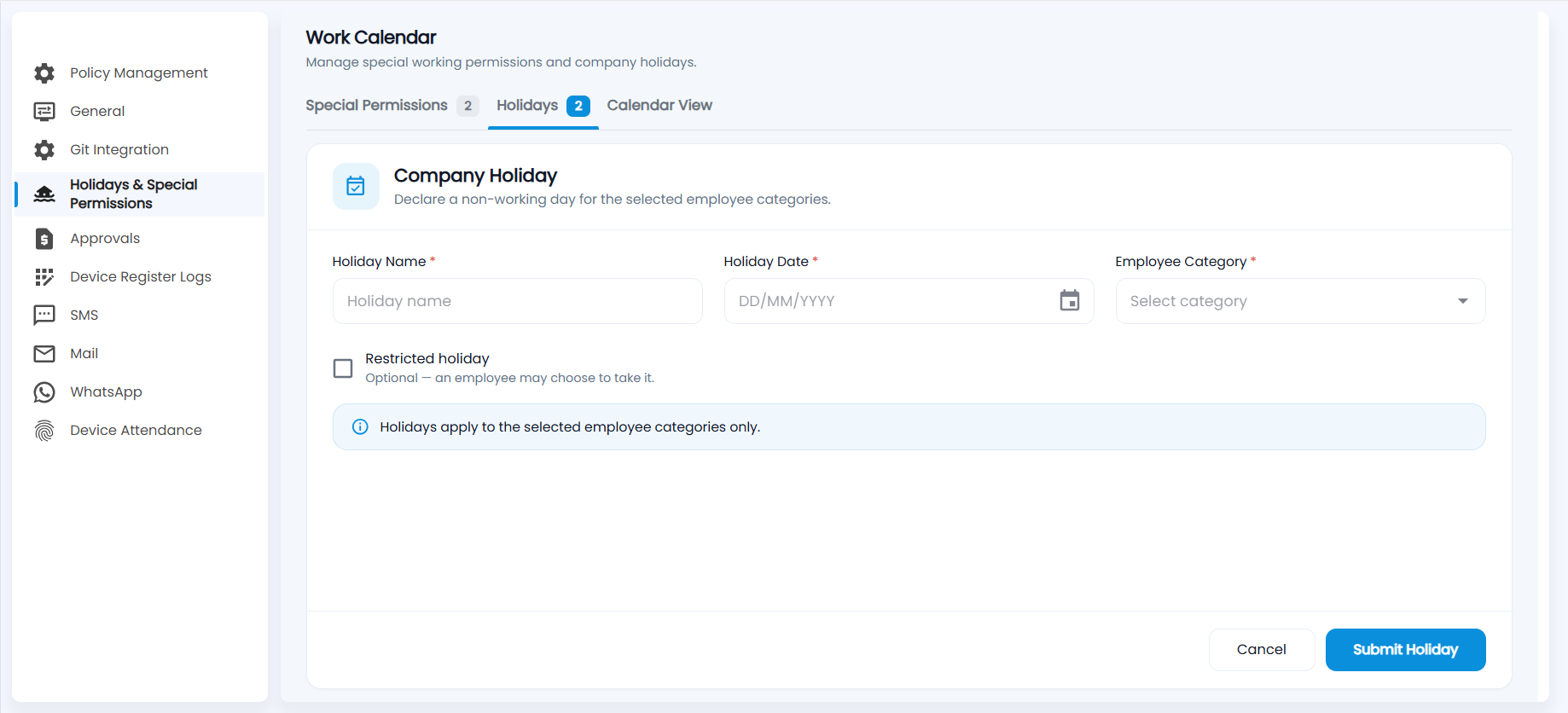
- Click Add Holiday.
- Enter the Holiday Name and the Holiday Date, and choose the Employee Category. The holiday applies to the selected categories only.
- Tick Restricted holiday if it is optional, meaning each employee may choose whether to take it.
- Click Submit Holiday.
A regular holiday is a non-working day for everyone in those categories. It shows as H on the shift schedule and on the Calendar, and is paid as your week off & holiday policy says. Employees take a restricted holiday by applying for it in Leave Management, up to the restricted holiday quota in their Leave Policy.
What does Calendar View show?
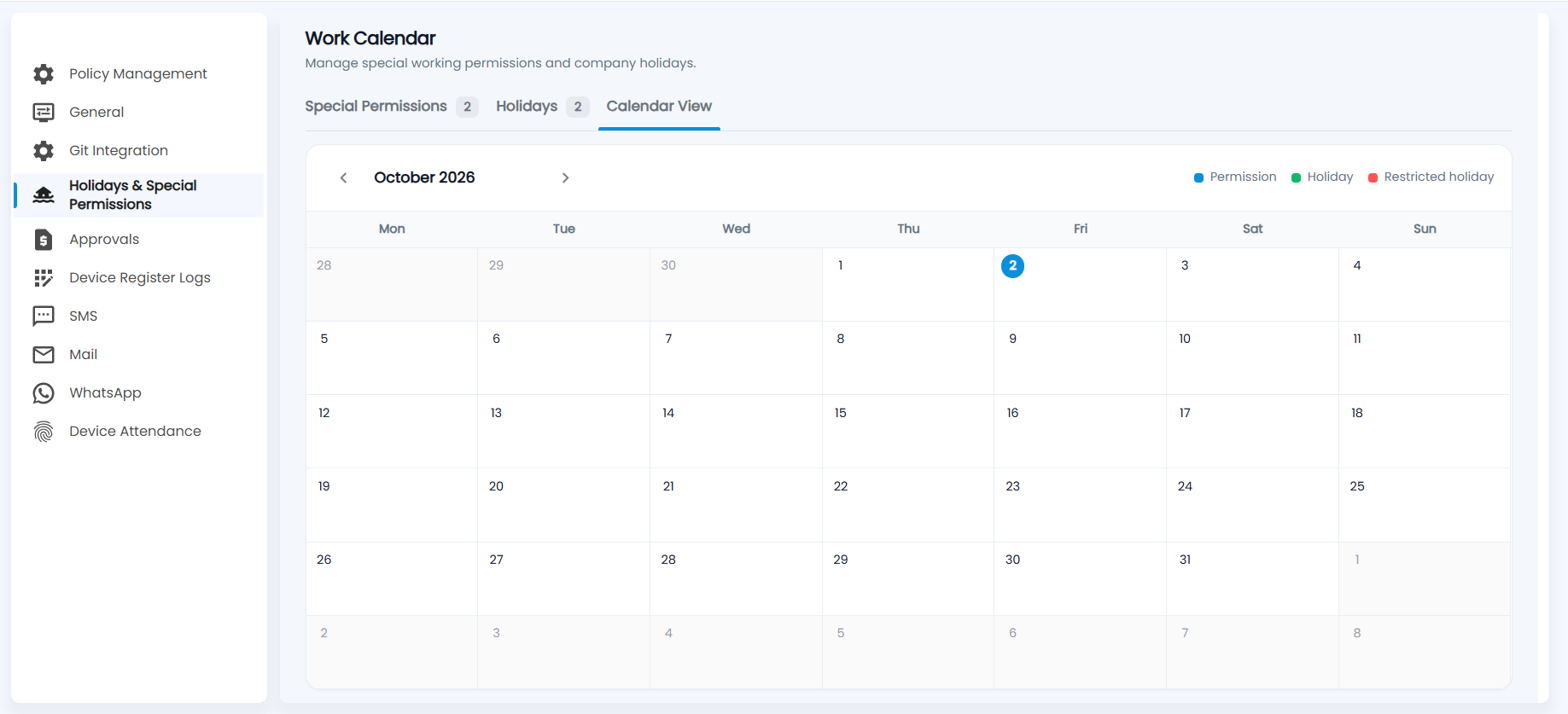
A month calendar of every permission (blue), holiday (green) and restricted holiday (red). Today is highlighted. Use the arrows to change the month.