
How do I add a biometric attendance device in Tazk Payroll?
Open Configuration → Device Attendance and click Add device. Enter the Device Name and the Serial Number printed on the device, choose the Device Location, and pick the Biometric device type (one machine for both punches, or separate in and out machines). Click Add device. Only ESSN and ZKTeco devices are supported. Punches from the device are attributed to its location.
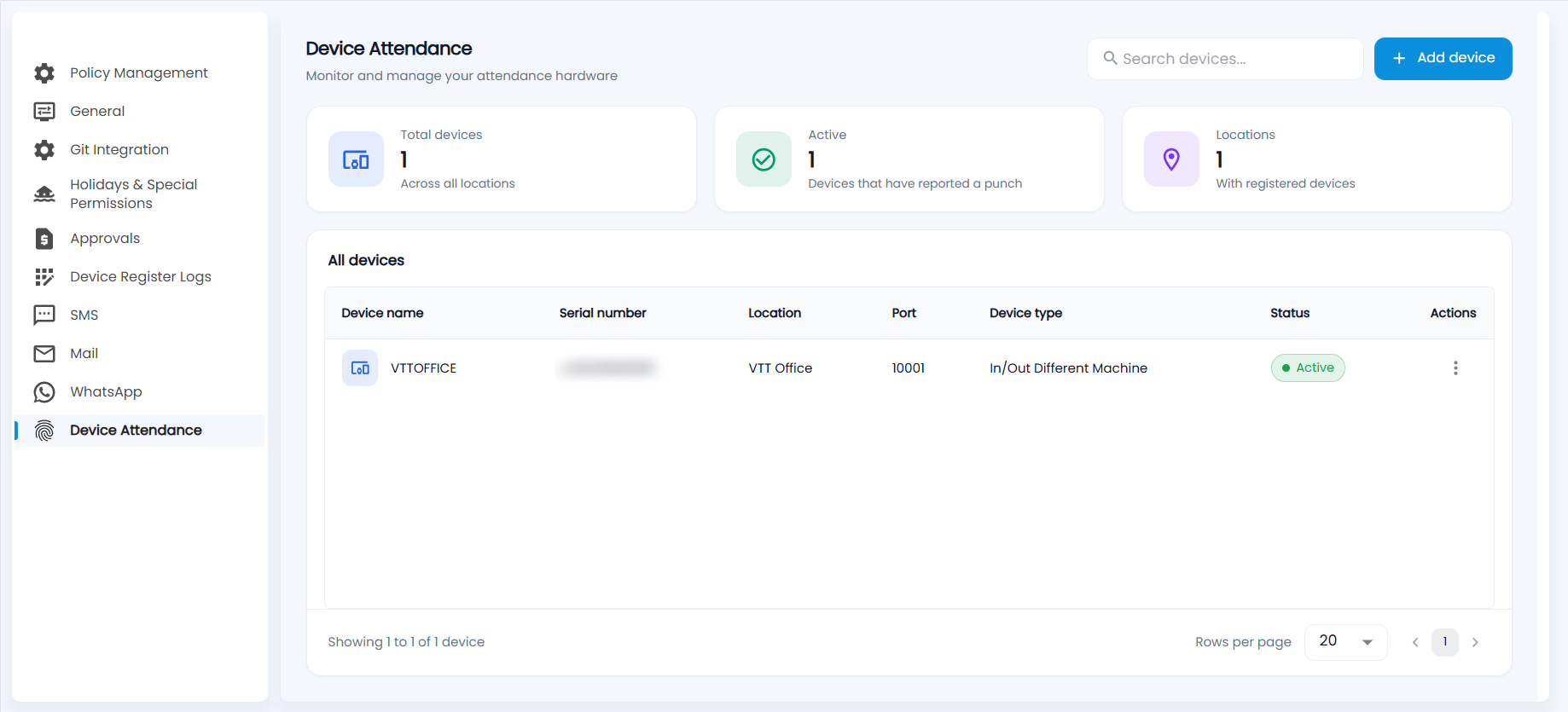
What does the Device Attendance screen show?
"Monitor and manage your attendance hardware."
- Cards — Total devices across all locations, Active devices (those that have reported a punch) and Locations with registered devices.
- All devices — each device's name, serial number, location, port, device type and status. Use ⋮ for a device's options.
- Search devices by name or serial number.
How do I add a device?
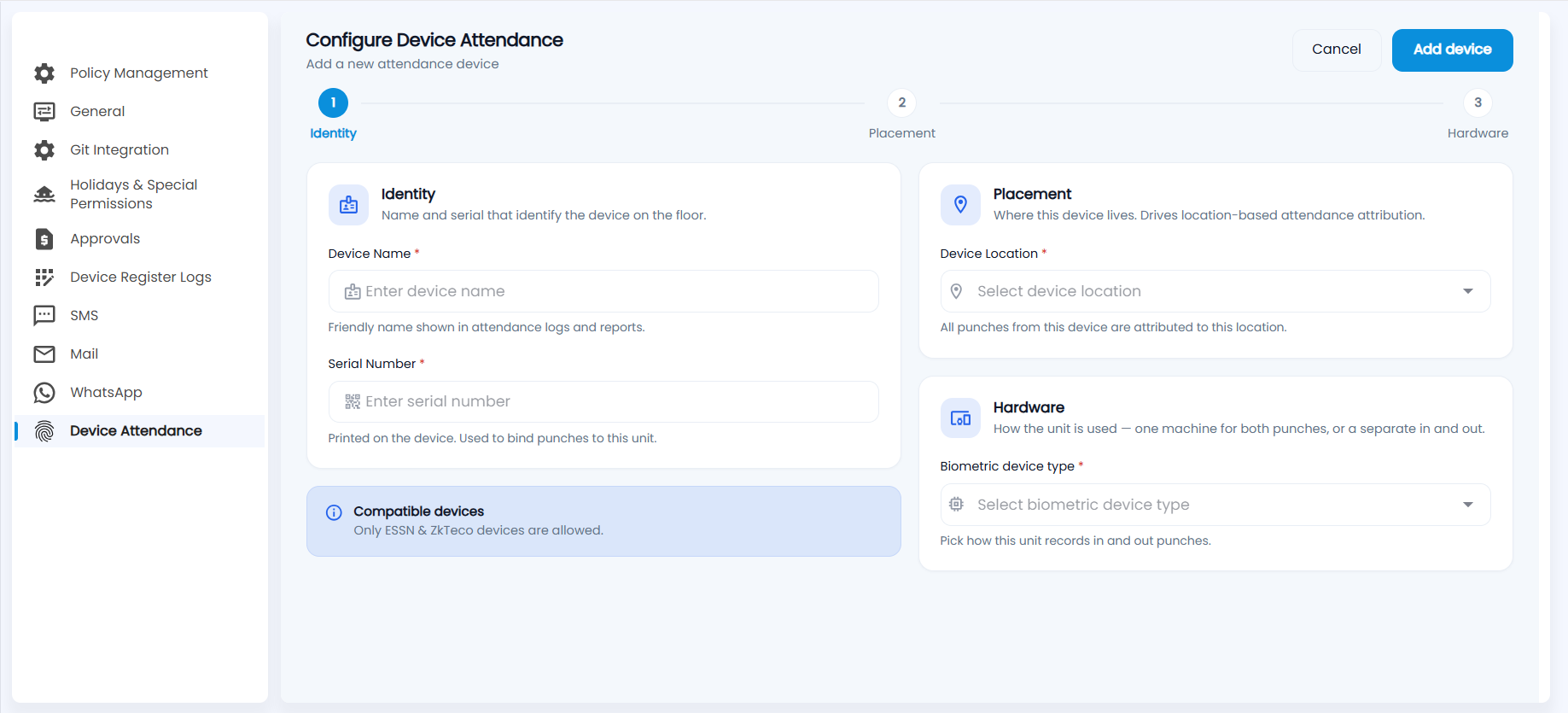
- Click Add device. The form has three steps: Identity, Placement and Hardware.
- Identity
- Device Name — a friendly name shown in attendance logs and reports.
- Serial Number — printed on the device and used to bind punches to it.
- Placement — choose the Device Location. All punches from this device are attributed to this location.
- Hardware — choose the Biometric device type, which decides how the unit records in and out punches: one machine for both, or separate machines for in and out (for example In/Out Different Machine).
- Click Add device.
Note: Only ESSN and ZKTeco devices are compatible. Device punches appear in Today Attendance and flow into the Attendance Process like any other punch.