
The Settings Page
Click Settings at the bottom of the sidebar. The sections are listed on the left:
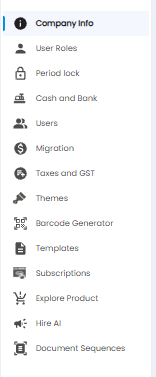
| Section | What it is for |
|---|---|
| Company Info | Company details, departments, locations, department heads, and lists of values (this article) |
| User Roles | Roles and what each role can do |
| Period lock | Locking past periods so entries cannot be changed |
| Cash and Bank | Your cash and bank accounts |
| Users | The people who can sign in |
| Migration | Bringing in opening balances from another system |
| Taxes and GST | Tax rates and GST settings |
| Themes | How the application looks |
| Barcode Generator | Printing barcodes |
| Templates | Coming soon |
| Subscriptions | Your Tazk plan |
| Explore Product | Other Tazk products |
| Hire AI | AI assistants for your business |
| Document Sequences | How document numbers are generated |
Company Info
Open Settings > Company Info. It has five tabs: General, Departments, Locations, Departments Head, and LOV.
General
Your company's details, used on documents, GST, and e-invoices. Click the pencil at the top right to edit them.
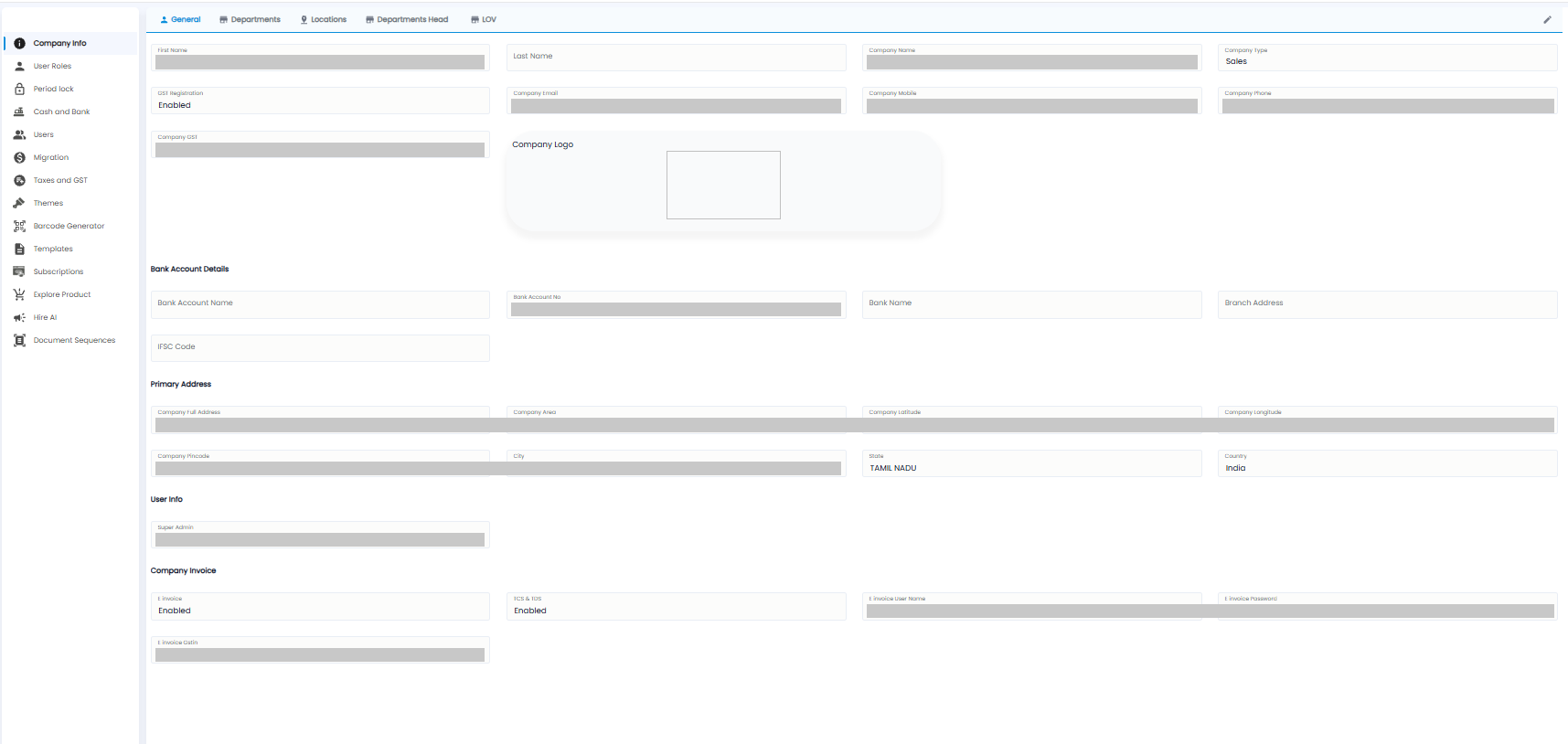
| Section | Fields |
|---|---|
| Company | First Name and Last Name of the owner, Company Name, Company Type (for example Sales), GST Registration, Company Email, Company Mobile, Company Phone, Company GST (your GSTIN), and the Company Logo |
| Bank Account Details | Bank Account Name, Bank Account No, Bank Name, Branch Address, and IFSC Code — printed on invoices so customers can pay you |
| Primary Address | Company Full Address, Company Area, Latitude / Longitude, Pincode, City, State, and Country |
| User Info | The Super Admin user name |
| Company Invoice | E Invoice and TCS & TDS on or off, and your E Invoice User Name, E Invoice Password, and E Invoice Gstin from the e-invoice portal |
Departments
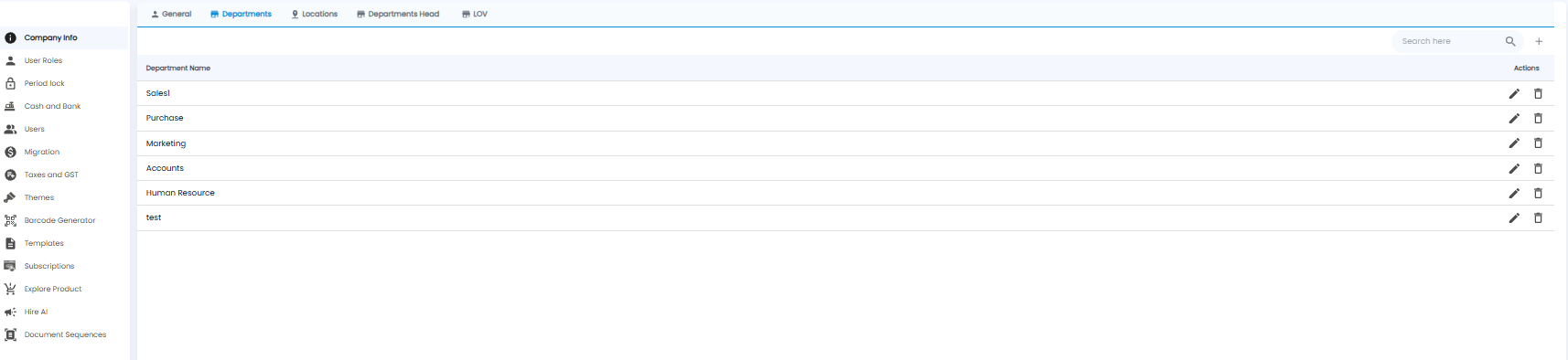
Your departments, for example Sales, Purchase, Accounts, and Human Resource. Click + to add one, the pencil to rename it, and the bin to delete it. Use Search here to find one.
Departments are used to choose who receives an announcement, and who leads each team on the Departments Head tab.
Locations
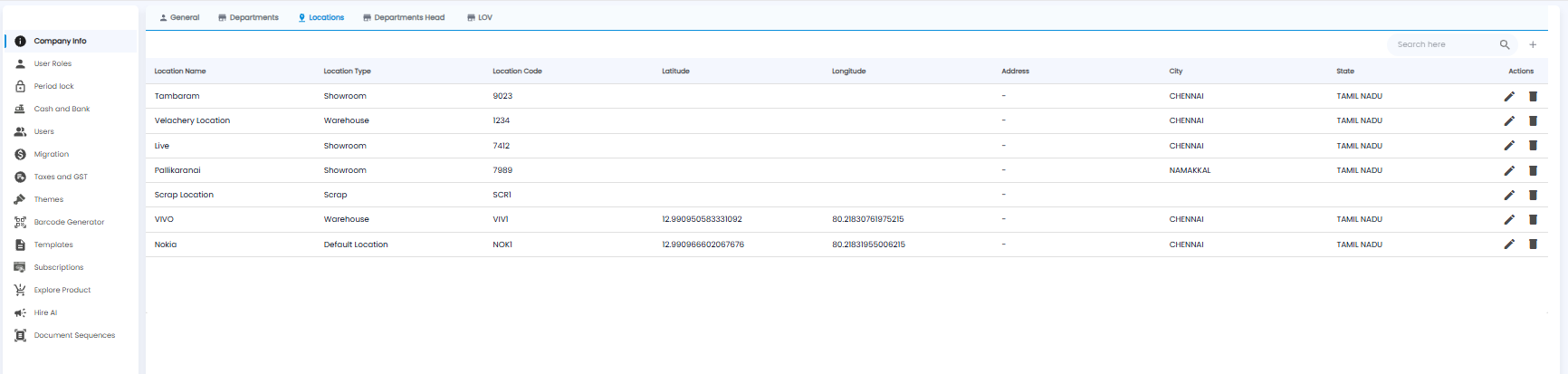
Every place you sell from or keep stock in. Each row shows the Location Name, Location Type (for example Showroom, Warehouse, Scrap, or Default Location), Location Code, Latitude and Longitude, Address, City, and State, with edit and delete actions.
Click + to add a location:
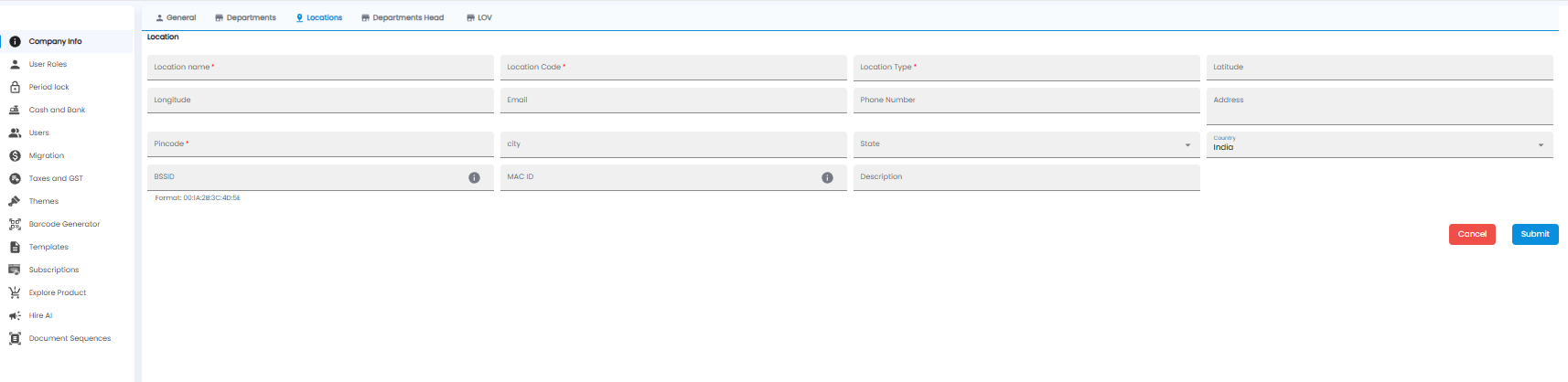
| Field | Required | Description |
|---|---|---|
| Location name / Location Code | Yes | The name and a short code, for example VIVO / VIV1 |
| Location Type | Yes | For example Showroom or Warehouse |
| Latitude / Longitude | No | The location on the map |
| Email / Phone Number / Address | No | Contact details for the location |
| Pincode | Yes | The location's pincode |
| City / State / Country | No | Country is India by default |
| BSSID / MAC ID | No | Network identifiers for the location, in the format 00:1A:2B:3C:4D:5E. Hover the ⓘ icon for details |
| Description | No | Any notes |
Click Submit, or Cancel.
Departments Head

Who leads each department. Each row shows the Department Name, the Department Head, and their Role Name. Click + to add one:
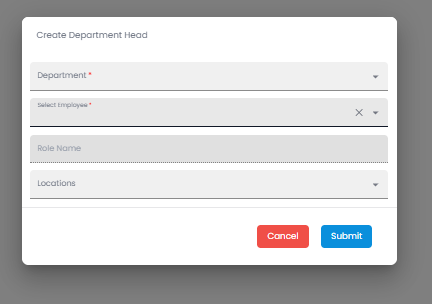
- Pick the Department*
- Pick the employee under Select Employee*. Their Role Name fills in by itself
- Pick the Locations they head the department for
- Click Submit, or Cancel
LOV (Lists of Values)
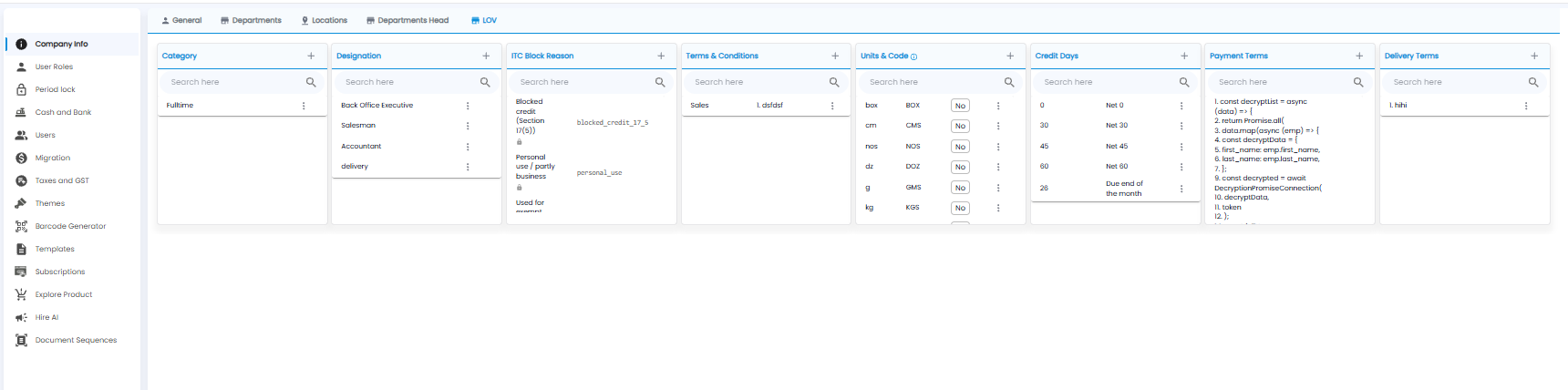
LOV holds the lists that fill the drop-downs elsewhere in Tazk Sales. Each list has its own + to add a value, a search box, and ⋮ next to each value to edit or remove it.
| List | Used for |
|---|---|
| Category | Employee categories, for example Fulltime |
| Designation | Job titles, for example Salesman or Accountant |
| ITC Block Reason | Why input tax credit cannot be claimed — chosen as the Block reason on purchases. Values with a lock are built in |
| Terms & Conditions | Terms printed on your documents |
| Units & Code | Units of measure and their codes, for example nos → NOS or kg → KGS — chosen as the Unit on products |
| Credit Days | Credit periods, for example Net 30 or Due end of the month — chosen on customers |
| Payment Terms / Delivery Terms | Standard payment and delivery terms for your documents |