
Overview
The Barcode / QR Generator makes labels for a product, each with its own number, ready to print and stick on. Open Settings > Barcode Generator.
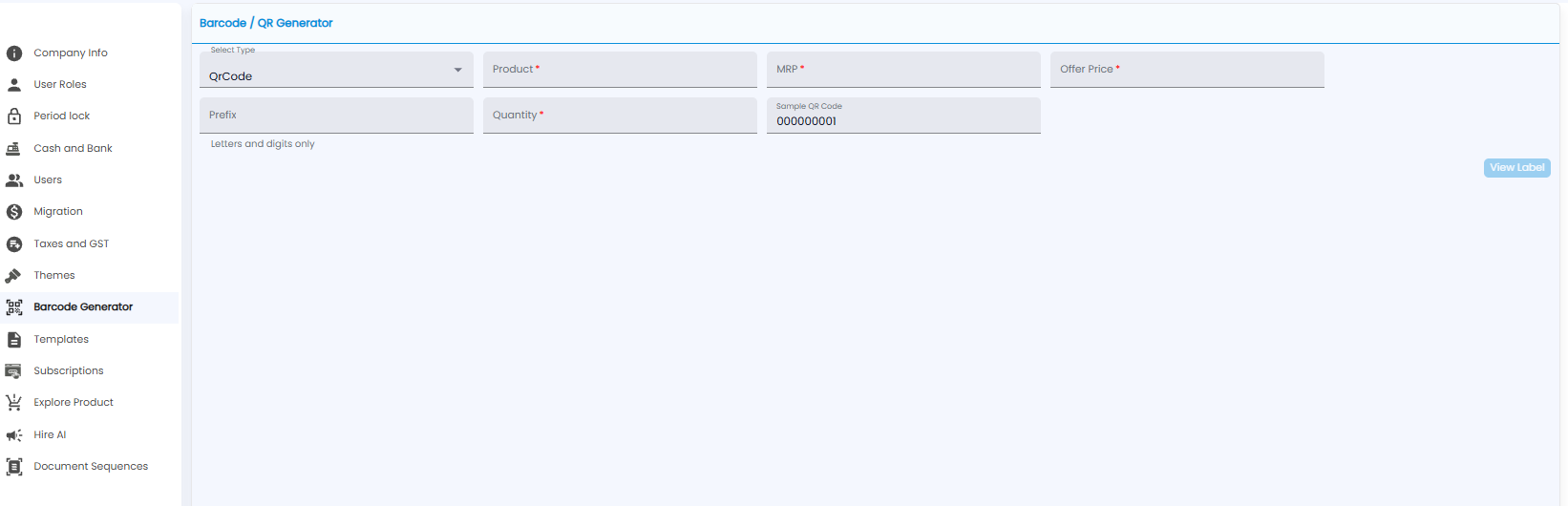
| Field | Required | Description |
|---|---|---|
| Select Type | — | The kind of code, for example QrCode |
| Product | Yes | The product the labels are for |
| MRP / Offer Price | Yes | The prices printed on the label |
| Prefix | No | Letters and digits put in front of each number |
| Quantity | Yes | How many labels to make |
| Sample QR Code | — | What the first number looks like, for example 000000001 |
Click View Label to see the labels — it stays greyed out until the required fields are filled in.
Tip: Scanning these labels fills in the Barcode / Lot Number box on invoices, returns, and defect forms.