
Overview
A quotation is a price quote you send to a customer. Once approved, it can be turned into a sales order. Open Sales > Quotation.
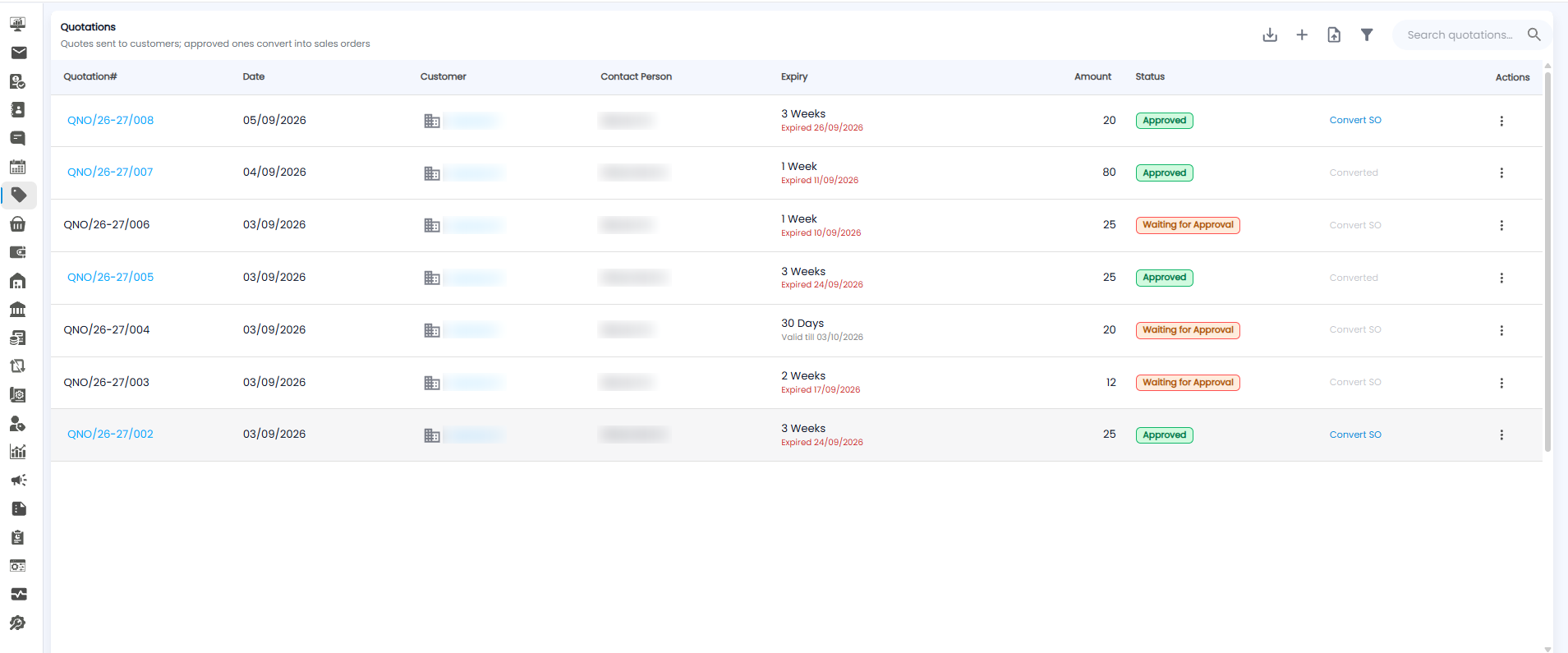
The Quotations List
| Column | What it shows |
|---|---|
| Quotation# | The quote number, for example QNO/26-27/008 |
| Date / Customer | When, and for whom |
| Contact Person | Your team member the customer should contact |
| Expiry | How long the prices are valid (for example 3 Weeks), with the date it expired or is valid till |
| Amount | The quote value |
| Status | Approved or Waiting for Approval |
| Convert SO | Turn an approved quote into a sales order. Shows Converted once done, and is greyed out while waiting for approval |
The toolbar has download, + (new quotation), import, filter, and Search quotations.
Creating a Quotation
Click +. Pick the customer, add products and terms — the totals and GST update as you go.
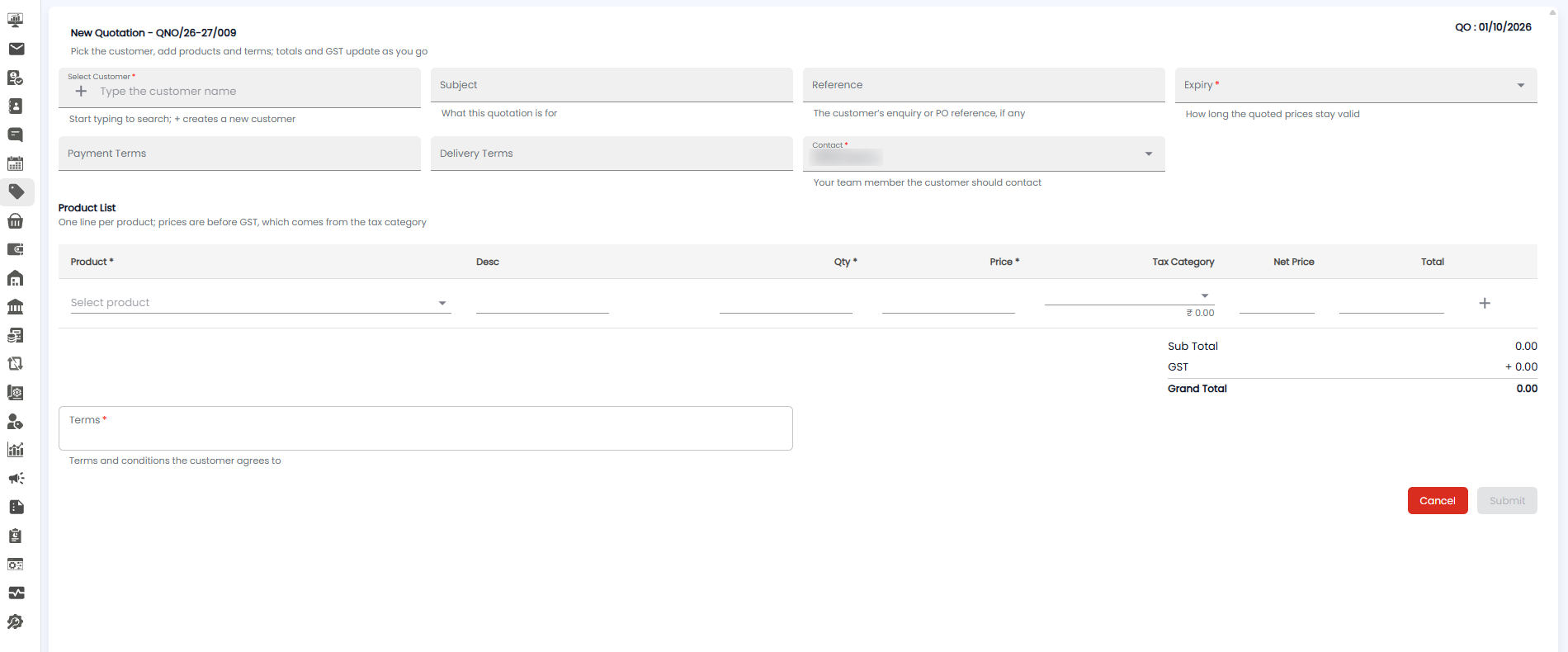
| Field | Required | Description |
|---|---|---|
| Select Customer | Yes | Start typing to search; click + to create a new customer |
| Subject | No | What this quotation is for |
| Reference | No | The customer's enquiry or PO reference, if any |
| Expiry | Yes | How long the quoted prices stay valid |
| Payment Terms / Delivery Terms | No | How and when they pay, and how you deliver |
| Contact | Yes | Your team member the customer should contact |
Product List
Add one line per product: Product*, Desc, Qty*, and Price*. Prices are before GST — the GST comes from the Tax Category. Net Price and Total are worked out for you. Click + to add another line.
The Sub Total, GST, and Grand Total appear below.
Terms and Saving
Fill in the Terms* — the terms and conditions the customer agrees to. Then click Submit, or Cancel to leave without saving.
Tip: Set a realistic Expiry — once a quote expires, check prices again before converting it to a sales order.