
Overview
OEM Activations records when serialised products — identified by IMEI or lot number — are activated, and which dealer they came through. Open Sales > OEM Activations.
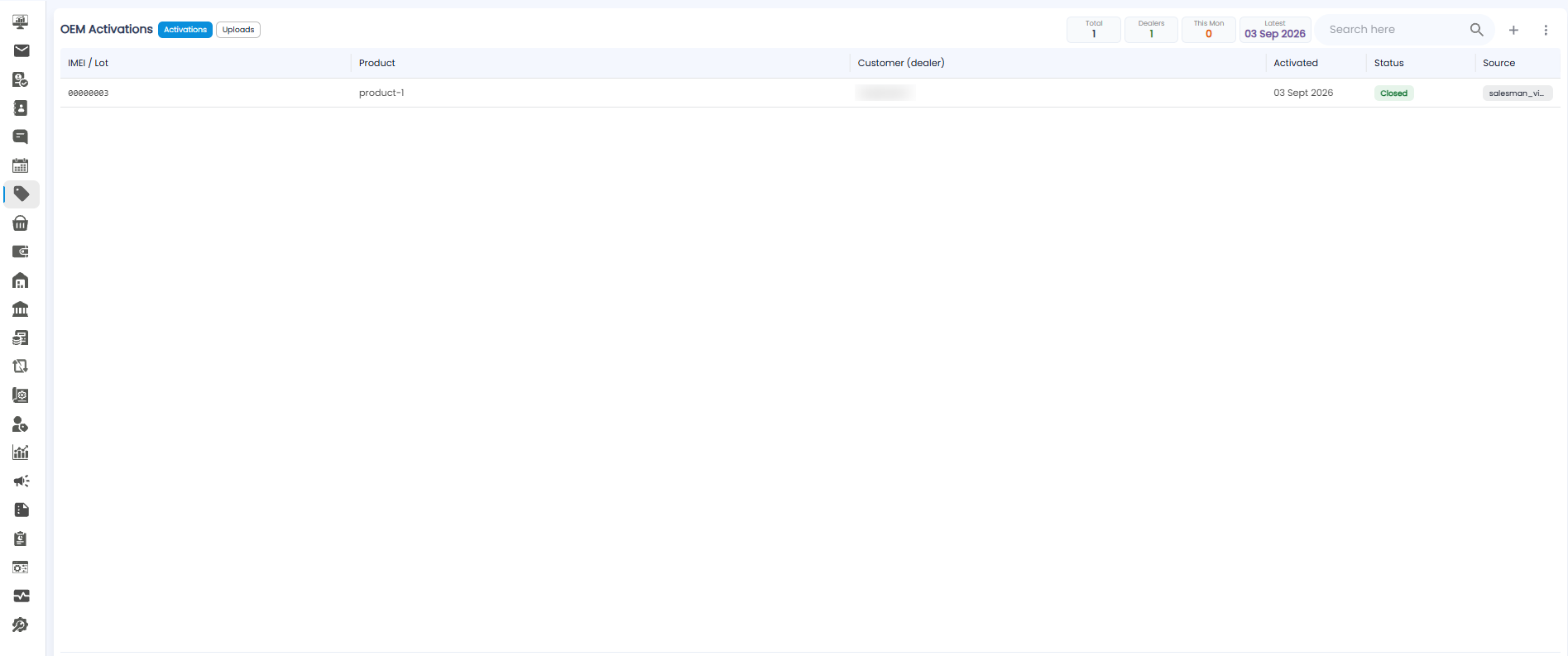
Activations and Uploads
Use the buttons next to the title to switch between Activations (the activated units) and Uploads (activation files you have uploaded).
The counters show the Total activations, how many Dealers, how many This Mon (this month), and the Latest activation date.
The Activations Table
| Column | What it shows |
|---|---|
| IMEI / Lot | The unit's IMEI or lot number |
| Product | Which product it is |
| Customer (dealer) | The dealer it was sold through |
| Activated | When it was activated |
| Status | For example Closed |
| Source | How the activation was recorded |
Adding Activations by Hand
Click + to open Add Manual Activation.
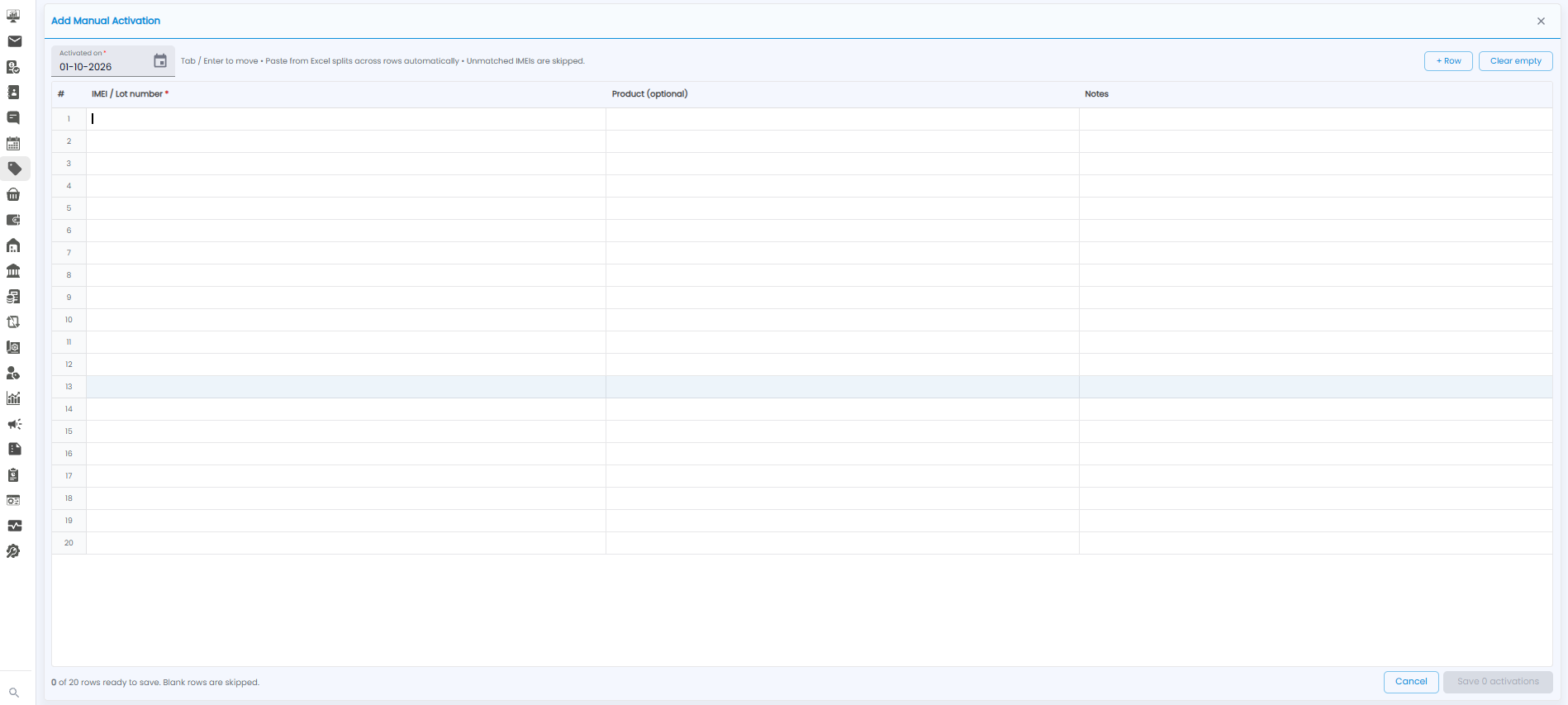
- Set the Activated on* date (today by default)
- In each row, enter the IMEI / Lot number*. Product and Notes are optional
- Press Tab or Enter to move between cells. You can paste a column from Excel — it splits across rows automatically
- Click + Row for more rows, or Clear empty to remove blank ones
- Click Save … activations. The count at the bottom shows how many rows are ready; blank rows are skipped
Note: IMEIs that do not match a unit in Tazk are skipped when you save.