
Overview
A price list sets special prices on chosen products for a period of time. You then map it to the customers who should get those prices. Open Sales > Customer Price List.
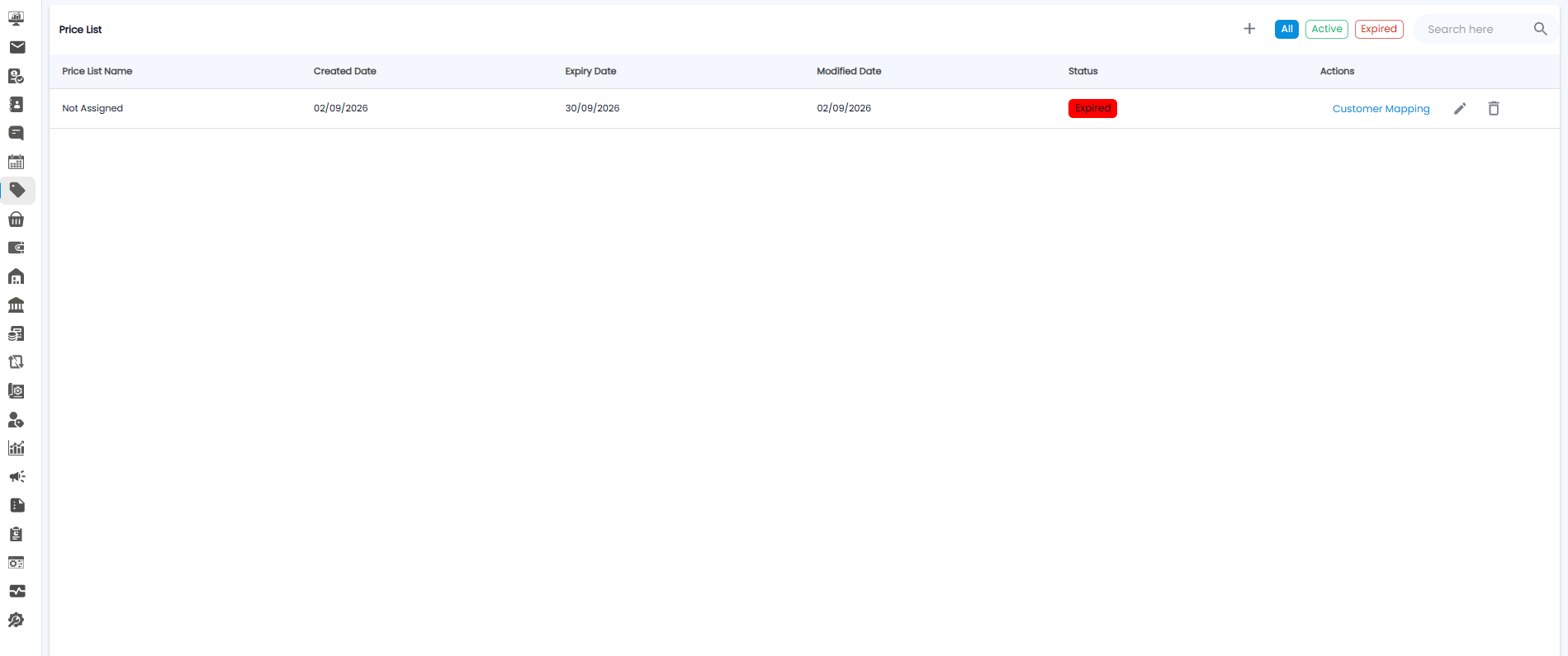
The Price List
| Column | What it shows |
|---|---|
| Price List Name | The name of the price list |
| Created Date / Expiry Date / Modified Date | When it was made, when it ends, and when it was last changed |
| Status | For example Expired once the expiry date has passed |
| Actions | Customer Mapping chooses which customers get this price list; the pencil edits it; the bin deletes it |
Use All, Active, and Expired to filter the list, and Search here to find one.
Creating a Price List
Click +.
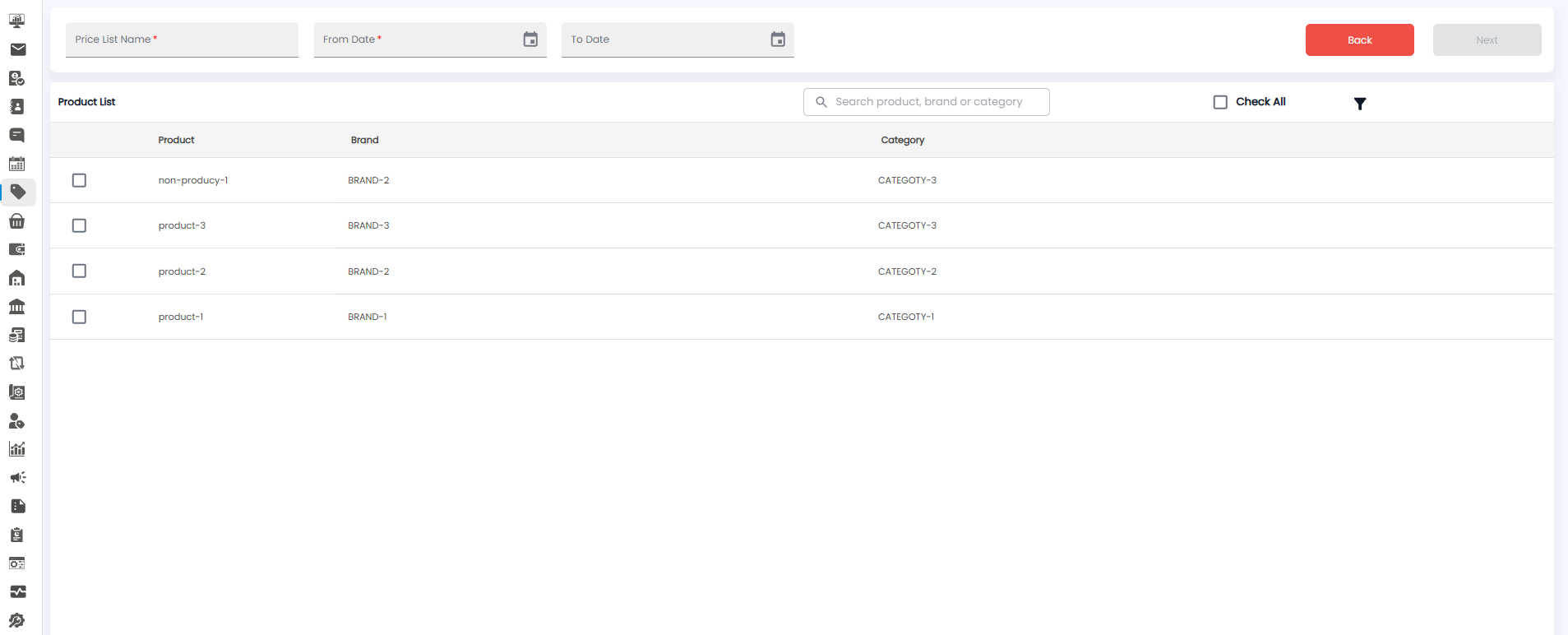
- Enter the Price List Name* and the From Date*. Add a To Date if the prices should end on a set day
- In the Product List, tick the products to include. Use Search product, brand or category or the filter to find them, or Check All to include everything
- Click Next to carry on (it is greyed out until the required fields are filled in), or Back to return to the list
Once the price list is saved, use Customer Mapping to assign it to customers.
Tip: Give price lists clear names, such as the scheme and month, so the right one is easy to pick on a sales order.