
Overview
An invoice is the bill you raise to a customer. Open Sales > Invoices.
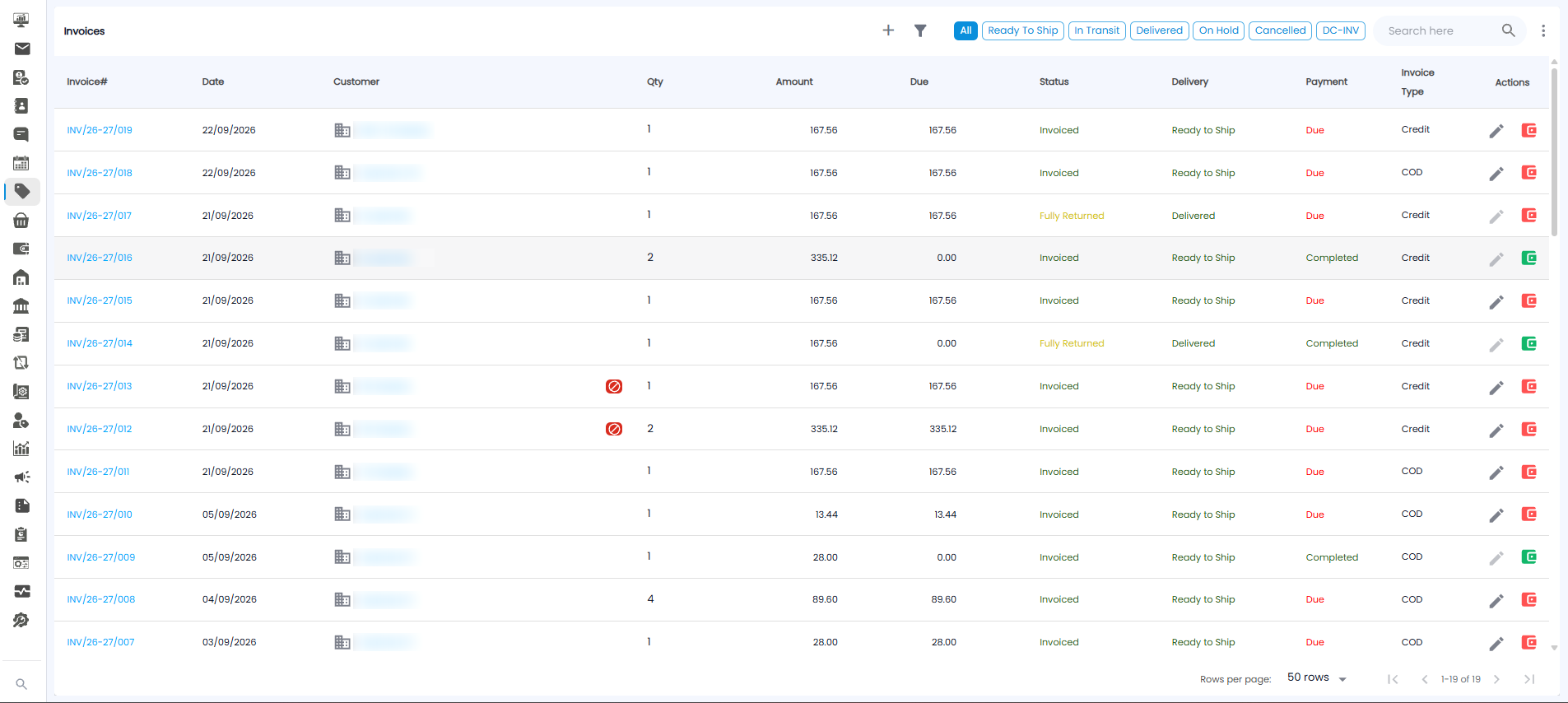
Filters
Click a button at the top to show only some invoices: All, Ready To Ship, In Transit, Delivered, On Hold, Cancelled, or DC-INV (invoices raised from a delivery challan). Use the filter icon and Search here to narrow the list further.
Invoice List Columns
| Column | What it shows |
|---|---|
| Invoice# | The invoice number, for example INV/26-27/019 |
| Date / Customer | When, and for whom. A red ⊘ icon next to a customer flags them |
| Qty / Amount / Due | Items, invoice value, and how much is still unpaid |
| Status | For example Invoiced or Fully Returned |
| Delivery | For example Ready to Ship or Delivered |
| Payment | Due (red) or Completed |
| Invoice Type | Credit or COD (cash on delivery) |
| Actions | The pencil edits the invoice; the coloured icon next to it is red while payment is due and green once it is completed |
The list shows 50 rows per page; use the arrows at the bottom to move between pages.
Creating an Invoice
Click +. The New Invoice tab opens with the next invoice number (for example INV/26-27/020) and today's Invoice Date.
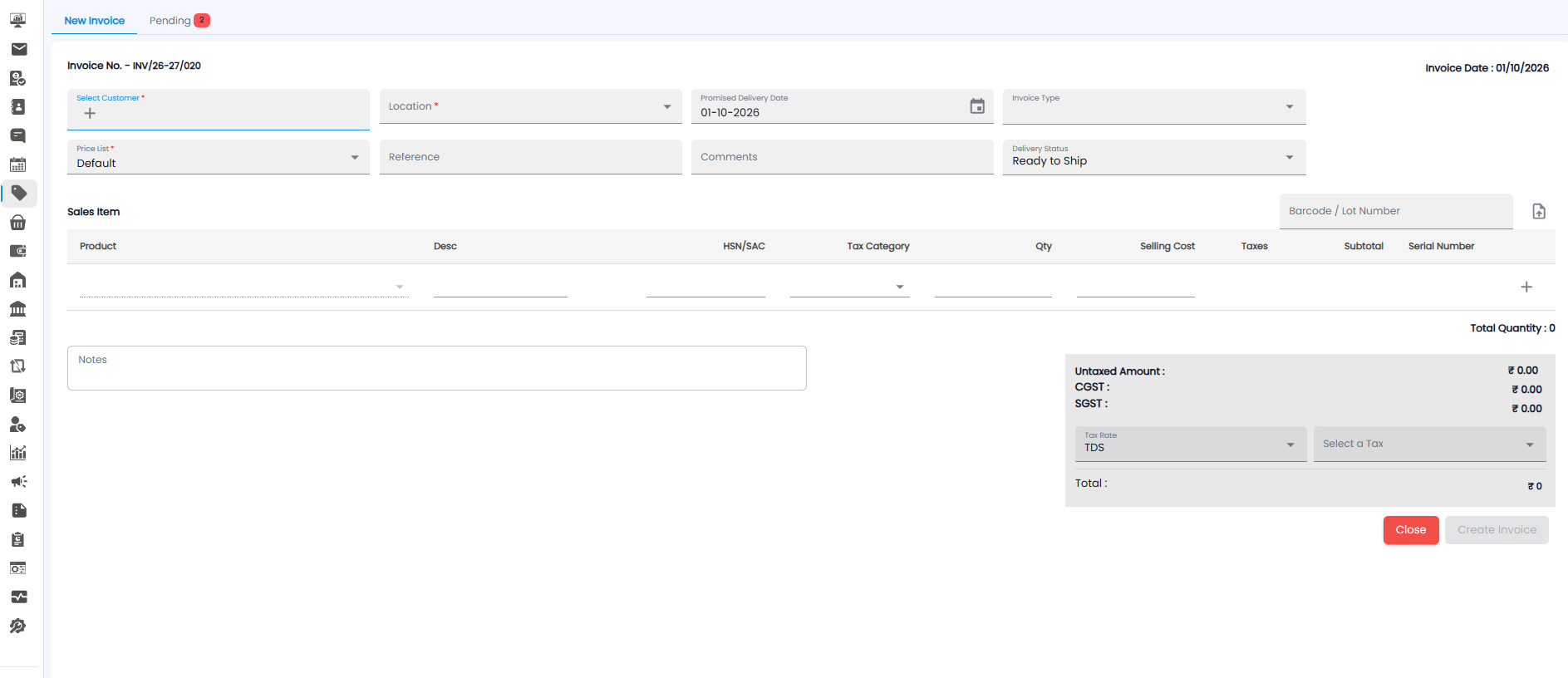
| Field | Required | Description |
|---|---|---|
| Select Customer | Yes | Who the invoice is for. Click + to add a new customer |
| Location | Yes | The location the goods go from |
| Promised Delivery Date | No | Today by default |
| Invoice Type | No | For example Credit or COD |
| Price List | Yes | Default by default |
| Reference / Comments | No | The customer's reference, and any notes |
| Delivery Status | No | Ready to Ship by default |
Sales Items
Add products the same way as on a sales order — Product, Desc, HSN/SAC, Tax Category, Qty, and Selling Cost, with Taxes and Subtotal worked out for you. Invoices add two things:
- Barcode / Lot Number — scan or type a barcode or lot number to add the item quickly. The icon next to it uploads items from a file.
- Serial Number — a column for each item's serial number.
In the summary, choose a Tax Rate (for example TDS) and Select a Tax if tax is deducted. Then click Create Invoice, or Close to leave without saving.
Pending Credit Approvals
If an invoice breaks the customer's credit rules, it is sent for approval instead of being created straight away. Click the Pending tab (the badge shows how many) to see Your requests awaiting verification / approval.
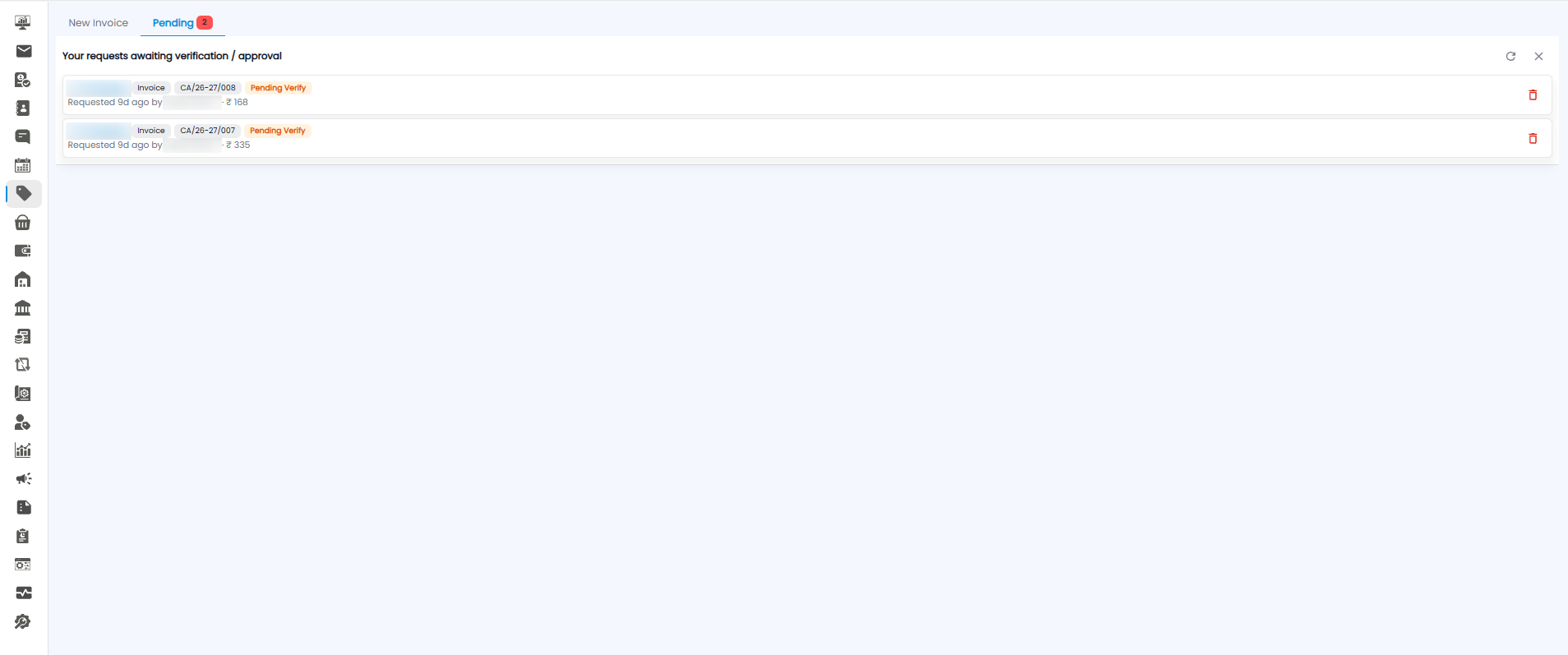
Each request shows the customer, the document type (Invoice), the request number (for example CA/26-27/008), its status (for example Pending Verify), who requested it and when, and the amount. Click the bin icon to withdraw a request, or the refresh icon to reload the list.