
The Sales Menu
Click Sales in the sidebar to expand it. It has eleven sub-menus, each covered by its own article:
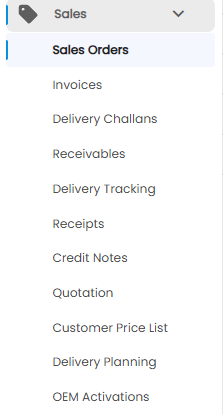
| Sub-menu | What it is for |
|---|---|
| Sales Orders | Orders from your customers (this article) |
| Invoices | Bills you raise to customers |
| Delivery Challans | Goods sent out before they are invoiced |
| Receivables | What customers still owe you, and how overdue it is |
| Delivery Tracking | Getting invoices and challans from the warehouse to the customer |
| Receipts | Payments received from customers |
| Credit Notes | Credits given to customers, including sales returns |
| Quotation | Quotes you send to customers |
| Customer Price List | Special prices for chosen customers and products |
| Delivery Planning | Planning a delivery person's route |
| OEM Activations | Activations of serialised products (by IMEI or lot) |
The Sales Orders List
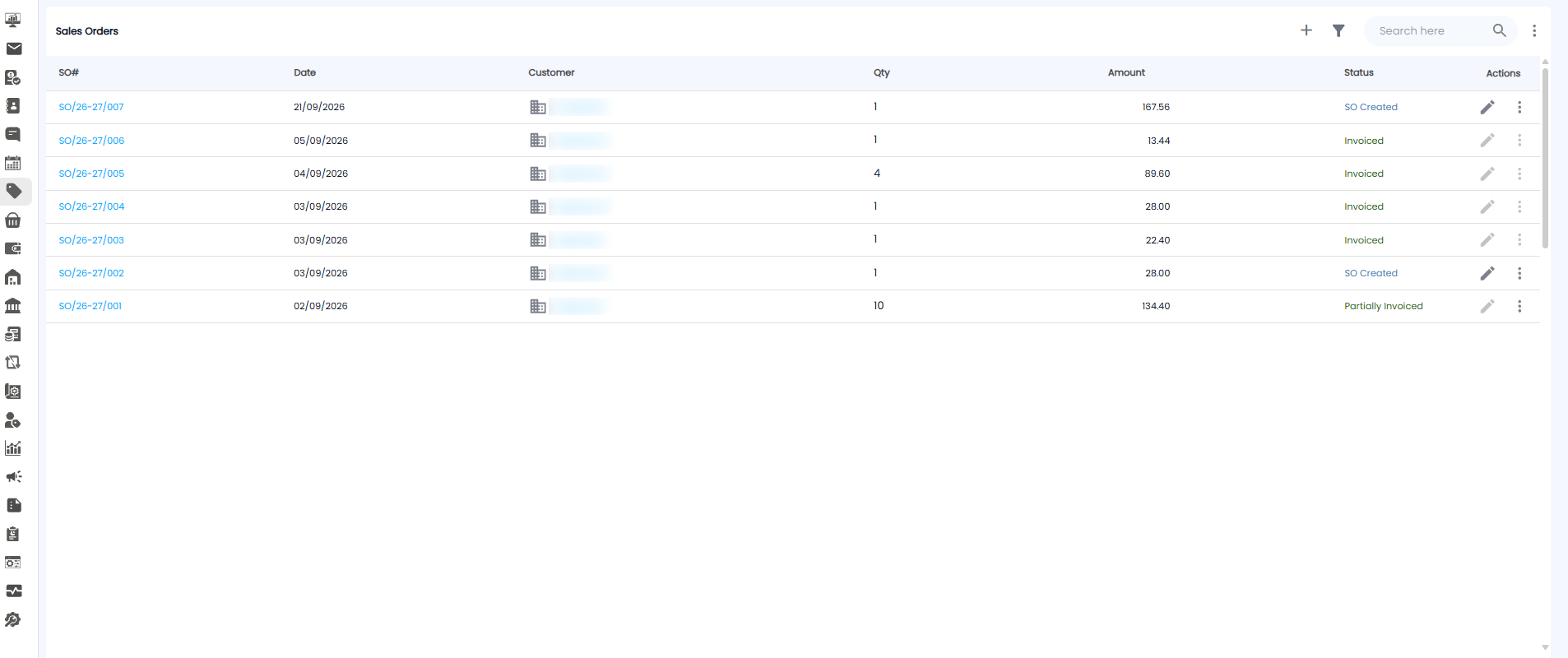
| Column | What it shows |
|---|---|
| SO# | The sales order number, for example SO/26-27/007. Click it to open the order |
| Date | When the order was created |
| Customer | Who the order is for |
| Qty / Amount | How many items, and the order value |
| Status | SO Created (not yet invoiced), Partially Invoiced, or Invoiced |
| Actions | The pencil edits the order (greyed out once it is invoiced); ⋮ gives more actions |
Use + to add an order, the filter icon to narrow the list, and Search here to find one.
Creating a Sales Order
Click +. The form opens with the next order number (for example SO/26-27/008) and today's SO Date.
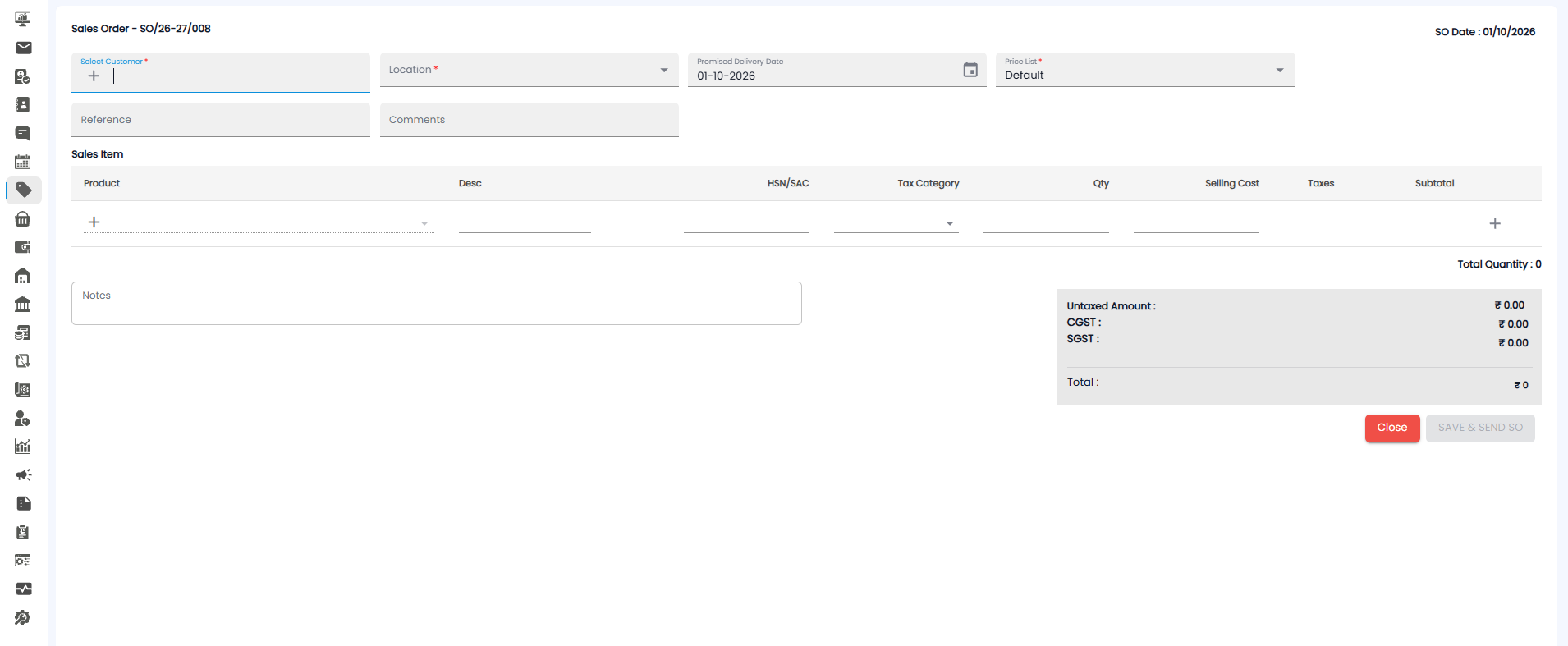
| Field | Required | Description |
|---|---|---|
| Select Customer | Yes | Who the order is for. Click + to add a new customer |
| Location | Yes | The location the order is from |
| Promised Delivery Date | No | When you promised to deliver. Today by default |
| Price List | Yes | Which prices apply. Default by default |
| Reference / Comments | No | The customer's reference, and any notes |
Sales Items
Add one row per product: pick the Product, then check the Desc, HSN/SAC, Tax Category, Qty, and Selling Cost. Taxes and Subtotal are worked out for you. Click the + at the end of the row to add another product.
Below the table you see the Total Quantity, a Notes box, and the summary: Untaxed Amount, CGST, SGST, and Total.
Saving
Click SAVE & SEND SO to save the order and send it. It stays greyed out until the required fields and at least one item are filled in. Click Close to leave without saving.