
Overview
A credit note reduces what a customer owes you — for example after a return, a discount, or a scheme. Open Sales > Credit Notes.
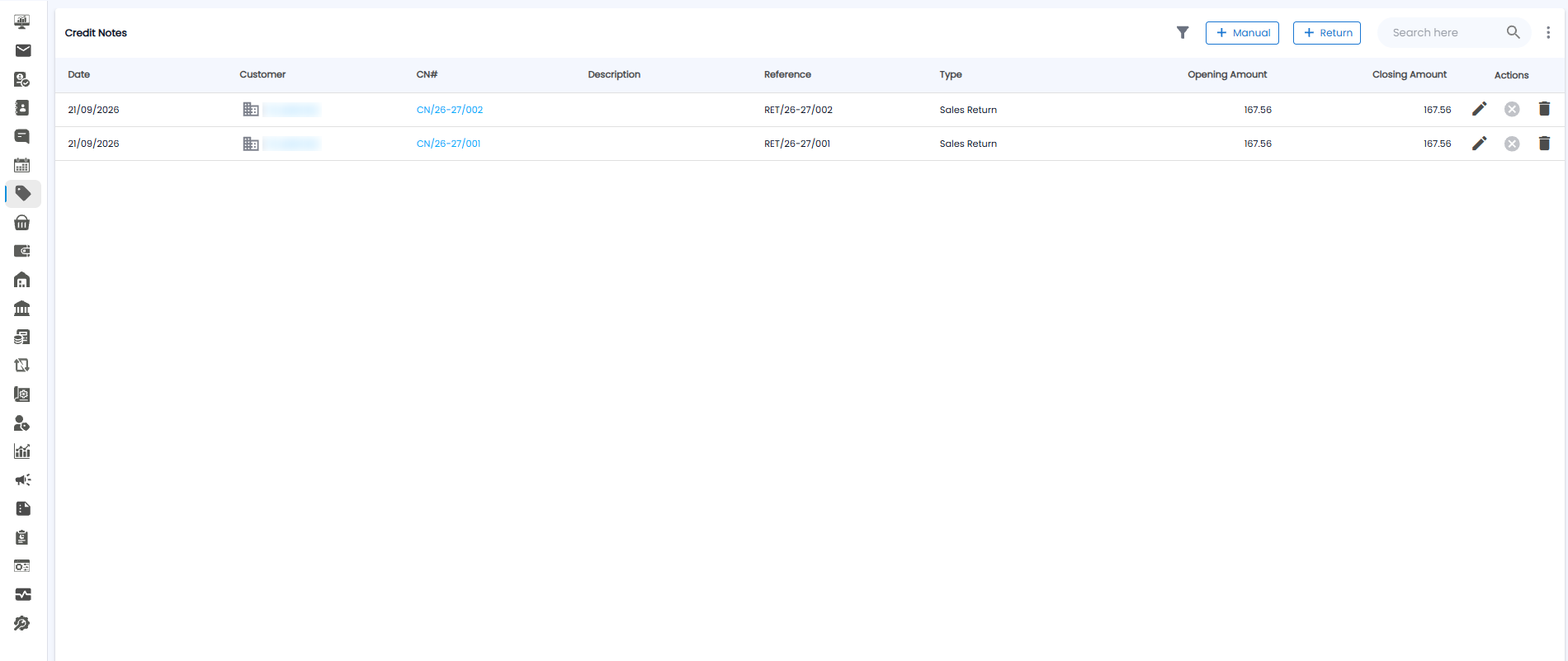
The Credit Notes List
| Column | What it shows |
|---|---|
| Date / Customer | When, and for whom |
| CN# | The credit note number, for example CN/26-27/002 |
| Description / Reference | What it is for, and the related return, for example RET/26-27/002 |
| Type | For example Sales Return |
| Opening Amount / Closing Amount | The credit at the start, and how much is still left to use |
| Actions | Edit (pencil), cancel (⊗), or delete (bin) |
Two Kinds of Credit Note
There are two buttons at the top:
- + Manual — a credit you enter by hand against a ledger, for example a scheme or discount
- + Return — a sales return, where the customer sends items back
Manual Credit Note
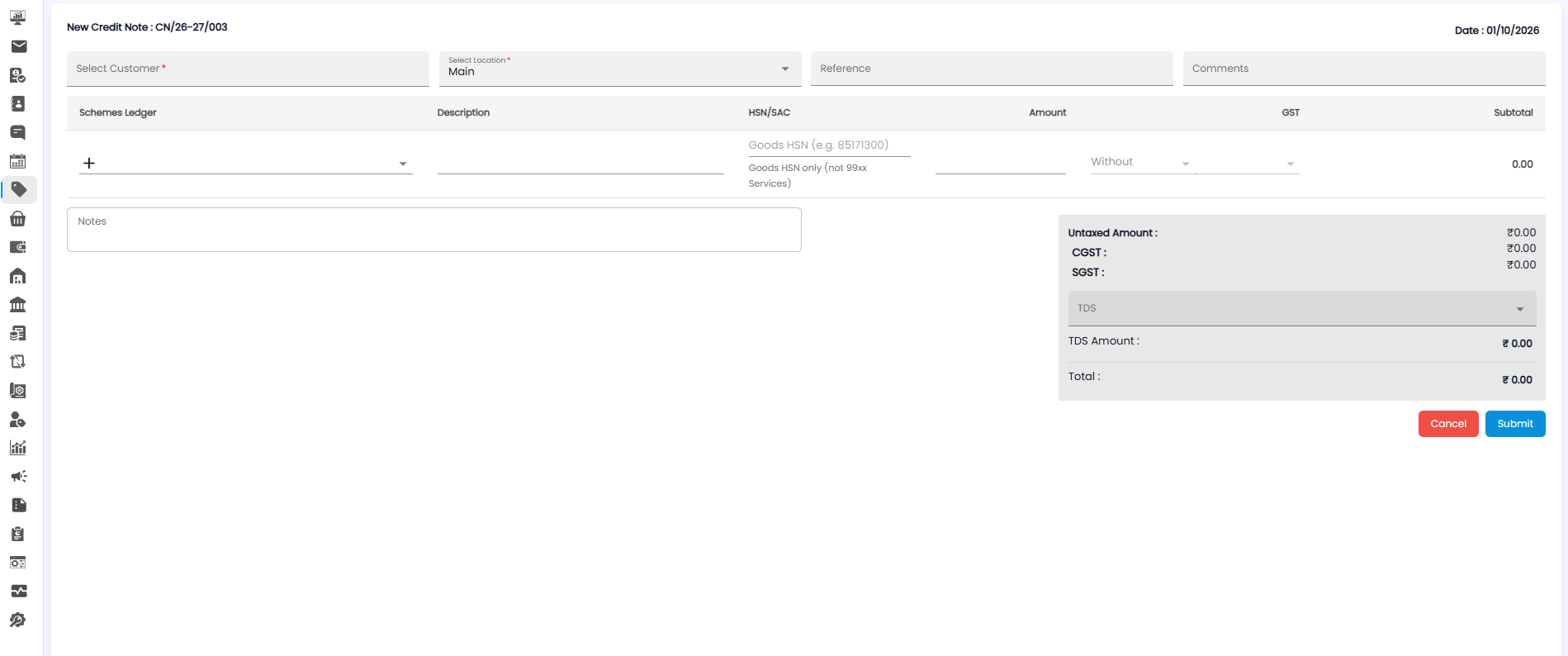
- Pick the Customer* and Location* (Main by default), and add a Reference and Comments if needed
- In each row, pick the Schemes Ledger the credit is for, add a Description, the HSN/SAC (goods HSN only, for example 85171300 — not 99xx service codes), and the Amount
- Choose the GST treatment — Without, or a rate. The Subtotal is worked out for you
- Choose TDS in the summary if tax is deducted; the TDS Amount and Total update
- Click Submit, or Cancel to leave without saving
Sales Return
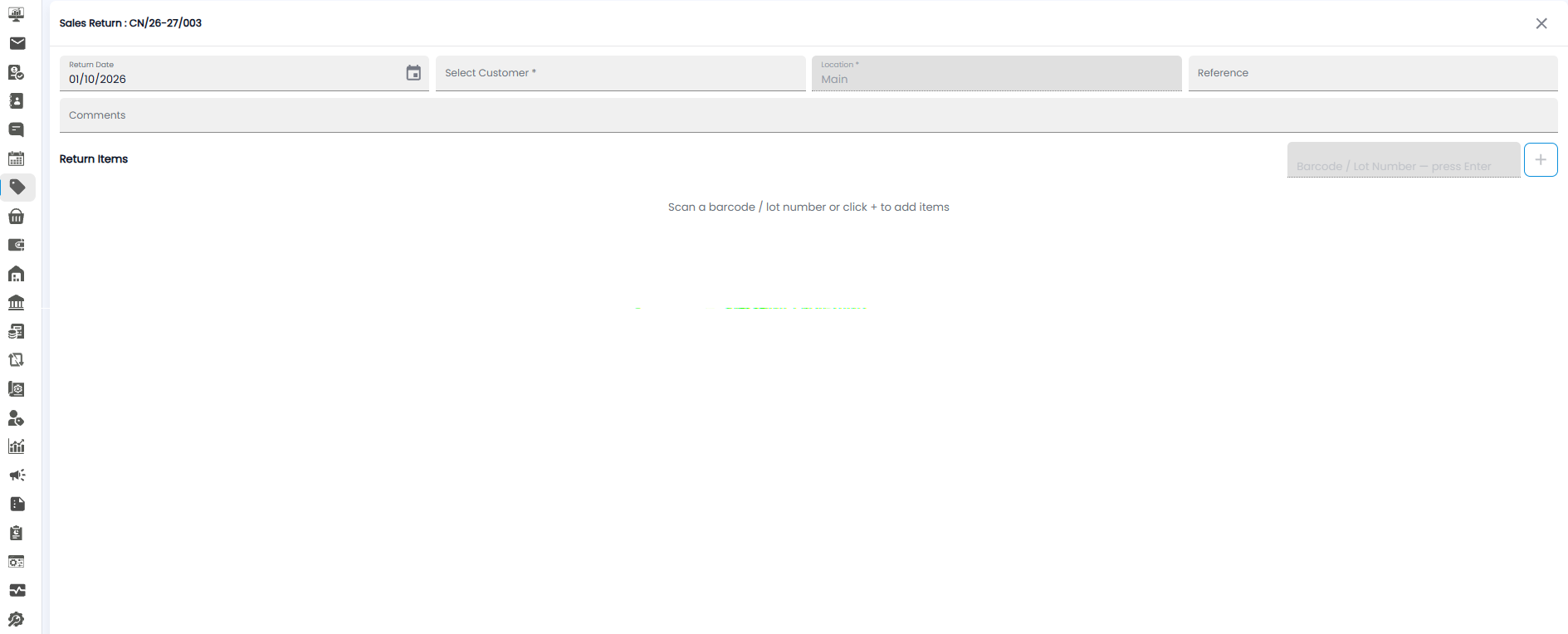
- Check the Return Date (today by default) and pick the Customer*. The Location is set for you
- Add a Reference and Comments if needed
- Under Return Items, scan or type a Barcode / Lot Number and press Enter, or click + to add items
- Save the return
The return creates a credit note of type Sales Return, which then shows in the list.
Tip: Use the Closing Amount column to see how much credit a customer still has left to use against future invoices.