
What is a debit note in Tazk POS?
A debit note records an amount the vendor owes you back — usually because you returned goods. A purchase return removes the items from stock and creates a debit note automatically; a manual debit note covers other adjustments such as a rate difference. The note's balance can then be used against the vendor's bills when you pay them.
What does the Debit Notes page show?
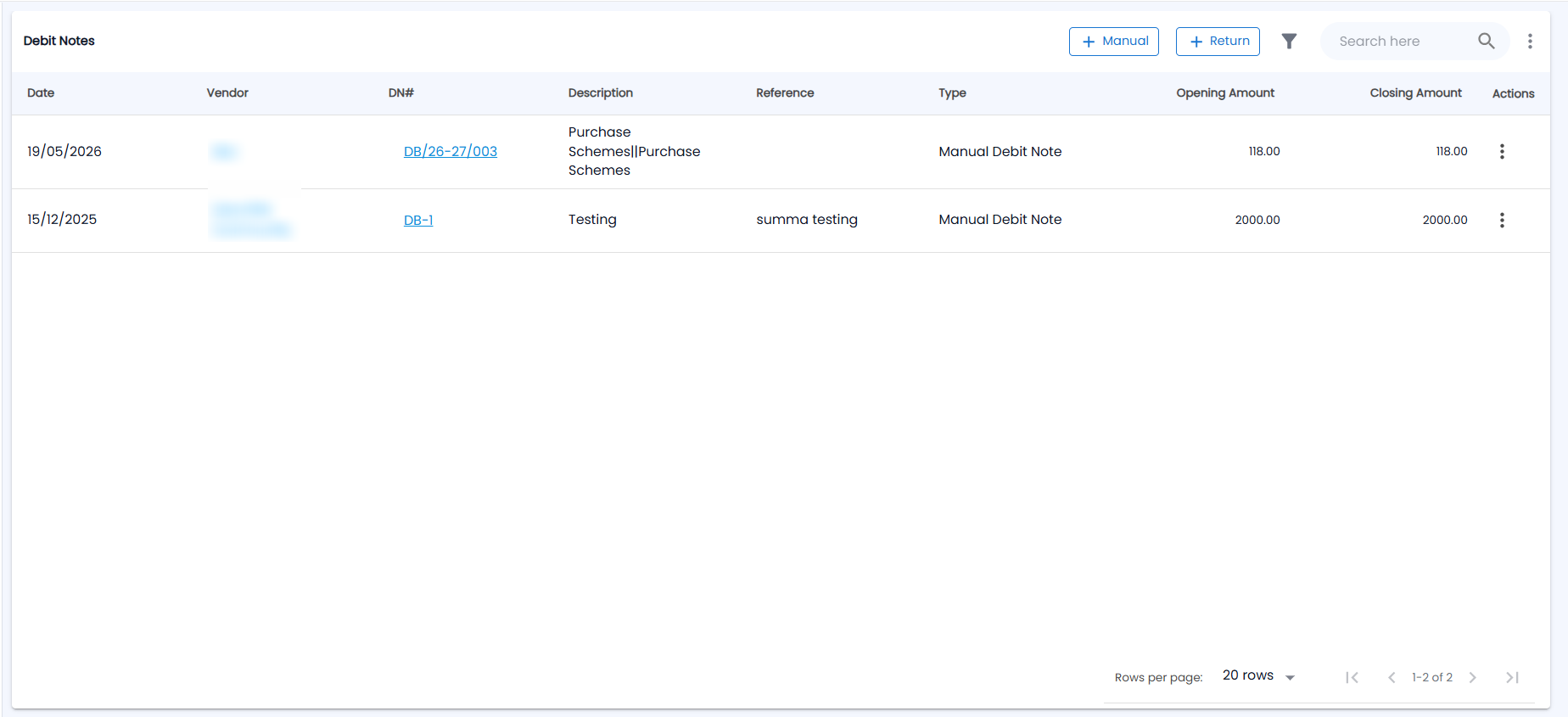
Go to Purchases → Debit Notes. The toolbar has + Manual, + Return, the filter icon, Search here and a ⋮ menu; the list shows 20 rows per page by default.
| Column | What it shows |
|---|---|
| Date | Date of the note |
| Vendor | The vendor it is raised on |
| DN# | Debit note number, for example DB/26-27/003. Click it to open the note |
| Description / Reference | What the note is for |
| Type | Purchase Return (from returned goods) or Manual Debit Note |
| Opening Amount | The note's value |
| Closing Amount | What is still unused |
| Actions | The ⋮ menu for that note |
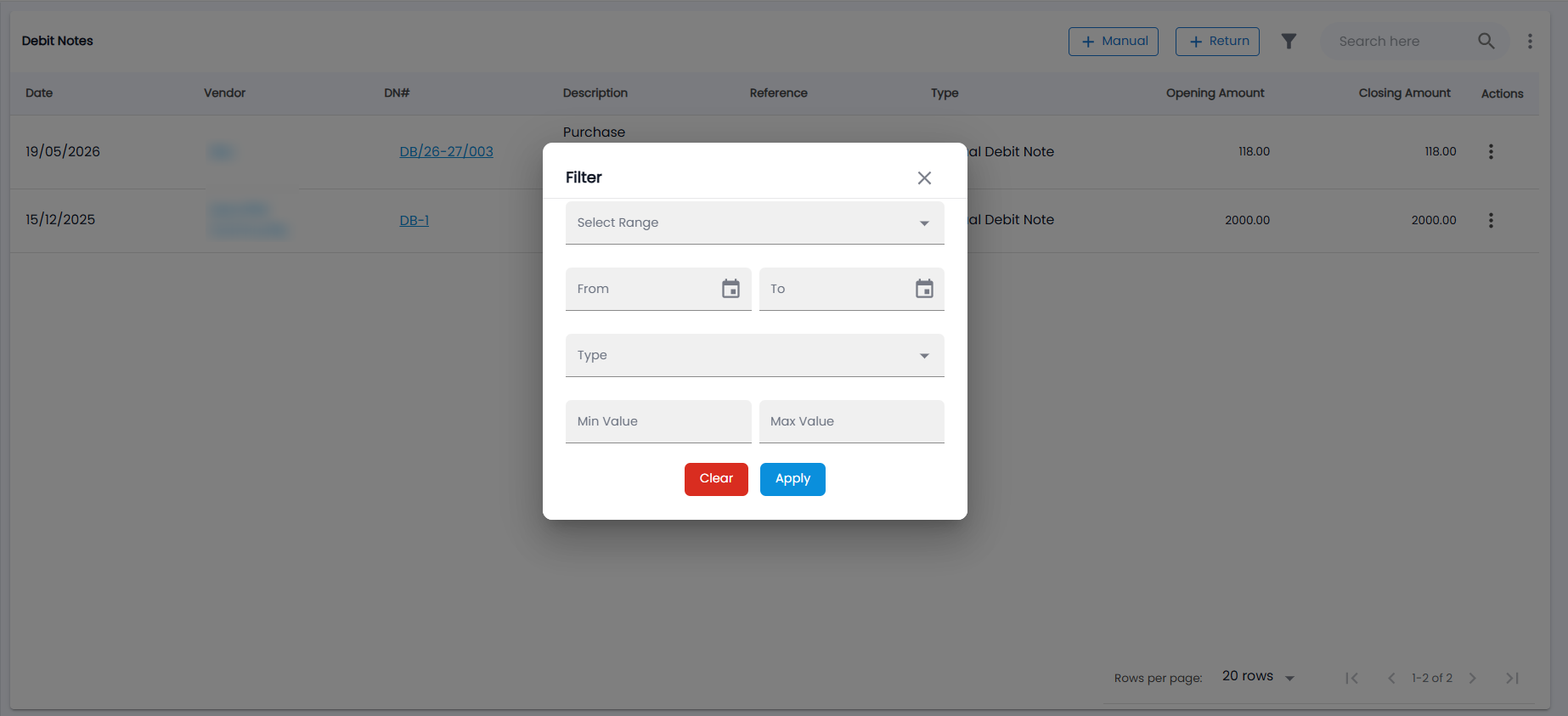
Use search, or the filter icon: Select Range, From and To dates, Type (purchase return or manual) and Min Value / Max Value, then Apply or Clear. The toolbar ⋮ menu (More actions) has Export CSV and Export PDF.
How do I return goods to a vendor?
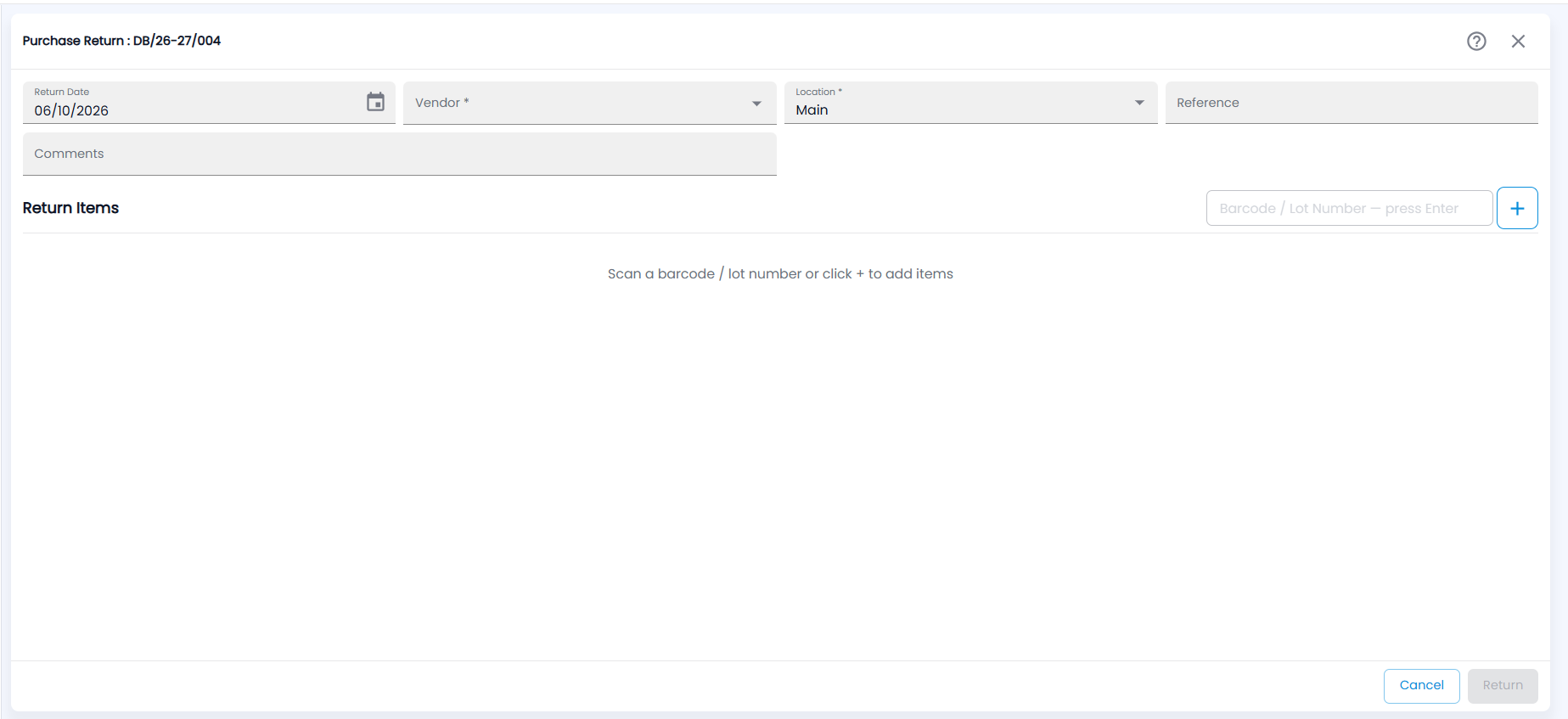
- Click + Return. The Purchase Return form opens with the next debit note number (for example DB/26-27/004). You can also start from a bill: open it on Bills and choose Actions → Return.
- Check the Return Date (today by default) and choose the Vendor and Location (both required; the location starts as yours).
- Add the items under Return Items, which says Scan a barcode / lot number or click + to add items. The quickest way is to scan or type the serial / lot number in Barcode / Lot Number — press Enter and press Enter — the row fills in the invoice, product, serial and quantity. Or click +, pick the vendor's invoice and then the product.
- For serialised items, select the serial numbers (the quantity follows). For other items, enter the Return Qty — it cannot be more than the stock available.
- Add a Reference or Comments, check the totals, click Return and confirm with Confirm Purchase Return. Cancel leaves without saving.
Tazk removes the items from stock, creates a debit note and posts the ledger entries. The bill's status becomes Partially Returned or Fully Returned.
How do I raise a manual debit note?
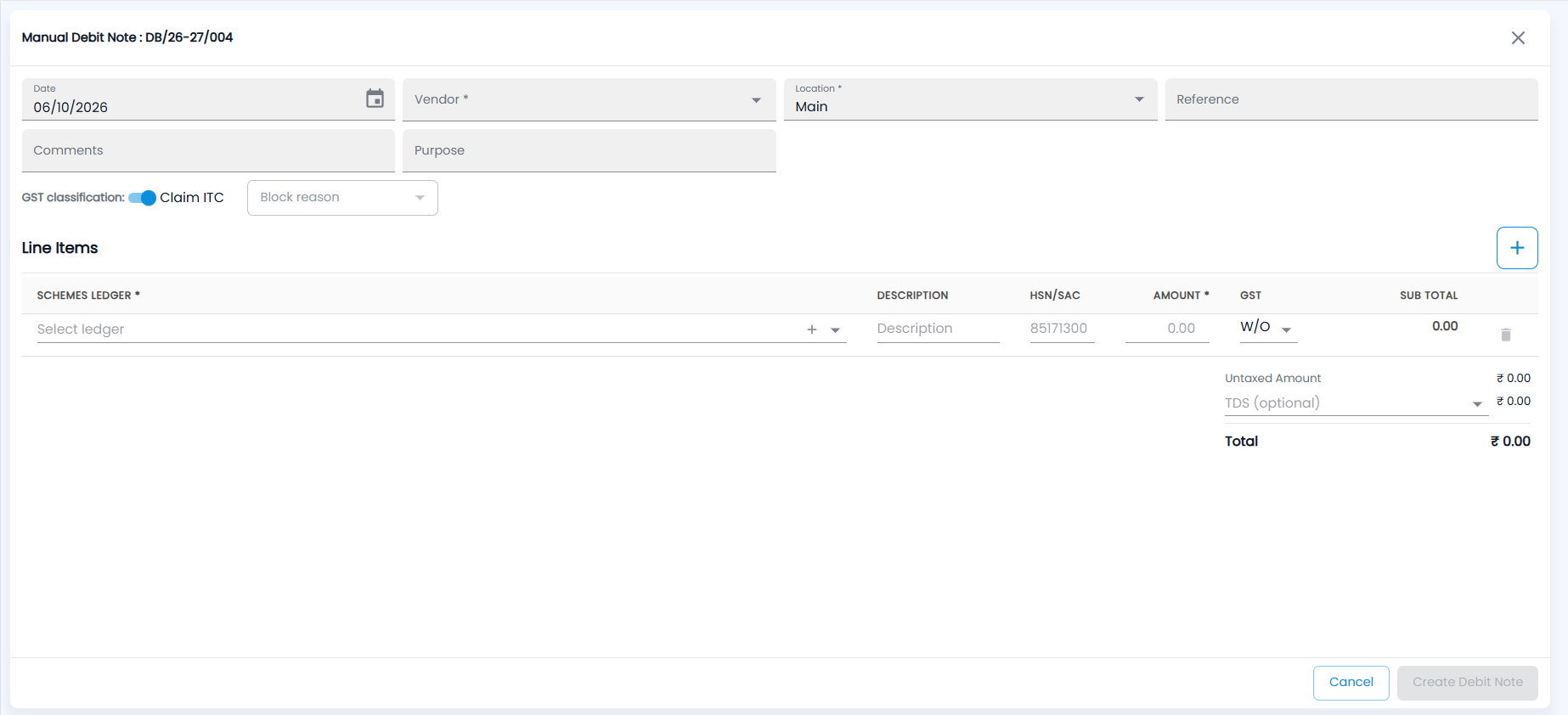
- Click + Manual. The Manual Debit Note form opens with the next number (for example DB/26-27/004).
- Check the Date (today by default), choose the Vendor and Location (both required), and optionally add a Reference, Comments and the Purpose.
- Set the GST classification: keep Claim ITC on, or turn it off and choose a Block reason.
- Under Line Items, fill in each line: the Schemes Ledger (required; Select ledger, or + to create one), a Description, the HSN/SAC, the Amount (required) and the GST — W/O (without, the default) or with a rate. The Sub Total shows on the right, and the bin icon removes a line. Click + at the top right of Line Items to add another line.
- Check the Untaxed Amount, choose TDS (optional) if it applies, and check the Total.
- Click Create Debit Note (or Cancel).
How do I use a debit note?
When you pay the vendor in Purchase Payments, open the Debit Notes & Available Credit tab on the payment voucher and pick the note. Its Closing Amount goes down by what you use, and the voucher shows Debit Note as its type.
Can I edit or delete a debit note?
Only while none of it has been used. Once any amount is adjusted against a payment, edit and delete are disabled. A manual note linked to an invoice, or one created by converting a purchase, cannot be edited either.