
How are expenses different from bills?
Bills are for stock you buy and sell — saving one adds items to inventory. Expenses are for everything else a vendor invoices you for, such as rent, repairs, services or an asset purchase: you book the amount to expense (or fixed asset) ledgers with GST, and the expense stays Pending until you pay it. For a quick cash payment with no vendor bill, use Pay In / Pay Out instead.
What does the Expenses page show?
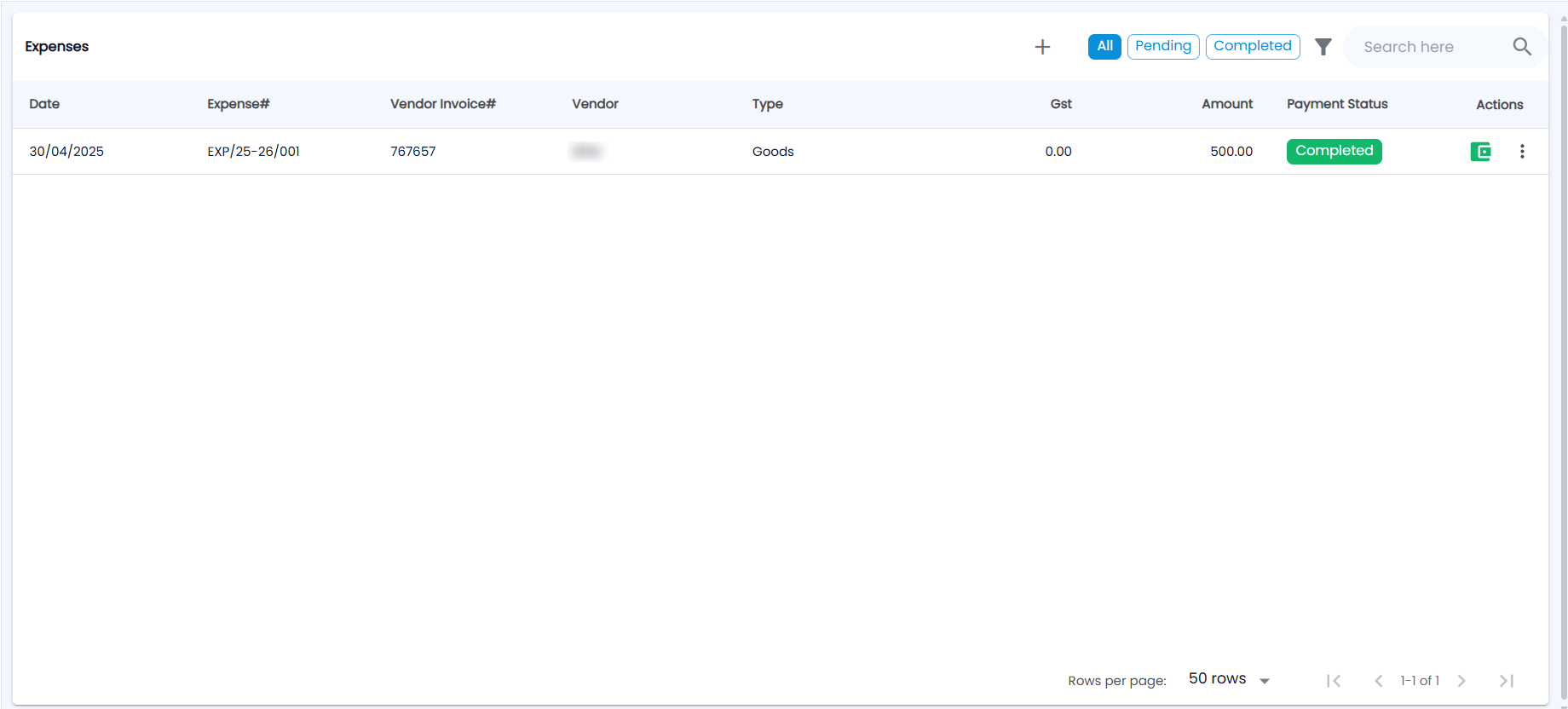
Go to Payments → Expenses. Next to +, chips filter the list by payment status: All, Pending and Completed; then come the filter icon and Search here. The list shows 50 rows per page by default.
| Column | What it shows |
|---|---|
| Date | The bill date |
| Expense# | The expense number Tazk gives it, for example EXP/25-26/001 |
| Vendor Invoice# | The vendor's invoice number |
| Vendor | Who billed you |
| Type | Goods or Service |
| Gst / Amount | GST on the bill and the bill total |
| Payment Status | Pending or Completed (green, fully paid) |
| Actions | The wallet icon (pay; green once paid) and a ⋮ menu |
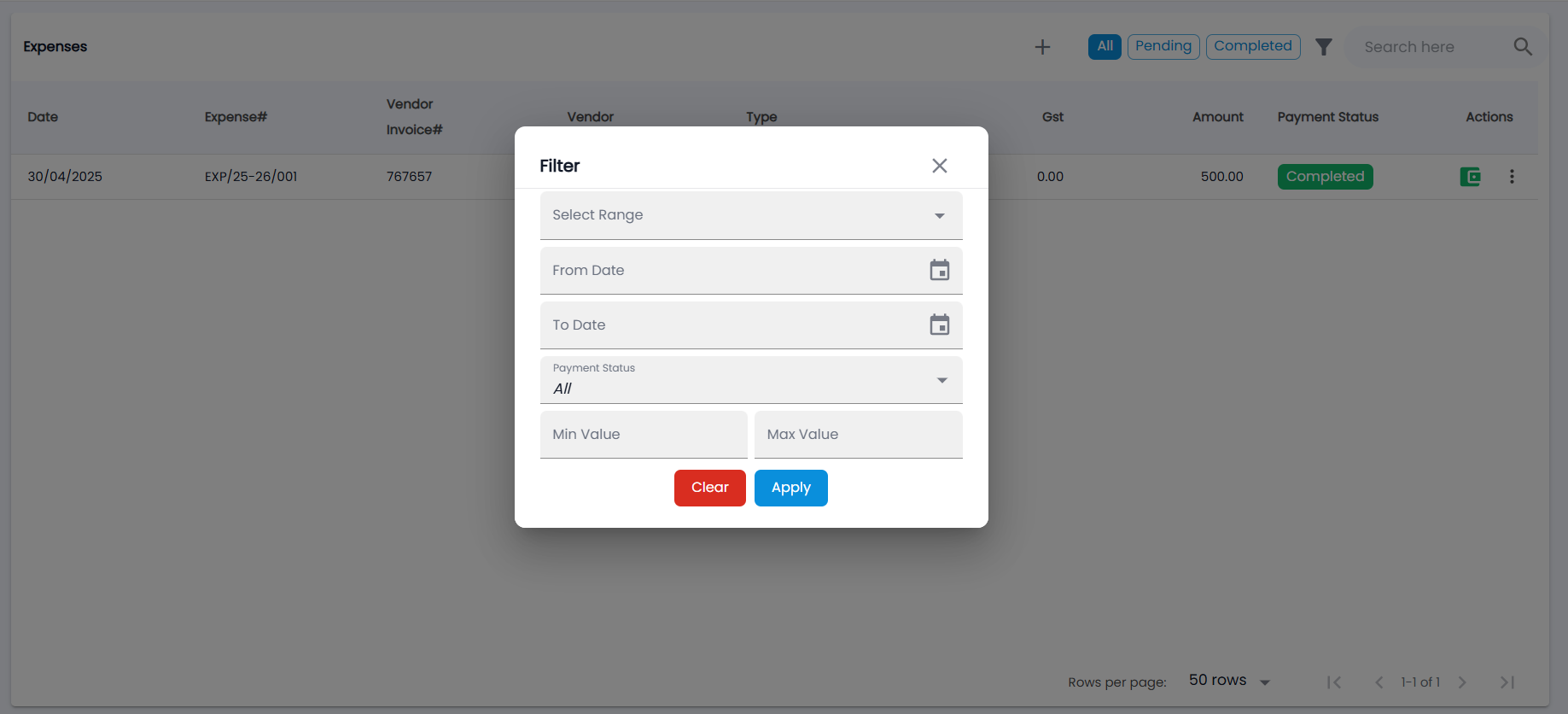
The filter has Select Range, From Date / To Date, Payment Status (All by default) and Min Value / Max Value. Click a row to see its detail.
How do I record an expense?
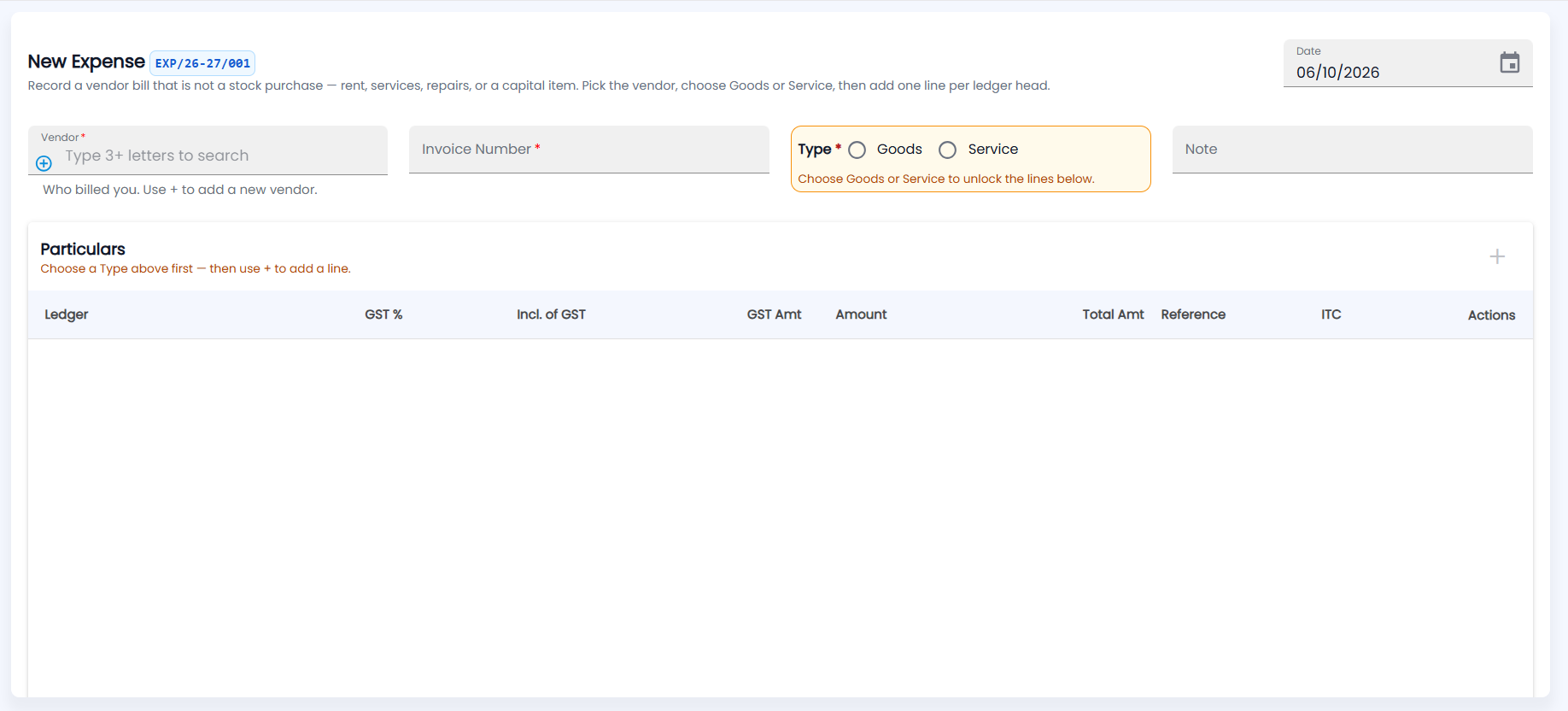
- Click +. The New Expense form opens with the next number (for example EXP/26-27/001) — Record a vendor bill that is not a stock purchase — rent, services, repairs, or a capital item.
- Choose the Vendor (required; type 3+ letters to search, or click + to add a new vendor), enter the Invoice Number (required), and check the Date at the top right. Add a Note if you like.
- Choose the Type (required): Goods or Service — the lines below stay locked until you do. For goods you can tick Asset purchase — you can then book lines to Fixed Asset ledgers as well as expense ledgers (for example, a machine plus its freight).
- Under Particulars, click + to add one line per ledger: choose the Ledger (expense ledgers come from the Indirect Expenses group), enter the Amount, tick Incl. of GST if the amount already includes tax, and set the GST %. The GST Amt and Total Amt are calculated, and you can add a Reference.
- Set ITC for each line. A line that does not claim input tax credit needs a block reason.
- Choose TDS or TCS if it applies, add a Note, check the round off, and click Save (or Save & New to enter another).
The expense is posted to the chosen ledgers and to the vendor's account (see Ledgers), and stays Pending until paid.
How do I pay an expense?
- On the expense's row, click the wallet icon (Make Payment).
- Choose the payment method (cash box or bank) and the amount, and submit.
When the amount paid covers the total, the status becomes Completed and the icon reads Payment Completed. Pending expense bills are also counted on Payment Analytics.
Can I edit or delete an expense?
Use the ⋮ menu on the row. Edit and delete are available while the expense is not fully paid; a Completed expense is locked.