
What is a bill in Tazk POS?
A bill is the vendor's invoice for goods you have received. Saving a bill adds the items to stock at the chosen location, posts the purchase and GST to your books, and adds the amount to Payables until you pay it. You can create a bill directly on Purchases → Bills, or by receiving goods against a purchase order.
What does the Bills page show?
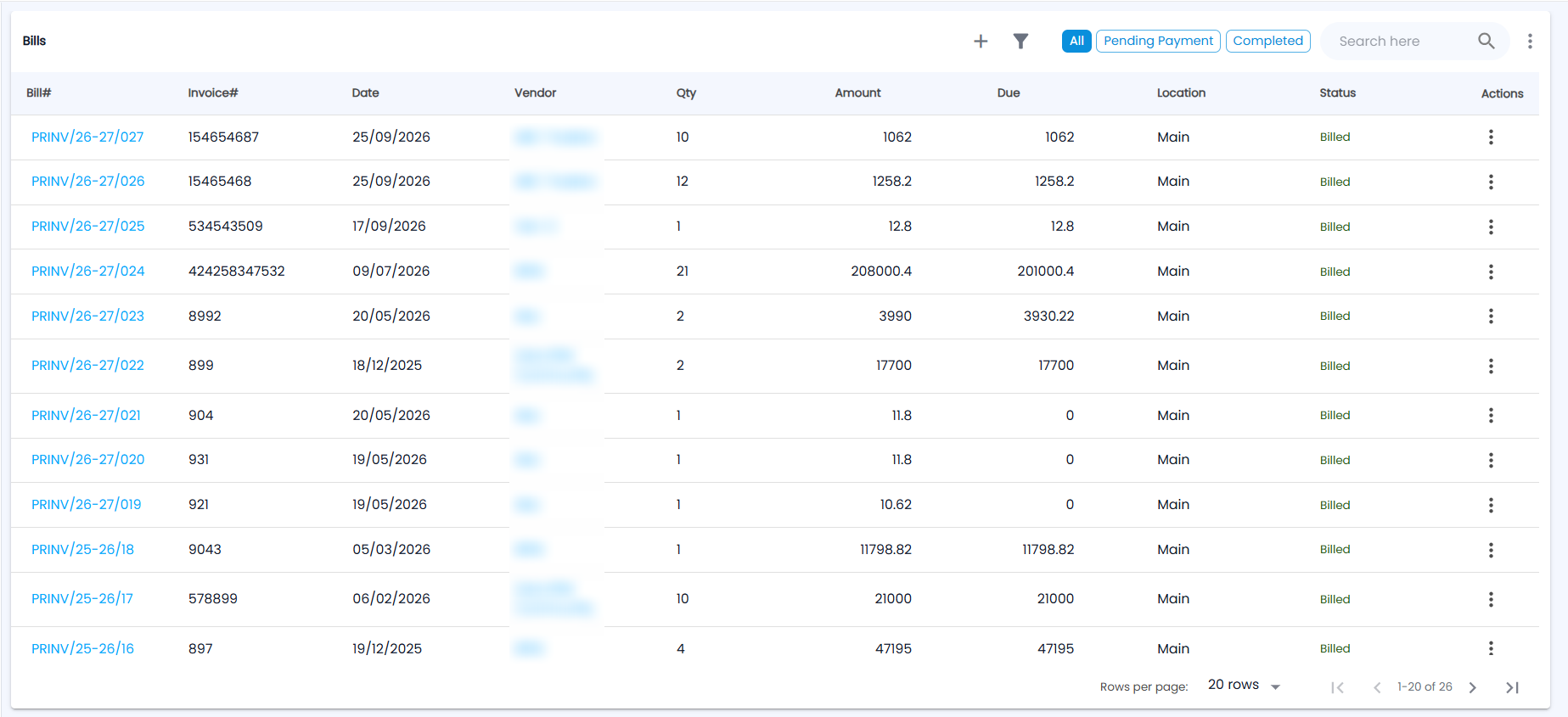
Go to Purchases → Bills. Next to + and the filter icon, chips filter by payment: All, Pending Payment and Completed (fully paid). Then come Search here and a ⋮ menu. The list shows 20 rows per page by default.
| Column | What it shows |
|---|---|
| Bill# | The bill number Tazk gives the bill, for example PRINV/26-27/027 |
| Invoice# | The vendor's own invoice number |
| Date | The invoice date |
| Vendor | Who you bought from |
| Qty | Quantity received |
| Amount / Due | Bill total and what is still unpaid |
| Location | Where the stock was received |
| Status | Billed, Partially Returned or Fully Returned, depending on returns to the vendor |
| Actions | The ⋮ menu — see below |
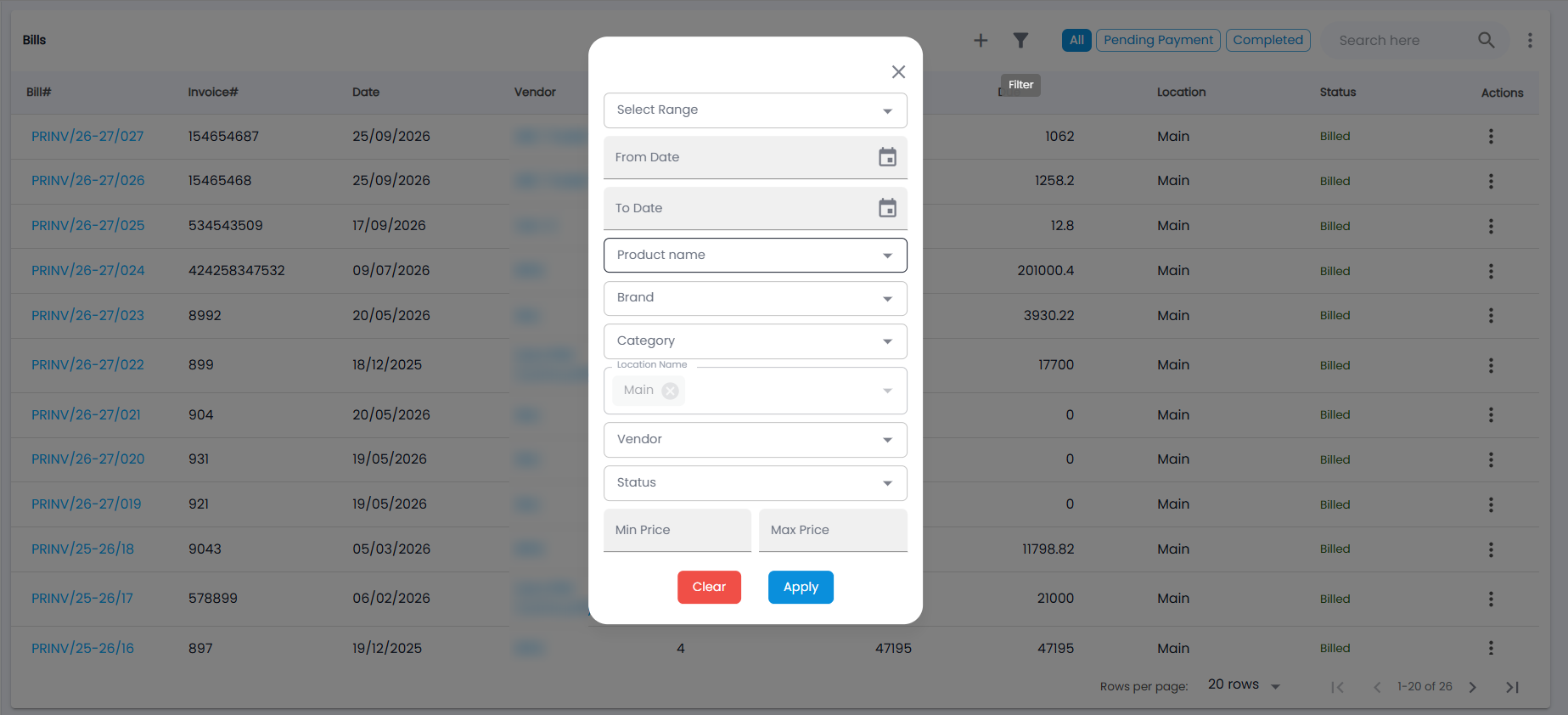
Use the search box or the filter icon — the same fields as on Purchase Orders: Select Range, From Date / To Date, Product name, Brand, Category, Location Name, Vendor, Status and Min Price / Max Price. The toolbar ⋮ menu (More actions) has Export CSV, Export PDF and Import.
How do I enter a bill?
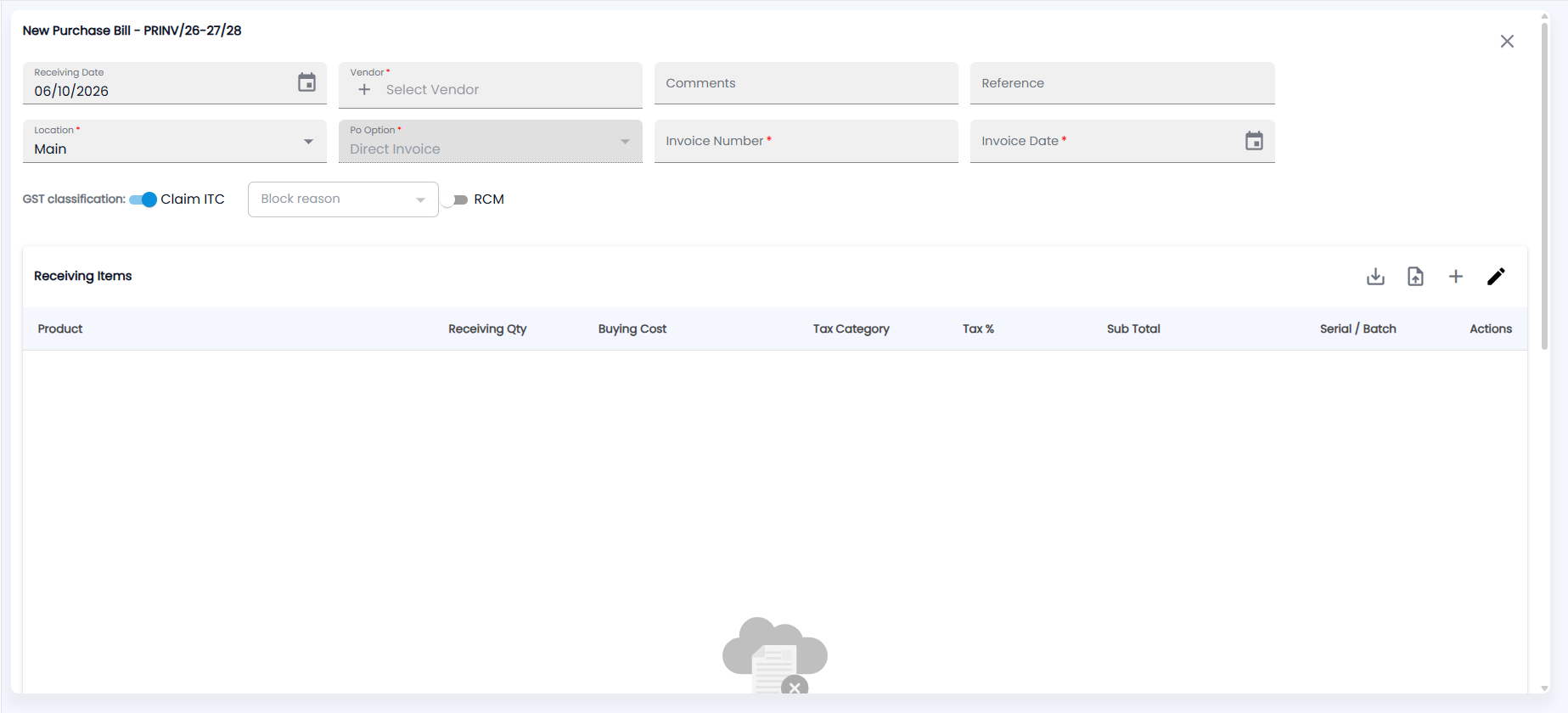
- Click the + icon. The form opens as New Purchase Bill with the next bill number (for example PRINV/26-27/28); Po Option is set to Direct Invoice.
- Check the Receiving Date and choose the Vendor (required; + adds a new one) and the Location (required) the stock goes to. Add Comments and a Reference if needed.
- Enter the vendor’s Invoice Number (required, and unique for that vendor) and Invoice Date (required).
- Set the GST classification: keep Claim ITC on to take input tax credit, or turn it off and choose a Block reason (required then). Turn on RCM if reverse charge applies.
- Under Receiving Items, click + to add each product, or the upload icon to load the lines from a file; the download icon is for downloading item lines. Each line has Product, Receiving Qty, Buying Cost, Tax Category, Tax %, Sub Total and, for serialised or batch items, Serial / Batch. Depending on your settings you may also see Billing GST, a vendor price list, MRP, discount and TDS or TCS.
- Check the totals (untaxed amount, CGST / SGST or IGST, TCS, round off, Total) and click Save.
When the bill is saved, the stock is added at the location (see Stocks), the vendor's ledger is credited (see Ledgers) and the unpaid amount shows in Payables.
Can I import bills from a spreadsheet?
Yes. Choose More actions → Import. The import wizard walks you through three steps: Products (match each row to a product, or create a missing one), Review (rows are grouped into bills by vendor name and invoice number; confirm the vendor for each) and Taxes (TDS / TCS per bill). Confirm to create the bills.
What can I do with a saved bill?
Open the row’s ⋮ menu:
| Action | What it does |
|---|---|
| Make Payment | Pay this bill. See Purchase Payments. |
| Edit Bill | Correct the bill, within the rules below |
| Print Labels | Shown for bills with serialised items — print barcode / QR labels |
| Delete | Delete the bill. Not allowed once it is fully paid, has a payment against it, or has returns. |
Click a row to open the bill. Its Actions menu has Edit, Payment, Return (send goods back to the vendor — this creates a debit note, see Debit Notes) and DELETE. The timeline shows who created and edited the bill; click an edit entry to see exactly what changed.
When can I edit a bill?
Tazk checks the bill before opening it for editing and only lets you change what is safe:
- The bill number is system generated and cannot be changed.
- If a payment is recorded against the bill, delete the payment entry before changing amounts.
- If the accounting period is locked, unlock it before changing amounts or dates.
- If a GST return covering the bill has been filed, raise a debit note instead of editing.
- If items have been returned or sold, only the untouched lines can be changed.