
What does the Payables page show?
Payables lists every bill that is not fully paid, with how much is due and for how long. Cards at the top show the Total Due, the amount past its due date, the average age of unpaid bills and Days Payable. Age chips filter the list, you can switch between a bill-wise and a vendor-wise view, and Make payment opens a payment for the bill.
What do the cards and chips mean?
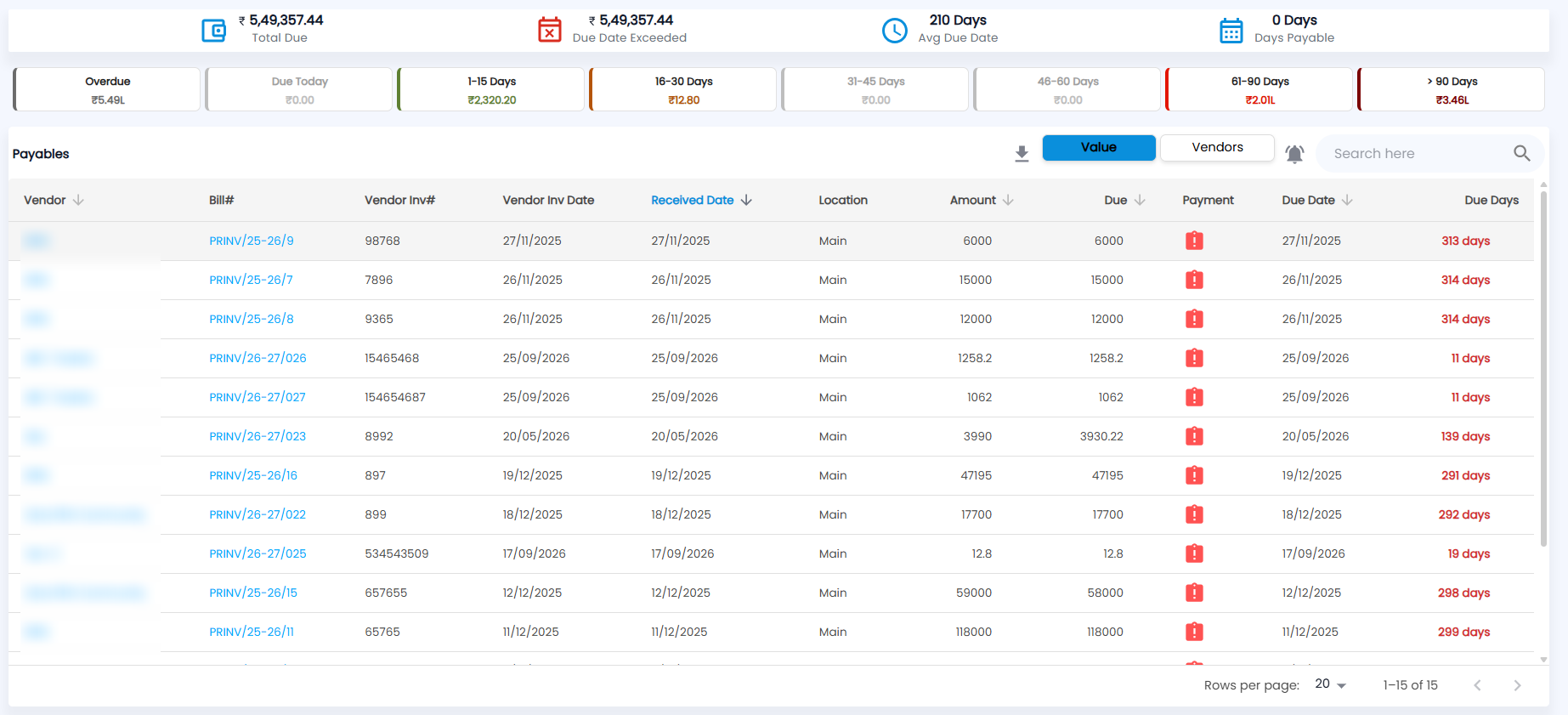
Go to Purchases → Payables. Four cards run across the top:
| Card | What it shows |
|---|---|
| Total Due | Unpaid amount across all bills |
| Due Date Exceeded | Amount on bills past their due date |
| Avg Due Date | Average number of days since the invoice date for unpaid bills |
| Days Payable | Total billed divided by your average daily payments over the last 30 days — roughly how many days of payments your dues represent |
Below the cards, chips split the dues by age and show the amount in each (L = lakh): Overdue, Due Today, 1-15 Days, 16-30 Days, 31-45 Days, 46-60 Days, 61-90 Days and > 90 Days. Empty chips are greyed out. Click a chip to list only those bills.
How do I see dues by bill or by vendor?
Use the Value / Vendors toggle above the table.
- Value (the default) lists each bill: Vendor, Bill#, Vendor Inv#, Vendor Inv Date, Received Date, Location, Amount, Due, Payment, Due Date and Due Days (in red once overdue, for example 313 days). Click a heading with an arrow to sort; the list opens sorted by Received Date. Export it with the download icon (Export PDF or Export CSV).
- Vendors groups bills by vendor with No. of Bills, Average Due Days, Total Due and Opening Balance. Expand a vendor to see its bills; each vendor row can be exported on its own.
Click a bill to open its detail: totals, items, status and timeline.
How do I pay a vendor from Payables?
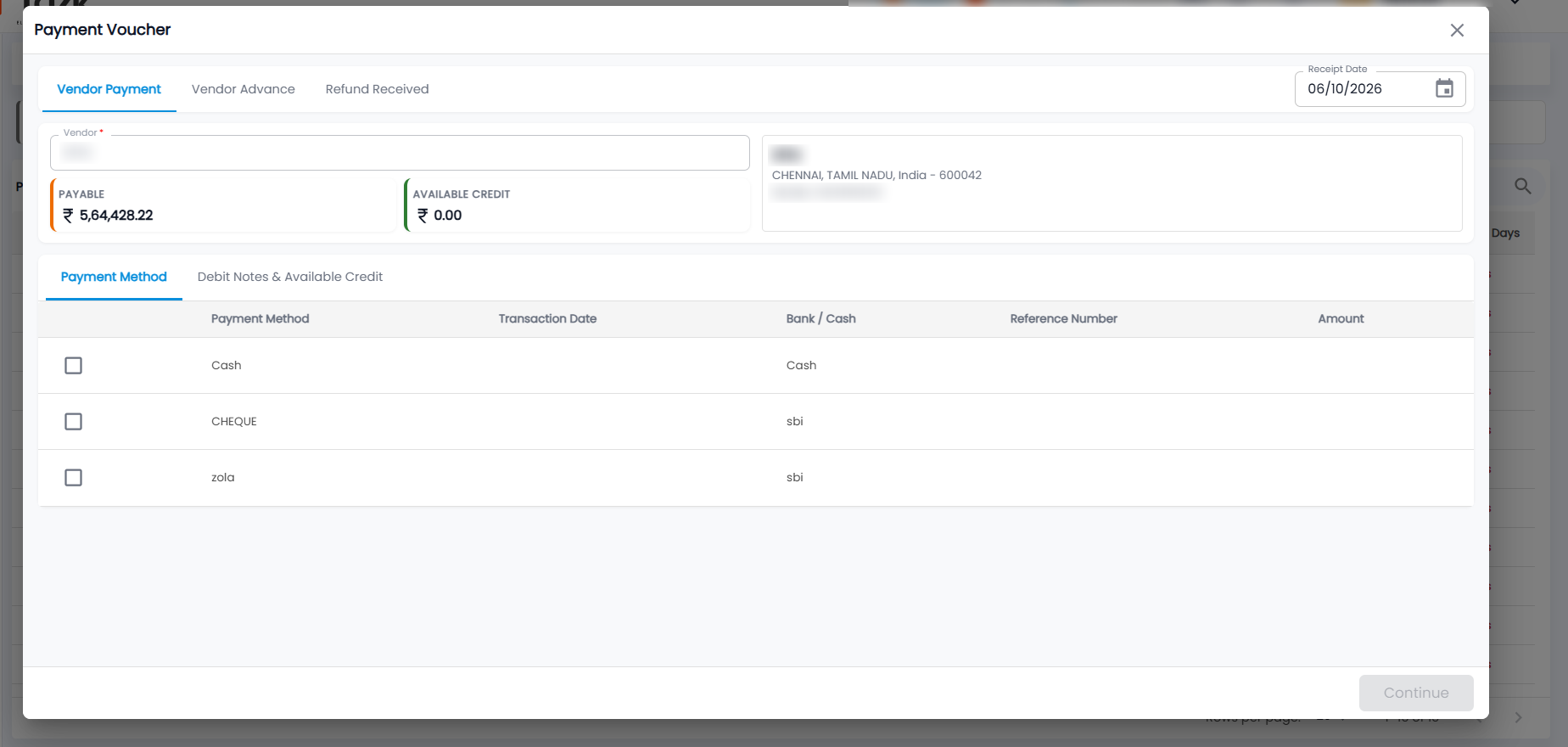
- Find the bill (or expand the vendor) and click the red icon (Make payment) in the Payment column.
- The Payment Voucher opens on Vendor Payment for that vendor, showing what you owe them (PAYABLE), their AVAILABLE CREDIT and their address. Tick the payment method you used, enter the Transaction Date, Reference Number and Amount, click Continue and submit. The full steps are in Purchase Payments.
The bill's Due drops by the amount paid, and the payment appears in Purchase Payments. A vendor's opening balance (money owed before you started using Tazk) can be paid from its own row the same way.
Can I set a reminder to pay?
Yes. Click the bell icon (Reminder) between Vendors and the search box to create a reminder; it shows on the Calendar.