
How do I manage leave in Tazk Payroll?
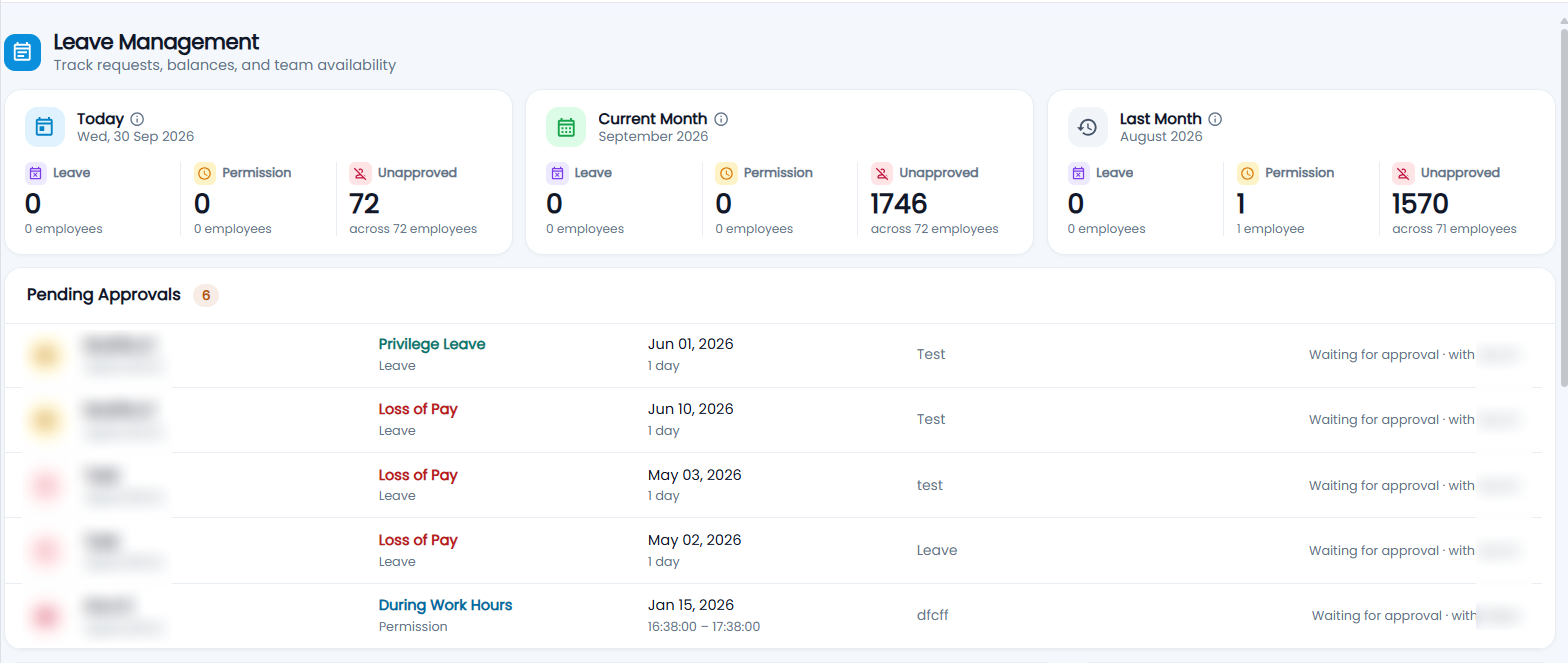
Click Leave Management in the sidebar ("Track requests, balances, and team availability"). Three cards count leave, permission and unapproved absences for today, the current month and last month. Below them are the requests waiting for approval, a team leave calendar, leave by type, the request trend over six months, and an absence register for every employee. Managers and HR Managers can switch to My Leave for their own requests, balances and policies.
Whose leave will I see?
An Administrator or HR Manager sees the whole company; a Manager sees their department (and direct reports); an employee sees only themselves. Managers and HR Managers switch between My Team and My Leave at the top of the page.
What do the Today, Current Month and Last Month cards show?
Each card has three counts:
| Count | Meaning |
|---|---|
| Leave | Approved leave days in that period, and how many employees took them |
| Permission | Approved permissions in that period, and how many employees |
| Unapproved | Working days with no punch and no approved leave or permission — "across N employees" |
Click a card to show that period in the Absence Register.
How do I approve or reject a leave request?
Pending Approvals lists the requests waiting for a decision, with the count beside the title. Each row shows the employee and department, the leave or permission type (for example Privilege Leave, Loss of Pay, During Work Hours), the date and length (or the permission hours), the reason, and who it is waiting for — "Waiting for approval · with" the approver.
- On a request that is waiting for you, click Approve, Verify or Approve & Verify — whichever your step is — and confirm. You are warned if it overlaps other leave.
- Or click Reject and enter the reason, which is required.
The same requests can also be decided on the Approvals page and in Messages.
How do I see who is on leave this month?
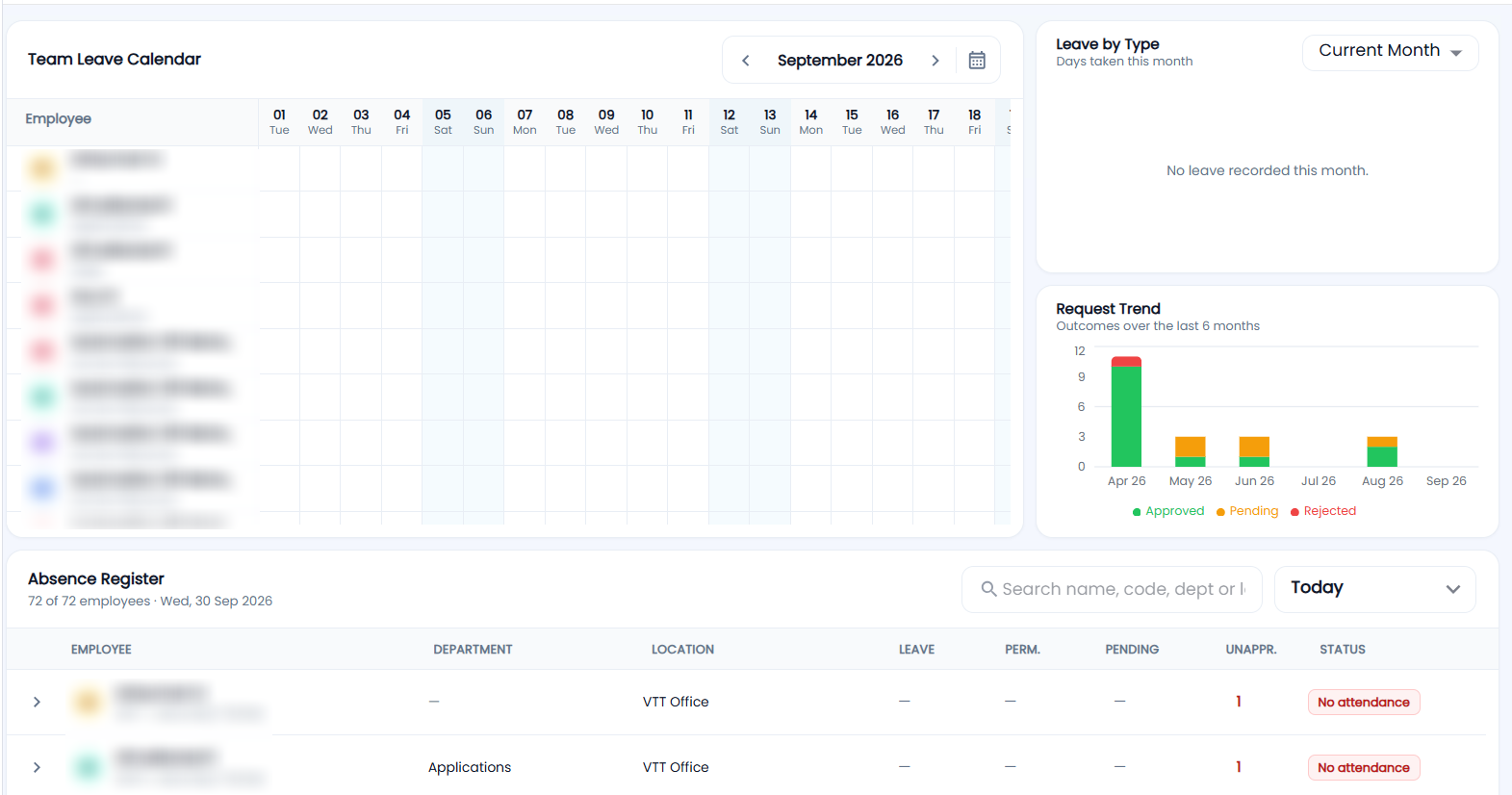
- Team Leave Calendar — every employee in a row and each day of the month in a column, with weekends shaded. Leave shows on its days; pending leave is marked Waiting for Approval. Change the month with the arrows or the calendar icon.
- Leave by Type — leave days taken by type, for the Current Month, Last Month or Current Year.
- Request Trend — approved, pending and rejected requests in each of the last 6 months.
What is the Absence Register?
A row per employee for the chosen period (Today, Current Month or Last Month) — "72 of 72 employees" and the date are shown under the title. Columns: Employee (name, code, designation), Department, Location, Leave, Perm., Pending, Unappr. and Status — No attendance, Pending, Approved or Clear. Search by name, code, department or location, and expand a row with › to see the unexplained days and the requests awaiting a decision, with Approve and Reject buttons.
What is on the My Leave view?
- My Leave Requests (still pending) and a Leave Trend of days taken and pending per month.
- My Leaves — a calendar of approved and pending leave.
- Leave Statistics — taken, committed and remaining for each leave type.
- Restricted Holidays (quota, taken, balance), or Quick Actions: Apply Leave, Apply Permission and, when manual attendance requests are enabled, Apply Correction.
- My Attendance Policy, My Leave Policy and My Weekend Policy — the rules that apply to you.
How do I apply for leave or permission?
- Click New Leave Request. The dialog shows your verifier and approver.
- On the Leave tab, choose the dates (or tick Half Day and pick the half), the leave type, the holiday for a restricted holiday, and a reason.
- On the Permission tab, choose the date, start and end time, permission type and reason. The Attendance Correction tab requests a correction to a punch.
- Click Send request.