
How do I check who has checked in today in Tazk Payroll?
Click Today Attendance in the sidebar. Daily Attendance shows today by default — pick one of the last three days from the date chips, or any date in the Filter. Cards count Present, Late, Early Out, Missing Checkout, On Leave and Permission; click a card to list just those employees. The table shows each employee's shift, check-in and check-out time and status, method, photo and location, and Export downloads it as a CSV.

How do I see another day?
The date chips at the top show today and the three days before it — click one to switch. For any other date, open Filter and change the From Date. Search employees… finds a person, and the buttons on the right switch between the list and grid views.
What do the cards show?
| Card | What it counts | Click it to |
|---|---|---|
| Present | Employees checked in today | List only those who checked in |
| Late | Arrived after their scheduled shift | List only Late In |
| Early Out | Left before their shift ended | List only Early Out |
| Missing Checkout | Shift or day over, but no checkout | List only Missed Check-out |
| On Leave | Approved and unapproved leave | Show the On Leave list — employee, leave status (Approved, Pending, Rejected, Absent, Unapproved Leave), leave type, shift and location |
| Permission | Approved short-time permissions | Show the Permission list — employee, status (Checked In, On Permission, Permission Exceeded), the permission window, check-in, shift and location |
Click the card again to go back to the full list.
What does each column mean?
| Column | Description |
|---|---|
| Employee | Name and employee code |
| Shift | The shift times and code ("No shift" if none). If the employee has more than one shift, the one worked is in bold. |
| Check-in / Check-out | The punch times |
| In Status | On time, Early In, Late In with the minutes (for example "Late In +30m"), Not punched or No shift |
| Out Status | On time, Early Out, Late Out, Still in (shift not over yet), Missed Check-out (shift over, no checkout), Not punched or No shift |
| Start Location / End Location | Where the punch was made — click to see it on a map |
| Method | How the punch was made: Face, Manual, Selfie, QR, GPS, Wi-Fi or Device |
| Check-in Photo / Check-out Photo | The photo taken at the punch, if any — click to enlarge |
Click a Late In, Early Out or Missed Check-out chip in the table to filter the list the same way as its card. Choose 10, 20, 50 or 100 rows per page.
How do I filter the attendance list?
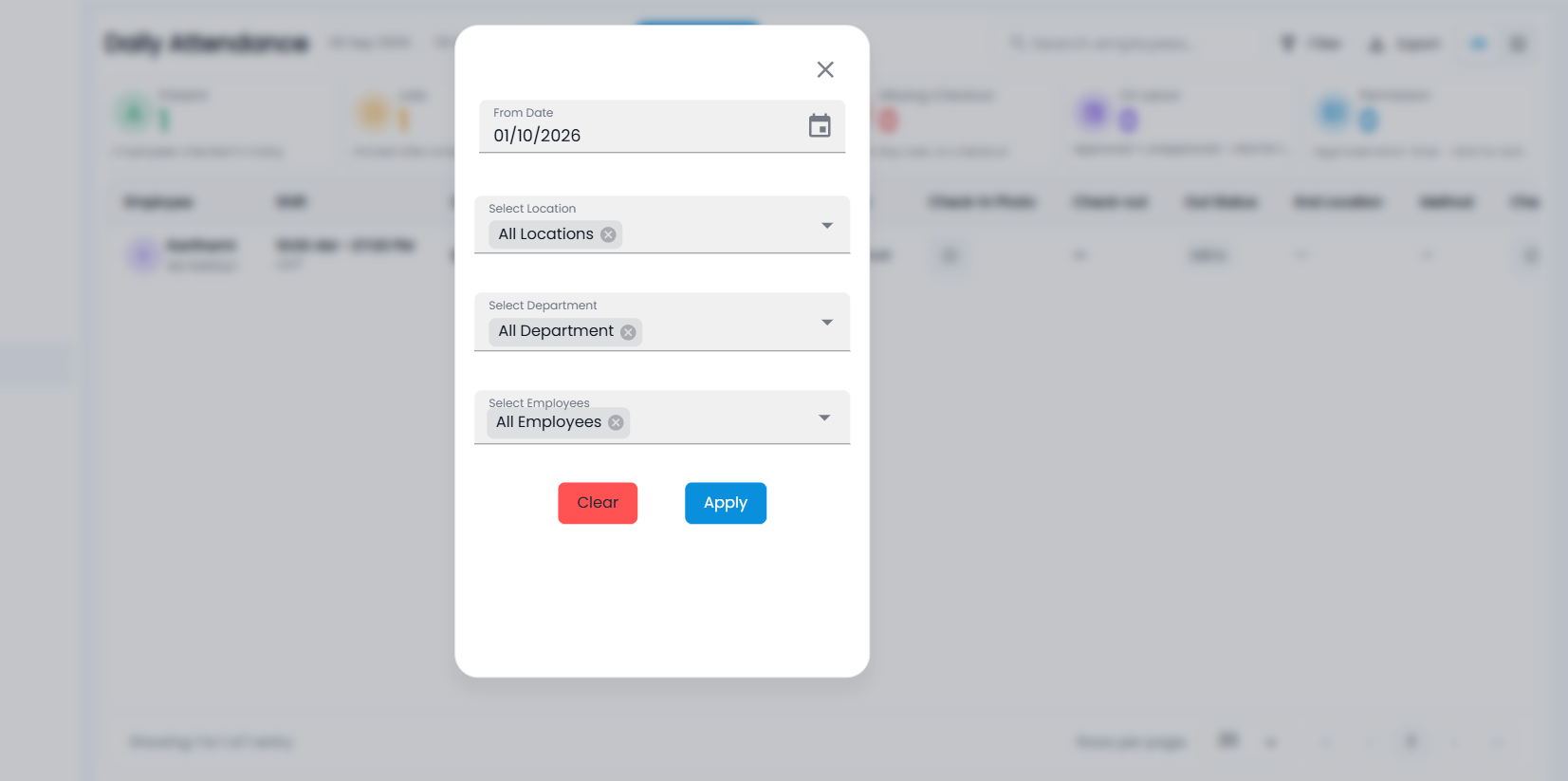
- Click Filter.
- Set the From Date (the day to show), and optionally Select Location (where the punch was made), Select Department and Select Employees.
- Click Apply. The Filter button shows how many filters are on; Clear removes them.
How do I export the day's attendance?
Click Export to download what is on screen — including any card or filter — as a CSV file: employee code and name, shift, check-in and status, start location and method, check-out and status, end location and method, and hours worked. Photos are not included. Export appears only for roles allowed to export.
What is the grid view?
The grid view shows each employee as a card with their status chips, shift, and the check-in and check-out side by side — photo, time, location and method. Click a photo to enlarge it.