
How do I receive stock transferred from another location?
Select your location in the header, open Inventory → Stock Receive and click the open (document) icon on the incoming transfer. Enter or scan the serial numbers that arrived, set the receiving quantity for non-serialized items and allocate batches for batch items, then click Submit. The stock is added to your location and the transfer becomes partially received or received.
What does the Stock Receive page show?
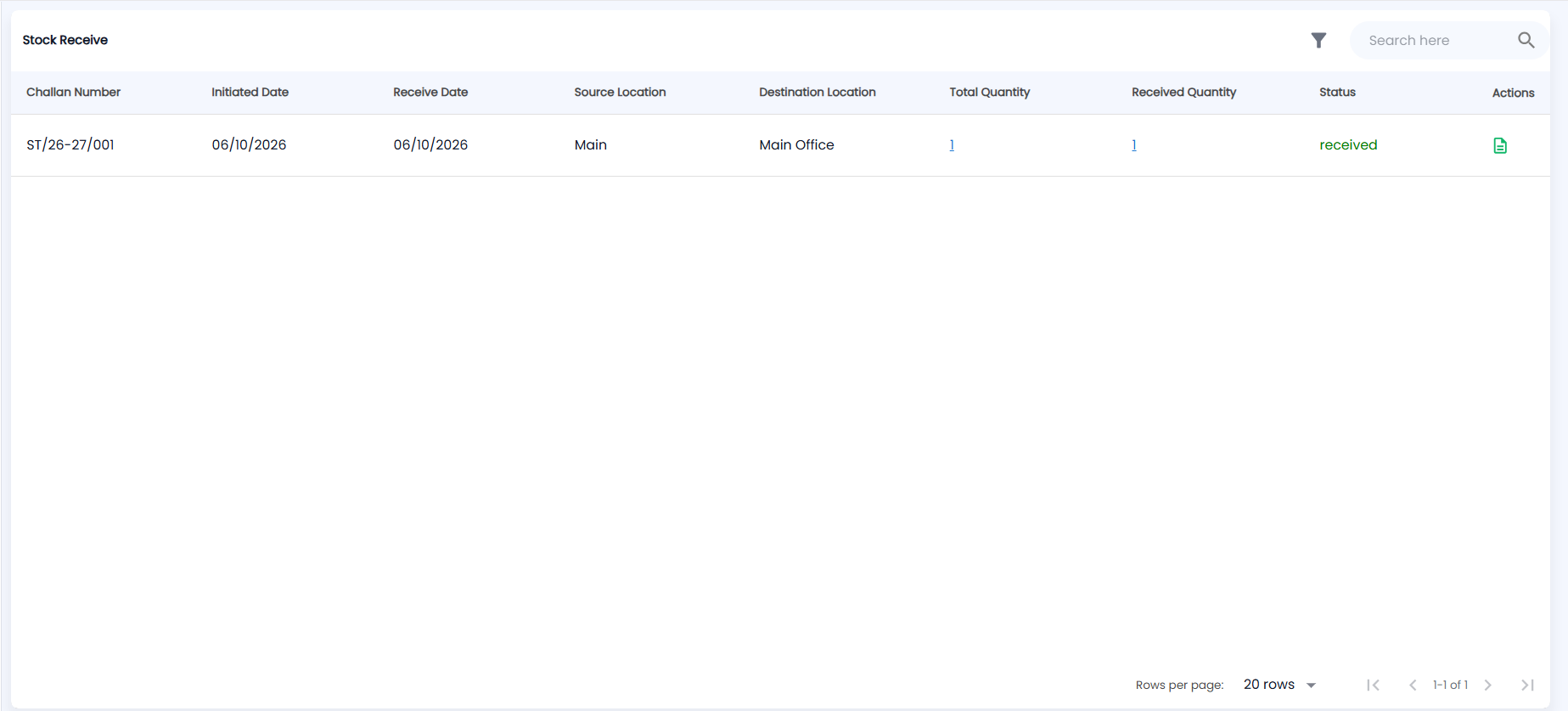
Click Inventory → Stock Receive. It lists the transfers sent to the location selected in the header; the toolbar has the filter icon and Search here.
| Column | Description |
|---|---|
| Challan Number | The transfer challan number from the sending location |
| Initiated Date / Receive Date | When it was sent and when it was received |
| Source Location / Destination Location | Where it came from and where it is going |
| Total Quantity / Received Quantity | What was sent, and how much has been received so far. Both are links to the products and lot numbers behind them |
| Status | Shown in orange until it is received, then in green |
| Actions | The document icon opens the transfer to receive it |
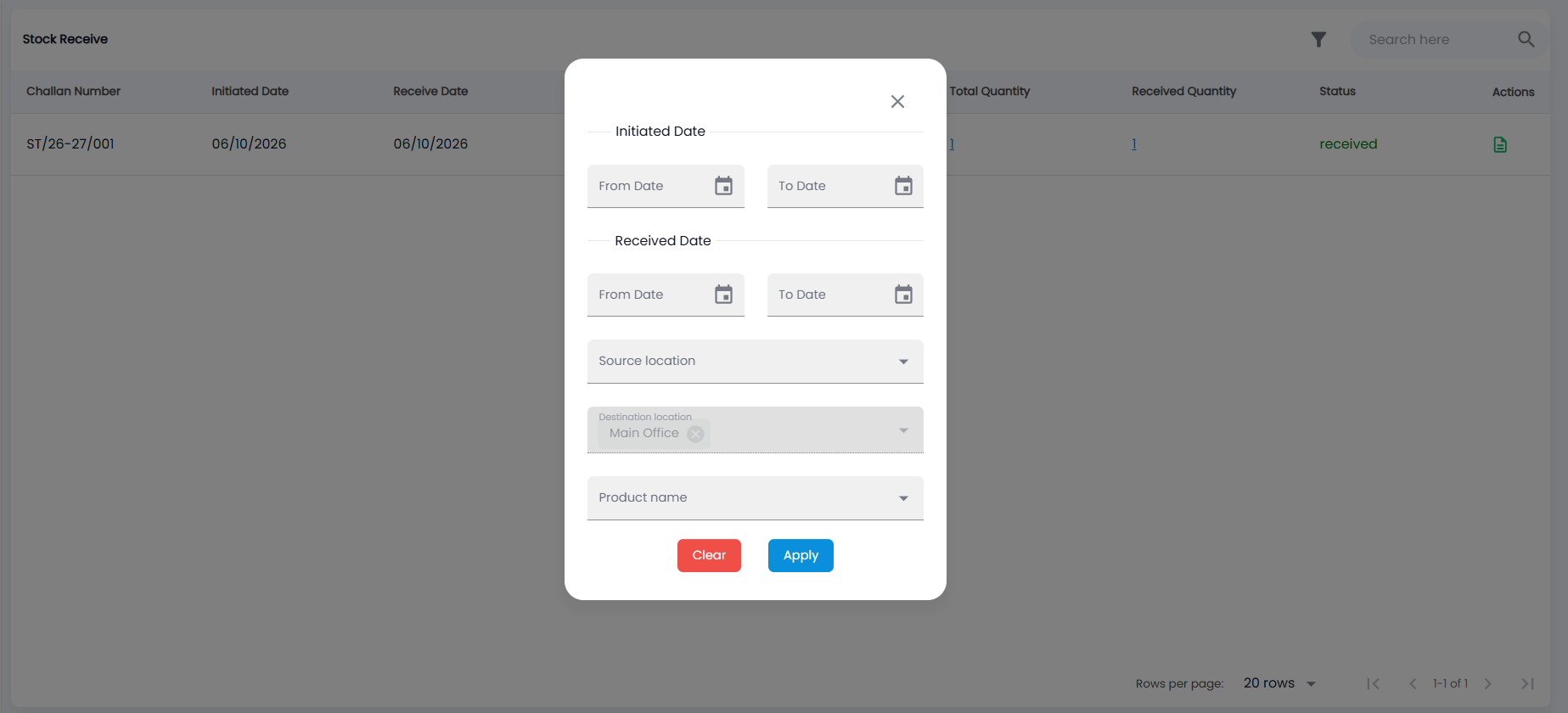
Click the filter icon to narrow the list by Initiated Date (From / To), Received Date (From / To), Source location, Destination location (fixed to your header location) and Product name, then Apply or Clear.
How do I receive a transfer?
- Select your (receiving) location in the header.
- Click the document icon in the transfer’s Actions column. A fully received transfer cannot be opened again.
- For serialized products, type or scan each Serial/Lot Number that arrived. Each one is matched against the serials on the challan.
- For non-serialized products, enter the Receiving Qty. The table shows the cost price, how many were Transferred and how many are Already Received.
- For batch products, click Batches and allocate the outstanding quantity to batches. The allocation must add up exactly.
- Click Submit.
You do not have to receive everything at once. Receive what has arrived; the transfer becomes partially received and you can open it again for the rest. Once every line is in, it is received.
What happens when I receive stock?
The received items become available at your location in Stocks and can be sold from Invoices or the Sales Counter. The sending location’s Stock Transfer list shows the new status, and the serial numbers’ history in Lot Traceability records the receipt.