
How do I trace a serial number or lot in Tazk POS?
Open Inventory → Lot Traceability and type the lot or serial number in the search box. Click the number to open its history: every purchase, sale, delivery challan, transfer, return and scrap it went through, with the document, party, person, location, quantity in and out, running balance and stock value. Non-serialized items are traced by item and location with View history.
What does the Lot Traceability list show?
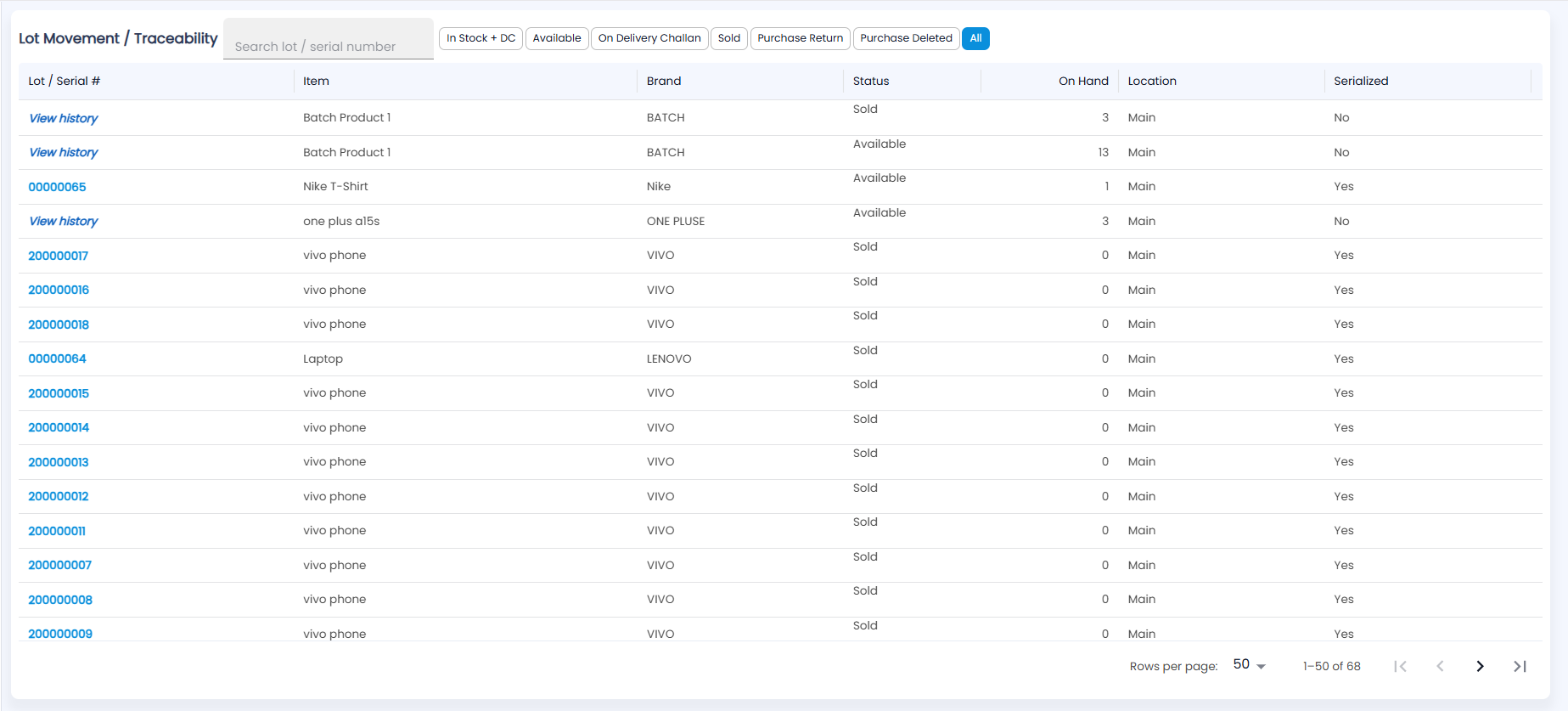
Click Inventory → Lot Traceability. The page is titled Lot Movement / Traceability and lists lots for your whole company (not just the header location), with the search box and status chips beside the title.
| Column | Description |
|---|---|
| Lot / Serial # | The lot or serial number — click it to open the history. Non-serialized items show View history instead |
| Item / Brand | The product and its brand |
| Status | Where the lot stands now (see below) |
| On Hand | Quantity still in stock |
| Location | The location holding it |
| Serialized | Yes or No |
Type in Search lot / serial number; the list updates as you type. Serial numbers are links; batch and non-serialized items show View history in italics. The list shows 50 rows per page by default (50, 100 or 200).
What do the lot statuses mean?
| Status | Meaning |
|---|---|
| Available | In stock at its location |
| On Delivery Challan | Sent out on a delivery challan, not yet invoiced or returned |
| Sold | Billed to a customer |
| Purchase Return | Returned to the vendor |
| Purchase Deleted | The purchase that brought it in was deleted |
| Defect / Vendor Replacement | Marked defective, or replaced by the vendor |
| Scrapped | Moved to a scrap location and written off — no longer counted as stock |
The quick-filter chips narrow the list: In Stock + DC, Available, On Delivery Challan, Sold, Purchase Return, Purchase Deleted and All (the default).
How do I read a lot’s history?
Click a lot number. The header shows the Item, Status, On Hand and Unit Cost, with the brand, category and current location underneath. The table lists every movement in date order:
| Column | Description |
|---|---|
| Date / Time | When it happened |
| Movement | The kind of movement — green for stock in, red for stock out, grey when nothing moved |
| Status | Posted for a real movement. A tag marks an event that moved no stock (for example a cancelled invoice or a stock count never submitted) or a scrap write-off |
| Document | The document type and number, such as an invoice or bill |
| Party / Person | The customer or vendor, and the user who recorded it |
| Location | Where it happened |
| In / Out | Quantity added or removed |
| Balance / Stock Value | Running quantity and its value after the movement |
Rows that moved no stock are shown in grey and are left out of the balance and value. Click the download icon to Export CSV (needs the export right), and the back arrow to return to the list.
How do I trace a non-serialized product?
A non-serialized product has no serial number of its own, so its rows show View history. Click it to see the movement ledger for that item at that location, with the same columns as above.