
How do I do a physical stock count in Tazk POS?
Stock Reconcilate (stock reconciliation) compares a physical count with the system. Open Inventory → Stock Reconcilate and click +, choose the categories, brands or models to count, scan each serial number or barcode on the shelf, then review the Scanned, Excess and Missing stock. Save as a draft, give a reason for each missing lot and a product for each excess lot, and submit. Missing and excess lots can then be moved to a scrap location or back to inventory.
What is Stock Reconcilate?
Stock Reconcilate is how the menu spells stock reconciliation: checking that what is physically on your shelves matches what Tazk POS says you have, and adjusting the difference. It works on serialized stock — products tracked by serial, IMEI or lot number — at the location selected in the header.
What does the Stock Reconcilate list show?
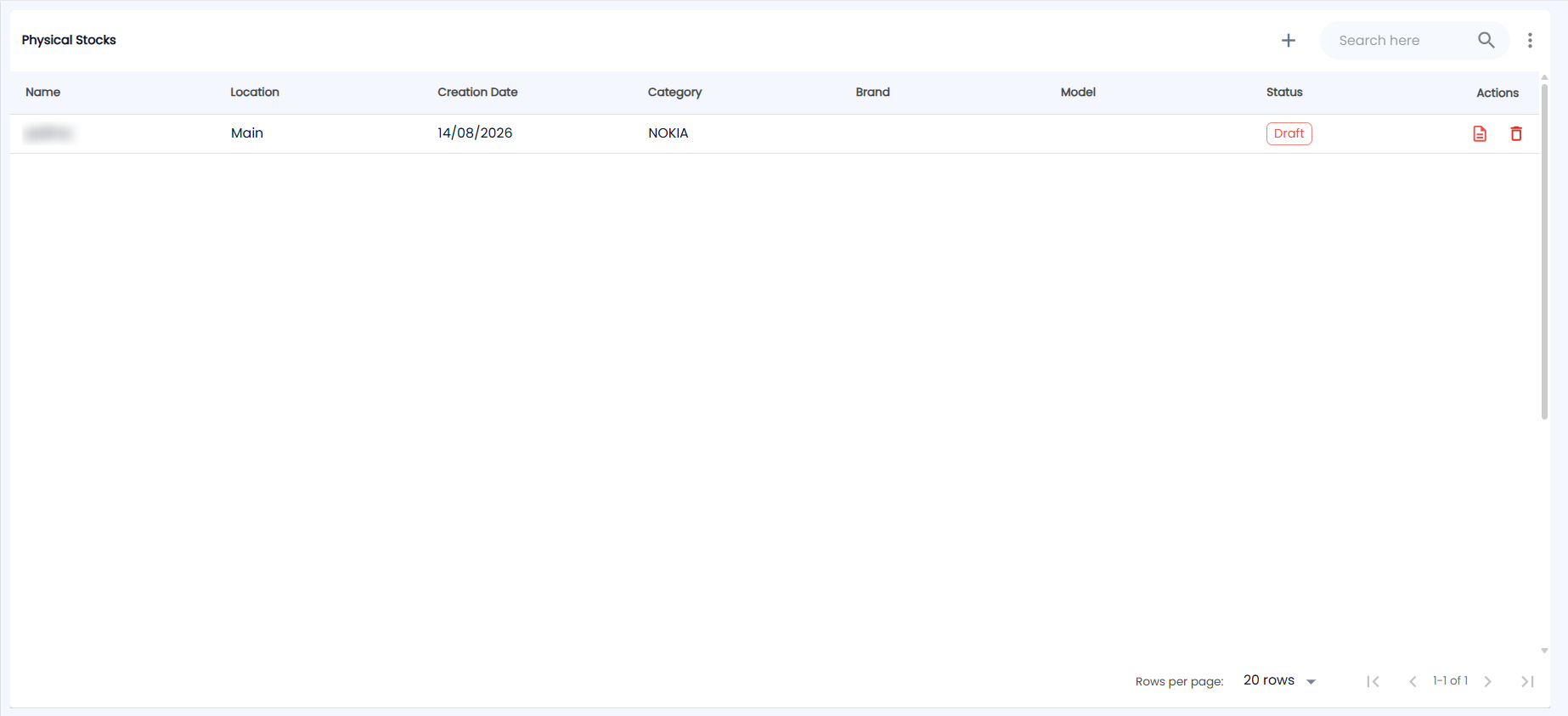
Click Inventory → Stock Reconcilate. The list is titled Physical Stocks; the toolbar has + (start a count), Search here and a ⋮ menu.
| Column | Description |
|---|---|
| Name | The reconciliation |
| Location | The location that was counted |
| Creation Date | When it was started |
| Category / Brand / Model | What was counted |
| Status | Draft (red outline), Initialized, Completed or Failed |
| Actions | The document icon opens the count (Edit Draft for a draft), and the bin deletes it |
Use Search here, and the ⋮ menu for Export PDF and Export CSV. Only a Draft can be deleted.
How do I count stock?
Click +. The Stock Reconciliate screen opens with a three-step bar at the top — Select Filters, Scan Barcodes, Review & Submit:
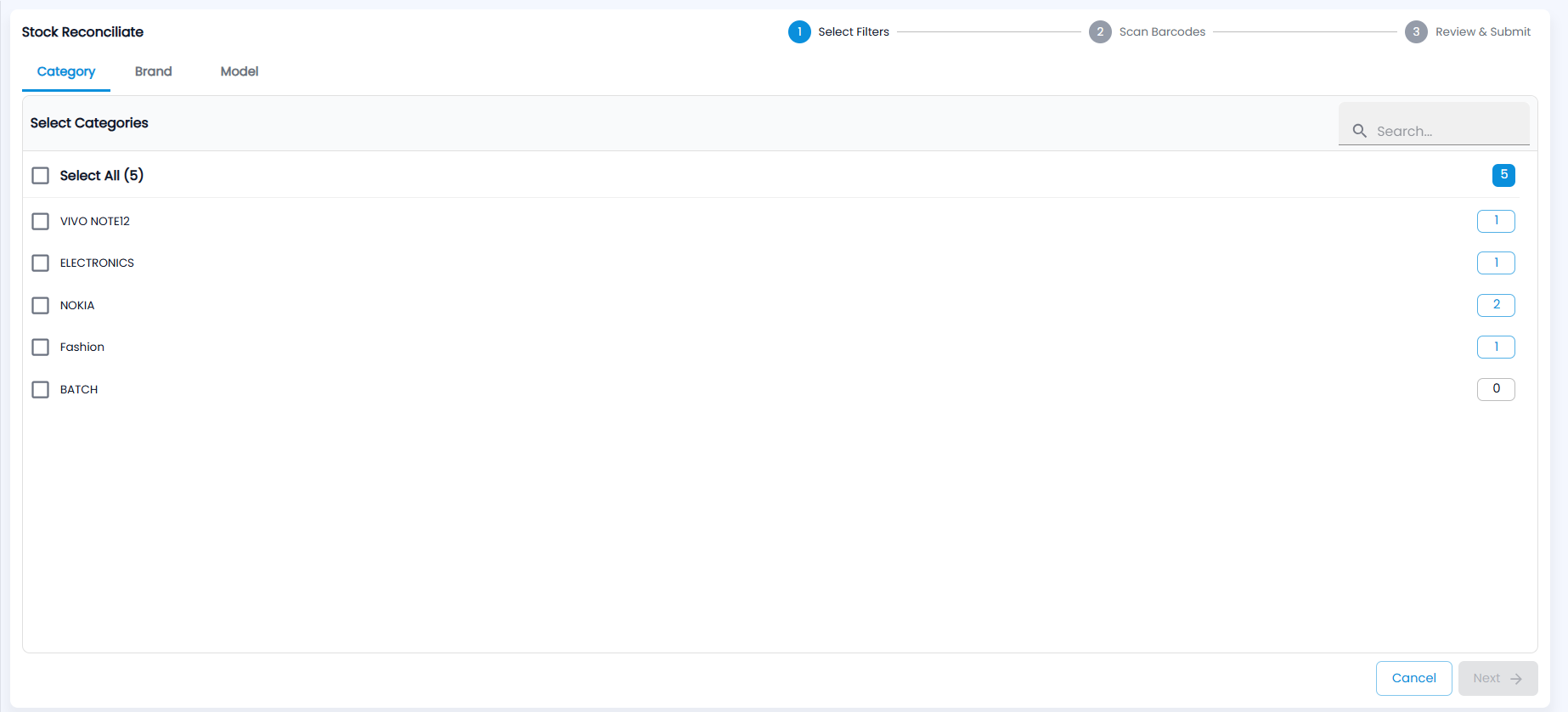
- Select Filters — on the Category, Brand and Model tabs, tick what you want to count (at least one). Each list shows only what is in stock at your location, with the number of serialized units beside each entry; Select All ticks the whole list, and Search… finds an entry. Click Next (or Cancel).
- Scan Barcodes — in Enter Barcode / Lot Number, scan or type each serial number on the shelf and press Enter. Each one is added to the list; a duplicate is rejected. Click Next.
- Review & Submit — Tazk compares your scans with the system and splits them into three tabs:
- Scanned Stock — scanned and found in the system: these match.
- Excess Stock — scanned but not in the system at this location. Choose the Product for each one.
- Missing Stock — in the system but not scanned. Enter a Reason for each one.
Click Save As Draft. A new count must be saved as a draft first; reopen it from the list (the icon reads Edit Draft) to finish it, then click Submit. Submit stays disabled until every excess lot has a product and every missing lot has a reason. You can export the review as one Excel or CSV file with the three lists kept separate.
How do I settle missing and excess stock?
Open a submitted reconciliation from the list. It shows Missing Lots, Lots to be Process (the excess lots), Processed Lots and Scanned Lots.
- For a missing lot, Move to Scrap Location writes it off — it no longer counts as stock.
- For an excess lot, choose Move to Scrap Location or Move to Inventory to add it to your stock.
Each action asks you to confirm. A missing lot that has since left the books on an invoice or delivery challan is settled automatically and cannot be scrapped.