
Overview
Customer Shelf Stock records what your products look like on a customer's shelves — how many are on display and in the back room, and what is close to expiry. Each count is a stock-take. Open Sales Man > Customer Shelf Stock.
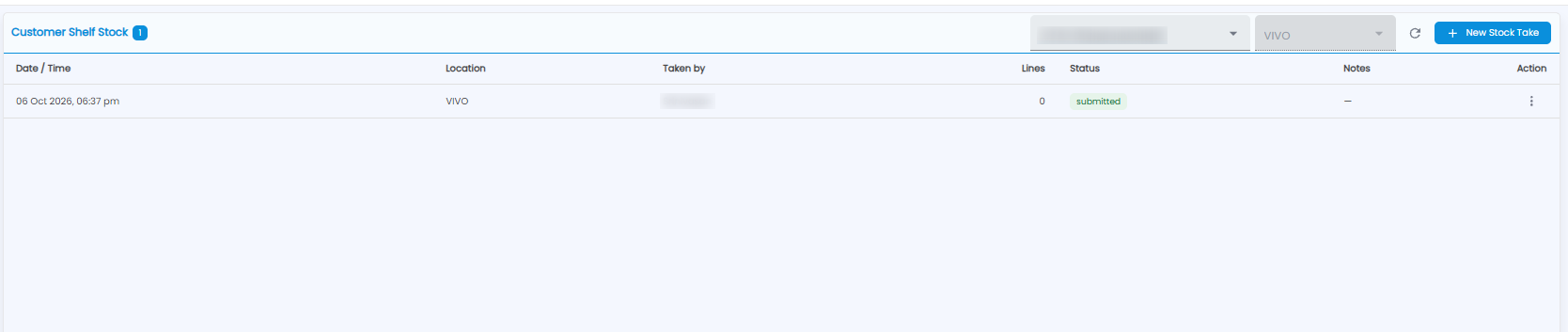
The Stock-Take List
Pick the customer from the drop-down at the top right, and the location next to it. The count next to the title is the number of stock-takes shown.
| Column | What it shows |
|---|---|
| Date / Time | When the stock-take was done |
| Location | Which location it was for |
| Taken by | Who did the count |
| Lines | How many products were counted |
| Status | For example submitted |
| Notes | Any notes |
| Action | ⋮ gives more actions |
Use the refresh icon to reload the list.
Taking Stock
Click + New Stock Take. The customer's name is shown next to the title.
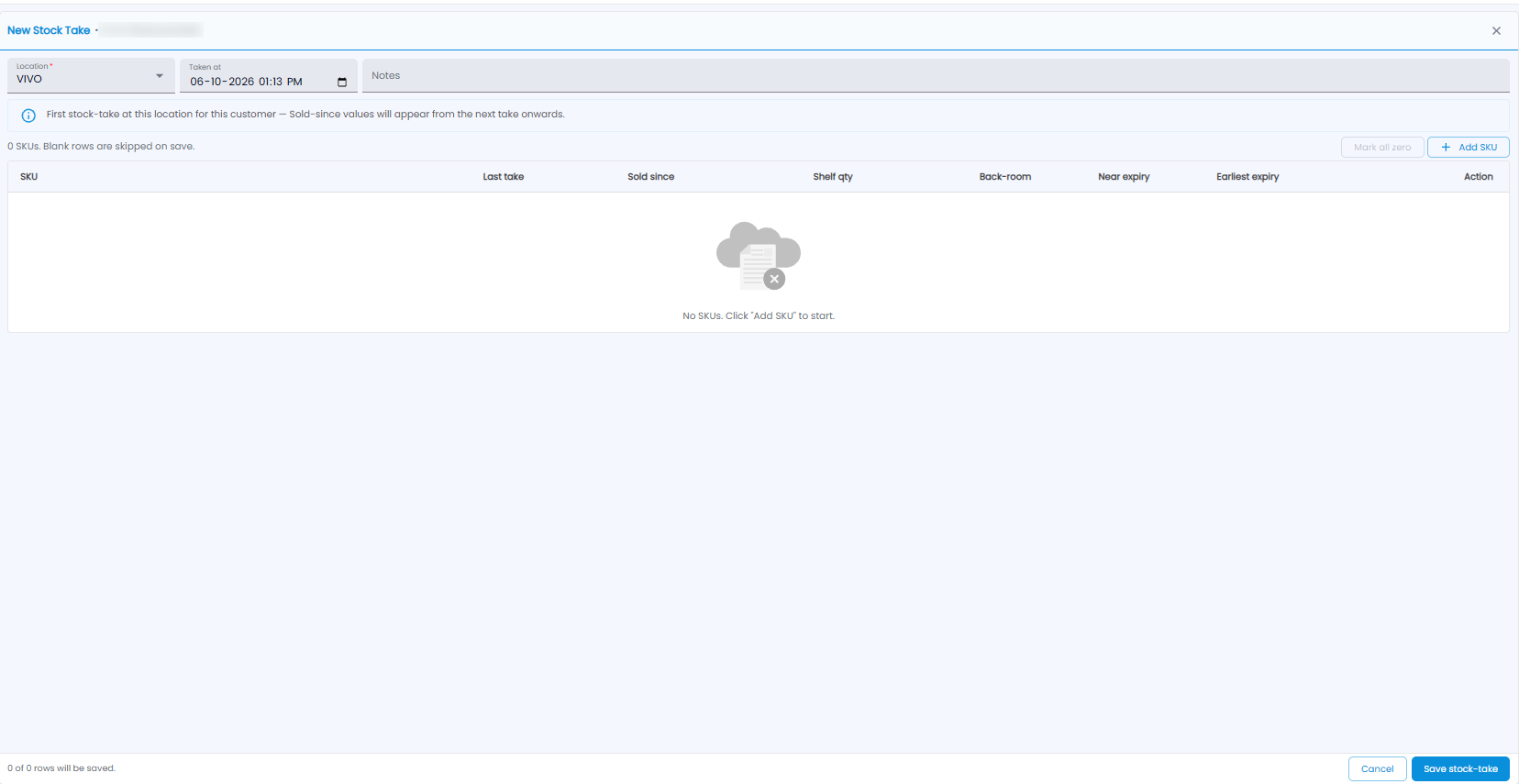
- Check the Location* and the Taken at date and time, and add Notes if needed
- Click + Add SKU for each product you count
- For each product, enter the Shelf qty (on display), Back-room (in storage), Near expiry (how many are close to expiry), and the Earliest expiry date. Last take shows the count from the previous stock-take, and Sold since how many have sold since then
- Click Mark all zero to set every row to zero — useful when the shelf is empty
- Click Save stock-take. Blank rows are skipped; the line at the bottom shows how many rows will be saved. Click Cancel or × to leave without saving
Note: Sold since only appears from the second stock-take at a location for a customer — the first one gives it something to compare against.