
How do I track a business loan and its EMIs in Tazk POS?
Open Cash & Bank → Loan Accounts and click New Loan. Enter the lender, loan type, amount, interest rate, tenure and first EMI date, and save it as a draft. Open the loan and click Disburse to credit the amount to a bank or cash account; the EMI schedule then runs, and you pay each EMI from the schedule. Active loans can also be prepaid or foreclosed.
What does the Loan Accounts page show?
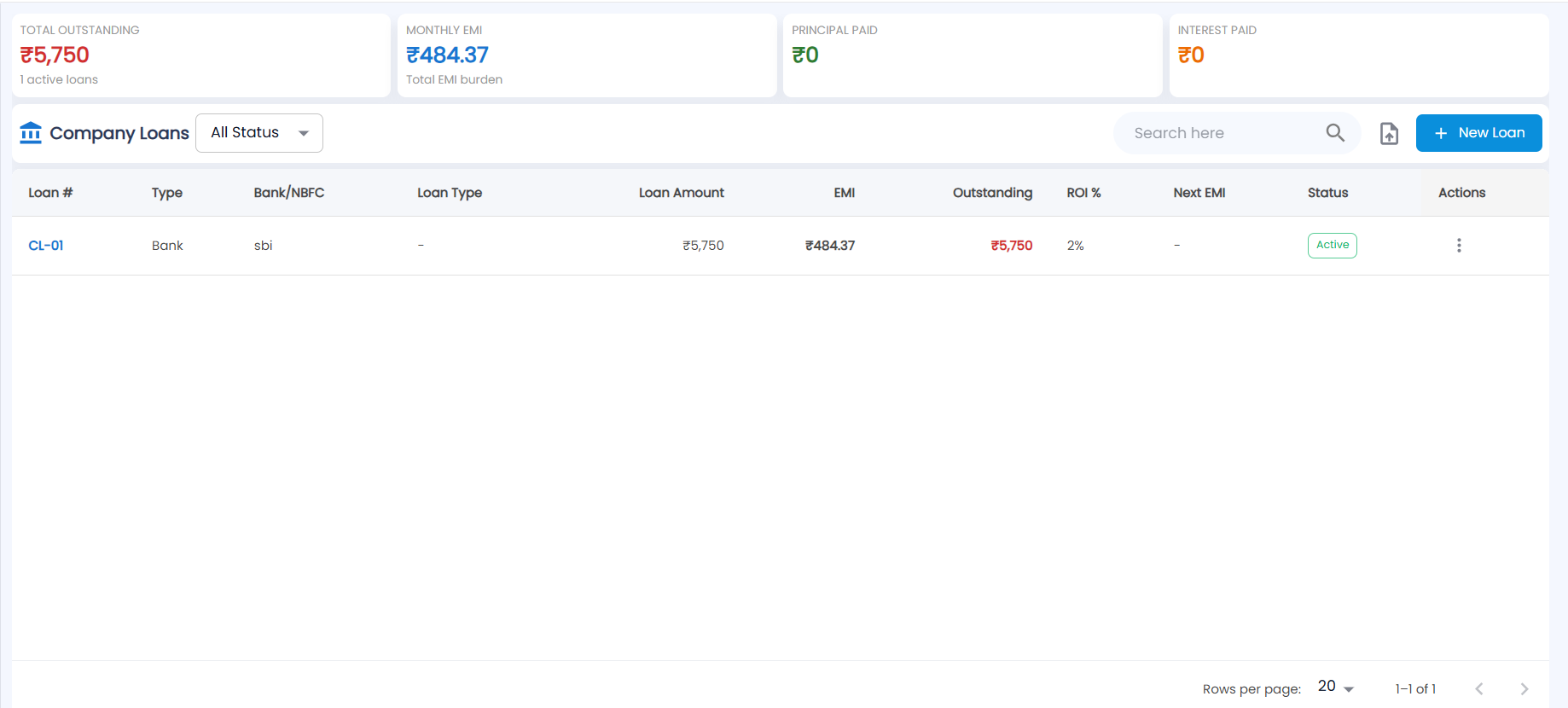
Go to Cash & Bank → Loan Accounts (the page is titled Company Loans). These are loans your business has taken — from a bank, an NBFC, a director or partner, or a group company.
| Card | What it shows |
|---|---|
| Total Outstanding | Principal still owed, with the number of active loans |
| Monthly EMI | Total EMI burden per month |
| Principal Paid | Principal repaid so far |
| Interest Paid | Interest paid so far |
| Column | Description |
|---|---|
| Loan # | Loan number, for example CL-01. Click it to open the loan |
| Type / Bank/NBFC | Lender type and lender name |
| Loan Type | Business, Vehicle, Working Capital, Personal, Gold, Property, Equipment, Director or Inter-Company loan |
| Loan Amount / EMI / Outstanding | Amount borrowed, instalment and principal still owed |
| ROI % | Interest rate |
| Next EMI | Due date of the next instalment |
| Status | See below |
| Actions | The ⋮ menu for that loan |
Filter by status with the All Status box next to the title, search, and choose 20, 50 or 100 rows per page. The upload icon opens Import Loans for bringing existing loans in from a file.
What do the loan statuses mean?
| Status | Meaning |
|---|---|
| Draft | Saved but not disbursed. Only a draft can be edited |
| Active | Disbursed; EMIs are running |
| Overdue | An EMI is past its due date and unpaid |
| Closed | Fully repaid |
| Foreclosed | Closed early by paying off the outstanding |
| Written Off | Written off |
How do I add a loan?
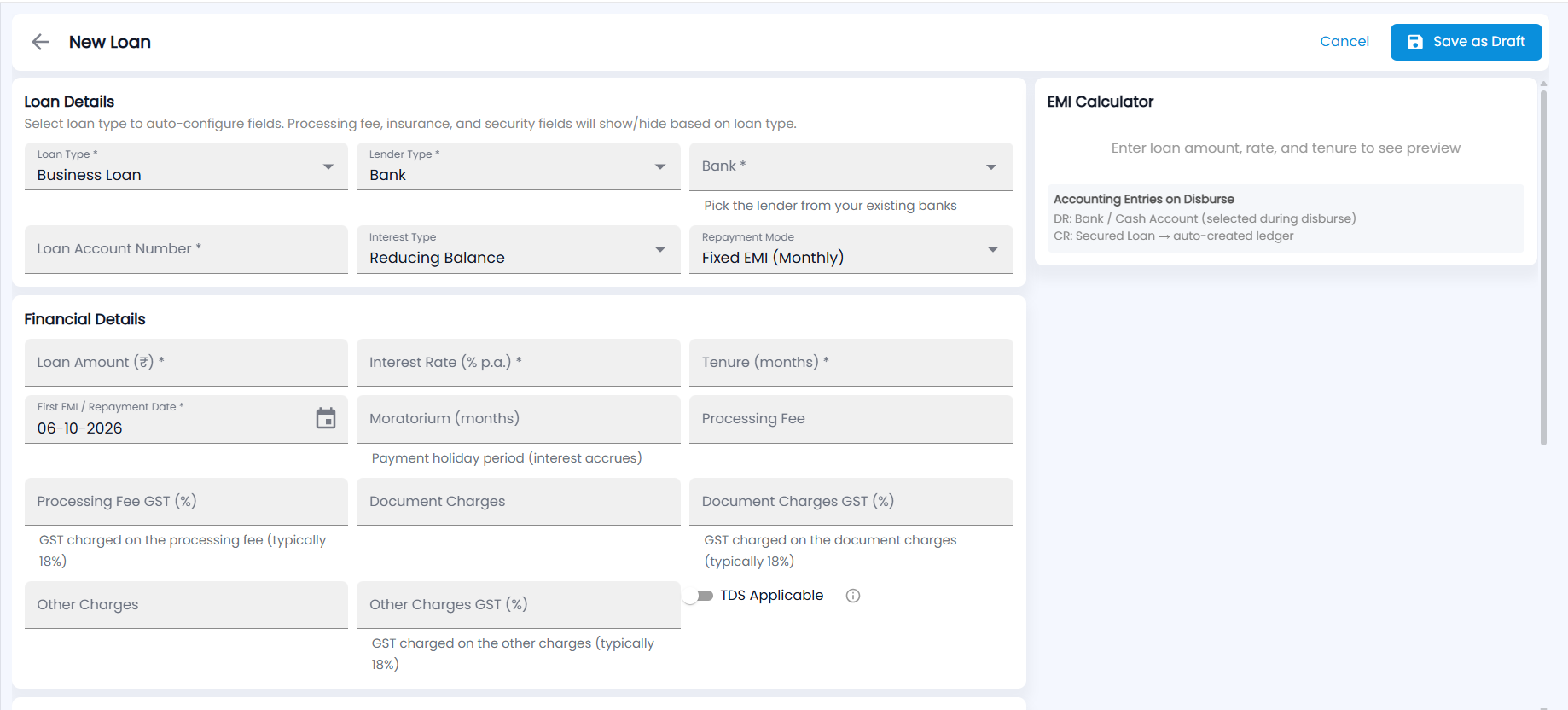
- Click New Loan.
- Under Loan Details — Select loan type to auto-configure fields; the processing fee, insurance and security fields show or hide with it — choose the Loan Type (Business Loan by default) and Lender Type (Bank by default; also NBFC, Individual (Director/Partner) or Group Company), the lender — for a bank, pick it under Bank from your existing banks — the Loan Account Number, the Interest Type (Reducing Balance, Fixed Rate or Floating Rate) and the Repayment Mode (Fixed EMI (Monthly), Lump Sum at Maturity, or Interest Only (Principal at End)).
- Under Financial Details, enter the Loan Amount (₹), Interest Rate (% p.a.), Tenure (months) and First EMI / Repayment Date (all required; the date starts as today), and any Moratorium (months) — a payment holiday during which interest still accrues. Depending on the loan type you can also enter the processing fee, document charges, other charges and insurance premium, each with its GST %, and tick TDS Applicable with a rate.
- For vehicle and equipment loans, fill in Asset Details — asset amount, GST, down payment, the vendor or dealer and the asset’s name and details.
- Add sanction details, security or collateral, guarantor details, notes and agreement details where they apply, and choose EMI Reminder channels (Email, SMS, WhatsApp).
- Check the EMI Calculator on the right — once you have entered the amount, rate and tenure it previews the EMI per month, total interest, total payable and upfront charges with GST — and click Save as Draft at the top right (or Cancel).
The panel Accounting Entries on Disburse shows what will be posted: the bank or cash account is debited and a Secured Loan, Unsecured Loan, Loans From Individual or Inter-Company Borrowings ledger is credited (created automatically). Interest goes to Interest on Loan, and charges go to their own ledgers with GST as input credit.
How do I disburse a loan and pay EMIs?
- Click the loan to open it, then click Disburse. Choose the Payment Account the money is credited to, a reference (UTR/Cheque #) and the payment date. Select a specific location in the header first.
- The loan becomes Active. The EMI Schedule tab lists each instalment with its due date, principal, interest, outstanding, status and paid date.
- Click Pay on a pending or overdue EMI, choose the payment account and method, and confirm. If TDS applies, the TDS is deducted from the interest and the net payable is shown.
The loan page also shows Loan Amount, Outstanding, Principal Paid, Interest Paid and a repayment progress bar, a Transaction History tab, and a Documents tab where you upload the sanction letter, loan agreement, NOC letter and other papers.
How do I prepay or foreclose a loan?
- Prepay — enter the Prepayment Amount (₹) and the payment account. The EMI schedule is recalculated afterwards.
- Foreclose — the outstanding plus accrued interest is settled and all pending EMIs are waived. Enter any Foreclosure Charges (₹) the bank levies.
Loan payments appear in Cash In Hand against the account you paid from, and the related dues appear in the calendar.