
Where do I set up company details, departments and locations in Tazk Payroll?
Open Settings → Company Info. General holds the company name, contact, GST, TAN, PAN, logo, bank account and address, which appear on payslips, reports and statutory screens. Departments, Locations and Departments Head set up the organisation. LOV holds the lists used in dropdowns: departments, employee categories, claim types, designations and leave types. Front Desk creates shared front-desk logins for a location.
What tabs does Company Info have?
General · Departments · Locations · Departments Head · LOV · Front Desk.
What is on the General tab?
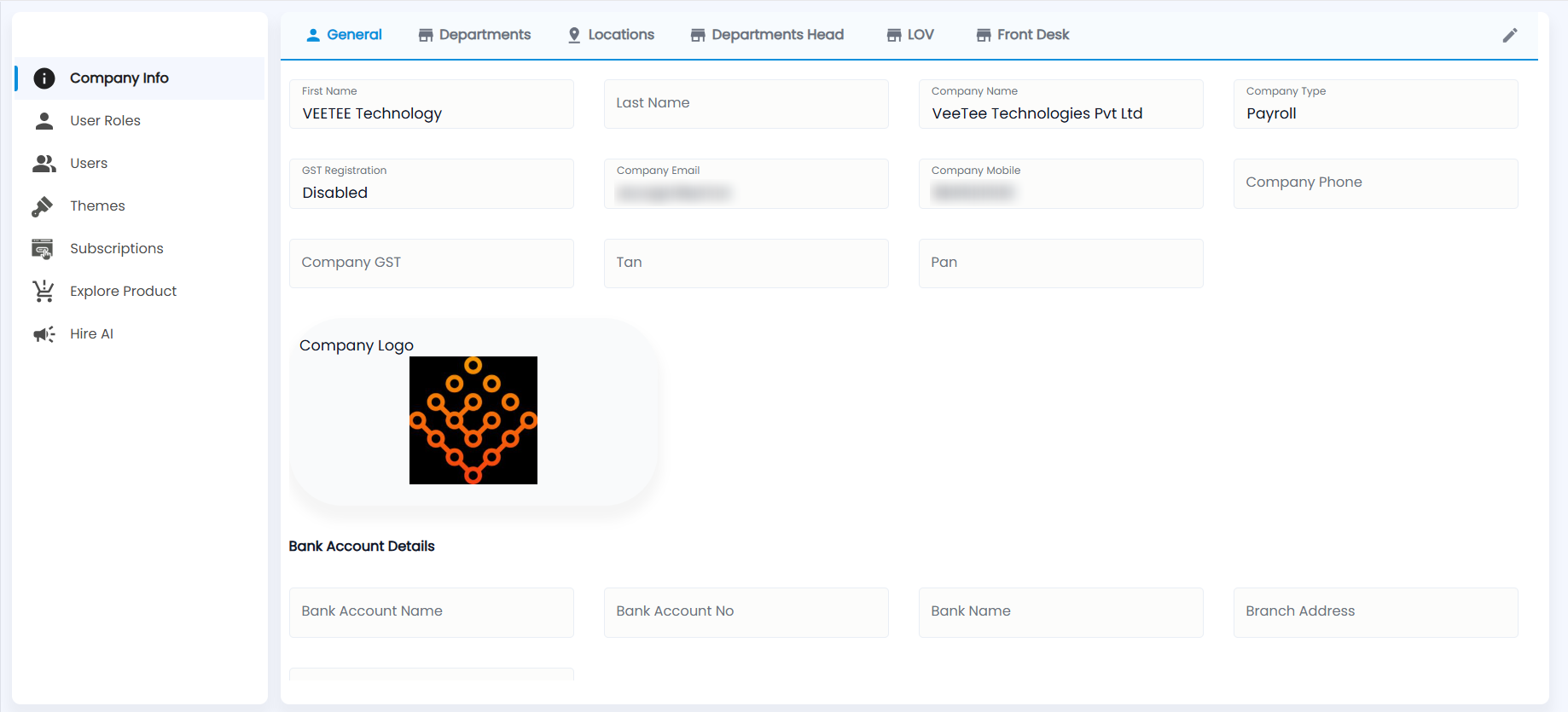
The fields are read-only. Click the pencil at the top right to edit them, then save.
- Company — First Name, Last Name, Company Name and Company Type (for example Payroll).
- Registration and contact — GST Registration (Enabled or Disabled), Company Email, Company Mobile, Company Phone, Company GST, TAN and PAN.
- Company Logo — shown across the app and on payslips and letters.
- Bank Account Details — Bank Account Name, Bank Account No, Bank Name, Branch Address and IFSC Code.
- Further down: the primary address (address, area, latitude, longitude, pincode, city, state, country) and the super admin user name.
How do I add a department?
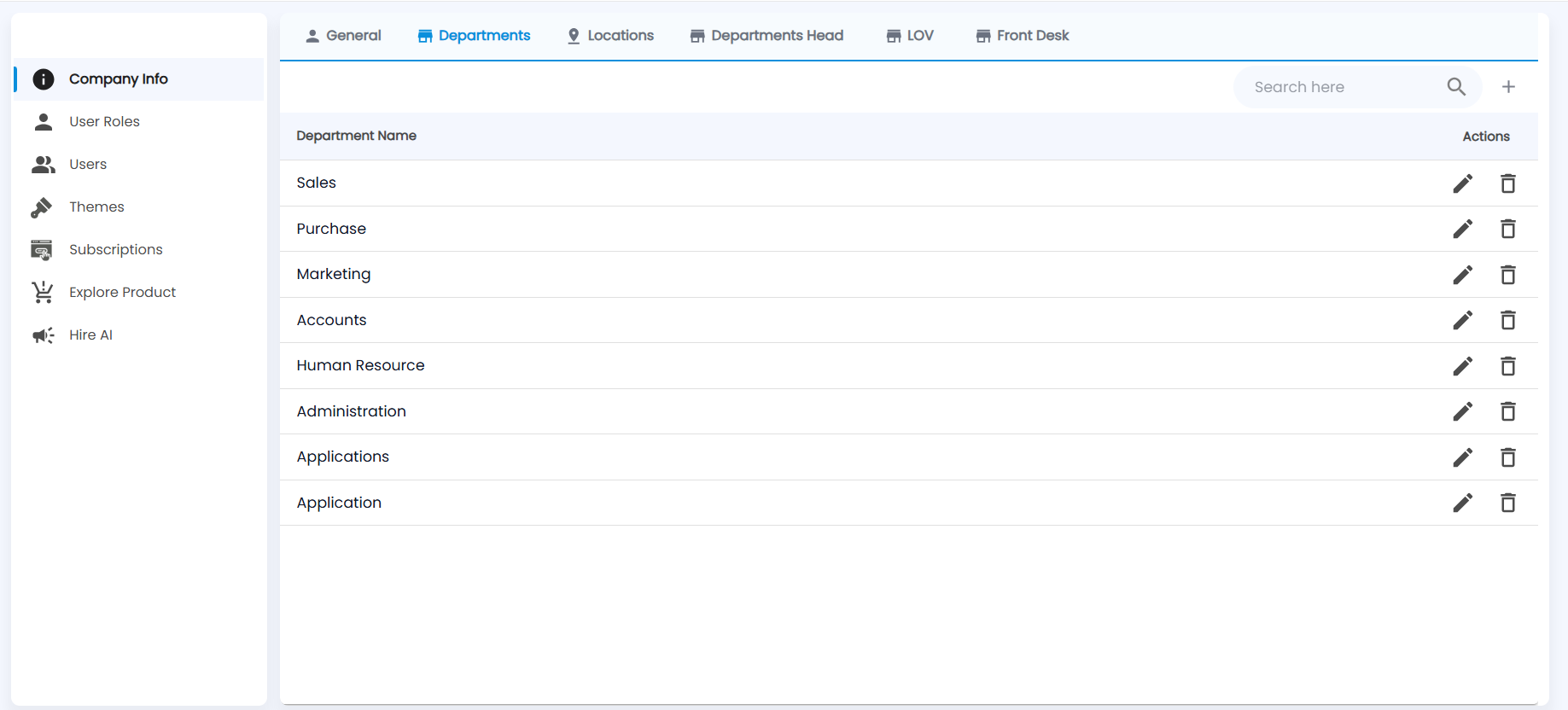
The list shows every department, with the pencil to rename and the bin to delete. Search to find one.
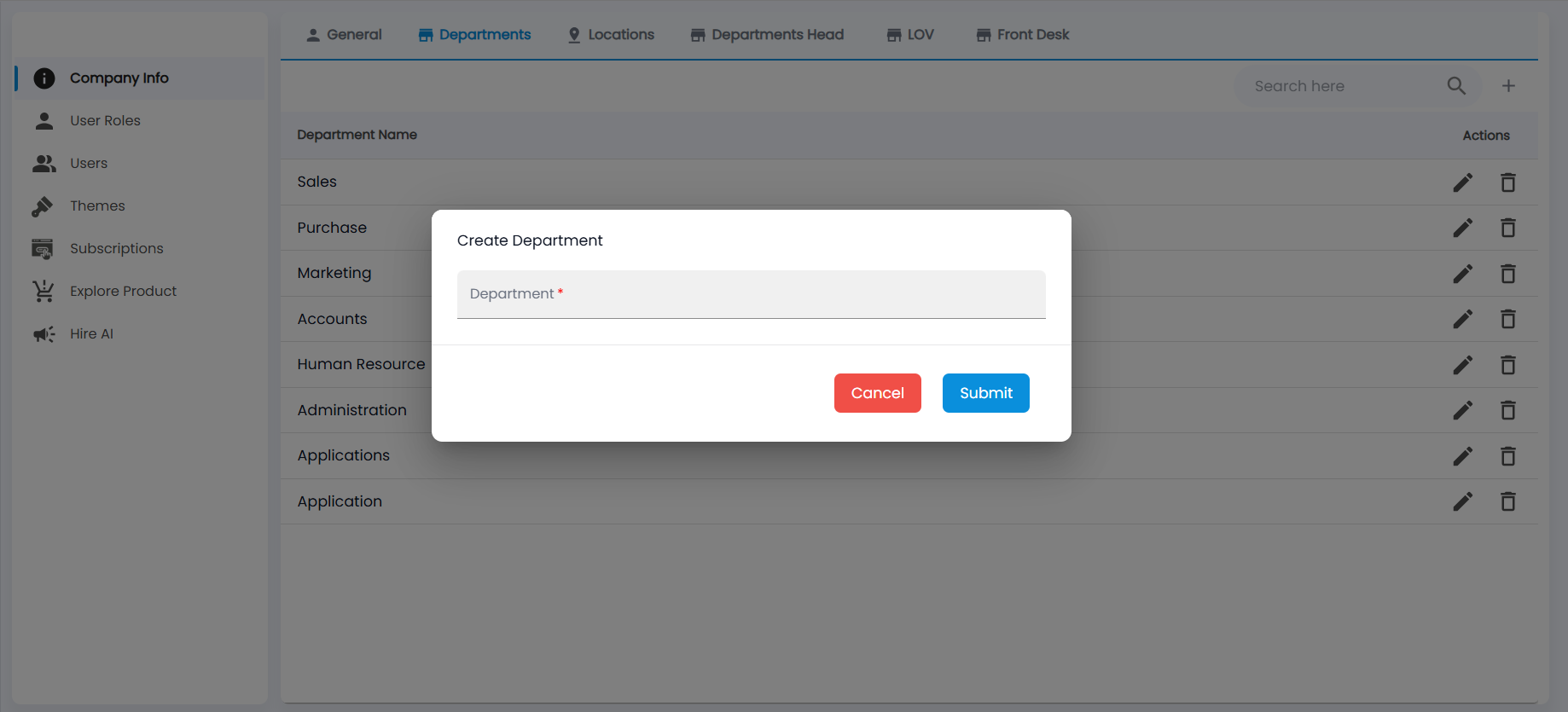
- Click +.
- Enter the Department name and click Submit.
Departments appear in employee forms, Approval Configuration, reports and filters across the app.
How do I add a location?
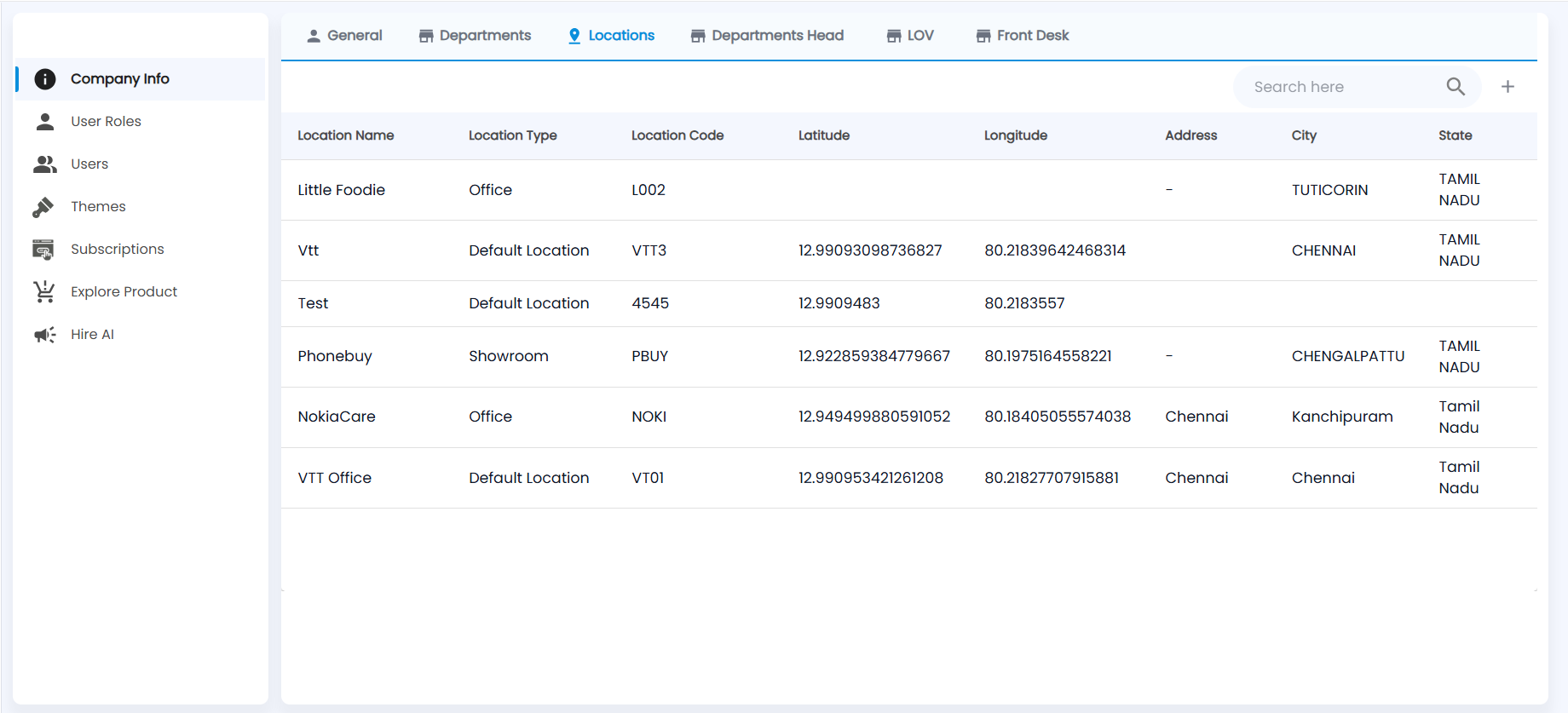
Each location shows its name, type (for example Office, Showroom or Default Location), code, latitude and longitude, address, city and state.
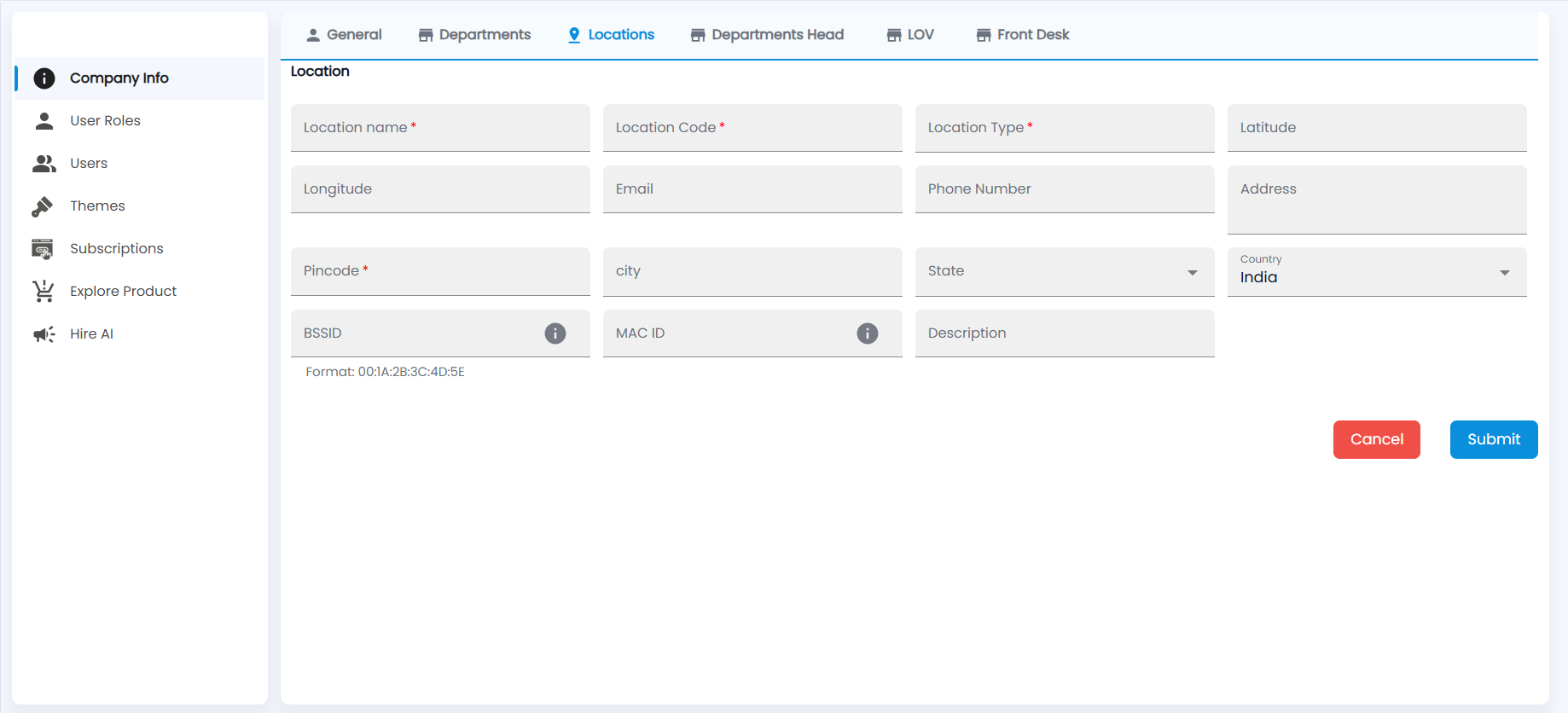
- Click +.
- Enter the Location name, Location Code and Location Type (all required).
- Enter the Latitude and Longitude. GPS attendance checks punches against this point.
- Add the Email, Phone Number and Address, the Pincode (required), City and State. Country is India by default.
- For WiFi attendance, enter the office network's BSSID and the MAC ID in the format 00:1A:2B:3C:4D:5E. The info icons explain each one.
- Add a Description if needed and click Submit.
Locations are used for employees, SMS and mail settings, attendance devices and GPS and WiFi attendance (see General Configuration).
How do I set a department head?
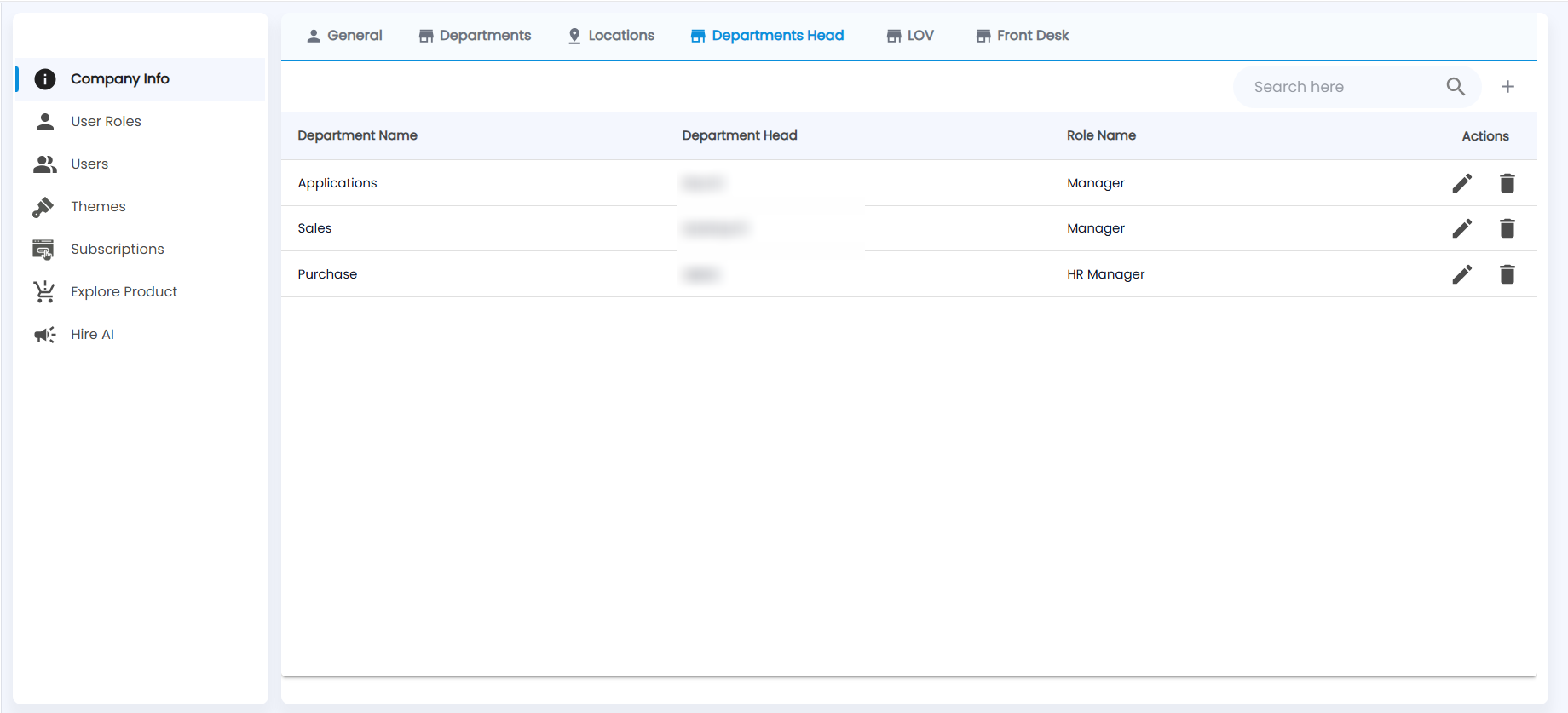
Each row shows a department, its head and the head's role.
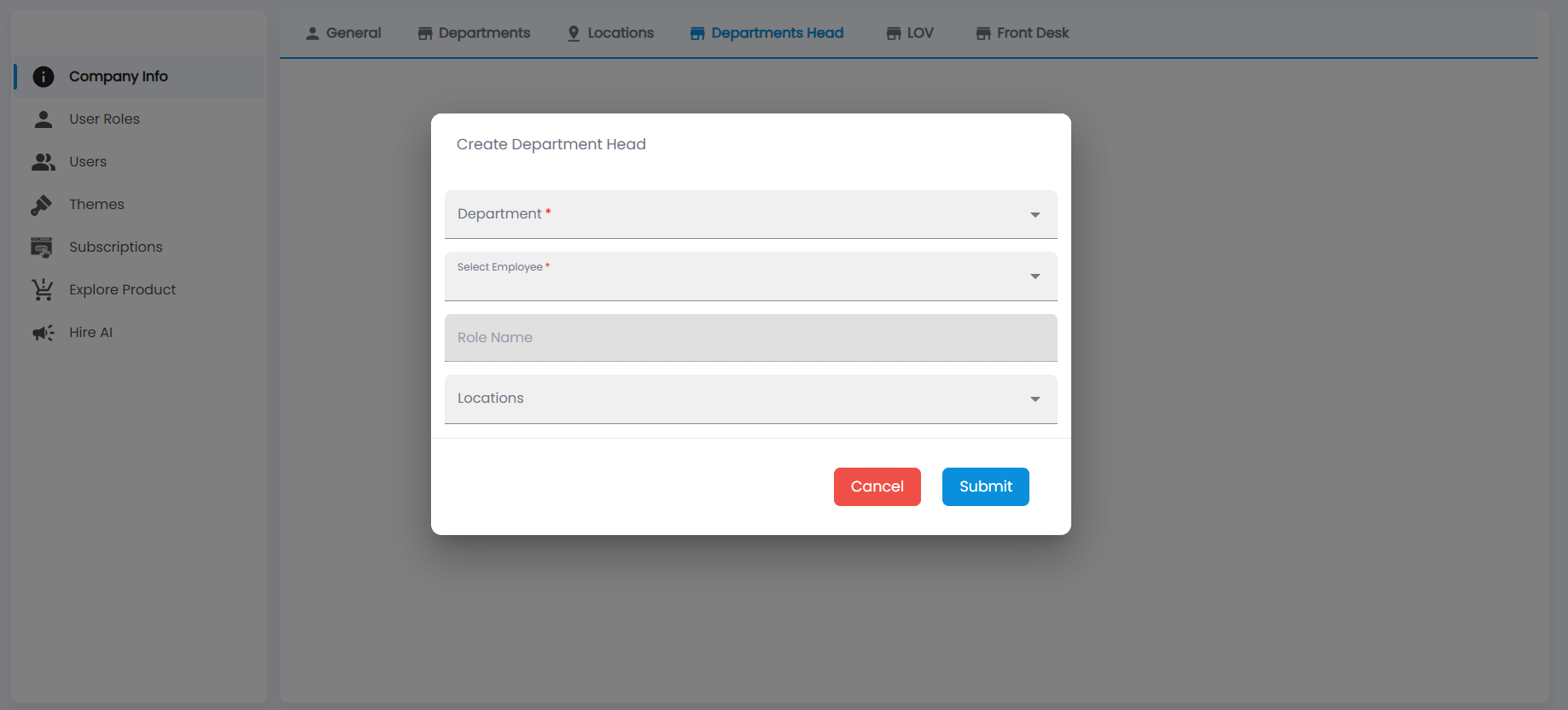
- Click +.
- Choose the Department and the employee under Select Employee. Role Name fills in from the employee's user role.
- Choose the Locations the head covers and click Submit.
Department heads can, for example, raise training requests for their department in Training & LMS.
What is the LOV tab?
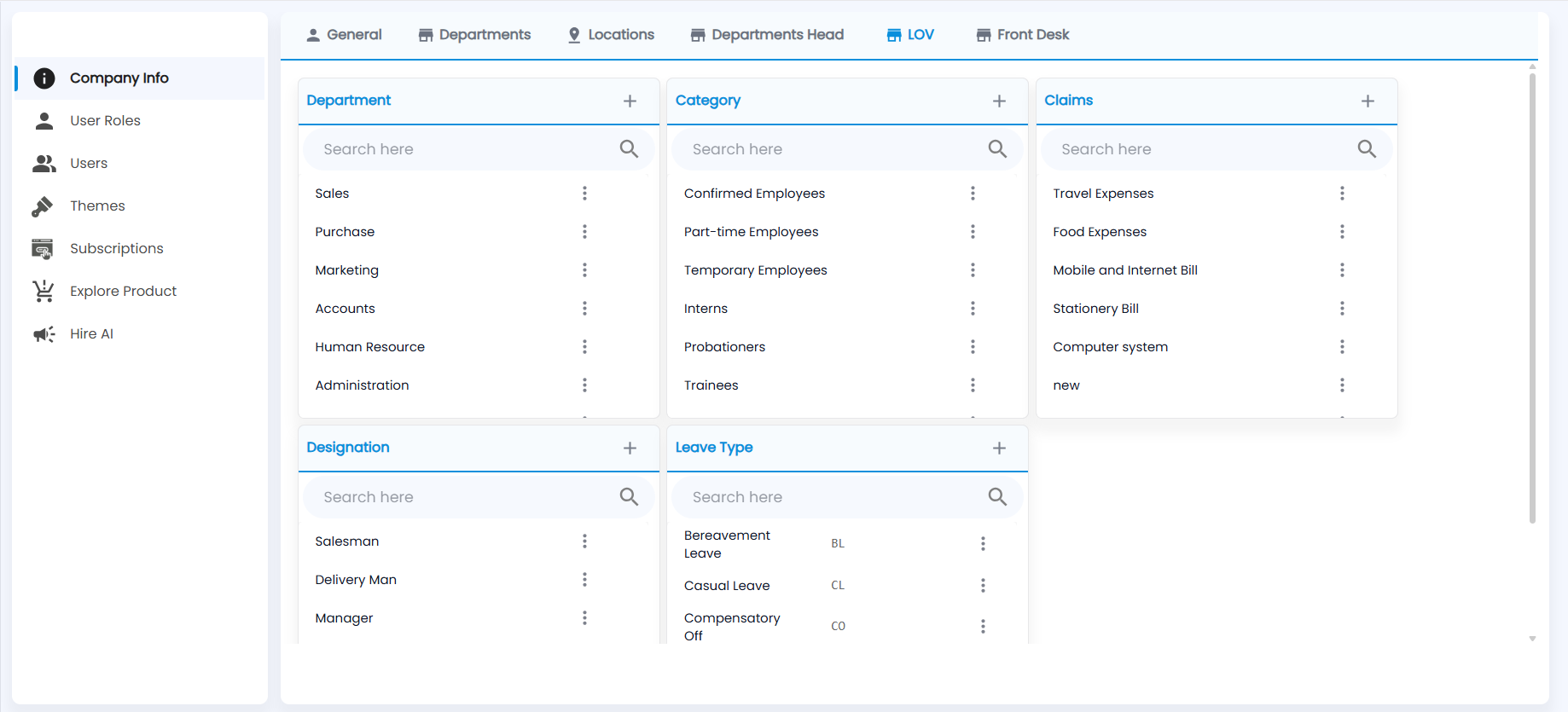
LOV (list of values) holds the master lists used in dropdowns across the app. Each list has a search, + to add a value and ⋮ to edit or delete one.
| List | Used for |
|---|---|
| Department | The same departments as the Departments tab |
| Category | Employee categories, for example Confirmed Employees, Part-time Employees, Temporary Employees, Interns, Probationers and Trainees. Each category gets its own policies in Policy Management. |
| Claims | Claim types, for example Travel Expenses, Food Expenses, Mobile and Internet Bill and Stationery Bill, used in Claims |
| Designation | Job titles, for example Salesman, Delivery Man and Manager |
| Leave Type | Leave types with their codes, for example Bereavement Leave (BL), Casual Leave (CL) and Compensatory Off (CO), added to leave policies |
What is Front Desk?
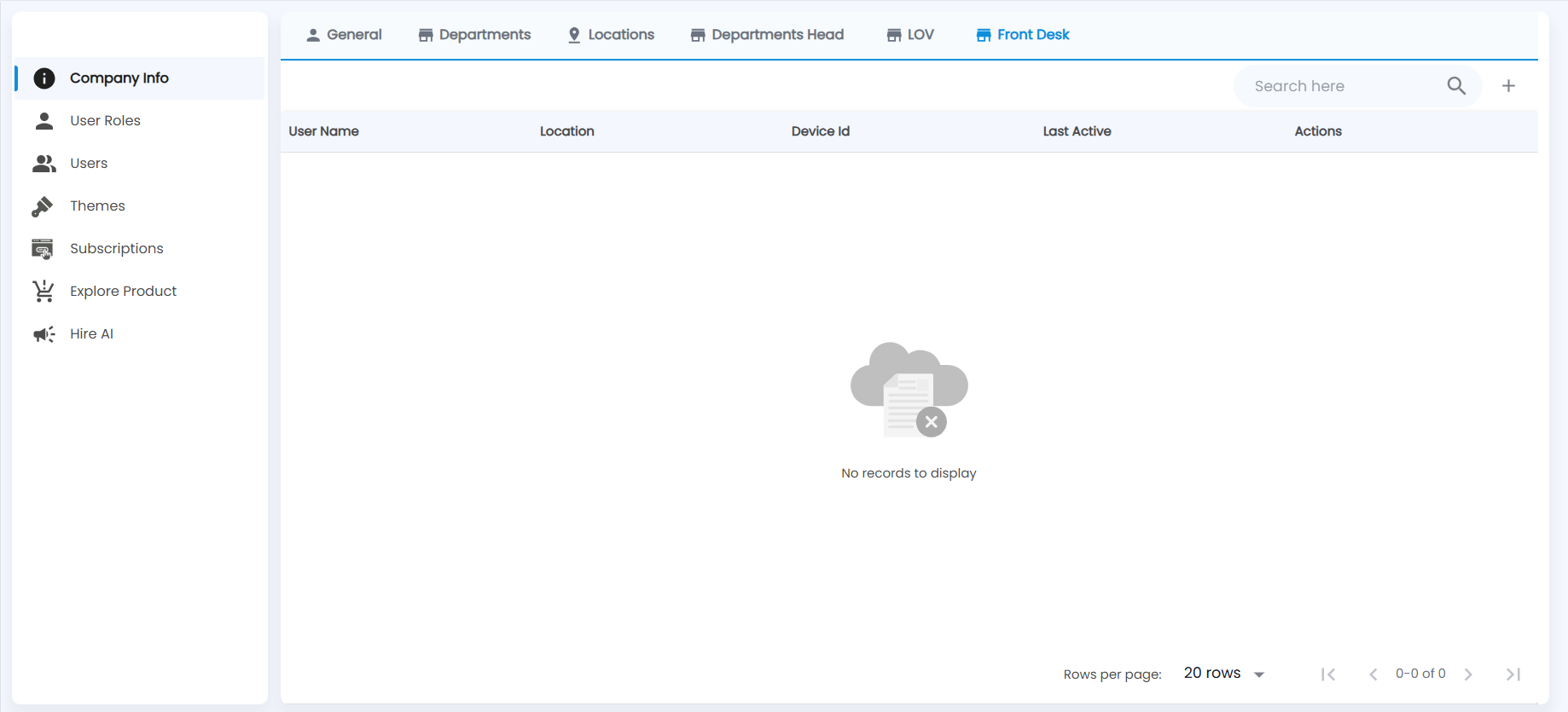
A front desk login is a shared login for a reception or entrance device at a location. The list shows each login's User Name, Location, the registered Device Id, when it was Last Active and the actions (deregister, edit, change password, forgot password).
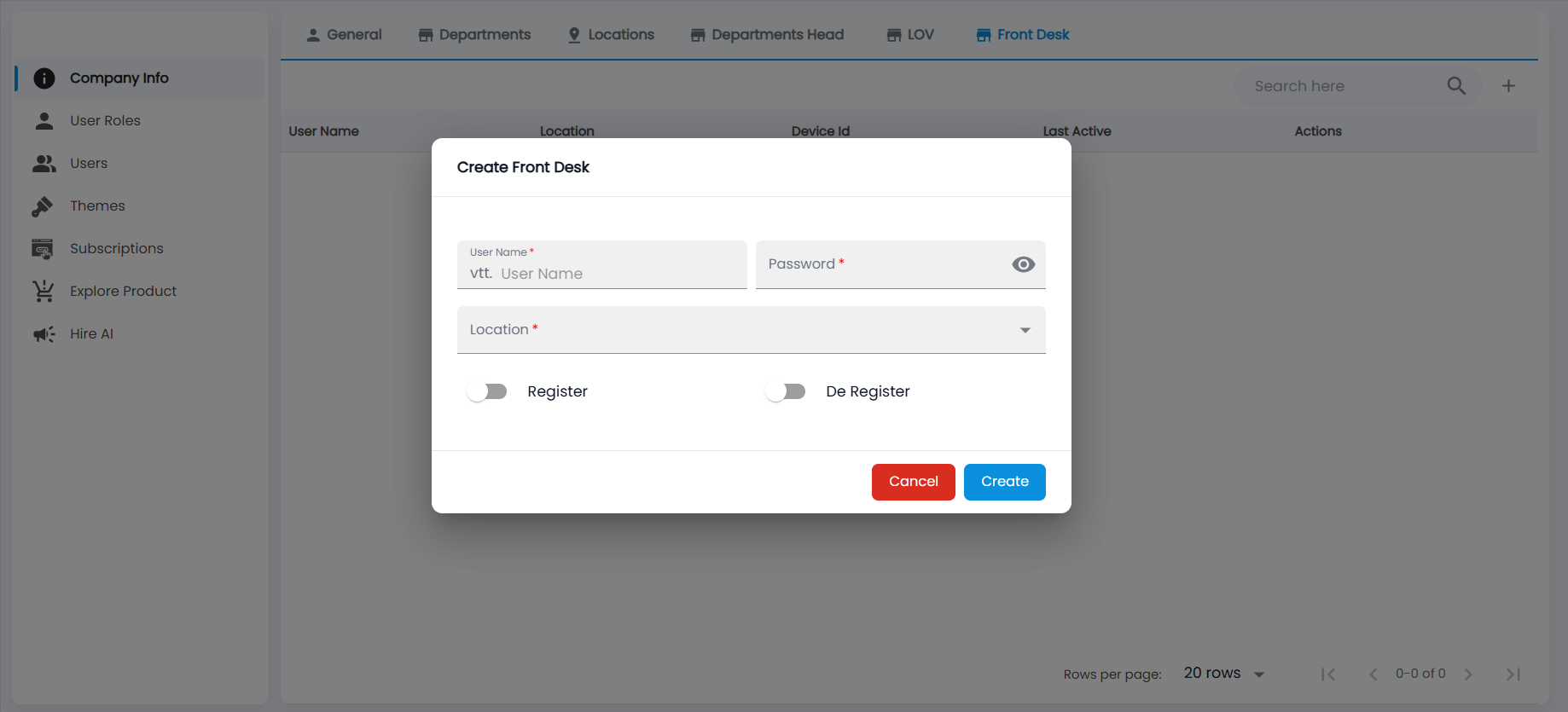
- Click +.
- Enter the User Name, which starts with your company prefix (for example vtt.), and a Password.
- Choose the Location.
- Use the Register and De Register switches to allow the login to register a device or to release its current device.
- Click Create.