
Where do I manage user logins in Tazk Payroll?
Open Settings → Users. It lists every user with emp code, name, user name, role, category, location and registered device. Search for a user, open one to change their role, location or attendance options, or click + to add a user. New employees are usually added from Contacts → New Employee, which creates the login at the same time.
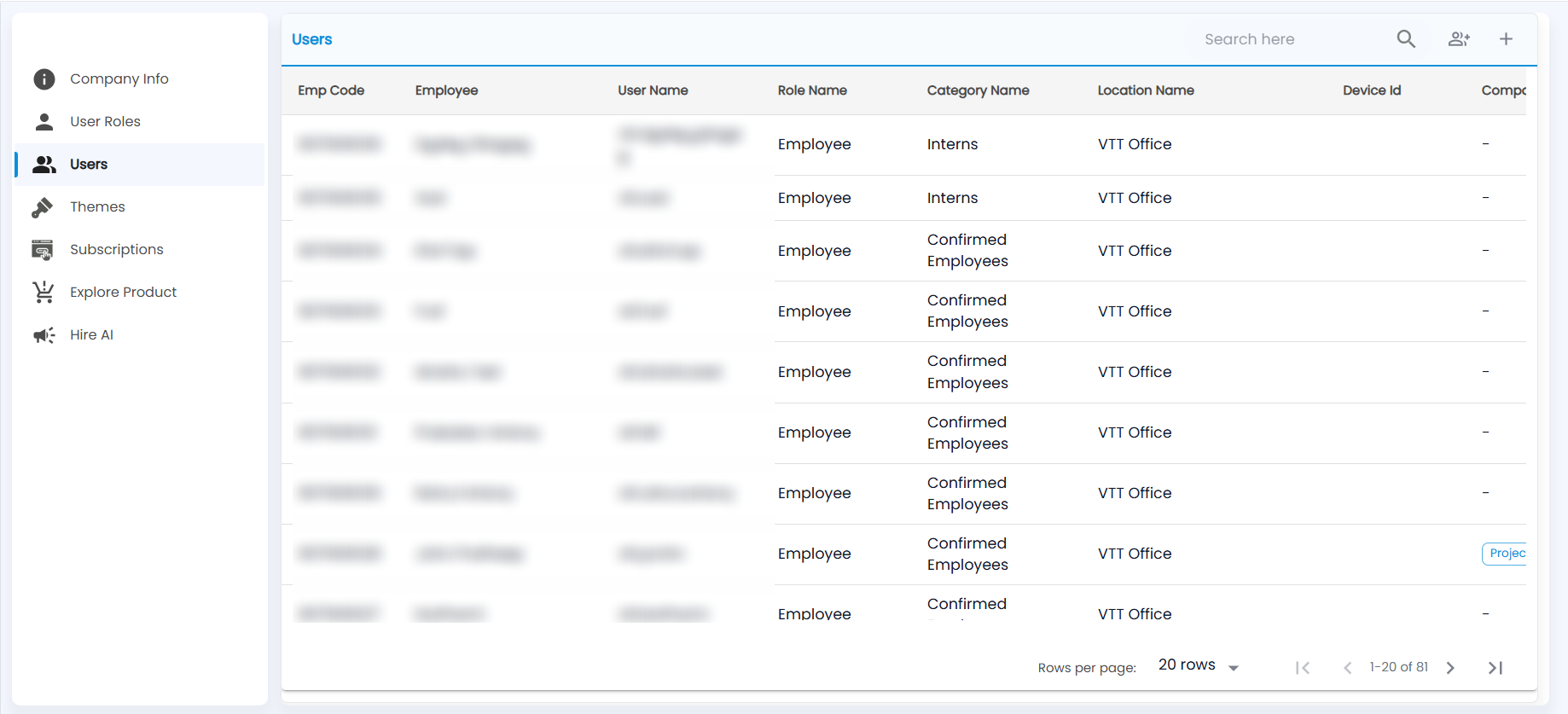
What does the Users list show?
- Emp Code, Employee and User Name. The user name starts with your company prefix, for example vtt.firstname.
- Role Name (see User Roles & Permissions), Category Name and Location Name.
- Device Id — the phone the user has registered for attendance, if any.
- Scroll right for more columns, such as the other Tazk products the user can open (for example Projects), and the actions to edit the user or deregister their device.
Search by name or user name, and change Rows per page to see more users.
What is in the New User form?
Click +. The form has four tabs; use Prev and Next to move between them and Submit to save.
- Personal Info — first and last name, gender, phone, office phone, date of birth, email and address.
- Application Info — User Role, User Name, Password, Location and Primary Location, and switches for Restrict Location for Attendance, Enable Live Location, Work From Home, Selfie Attendance, Face Attendance, App Access, Manual Attendance, Attendance Via App and Device Attendance.
- Payroll Info — employee code, department, reporting manager, designation, employee category, date of joining, relieving date and salary template.
- Payment Details — mode of payment.
The role decides what the user can see. The category and location decide which policies, shifts and approvals apply.
Note: For a new employee, Creating a New Employee in Contacts covers the same details with more fields and is the usual way in.