
What does the What-If calculator do in Tazk POS?
Sales Target → What-If lets you test an incentive plan before you rely on it. Choose a base plan, enter a target value and drag the achievement slider from 0% to 200%. Tazk shows the projected incentive using the same engine as real payouts, highlights the slab that applies and tells you whether the gate condition is met. Nothing is saved.
How do I use the What-If calculator?
- Open Sales Target → What-If. The page is titled What-If Incentive Calculator.
- Under Simulate Your Achievement, choose the Incentive Plan when you have base plans. Only Base Incentive plans are listed.
- Enter the Target Value (₹). It starts at 100000.
- Drag the slider between 0% and 200%. It starts at 85%; the line above it shows the % and the matching achieved amount, for example Achievement: 85% (₹85,000).
What does the result show?
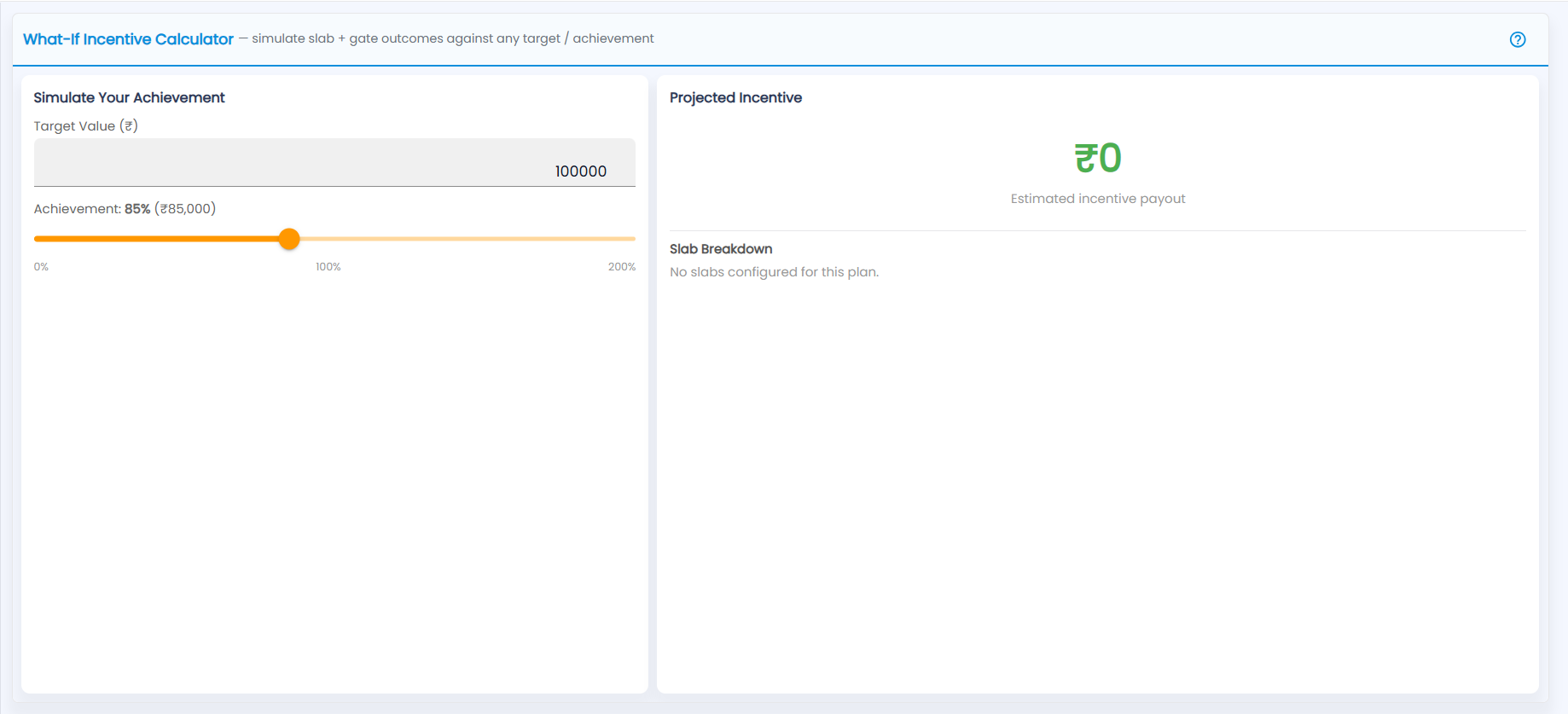
| Part | What it shows |
|---|---|
| Projected Incentive | The estimated payout in ₹ — green when the gate passes, red with the reason when it does not. When an add-on applies it is split as Base + Add-on. |
| Slab Breakdown | Every slab of the plan with its range and payout (₹ amount, % of a value, or ₹ per unit); the one that applies is highlighted. With no plan set up it says No slabs configured for this plan. and the payout stays ₹0 |
| Gate Condition | When the plan has a minimum achievement %, whether it is PASSED or NOT MET |
Tip: Move the slider across slab edges (for example 99% and 100%) to check the jump between slabs is what you intended. If it is not, change the slabs on Incentive Plans.
Note: What-If is a planning tool for administrators and managers. Real payouts are computed on Incentive from actual achievement.