
How do I approve and pay salesman incentives in Tazk POS?
Open Sales Target → Incentive, pick the period and click Compute. Each salesman's base and add-on incentive appears with their gate result. Approve each row (or click Approve Period for the manager stage of the whole period): it moves from Computed to Mgr Approved and then HR Approved. Then click Mark as paid and enter an optional payout reference. A paid incentive cannot be changed.
What does the Incentive page show?
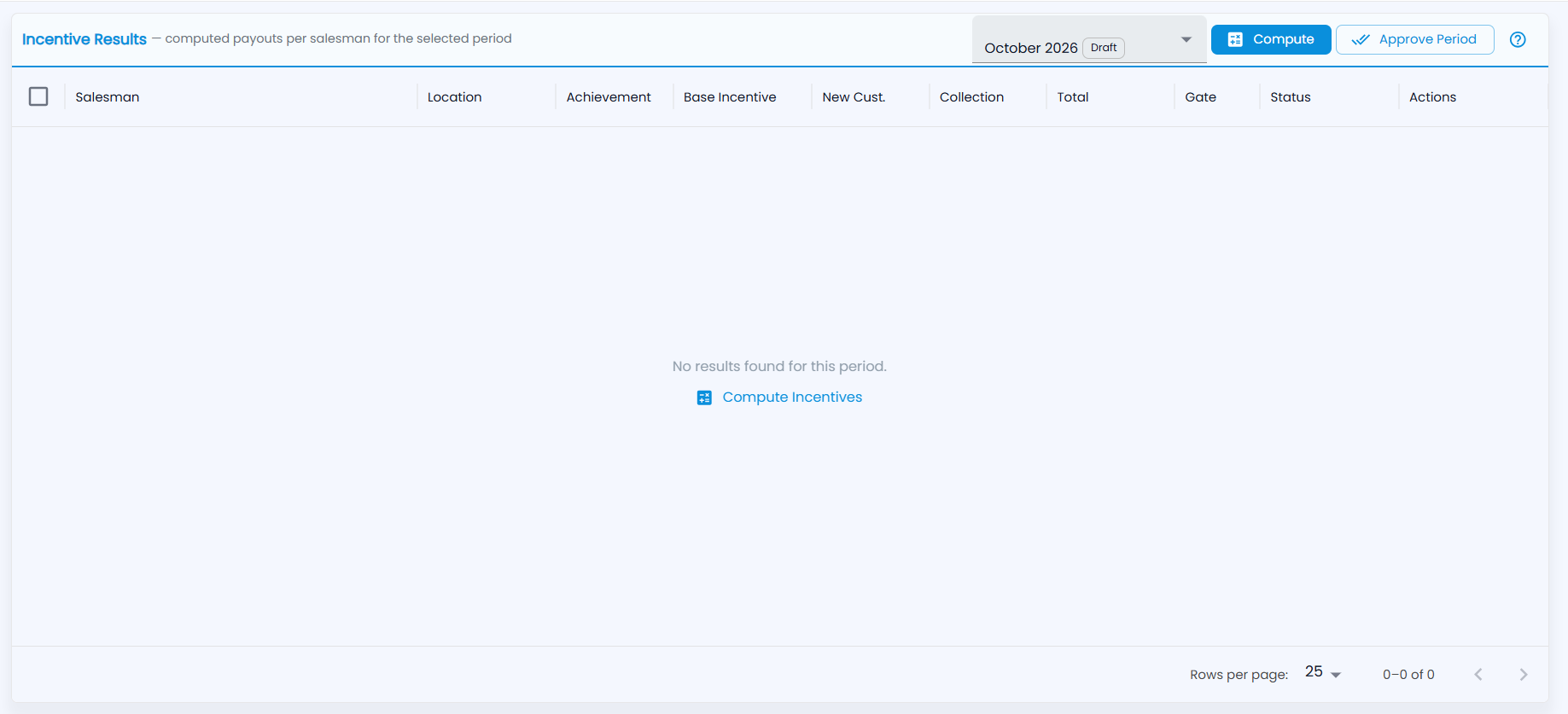
Open Sales Target → Incentive. Admins and managers see Incentive Results ("computed payouts per salesman for the selected period"); a salesman sees My Incentive with only their own row. Pick the period at the top right, next to Compute and Approve Period. Once results exist, cards show Total Liability (the total of all incentives) and Total Results. Tick the boxes on the left to select rows.
| Column | What it shows |
|---|---|
| Salesman / Location | Who and which branch |
| Achievement | Their achievement % for the period |
| Base Incentive / New Cust. / Collection | The base payout and the main add-ons |
| Total | Everything they have earned |
| Gate | Pass or Fail — whether they met the plan's minimum conditions |
| Status | Where the incentive is in approval (below) |
| Actions | Approve, Reject, Mark as paid, View Details |
How do I compute incentives?
Click Compute (or Compute Incentives in the empty list, which says No results found for this period.). Tazk takes each salesman's achievement from Achievement, finds the matching slab in each active plan on Incentive Plans, checks the gates and fills the table. You can compute again until a result is paid.
How do I see how an incentive was worked out?
Click View Details on a row. It shows the slab matched (or "No slab matched"), the base incentive, the gate result, the achievement and the reason, plus cards for Base, New Customer, Focus Product, Collection and Quality.
How do approval and payment work?
| Status | Meaning |
|---|---|
| Computed | Just calculated |
| Submitted | Sent for approval |
| Mgr Approved | Approved by the manager |
| HR Approved | Approved by HR or the admin — ready to pay |
| Rejected | Rejected with a reason |
| Paid | Paid out — final |
- Click Approve on a row. A computed result is submitted and approved in one step. Or click Approve Period to do the manager stage for the whole period.
- HR or the admin clicks Approve again to make it HR Approved.
- Click Mark as paid, enter a Payout reference (optional) such as the UTR or voucher number, and confirm.
To turn one down, click Reject and enter the Rejection Reason.