
How do I see target achievement in Tazk POS?
Open Sales Target → Achievement and pick the period. The Salesman tab shows total target, achieved, achievement %, total collection and new customers, a trend chart, the top 10 salesmen and a table of every salesman with gap, achievement %, collection % and run rate. Expand a salesman to see their customers. The Company tab shows branch commitments and the Vendor tab the vendor scorecard.
How is achievement calculated?
As you bill and collect during the period, Tazk adds the sales and receipts to each salesman's and branch's achievement automatically. Press Recompute (below the period picker) any time to refresh the numbers. If a period shows "No achievement data", click Recompute to generate it.
What is on the Salesman tab?
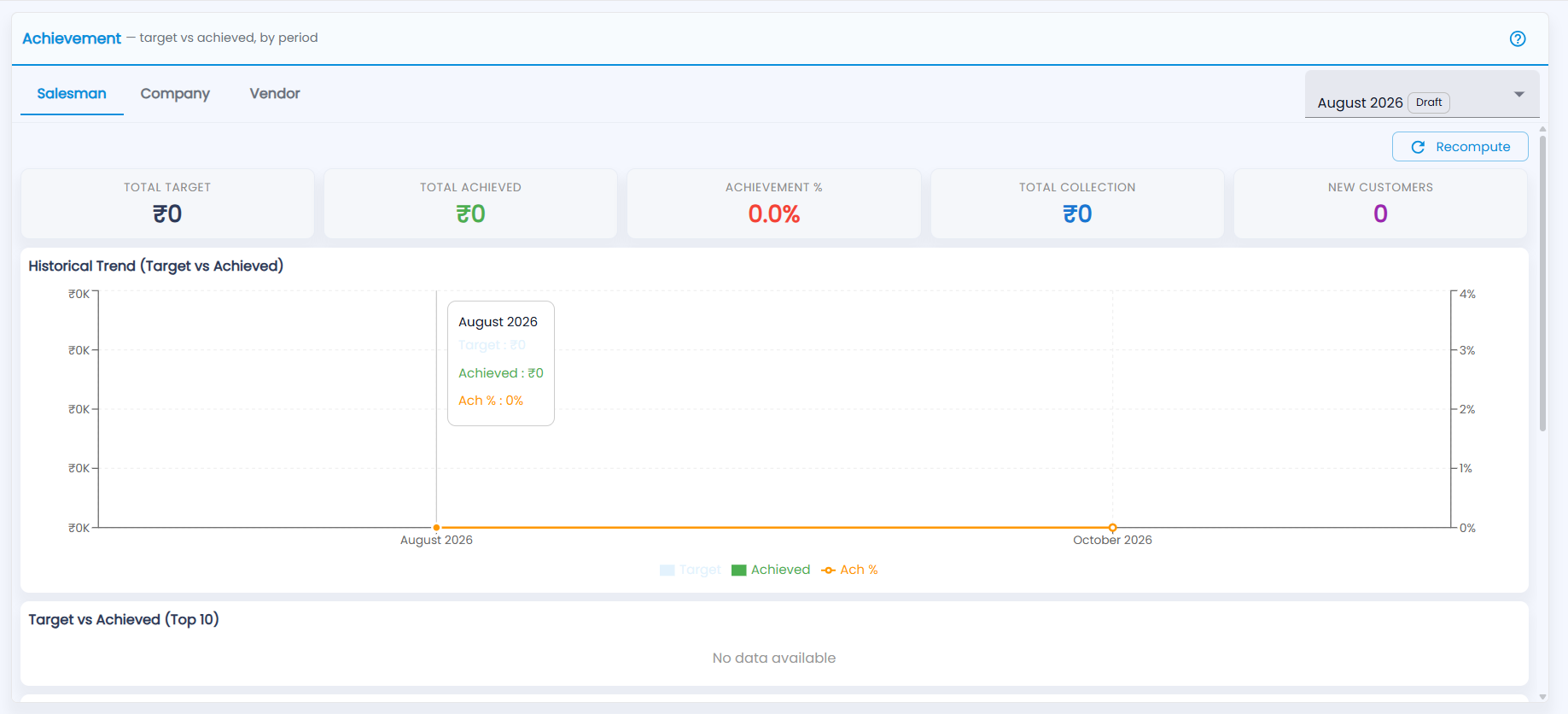
Open Sales Target → Achievement ("target vs achieved, by period") and pick the period at the top right. The cards show Total Target, Total Achieved, Achievement %, Total Collection and New Customers. Below are Historical Trend (Target vs Achieved) and Target vs Achieved (Top 10), then the All Salesmen table. Hover over a month on the trend chart to see its Target, Achieved and Ach. %; the top 10 chart says No data available until there is achievement.
| Column | What it shows |
|---|---|
| Salesman / Location | The salesman and their branch; the arrow expands their customers |
| Target / Achieved | Sales target and sales so far, in ₹ |
| Gap | Target minus achieved |
| Ach. % | Achieved ÷ target |
| Coll. % | Collection achieved ÷ collection target |
| Run Rate | Where they will finish the month at their current daily pace (achieved ÷ days passed × days in the month) |
Click the arrow next to a salesman to open Customer Breakdown with each customer's Target, Achieved and Ach. %.
What is on the Company and Vendor tabs?
- Company — each branch commitment with Branch / Level, Target Value, Achieved Value and Achievement %. Set these on Company Targets.
- Vendor — each vendor's Primary — sell-in, Secondary — sell-out and Tertiary — sell-through figures (achieved / target, %, earned) and the Earned total. Expand a vendor to see each salesman's sell-out and share %.